
The student profile
A student’s profile brings together everything about them. Open it by pressing the student’s name in the list on Teaching → Students.
Anyone who can see the Students page can open the profiles of the students they see. The buttons that change something work for owners, admins and anyone whose role has Manage access to Students.
At the top
Section titled “At the top”The student’s name and status, Back to List, and Edit - see Editing and deleting a student.
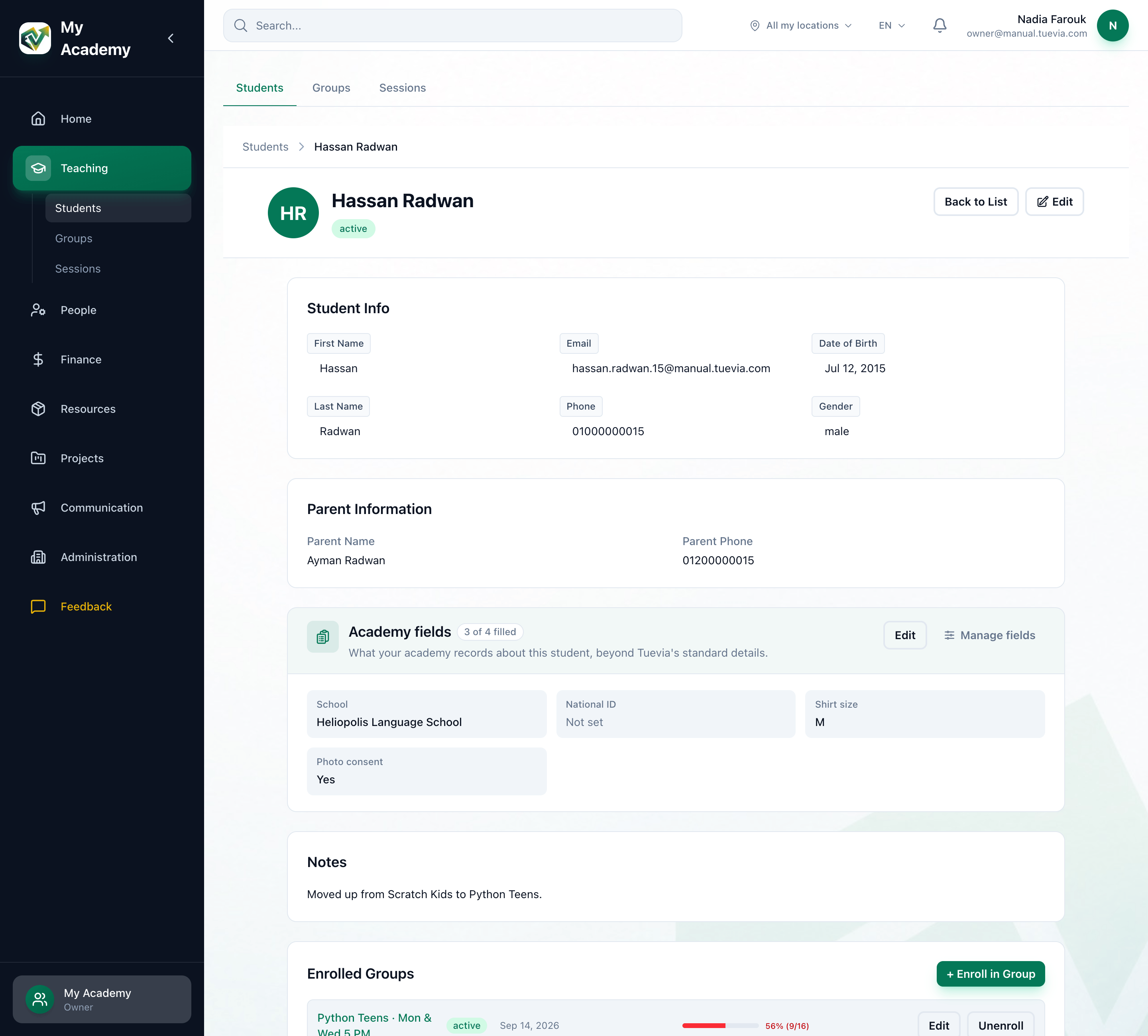
- Student Info
- Student Info: their name, their Name in Arabic, email address and phone number, and the Parent Name and Parent Phone. If they took your placement test, Placement test shows their score and the level it placed them at, one line for each course’s test they took.
Notes follow, when the student has any.
Groups and attendance
Section titled “Groups and attendance”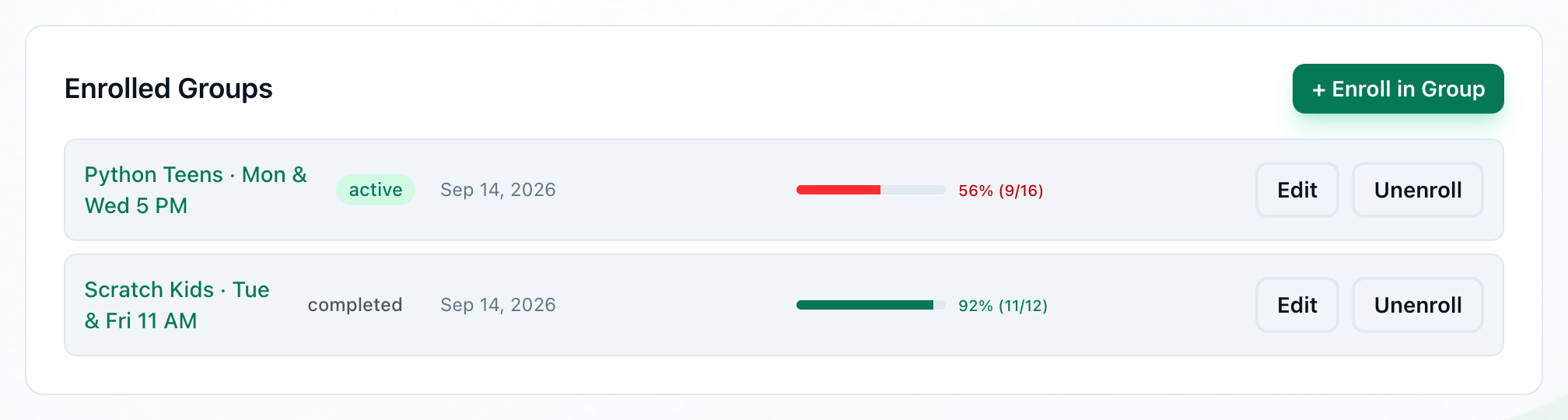
- Enrolled Groups
- Attendance
-
Enrolled Groups lists each group the student is in: its name, which opens the group, the enrolment’s status, the date they joined, their attendance, and Edit and Unenroll - see Enrolling a student in a group.
-
The attendance bar counts the sessions the student attended or came late to, out of all the group’s sessions, as a percentage and as a count. It is green from 80%, yellow from 60% and red below that. A group with no sessions yet says No sessions.
Payments
Section titled “Payments”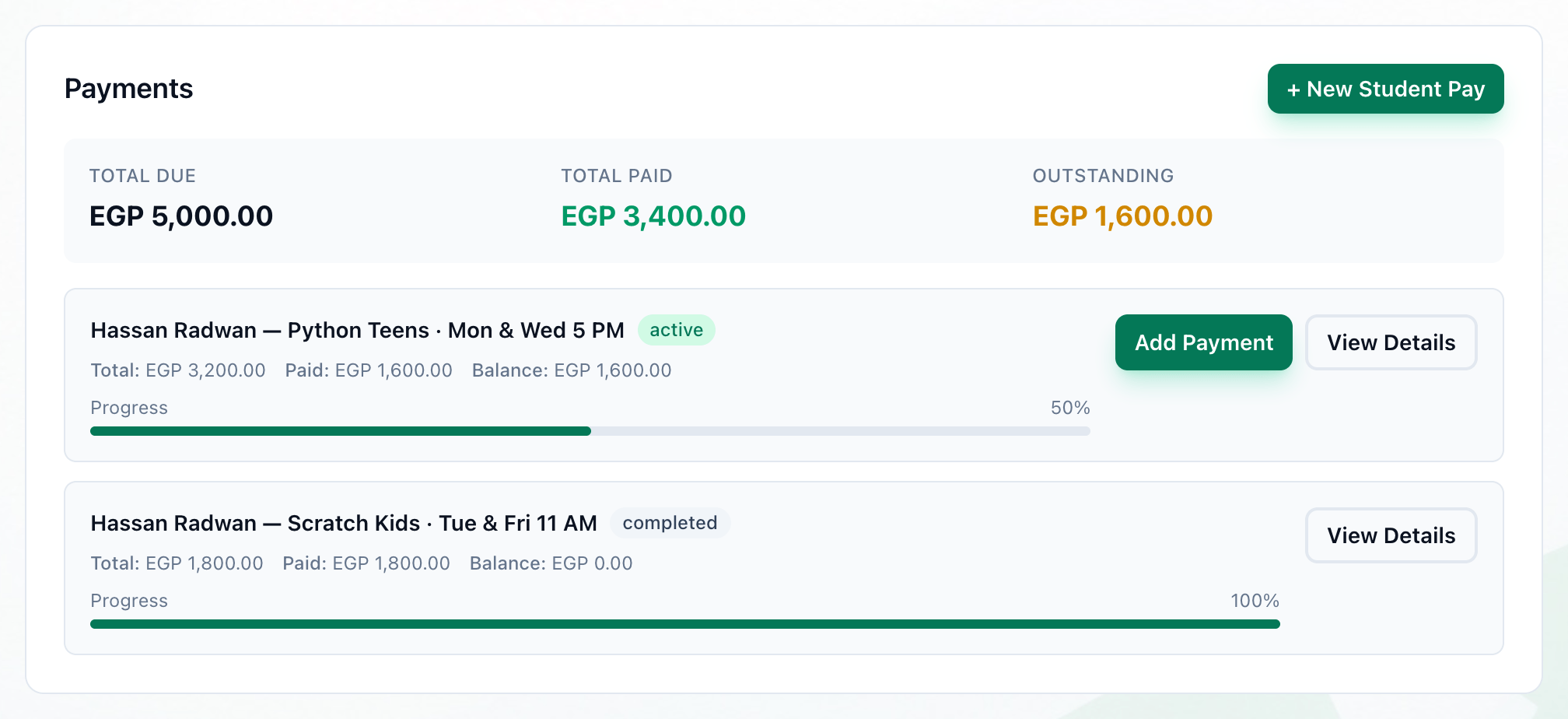
- Totals
- Add Payment
- View Details
Payments shows the student’s fee agreements. Owners see it, and so does anyone whose role can see student fees.
-
Total Due, Total Paid and Outstanding add up all the student’s agreements. Under them, each agreement shows its Total:, Paid: and Balance:, and how much of it is paid.
-
Add Payment records a payment on an active agreement that still has a balance.
-
View Details opens the agreement’s payments.
+ New Student Pay sets up a new fee agreement for the student. Fees and payments are explained in Finance → Fees.
At the bottom
Section titled “At the bottom”Record Information shows when the student was Created and Last Updated. Danger Zone holds Delete Student - see Editing and deleting a student.