
Your profile
Your account settings hold your own details, your notification and privacy choices, your password and security log, and your account itself. Everybody in the academy has them, and only you change them.
Open your account settings
Section titled “Open your account settings”-
Press your name and picture at the top right of any screen.
-
Choose Settings. The Settings page opens.
Getting your academy shows the menu.
Change your details
Section titled “Change your details”Profile is the first section of Settings.
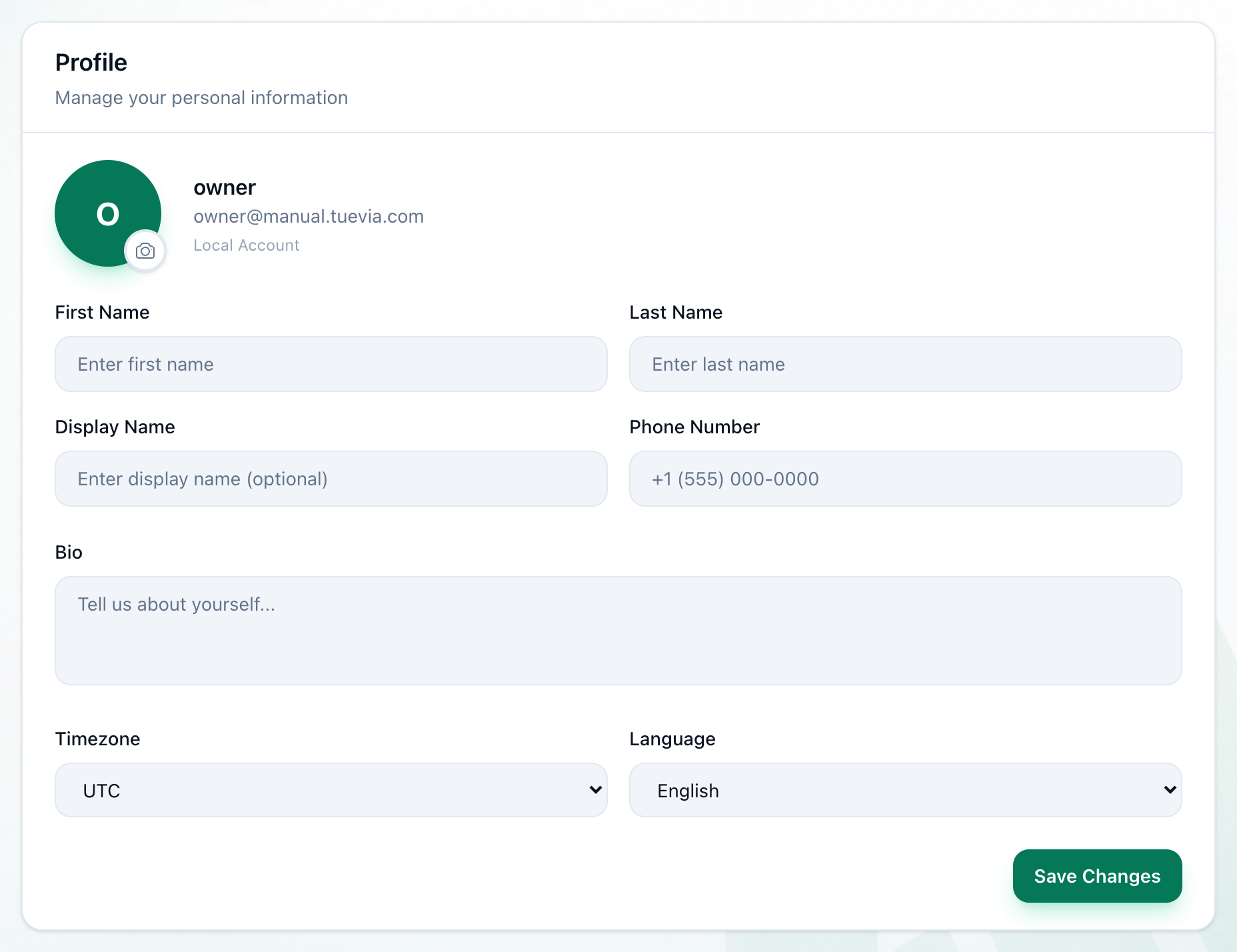
- First Name
- Last Name
- Display Name
- Phone Number
- Bio
- Timezone
- Language
- Save Changes
-
Change your first name in First Name.
-
Change your family name in Last Name.
-
Enter a Display Name if you want one. It is optional. When it is filled in, it is the name shown beside your picture at the top of this section.
-
Enter your Phone Number.
-
Write a few words about yourself in Bio.
-
Choose your Timezone.
-
Choose your Language.
-
Press Save Changes. Profile updated successfully! shows at the top of the section for a few seconds.
Timezone and Language are kept with your profile, but they do not change the app today. Tuevia’s language is the one you choose from the language menu in the header, and the academy’s days follow the academy’s own time zone.
The camera button on your picture does not upload a photo yet.
If something goes wrong
Section titled “If something goes wrong”-
Failed to update profile
Your changes were not saved. They are still in the fields: press Save Changes again. -
Failed to load profile data
Settings could not load your details. Reload the page.
What happens next
Section titled “What happens next”Saving your profile adds Profile information updated to your security log.