
Creating a group
A group is one course taught to a set of students on fixed days of the week, in a room or online. When you create a group, Tuevia also makes all of its sessions.
Owners and anyone whose role can manage Groups can create groups. For anyone else, Create is greyed out.
Before you start
Section titled “Before you start”- The course. Only active courses are offered: see Courses. The number of sessions set on the course is how many sessions the group gets, and its price is where the group’s price starts. With no course yet, you can create one from the form.
- A room, unless the group is online. Only active rooms are offered: see Branches.
- The instructor, if you want to assign one now. See Employees.
- The students, if you want to add them now. They need to be in Students already. You can also add them later.
Create a group
Section titled “Create a group”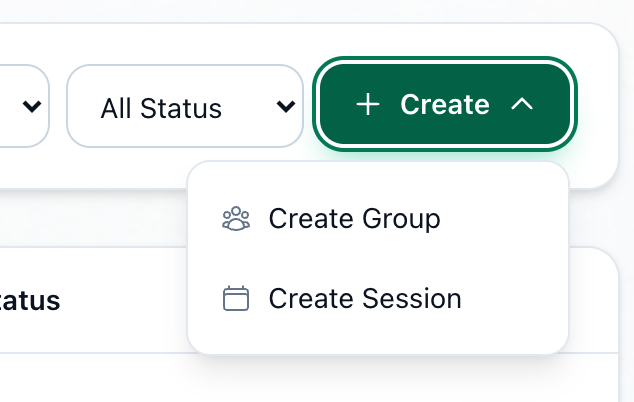
- Create
- Create Group
- Course
- Create course
- Room
- Start Date
- Days Per Week
- Select Days
- Hours Per Day
- Start Time
- Instructor
- Add Students
- Create Group
-
On Groups List, press Create.
-
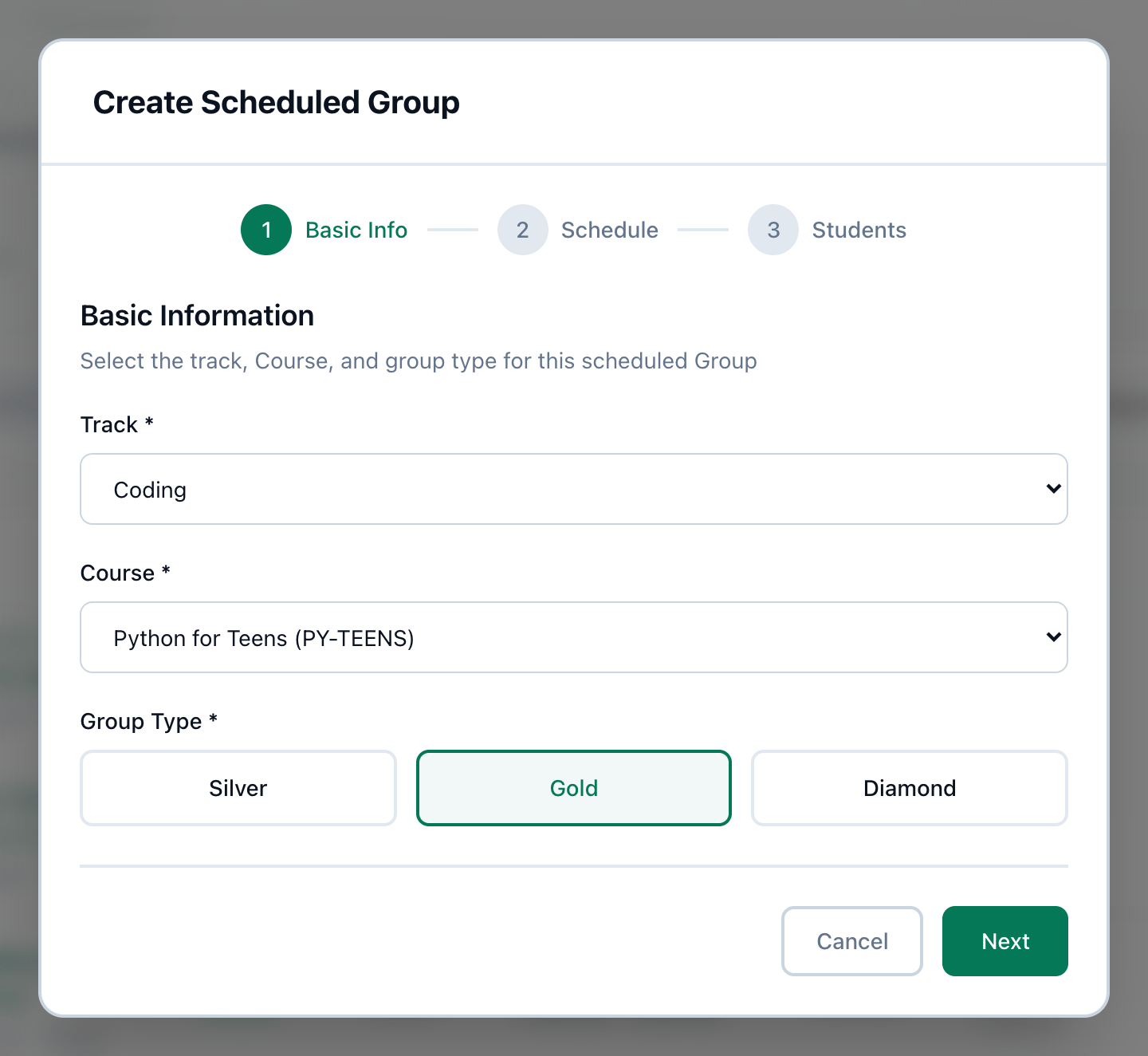
Choose Create Group. Create Scheduled Group opens on its first step, Basic Information.
-
Choose the Course. Its number of sessions and price show under it. To make a new one, press + Create course, enter its name, number of sessions and price, and press Save: it is chosen for you.
-
Check Price for this group. It starts at the course’s price; change it here for this group alone, and the course keeps its own. Then press Next.
-
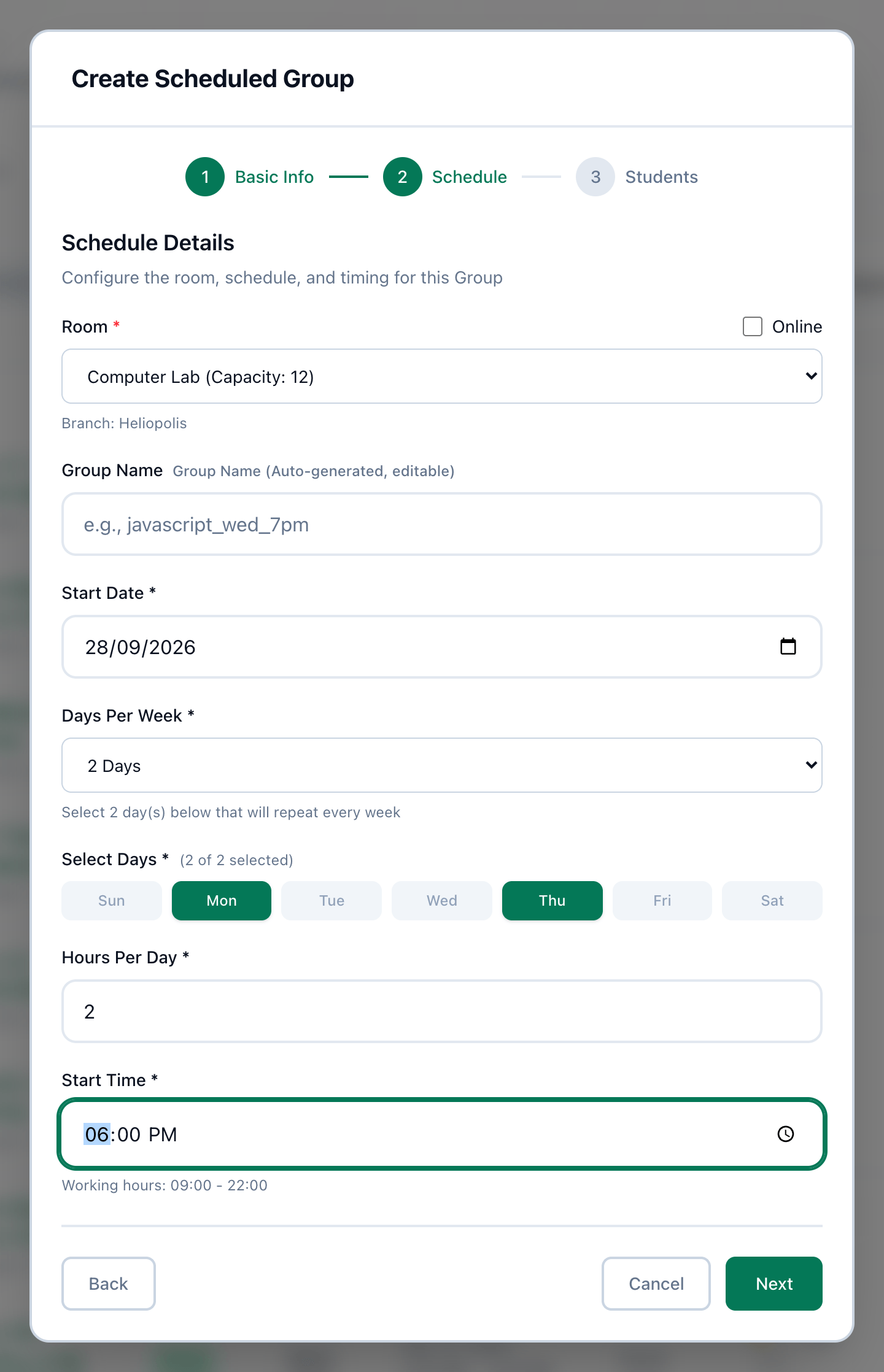
Choose the Room, or tick Online for a group taught online. A room’s capacity is shown beside its name, and the group belongs to its room’s branch.
-
Choose the Start Date. The first session is on the first chosen day on or after it.
-
Choose Days Per Week.
-
Under Select Days, choose that many days. When enough are chosen, the other days are greyed out; press a chosen day again to swap it for another.
-
Enter Hours Per Day, in half-hours, up to 13.
-
Choose the Start Time - any time of the day, as long as the class ends before midnight. Then press Next.
-
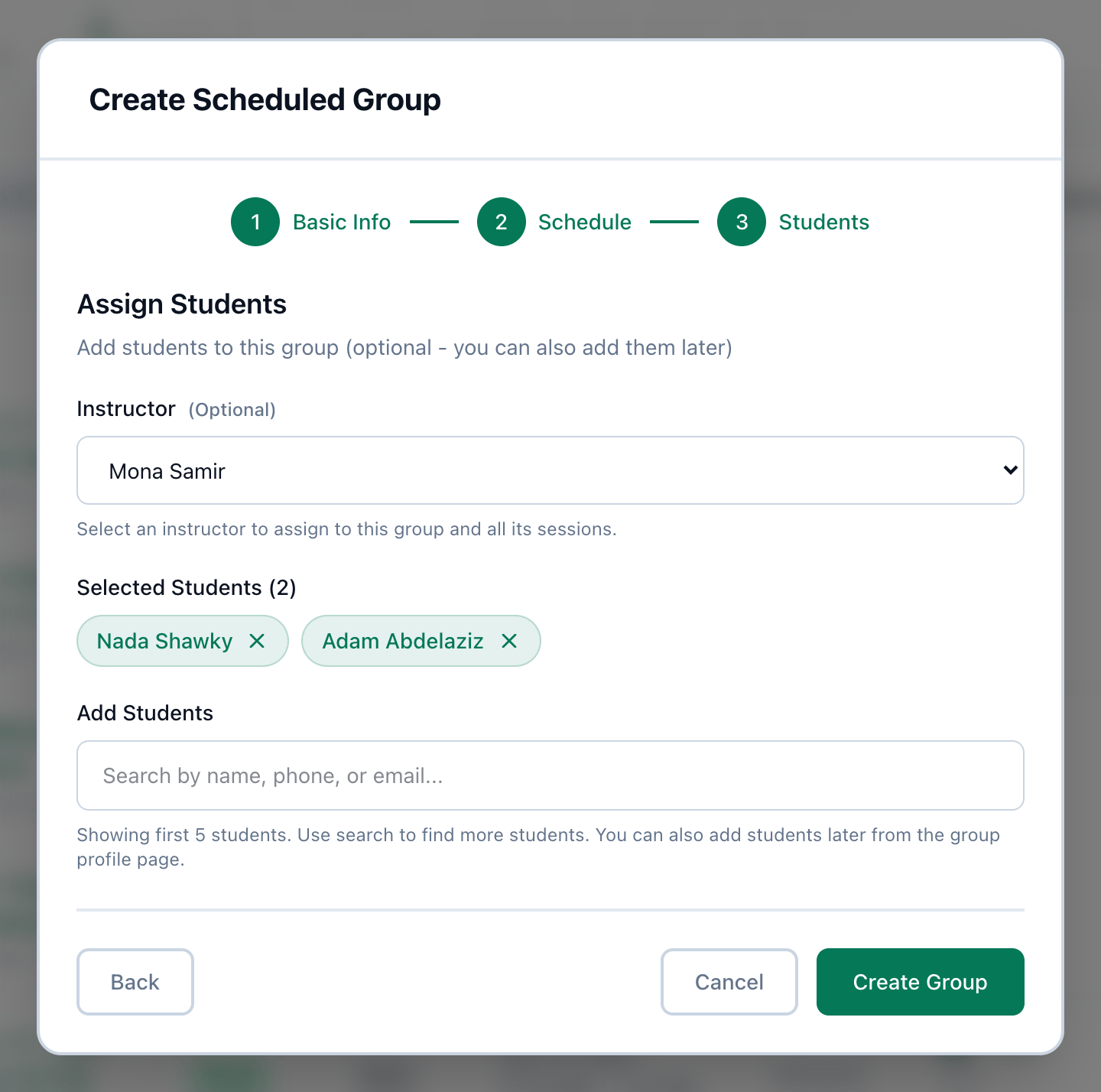
Choose an Instructor if you want to. They are assigned to the group and its sessions.
-
To add students now, search under Add Students by name, phone or email, and press each student to choose them. They appear under Selected Students; press × beside a name to take them off.
-
Press Create Group. The form closes and the group appears in Groups List.
Group Name on the second step can be left empty. Tuevia then names the group after its
course, the weekday of its start date and its hour, in the style of the example in the
field, javascript_wed_7pm. Type a name to use your own.
Prices
Section titled “Prices”A student’s fee starts from the group’s price — see Setting up a student’s fees. Price for this group, on the first step, starts at the course’s price. Change it for a group that costs differently — a weekend or small-group class — and the course keeps its own price. The course’s price itself is changed on Teaching → Courses.
If something goes wrong
Section titled “If something goes wrong”-
Next does nothing on the second step
Something the step needs is missing: a room (or Online), the start date or the start time. If the chosen days do not match Days Per Week, the step says Please select exactly 2 day(s) under the days. -
No active rooms found. Please create an active room first.
Every room is inactive. Add a room or make one active in Branches, or tick Online. -
Create Group stops and the form stays open
Tuevia refused the group, and nothing was created. The reason shows above the form: most often the start date is not one of the days it meets, the class runs past midnight, or the room is booked at that time on Schedule. Fix it and press Create Group again. -
The group’s Progress says No sessions
The group was created but its sessions could not be made, most often because they would clash with another booking in the room. Delete the group and create it again with another time or room.
What happens next
Section titled “What happens next”- The group gets as many sessions as its course has, on the chosen days, from the start date on. Each one starts at the start time, lasts the hours per day, and has the group’s room and instructor. They are all Scheduled.
- The sessions appear on Schedule, under View Sessions on the group’s row in Groups List, and on the group’s page.
- The group is Active, and the students you chose are enrolled in it. To add more, see Adding students to a group. What each student pays is agreed in Fees.
- Changing the group later does not move the sessions already made: see Changing, suspending and ending a group.