
Finding students
Teaching → Students lists your students. From here you find a student and open their profile.
Owners, admins and anyone whose role can view or manage Students see the list. Instructors do not see the Students page. In the groups they teach they see each student’s name only: no phone number, email address, parents, birthday, notes or academy fields. That keeps your academy’s contacts with the academy. Someone who works in only some of the academy’s locations sees the students who belong to those locations, and the students enrolled in a group there.
Search the list
Section titled “Search the list”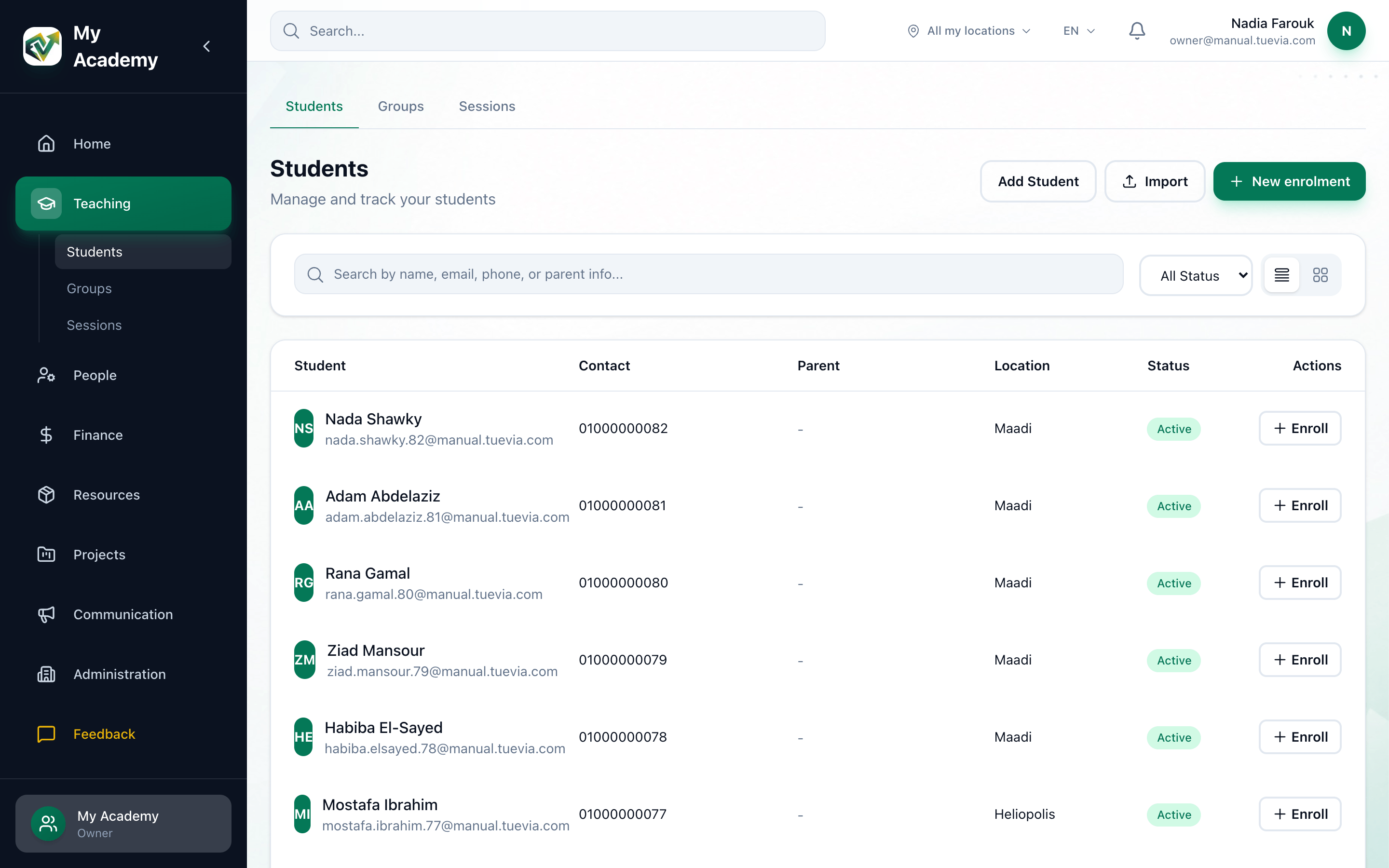
- Search
- Status
- Table or cards
-
Type in the search box: part of a student’s name, email address or phone number, or the parent’s name or phone number. The list narrows as you type.
-
To see only some of your students, choose Active or Unactive in the menu beside the search box. All Status shows everyone again.
-
The two buttons at the end switch between the table and cards. A card shows the student’s phone number and parent too.
Each row of the table shows:
- Student: the name, and the email address under it.
- Contact: the phone number.
- Parent: the parent’s name and phone number, for a child.
- Location: where the student belongs. This column appears only if you see more than one location.
- Status: Active or Inactive.
- Enroll: puts the student in a group - see Enrolling a student in a group.
Under the table, Showing … of … students counts the students your search and status leave, out of all of them. A long list scrolls inside its own box.
Active and inactive
Section titled “Active and inactive”Tuevia sets a student’s status itself. A student is Active while they have an active or suspended enrolment in a group that is running or suspended. A student with no such enrolment - a new student, or one whose groups have all ended - is Inactive.
Open a student’s profile
Section titled “Open a student’s profile”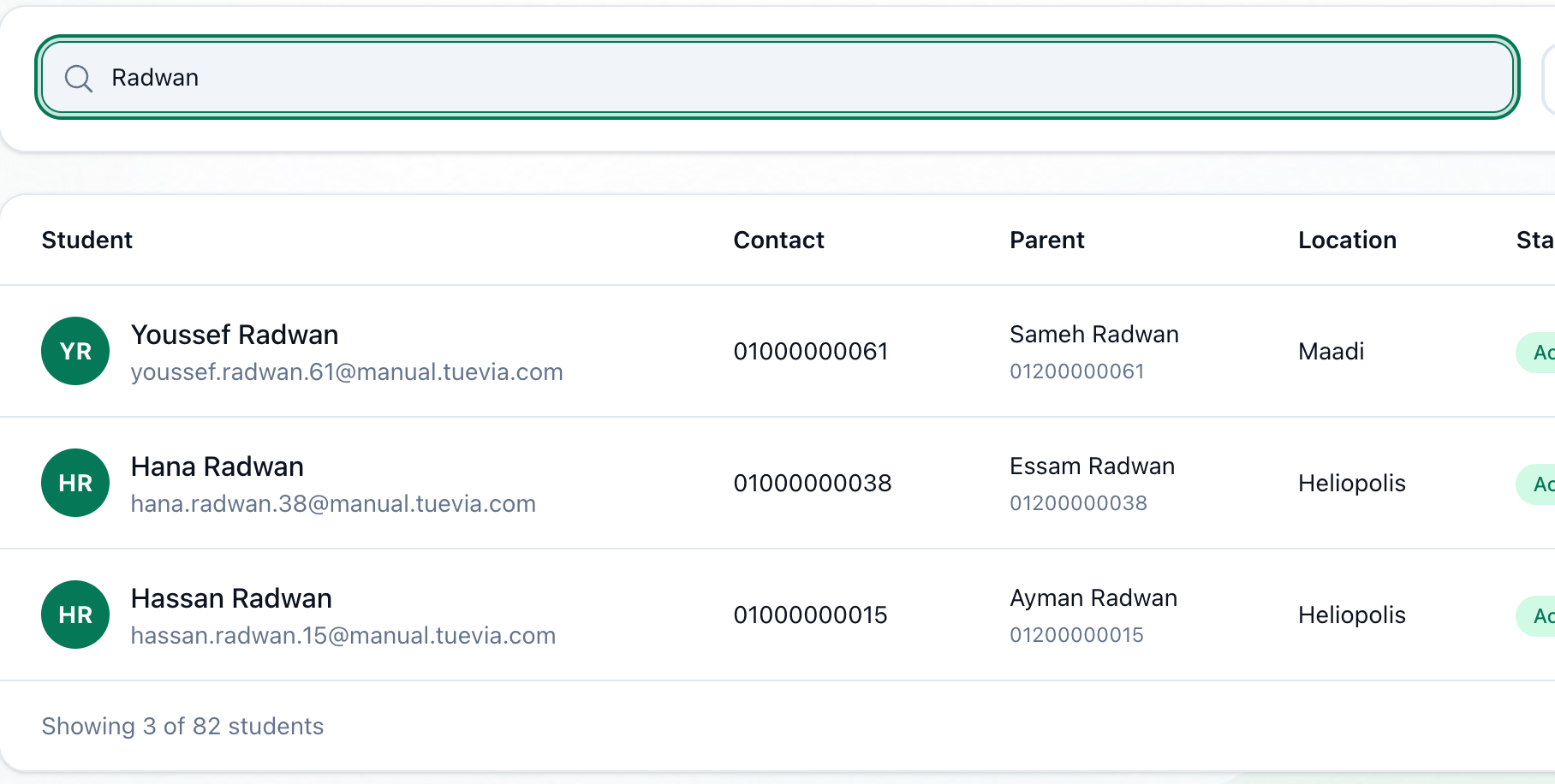
- The student's name
- Find the student and press their name. Their profile opens.
If something goes wrong
Section titled “If something goes wrong”-
No students match your search criteria
Nothing matches what you typed together with the status you chose. Shorten the search or choose All Status. -
Add your first student to get started
There are no students you can see yet. Add them one at a time, or all at once from a spreadsheet.
What happens next
Section titled “What happens next”- The student profile explains everything a profile shows.
- Adding a student and Adding students from a sheet bring new students in.