
Month end
Groups → Employees → Salaries → Reports
At the end of each month the academy pays its staff and looks at where its money went. Each stop feeds the next: the month’s sessions and check-ins make up the salary figures, and the salaries paid appear on Reports. An owner can do every stop; each linked article says who else can.
1. Groups: cancel the sessions that did not happen
Section titled “1. Groups: cancel the sessions that did not happen”Commission is worked out from the sessions each group held and who taught them. A session counts as held once its end time has passed: Tuevia marks it Completed by itself a few minutes later, whether or not anybody marked it. A session that did not take place has to be cancelled, or it is counted.
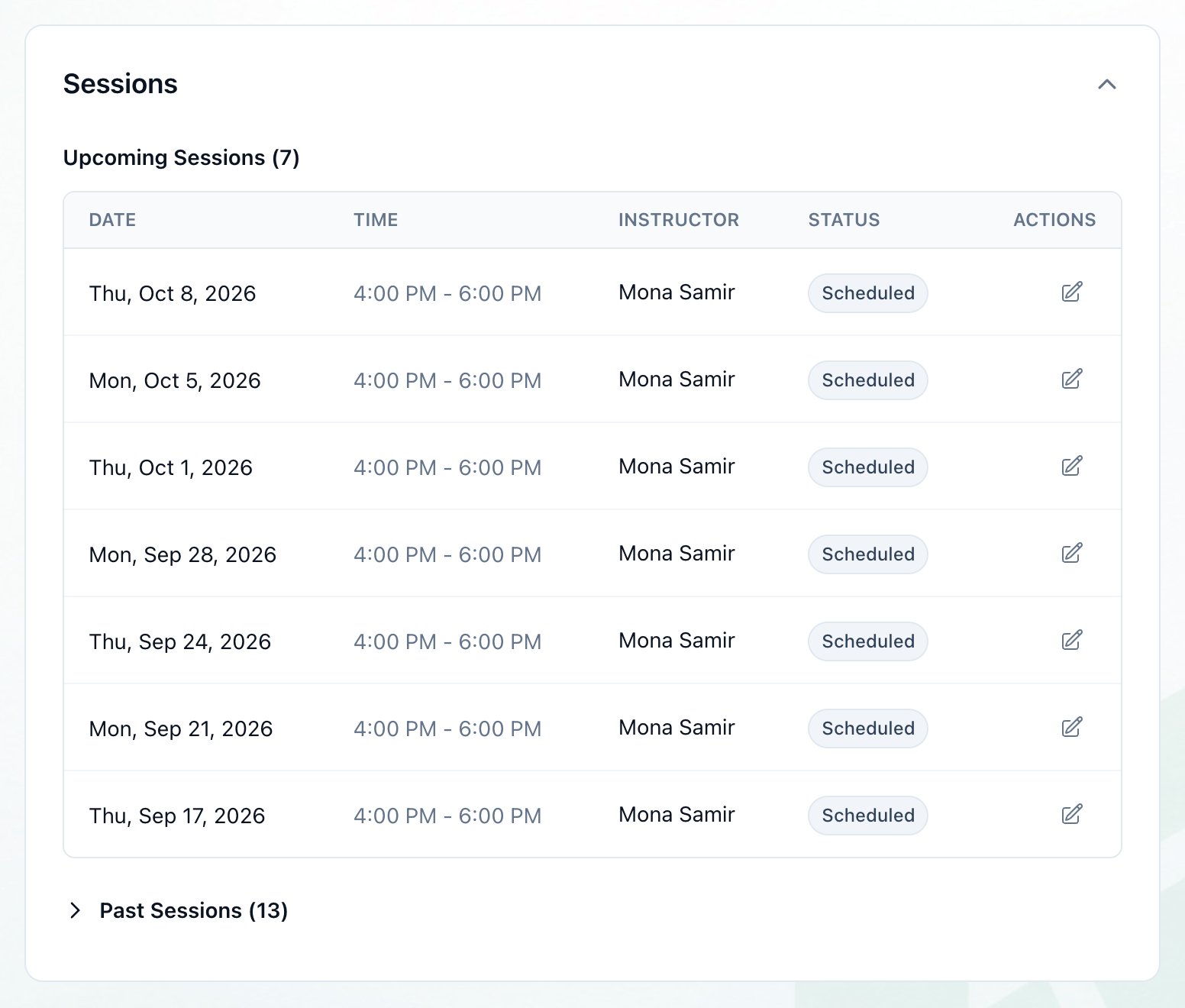
- Sessions
On each group’s page, open Sessions and then Past Sessions, and press Cancel on any that did not take place — a completed session can still be cancelled. A cancelled session counts for nobody. Cancelling is for owners and anyone who can manage Groups. See Rescheduling and cancelling a session.
2. Employees: the month’s attendance
Section titled “2. Employees: the month’s attendance”Deductions and overtime come from the check-ins your staff make on their home screens. On Team → Employees, each person’s Attendance tab counts the month’s Working Days, Present, Absent, Late and On Leave, and compares the hours they worked with the hours expected.
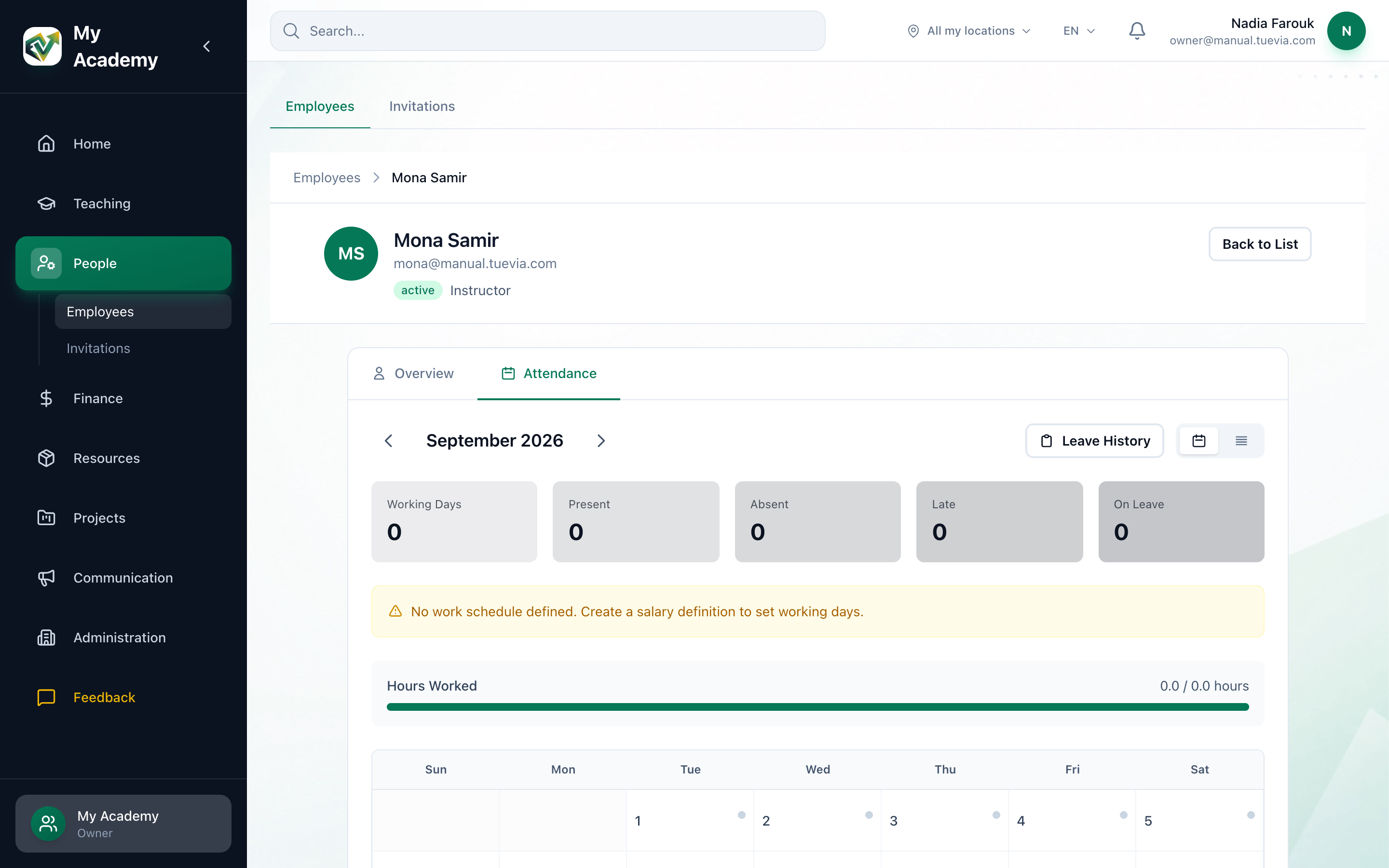
- The month
- The month's totals
3. Salaries: check the commission rates
Section titled “3. Salaries: check the commission rates”On Finance → Salaries, Commission on a person’s row shows the rates in force. Pay salaries works each share out from these rates, so check them before stop 4.
See Commission.
4. Salaries: pay the month
Section titled “4. Salaries: pay the month”Press Pay salaries and choose the Month — it starts on last month. Every person’s pay is on one screen: confirm the Hours of anyone paid by the hour — filled in from their check-ins in stop 2 — and the Amount of any contract to pay now, and add a Bonus or a Deduction where there is one.
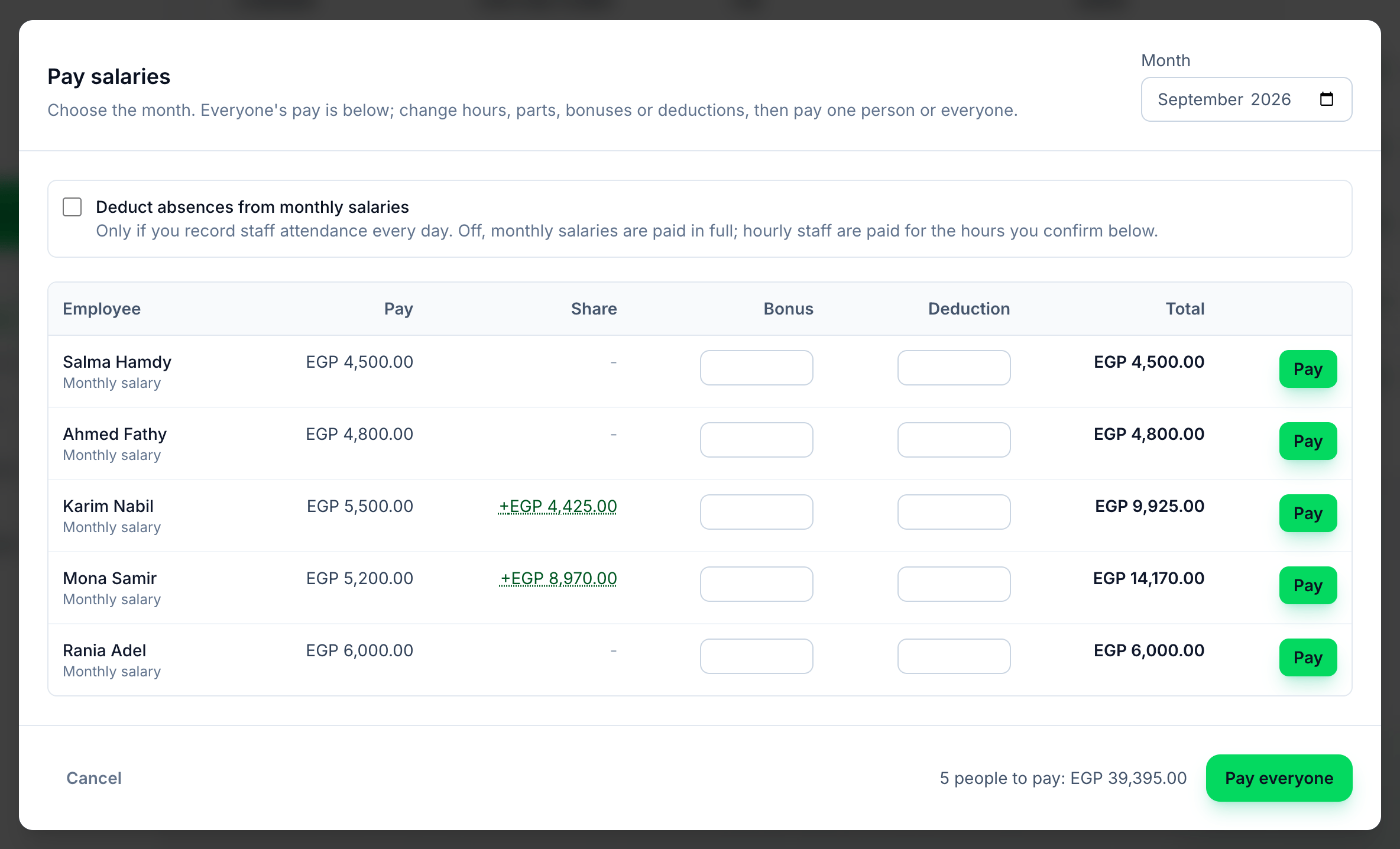
- Month
- Everyone's pay
- Pay everyone
Press anyone’s Share to see How this was worked out: each group, what it Collected in the month, the Rate, the Sessions from stop 1, and what it Pays. Check the figures, then press Pay everyone.
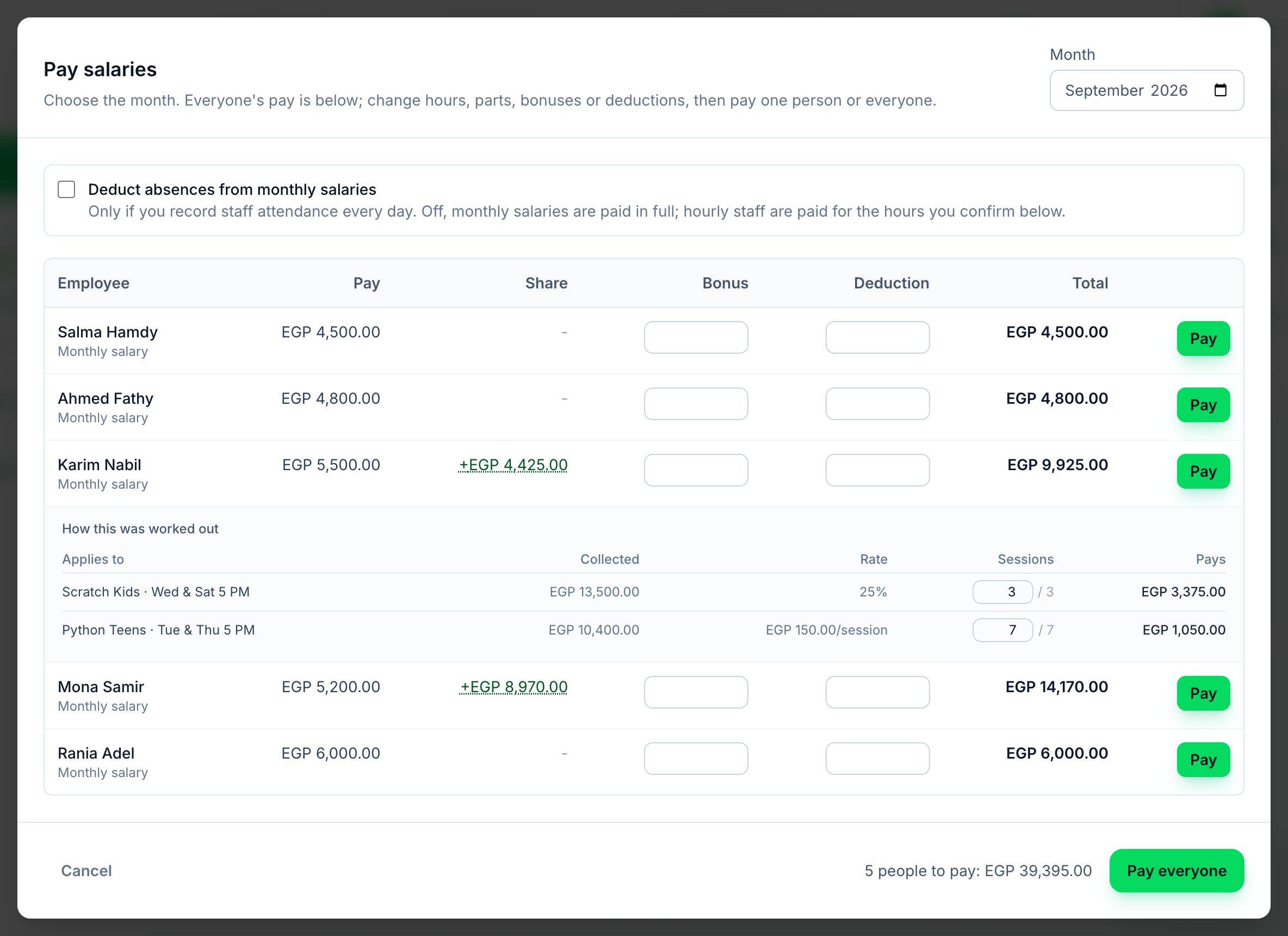
- How this was worked out
See Paying the month’s salaries.
5. Salaries: once a month
Section titled “5. Salaries: once a month”Each person is paid once for each month, whether on Pay salaries or with Deposit Salary. Anyone already paid shows as Paid, so it is safe to come back for someone whose payment failed.
See Paying one salary.
6. Reports: read the month
Section titled “6. Reports: read the month”On Finance → Reports, the salaries just paid are in Expenses, beside the expenses paid on Finance → Payments. Choose Month to see the months side by side on Trend.
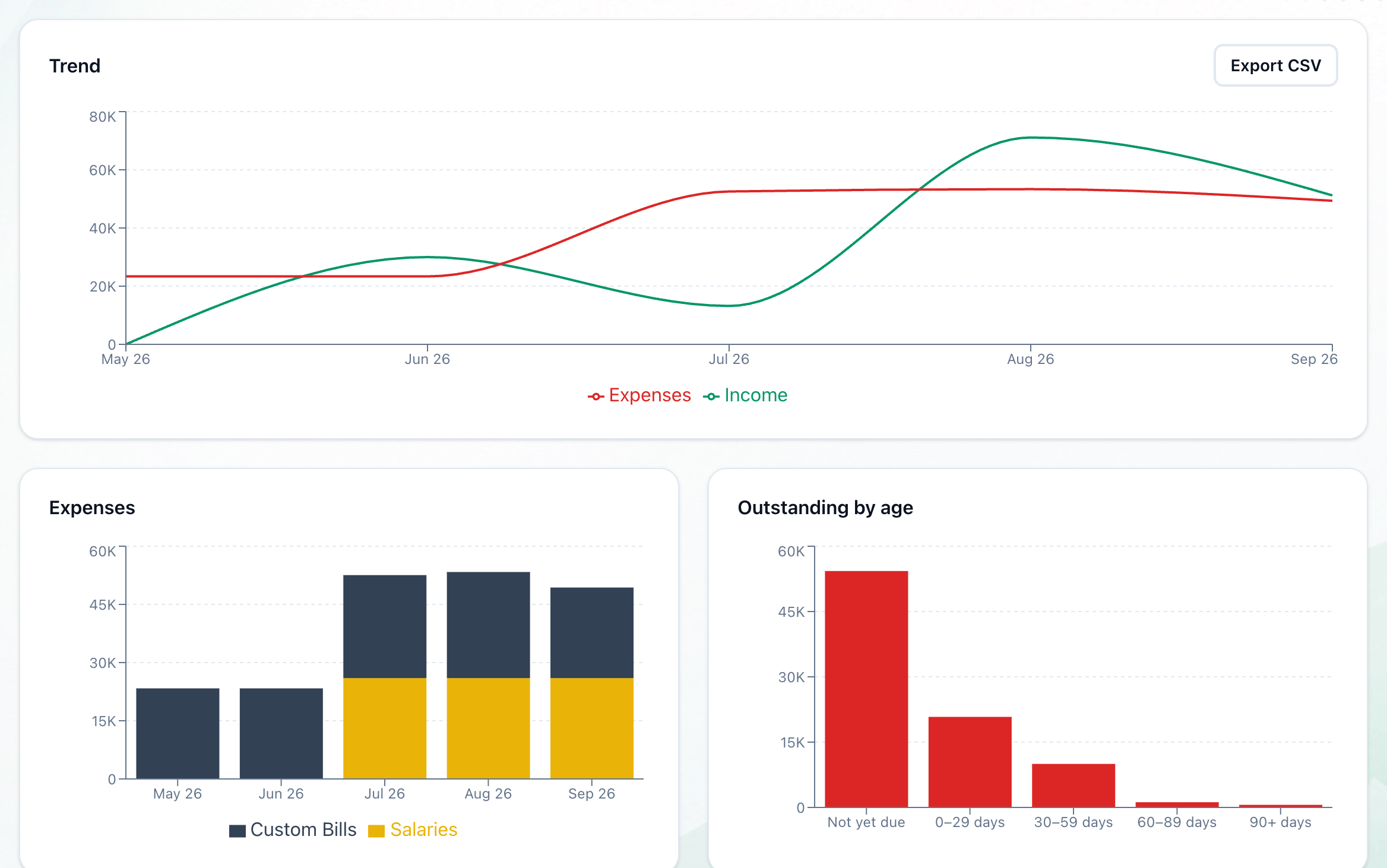
- Trend
- Expenses
What each group earned shows what each group collected, what a session was worth, and any money Held back for the next month’s commission. Outstanding is what students still owe. See Money in and out and What is owed.
Afterwards
Section titled “Afterwards”To chase what is owed, open the overdue agreements on Finance → Fees - see The fees list.