
Inviting your staff
Staff join by invitation: you give their email address, their role and where they work, and Tuevia emails them a link. They choose their own password when they accept. Invite your instructors now, so they are there to be given a group when you open one.
Owners, admins, and anyone whose role can manage Invitations can invite.
Before you start
Section titled “Before you start”Decide each person’s role: see Roles. Use an email address they read, because the link only arrives there.
Invite someone
Section titled “Invite someone”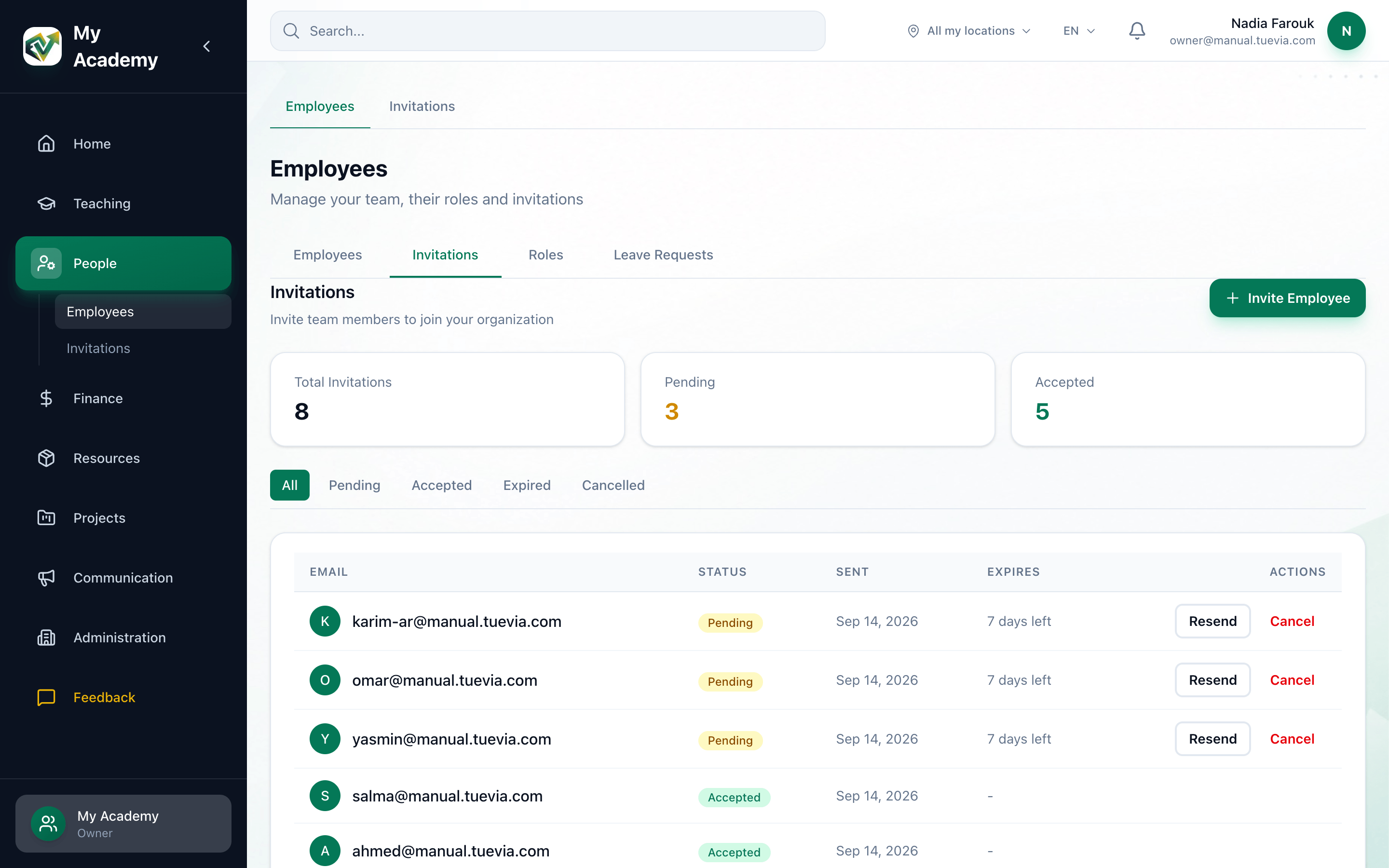
- Invitations
- Invite Employee
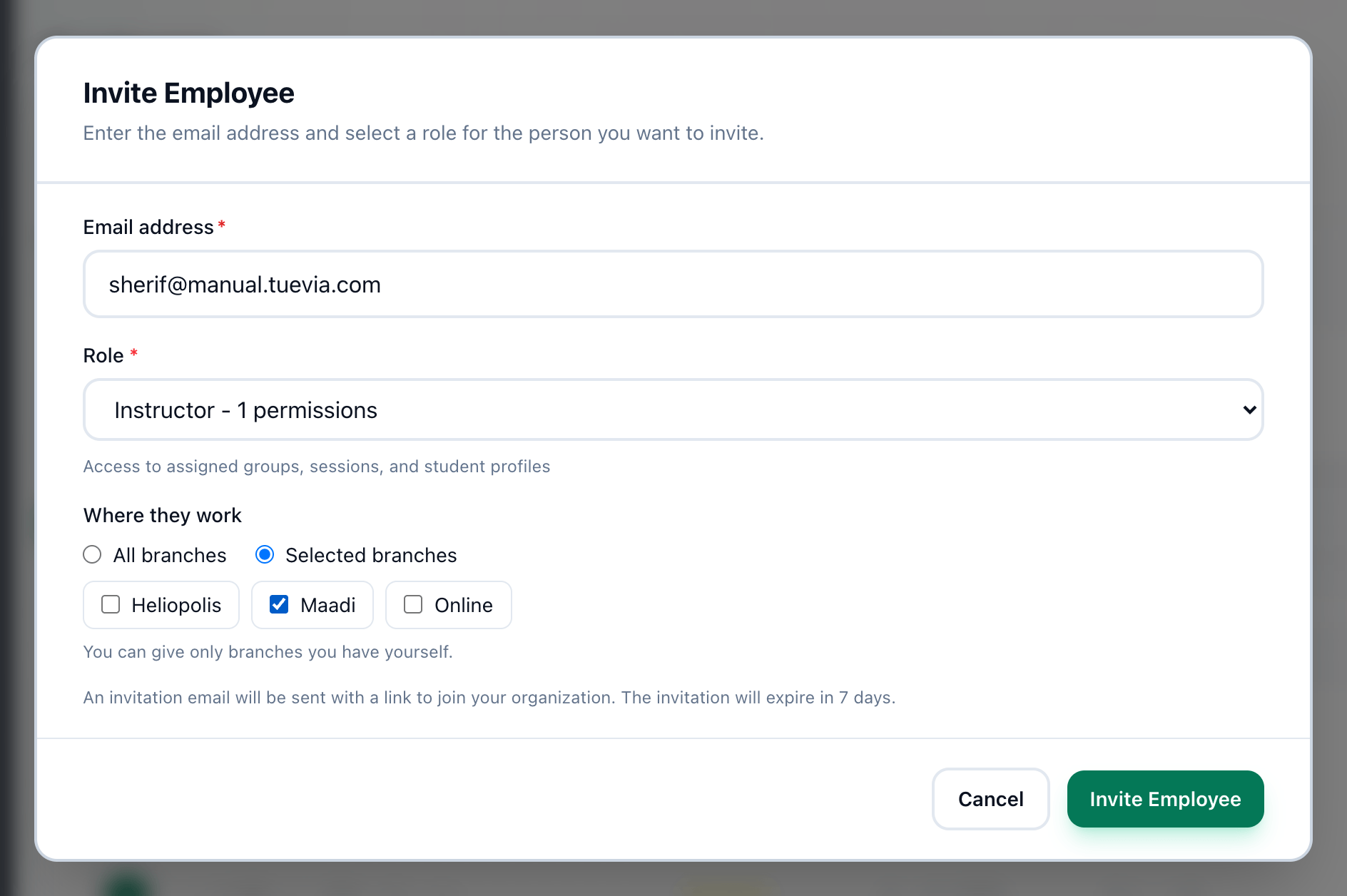
- Email address
- Role
- Where they work
- Invite Employee
-
In Team → Employees, open the Invitations tab.
-
Press Invite Employee.
-
Enter their address in Email address.
-
Choose their Role.
-
Under Where they work, keep All branches, or choose Selected branches and tick theirs.
-
Press Invite Employee. The invitation appears at the top of the list as Pending.
The invitation lasts 7 days. Until it is accepted, the person is not in the employees list.
What happens next
Section titled “What happens next”- What they see when they open the link: What the invited person sees.
- Sending the link again, or cancelling it: Resending and cancelling.
- Everything else about your staff: Employees.
- Next in Getting started: bringing in your students.