
Adding a student
Add one student at a time with the Enrol student form. Only the email address is required; choosing a group is optional, and enrols them in it at the same time. Owners, admins and anyone whose role has Manage access to Students can add students. For anyone else the button is greyed out.
Add a student
Section titled “Add a student”
- Enrol student
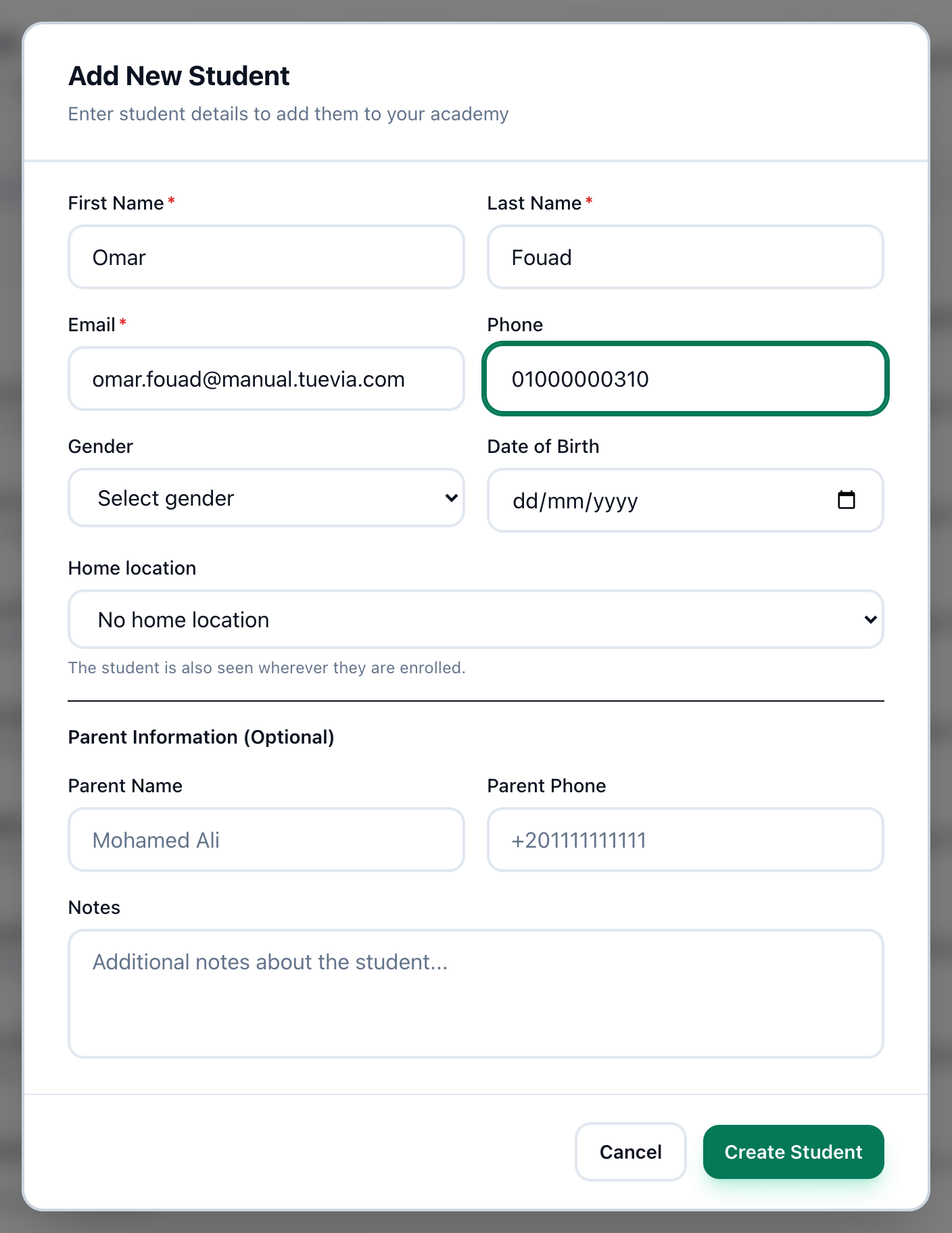
- Enrol student
-
On Teaching → Students, press Enrol student. The Enrol a student form opens.
-
Enter the student’s email address in Email. No two students in the academy can share one.
-
If you see more than one location, choose Home location: the location the student belongs to. If you work in only some of the academy’s locations, it has to be one of them. The student is also seen wherever they are enrolled.
-
To put them in a group now, choose its course under Group (optional), then press one of its groups - each shows the days it meets, its hours, its price and the seats left. A full group cannot be chosen. Leave it at No group yet - just invite them to add the student without a group.
-
Press Enrol student.
With a group chosen, the student is enrolled in it straight away, and the enrolment brings their fee: the group’s price, or its course’s when the group has none, as one payment of the whole amount from today. The form says the amount under the group. What the student pays is recorded on Finance → Fees.
You do not type their name, phone or parents’ details: those are theirs, and arrive when they join. Adding them asks them to:
- Somebody already on Tuevia gets the invitation in their Tuevia inbox, and a notification.
- Anybody else gets an email with a link to sign up. Signing up from that email needs no further check of the address, and the invitation is waiting in their inbox.
Until they accept, the list shows their email address and Invited — waiting to join. Once they accept, their own name replaces it. You can add notes and parent contact on their profile at any time - see Editing and deleting a student.
If something goes wrong
Section titled “If something goes wrong”-
An email address is required.
Every new student needs an email address. -
Please enter a valid email address
The address has no @. Check it for a typing mistake. -
Choose the student’s home location.
You work in only some of the academy’s locations, so the student has to belong to one of them. Choose it in Home location. -
another student in this academy already uses …
Another student has this email address. Search the list for it: the student may already be in Tuevia. -
group is full (… of … seats taken)
The group filled up while the form was open. The student has been added already: choose another group and press Enrol student again - they are not added twice. -
No price - set the course’s price first, or no fee is set up.
Neither the group nor its course has a price, so the enrolment brings no fee. Set the course’s price on Teaching → Courses; until then, add the fee by hand on Finance → Fees. -
validation failed: email format is invalid
The address has an @ but is still not an address, such as one with nothing after the @. Check it.
What happens next
Section titled “What happens next”- The student is in the list on Teaching → Students - Active with a group, Inactive without one.
- With a group, their profile shows it, and the fee under Payments - see The student profile.
- Without one, enrol them in a group from their profile later.