
Getting your academy
Create your academy and its owner account yourself, in three short steps, then sign in whenever you come back. This article is for the academy’s owner.
Create your academy
Section titled “Create your academy”Open academies.tuevia.com and press Create your academy under the sign-in form, or go straight to the sign-up page.
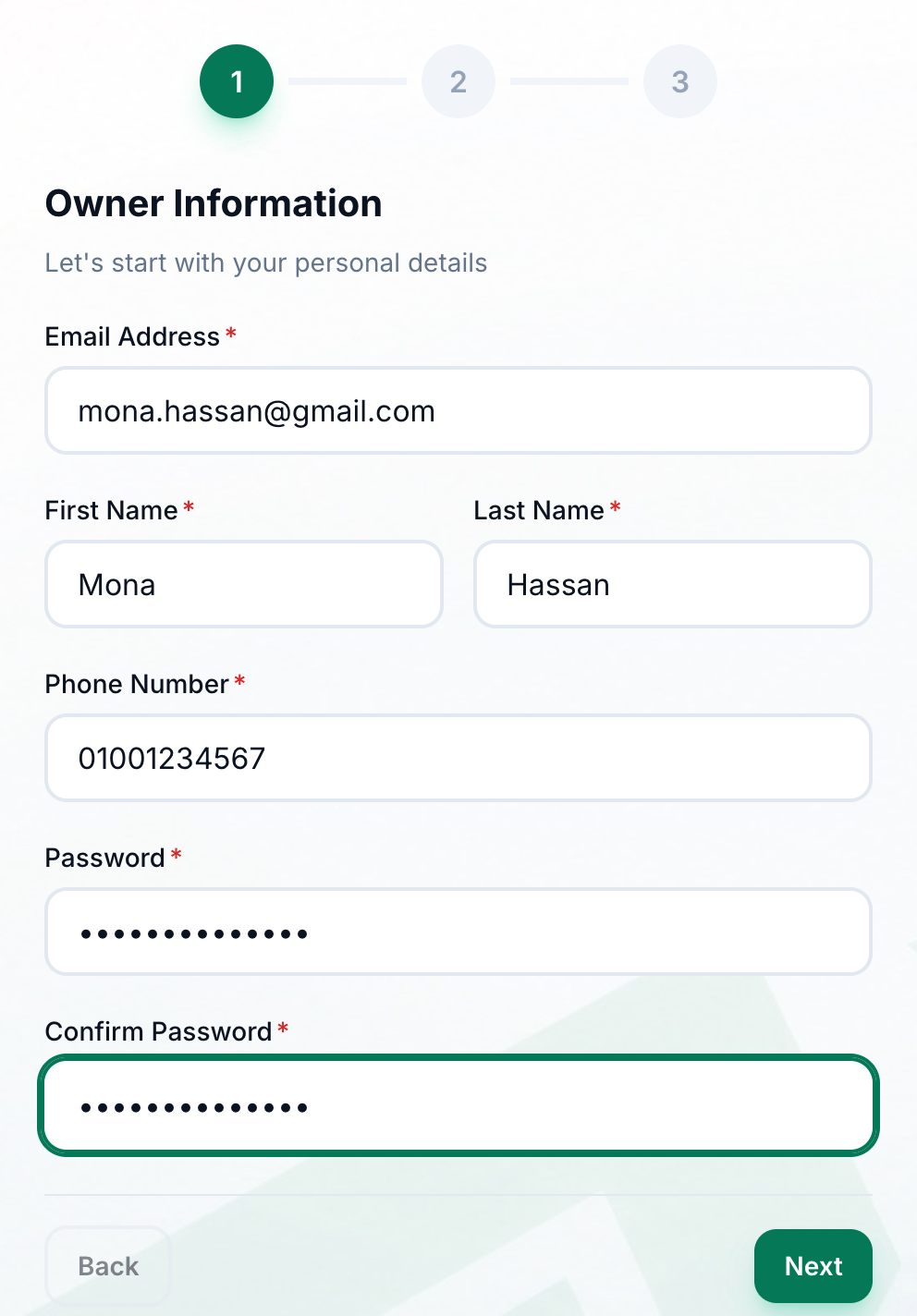
- Email Address
- First Name
- Last Name
- Phone Number
- Password
- Confirm Password
- Next
-
Owner Information: enter your Email Address. Use one you read: the email to confirm it goes there.
-
Enter your First Name.
-
Enter your Last Name.
-
Enter your Phone Number.
-
Choose a Password of at least 8 characters.
-
Enter it again in Confirm Password.
-
Press Next.
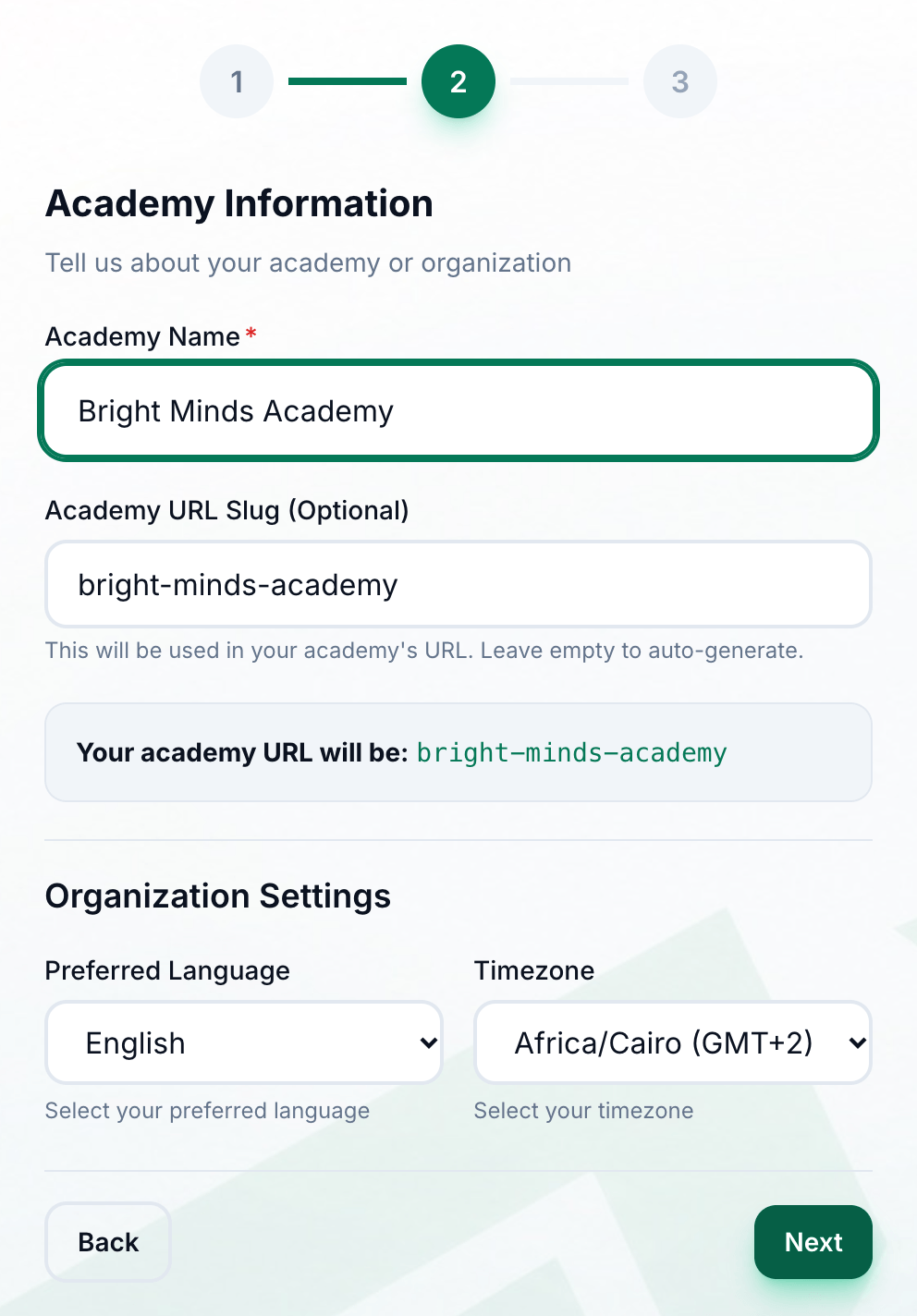
- Academy Name
- Its address
- Preferred Language
- Timezone
- Next
-
Academy Information: enter your Academy Name, at least 2 characters.
-
Academy URL Slug (Optional) fills itself in from the name. It is the short name in your academy’s web address: change it, or leave it.
-
Choose the Preferred Language.
-
Choose the Timezone. Africa/Cairo (GMT+2) is chosen for you.
-
Press Next.
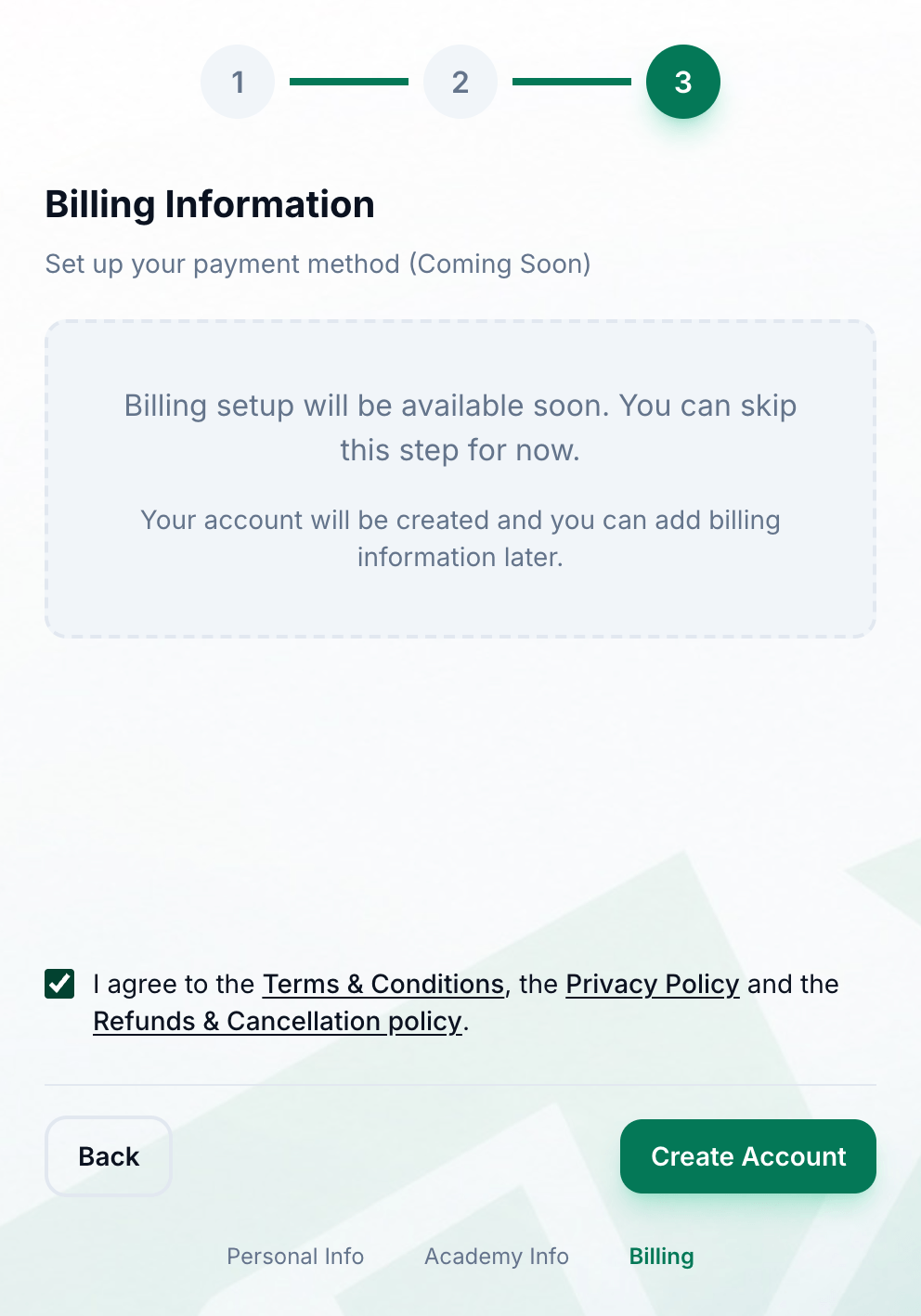
- Nothing to enter
- Agree to the policies
- Create Account
-
Billing Information asks for nothing now: no card, and nothing to pay. Billing is set up later, from Settings → Billing.
-
Tick the box to agree to the Terms & Conditions, the Privacy Policy and the Refunds & Cancellation policy.
-
Press Create Account. Tuevia creates your academy and signs you in.
Your academy starts on a free trial of 14 days. What happens when it ends, and how to pay each month: Billing.
Two optional screens
Section titled “Two optional screens”Straight after signing up, Tuevia offers two screens. Each can be skipped, and both can be done later.
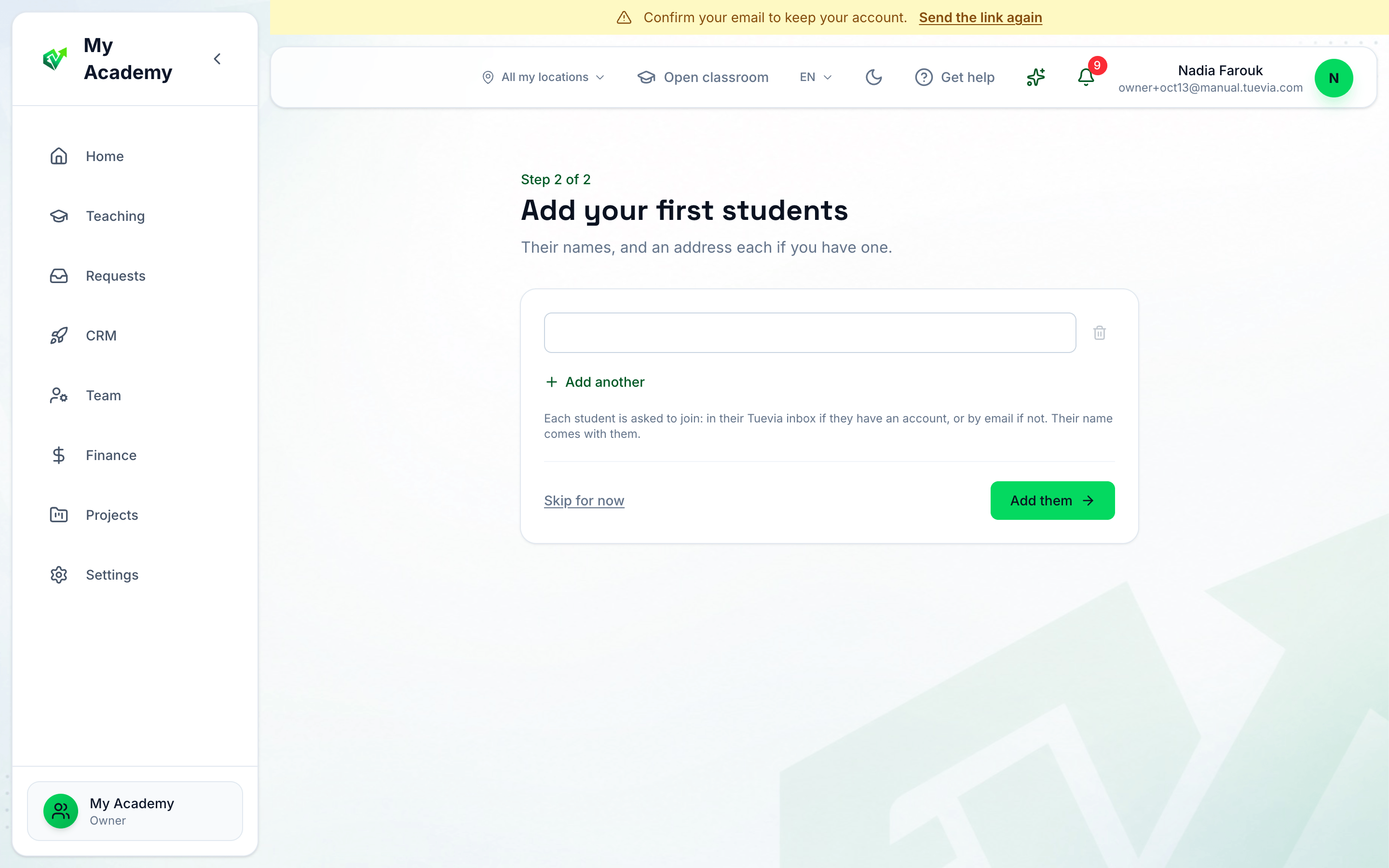
- Your students
- Skip for now
- Build your card: how learners find you in the Tuevia directory. Fill it in and publish it, or press Skip for now and do it later in Settings → Branding.
- Add your first students: their names, and an email address each if you have one. Each student is asked to join: in their Tuevia inbox if they have an account, or by email if not. Press Add them, or Skip for now.
Then you are on your academy’s home screen. The screens are offered once, to the owner and to anyone who can create groups, while the academy has no group yet.
Confirm your email
Section titled “Confirm your email”A bar across the top of every page says Confirm your email to keep your account. Open the email Tuevia sent and follow its link. Your email is confirmed says it worked.
- Nothing is locked while you have not: the academy works exactly as it will after.
- An account whose email is not confirmed within seven days is deleted.
- The link lasts a day. If it has expired, or the email never came, press Send the link again in the bar.
Sign in again later
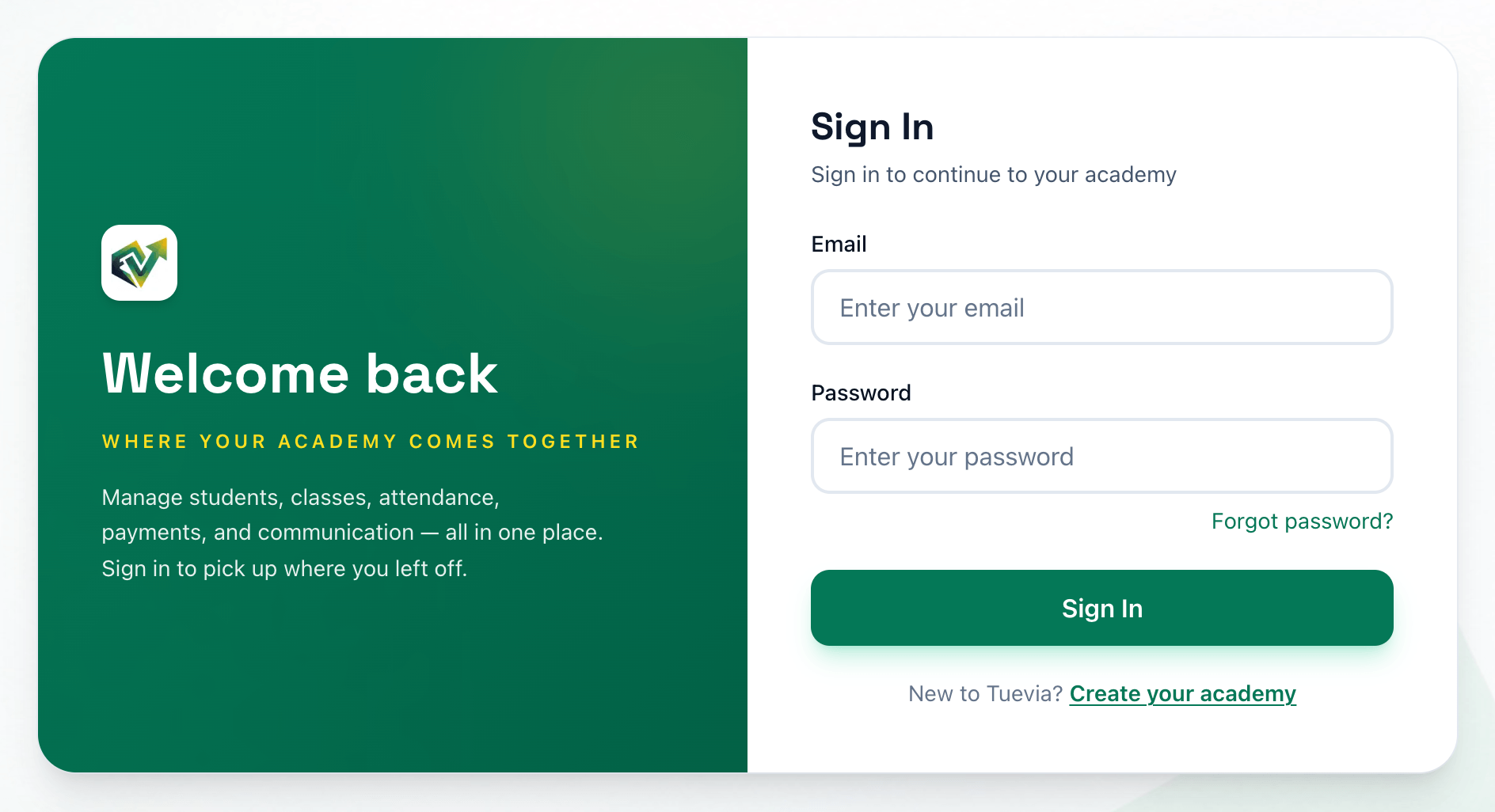
Section titled “Sign in again later”Sign in with your email address and your password.
- Password
- Sign In
-
Enter your email address in Email.
-
Enter your password in Password.
-
Press Sign In. Tuevia opens your academy’s home screen.
If you ever forget your password, Forgot password? under the password field is how you choose a new one — see If you forget your password.
If your account works in more than one academy, Tuevia asks Which academy today? after you sign in: one row for each academy, with its mark, its name and your role there. Press one to open it.
Change your password
Section titled “Change your password”Change your password whenever you like, from your account.
- Your account
- Settings
- Change
- Current Password
- New Password
- Confirm New Password
- Change Password
-
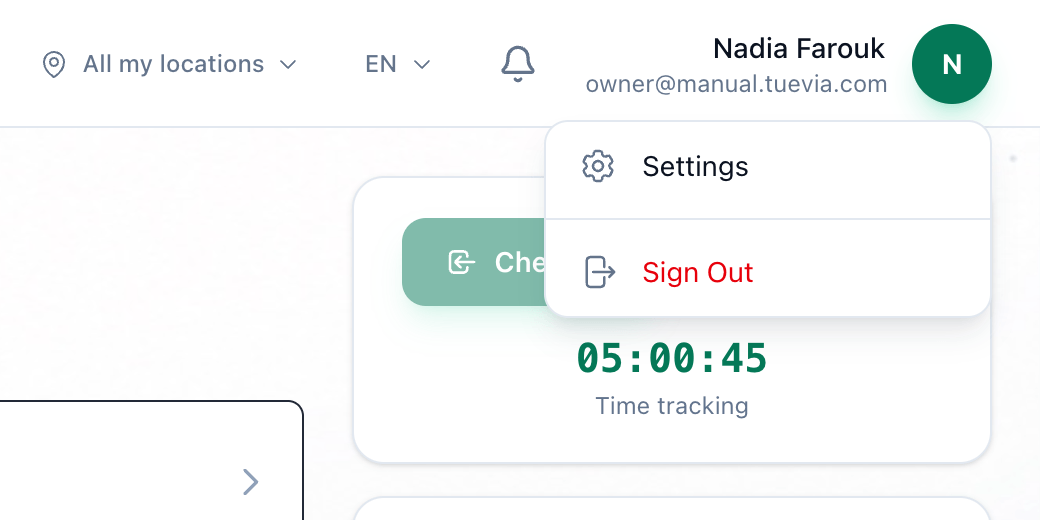
Open your account menu: your name and picture at the top right of the screen.
-
Choose Settings.
-
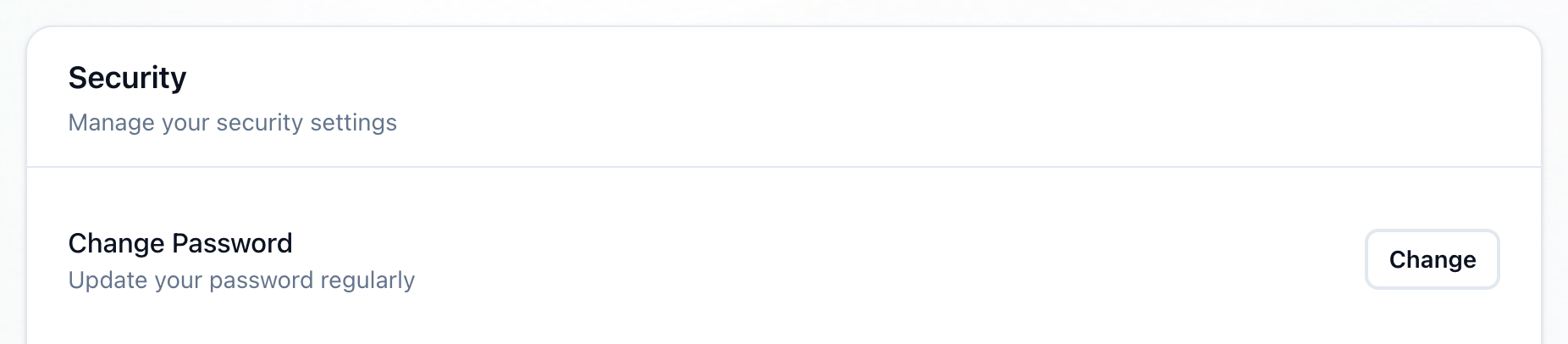
In Security, next to Change Password, press Change.
-
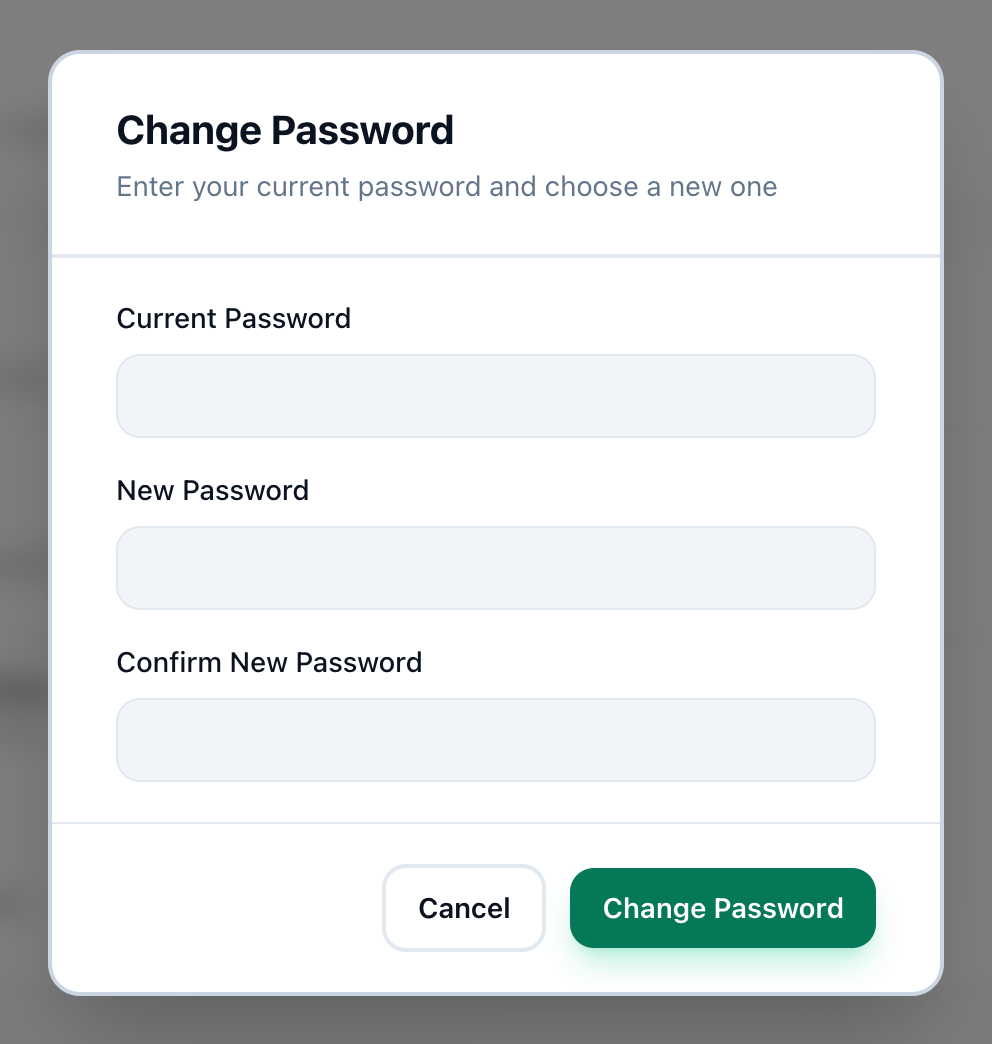
Enter the password you have now in Current Password.
-
Enter your new password in New Password. It needs at least 8 characters, and it must be different from the one you have now and from one you used recently.
-
Enter the new password again in Confirm New Password.
-
Press Change Password. Password changed successfully! confirms it.
If you forget your password
Section titled “If you forget your password”-
On the sign-in page, press Forgot password?.
-
Enter your email address and press Send Reset Link.
-
Open the email Tuevia sends you and follow its link.
-
Enter a new password twice and press Reset Password. Then sign in with it.
After you press Send Reset Link, the page says an email is on its way if an account exists for that address. It says the same for every address, so nobody can use it to find out who has an account.
If something goes wrong
Section titled “If something goes wrong”-
Please enter a valid email address · Please enter your phone number · Password must be at least 8 characters · Passwords do not match
Step 1 does not move on until each field is right. The message names what to fix. -
Please enter your academy name · Academy name must be at least 2 characters
Step 2 needs a name of 2 characters or more. -
Email already registered
That address already has an academy account. Sign in with it, or use Forgot password?. -
Invalid email or password
The email address or the password is not right. Check for a capital letter, or a space before or after the address. -
Account has been locked due to too many failed login attempts. Please try again in 30 minutes or reset your password.
Five wrong passwords in a row lock the account for 30 minutes. Wait, or use Forgot password? to choose a new password. -
This reset link is invalid or has expired.
The link in the email no longer works. Press Request New Reset Link and use the newest email. -
Current password is incorrect
While changing your password, the first field did not match the password you have now. -
New passwords do not match
New Password and Confirm New Password are different. Type them again. -
This password was used recently. Choose a different one.
Tuevia does not let you go back to a password you used recently. Choose another.
What happens next
Section titled “What happens next”Next in Getting started: finding your way around the screen you land on. After that come your academy’s look and settings, its branches and rooms, and inviting your staff.