
Finding your way around
Every page of Tuevia sits in the same frame: the tabs down the side, and a row of controls across the top. Learn the frame on your first day, and every page after it is easier to find. Everybody in the academy has it; which tabs they see depends on their role.
The home screen
Section titled “The home screen”After you sign in, Tuevia opens Home: the assistant, with checking in and out, leave, and the newest announcements beside it. Home in the sidebar brings you back. What is on it is in Your home screen.
Around the screen
Section titled “Around the screen”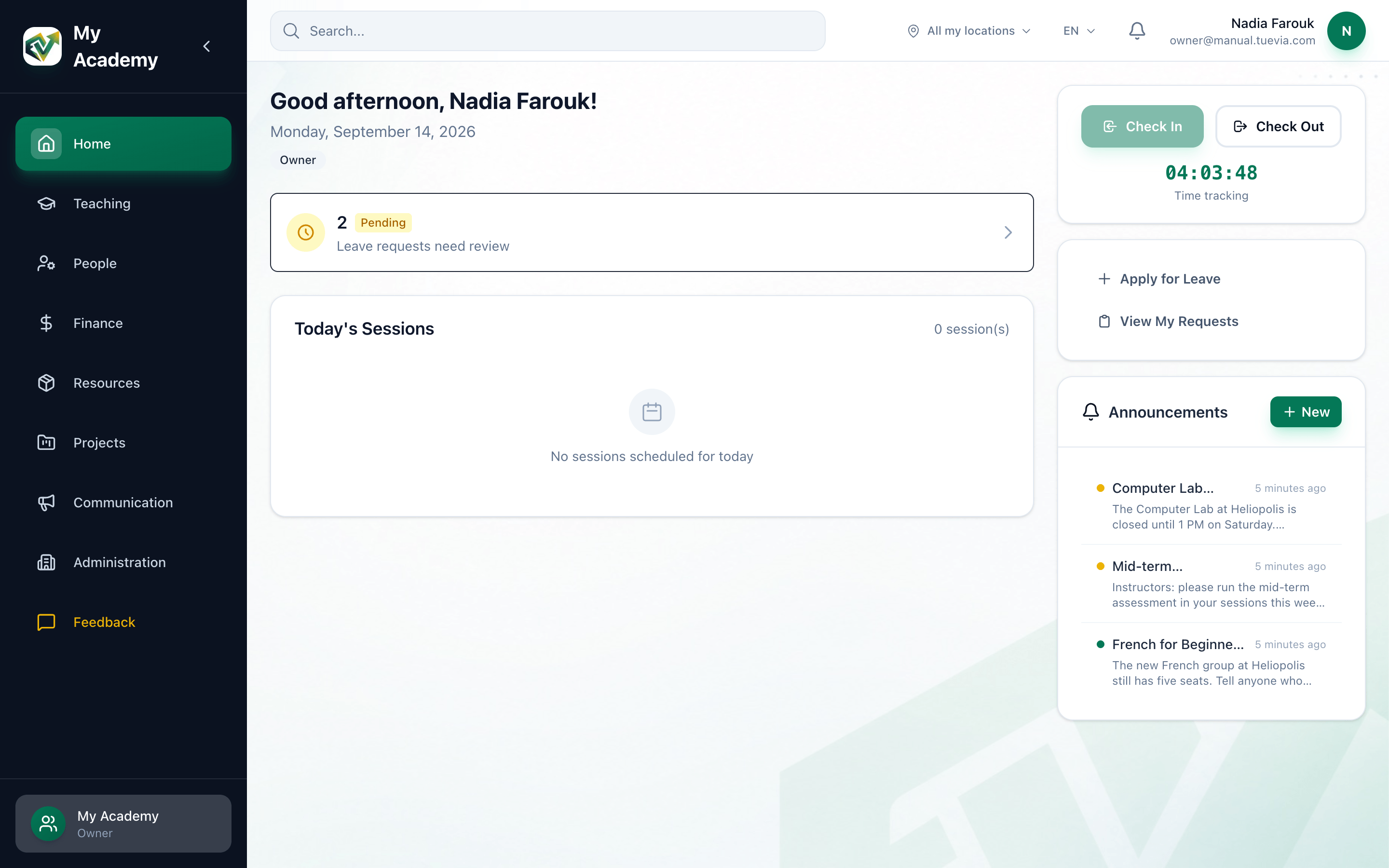
- The tabs
- Location
- Open classroom
- Language
- Light or dark
- Get help
- Notifications
- Your account
- Your academy
-
The tabs. Home, Teaching, Requests, CRM, Team, Finance, Projects and Settings. Press one to open it. A tab with several pages lists them under it while it is open: Students, Groups and Courses under Teaching, for example. You see only the tabs and pages your role lets you open. The arrow at the top of the sidebar folds it down to its icons, and opens it again.
-
Location. All my locations, or one of the places you work in. Choosing one narrows the lists to that place. It shows only when you work in more than one place: see The Online location.
-
Open classroom. Opens Classroom, where classes are taught: lessons, materials, quizzes and certificates. It shows for the owner and for staff whose role reaches classes.
-
Language. EN or AR. Press it and choose English or العربية: the page you are on opens again in that language, and in Arabic the screen reads from right to left. Each person chooses their own.
-
Light or dark. Switches the app between Light mode and Dark mode. Each person chooses their own, and the browser keeps it for every Tuevia app.
-
Get help. Documentation opens this manual; Contact us opens a chat with Tuevia on WhatsApp.
-
Notifications. The bell. The red number on it is how many notifications you have not read; press it to see the latest. See Your notifications.
-
Your account. Your name, your email address and your initial. Press it for Settings, where your profile and your password are (see My Account), and for Sign Out.
-
Your academy. The academy’s name and your role in it. If you work in more than one academy, press it: Your academies lists them, and choosing one opens it without signing out.
On every page but Home, a button beside the bell opens the assistant in a panel at the side, so you can ask it something without leaving the page.
What happens next
Section titled “What happens next”The chapters of this manual follow the tabs, in the same order. Next in Getting started: your academy’s look and settings.