
Rooms
Rooms are where groups are taught. A room can belong to a branch, or to no branch at all: a room the whole academy can book.
Owners and admins can add, change and delete rooms. So can anyone whose role, under My Academy, has Branches set to Manage, and who works in all of the academy’s locations.
Add a room
Section titled “Add a room”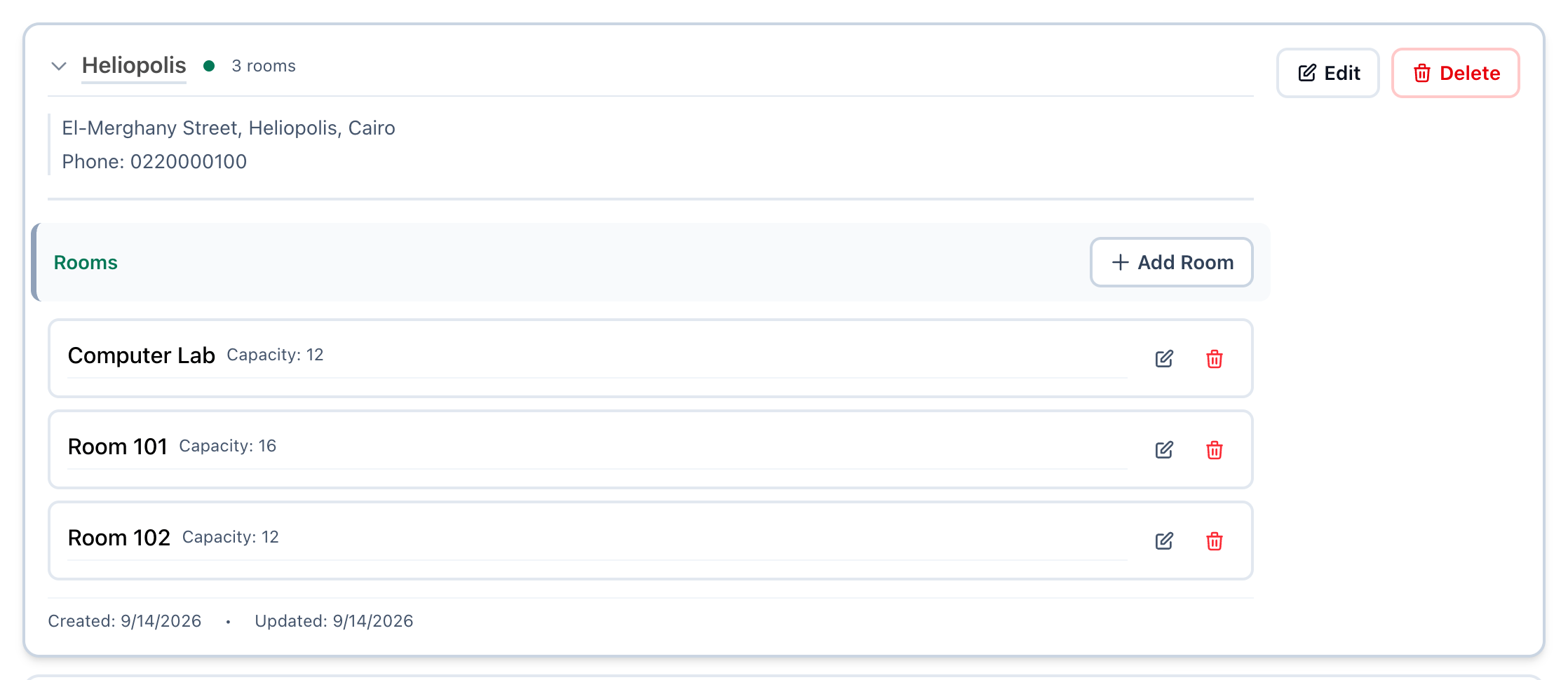
- Choose a branch
- Add room
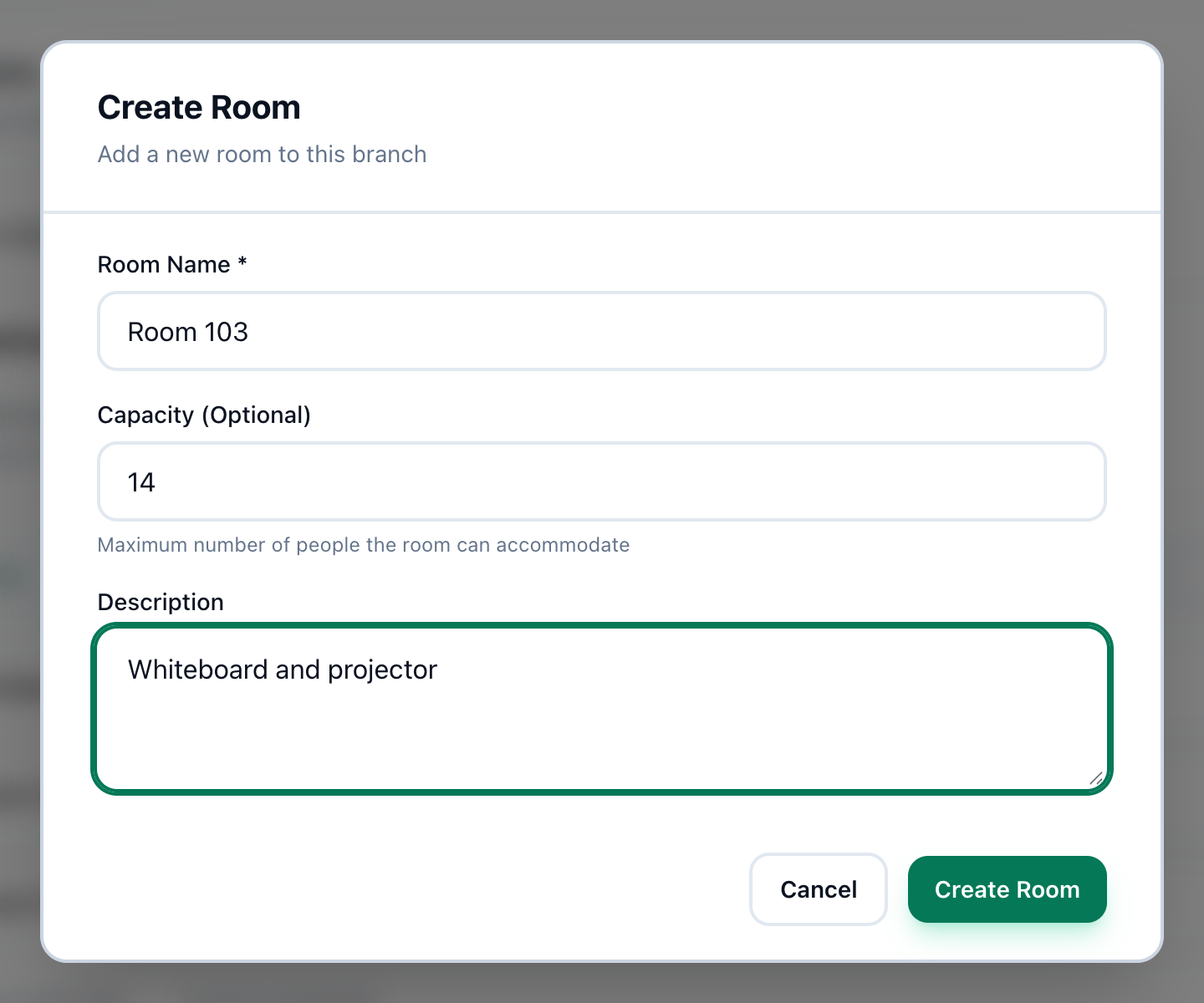
- Room Name
- Branch
- Capacity
- Create Room
-
On Settings → Branches, press the branch in the Branches list. The page shows its rooms. All rooms shows every room, and Any branch the rooms that belong to none.
-
Press Add room.
-
Enter the room’s name in Room Name.
-
Check Branch (optional). It starts on the branch you chose; leave it on Any branch for a room the whole academy can book.
-
If you like, enter in Capacity (Optional) the most people the room can hold.
-
Press Create Room. The room appears in the list.
The number of rooms shows beside each branch in the list, and each room shows its branch and its seats.
Change or delete a room
Section titled “Change or delete a room”Each room has two buttons at its end:
- The pencil, Edit room, opens Edit Room, with the same fields. Change them and press Update Room.
- The bin, Delete room, deletes it. Tuevia asks Delete Room 103? Press OK to delete it.
If something goes wrong
Section titled “If something goes wrong”-
Room name is required
Room Name is empty, or holds only spaces. -
Capacity must be a positive number
Enter a whole number of 1 or more in Capacity (Optional), or leave it empty. -
That room could not be deleted.
Tuevia refused to delete it. The reason, when there is one, appears in red at the top of the page.
What happens next
Section titled “What happens next”A room is offered when a group or a session is set up: groups are taught in rooms. See Creating a group.