
Your colours
Three colours, and Tuevia follows them on every page of your academy: the buttons, the page and the cards. The sidebar is white in every academy, with your brand colour on the page you are on. Status colours stay as they are, so green means attended in every academy.
Owners and admins can change the colours. So can anyone whose role, under My Academy, has Settings set to Manage, and who works in all of the academy’s locations.
The three colours
Section titled “The three colours”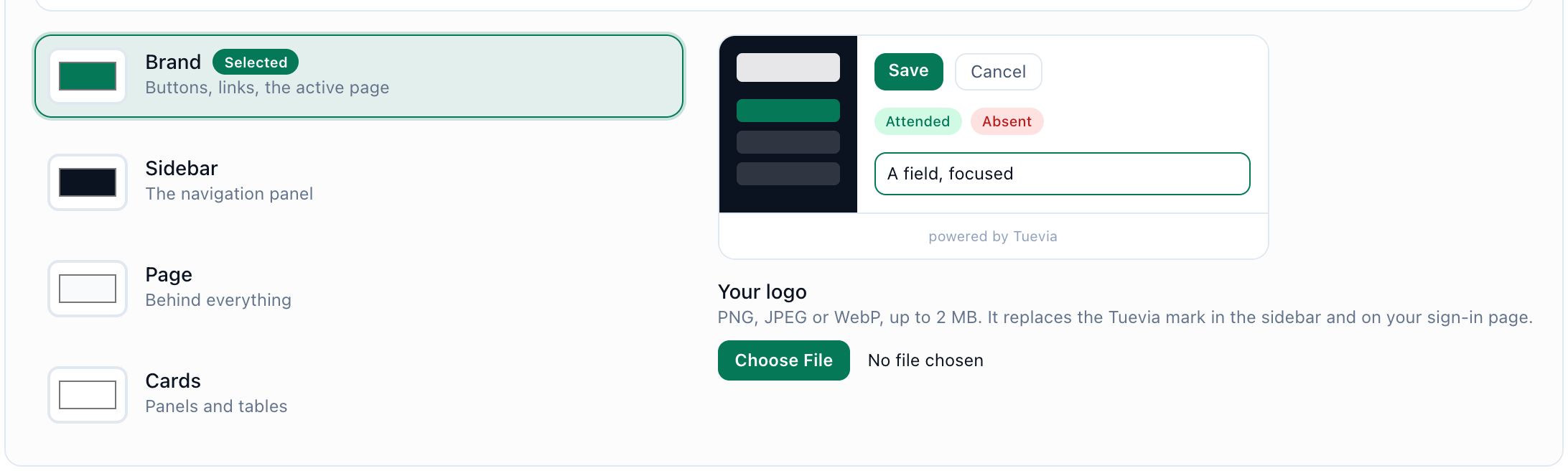
- Brand
- Page
- Cards
- The preview
- Brand. Buttons, links, and the page you are on in the sidebar.
- Page. Behind everything.
- Cards. Panels and tables.
The preview beside them shows Tuevia’s own buttons, labels and a field in your colours, and changes as you do.
Set a colour
Section titled “Set a colour”-
Open Settings → Branding. Your colours is below your card and your services.
-
Press the colour square at the start of a row, for example Brand, and choose the colour.
-
Check the preview. If the colour is hard to read on, a warning appears under the row.
-
Scroll to the foot of the page and press Save Settings. Settings saved successfully confirms it.
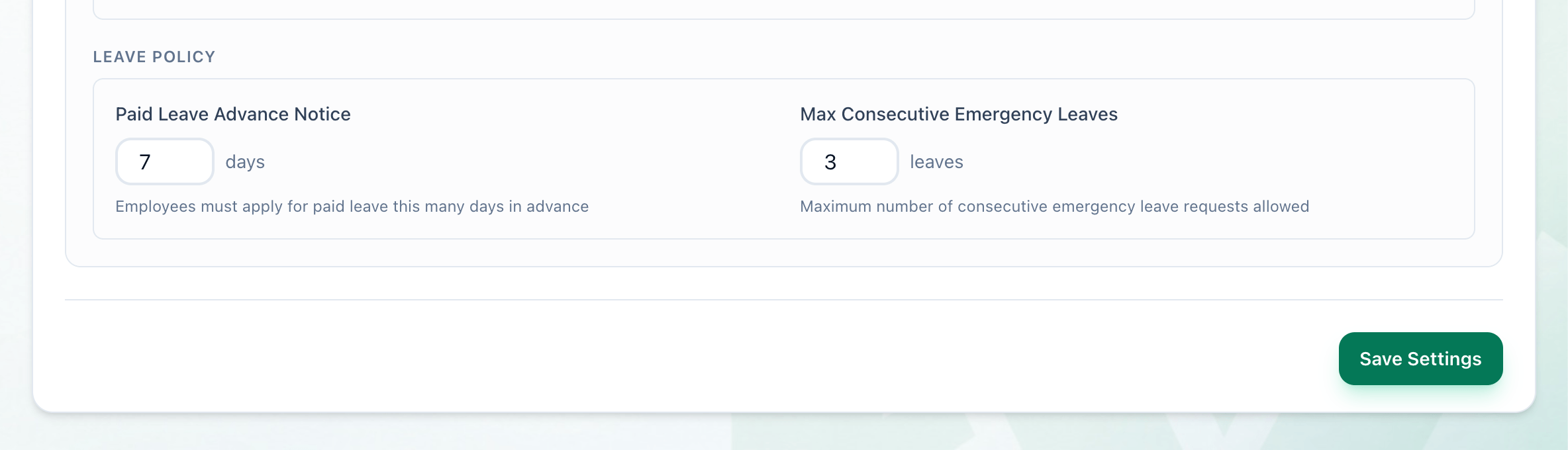
Save Settings saves the colours and the logo together. Nothing you change in them is kept until you press it. Your card, catalogue and services save on their own: see Your card and catalogue.
The contrast warning
Section titled “The contrast warning”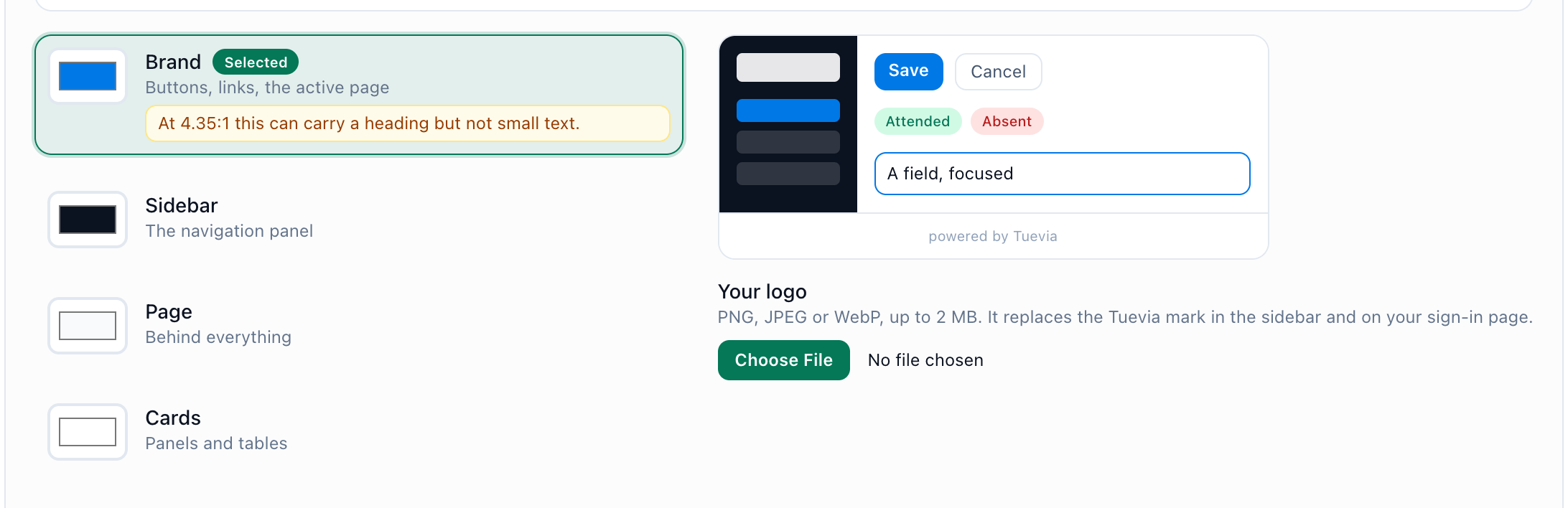
- The warning
- The preview
Brand carries text: buttons, links, and the page you are on. Tuevia measures how well white or dark text reads on it, and when neither reads well enough, the row warns you, for example:
- At 4.35:1 this can carry a heading but not small text.
Small text on this colour will be hard to read. Choose a darker or lighter shade.
The warning does not stop you saving.
Go back to Tuevia’s colours
Section titled “Go back to Tuevia’s colours”Once your academy has colours or a logo of its own, Back to Tuevia’s colours and mark appears under the three rows. Press it to put Tuevia’s colours and mark back into the form, then press Save Settings.
What happens next
Section titled “What happens next”- Everyone in the academy sees the new colours the next time a page loads.
- Let Tuevia fill the colours in for you from a logo, a template or your website: Starting from your brand.
- Put your own logo in place of Tuevia’s mark: Your logo.