
Creating a project
A project is a piece of work your staff do together, such as an open day or a summer camp, with its own tasks and members. Anybody who works in the academy can open Projects and create a project.
Find a project
Section titled “Find a project”Projects lists the projects you are a member of. A project you are not a member of does not appear, even for the academy’s owner.
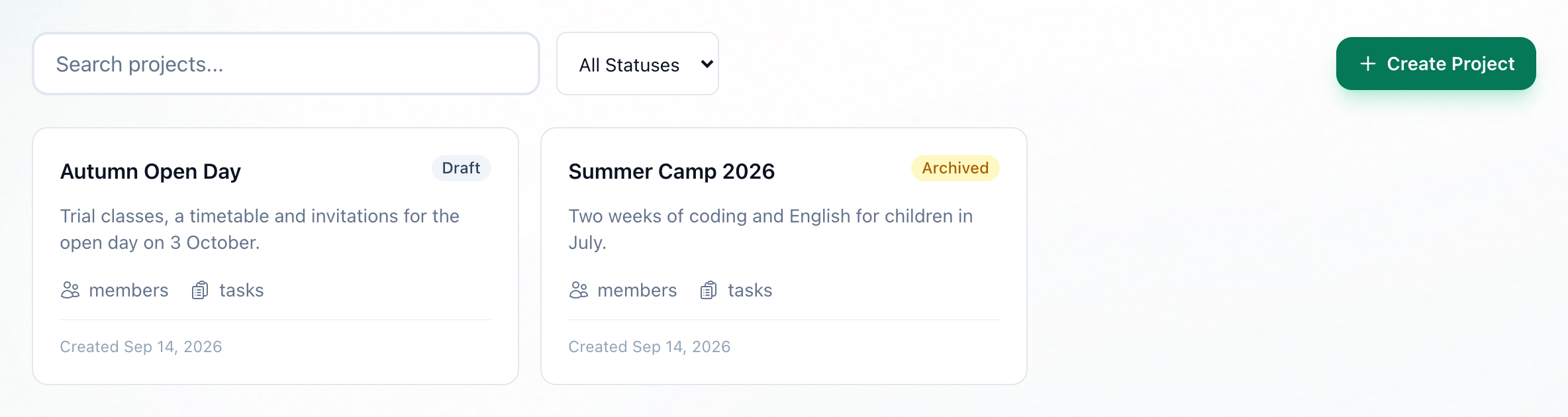
- Search projects...
- All Statuses
- A project
-
To narrow the list, type part of a project’s name or description in Search projects….
-
To see only projects in one state, choose Draft, Active or Archived instead of All Statuses.
-
Press a project’s card to open it.
Each card shows the project’s status, its description and the date it was created.
Create a project
Section titled “Create a project”
- Create Project
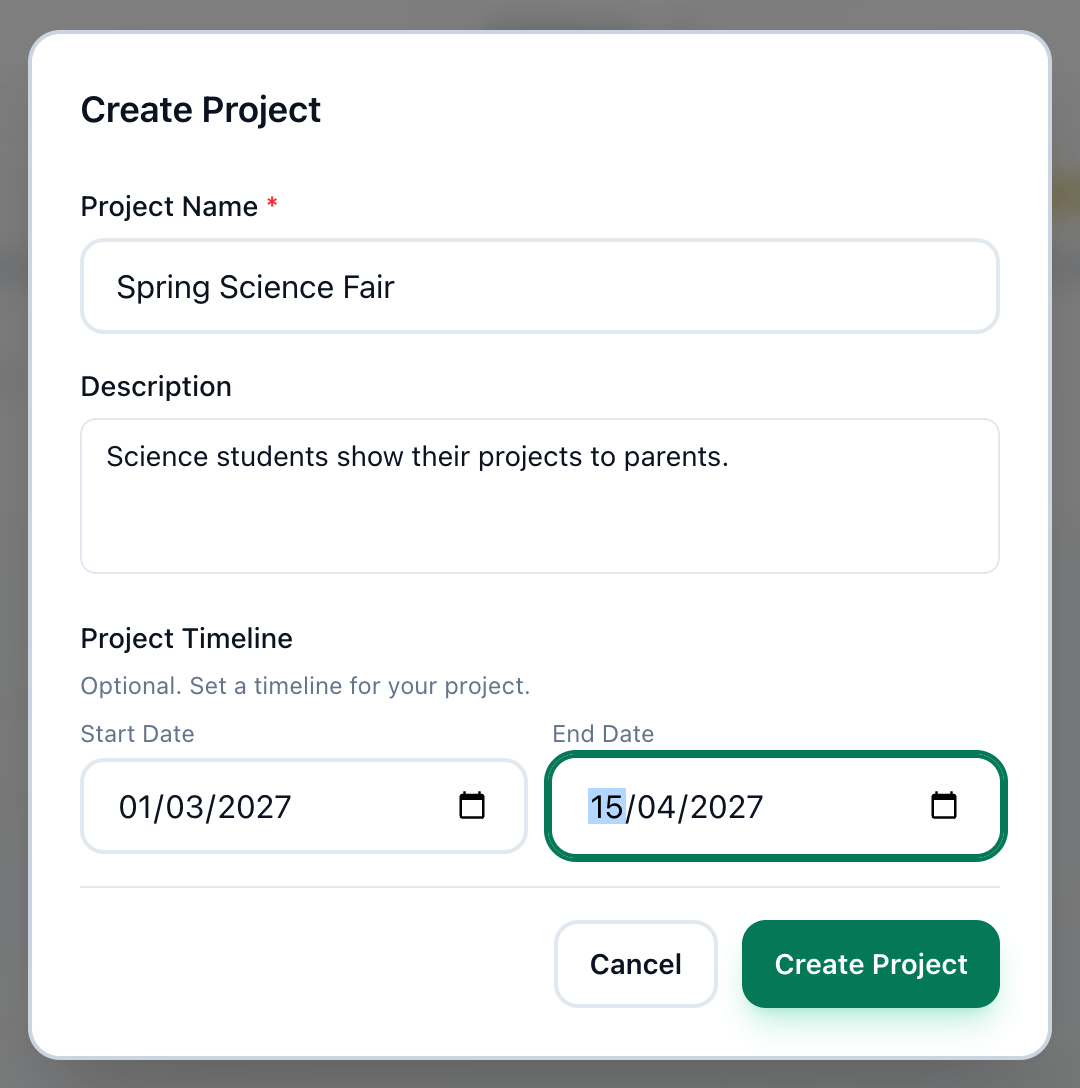
- Project Name
- Description
- Start Date
- End Date
- Create Project
-
On Projects, press Create Project.
-
Enter the project’s name in Project Name. It is the only field you must fill.
-
Describe the project in Description, if you want to.
-
Under Project Timeline, choose a Start Date, if the project has one.
-
Choose an End Date. It cannot be earlier than the start date.
-
Press Create Project. The project appears in your list.
You become the project’s Owner, and its only member until you add others. A new project starts as Draft, and nothing on its page changes that, so your projects stay Draft until they are archived.
A project’s page
Section titled “A project’s page”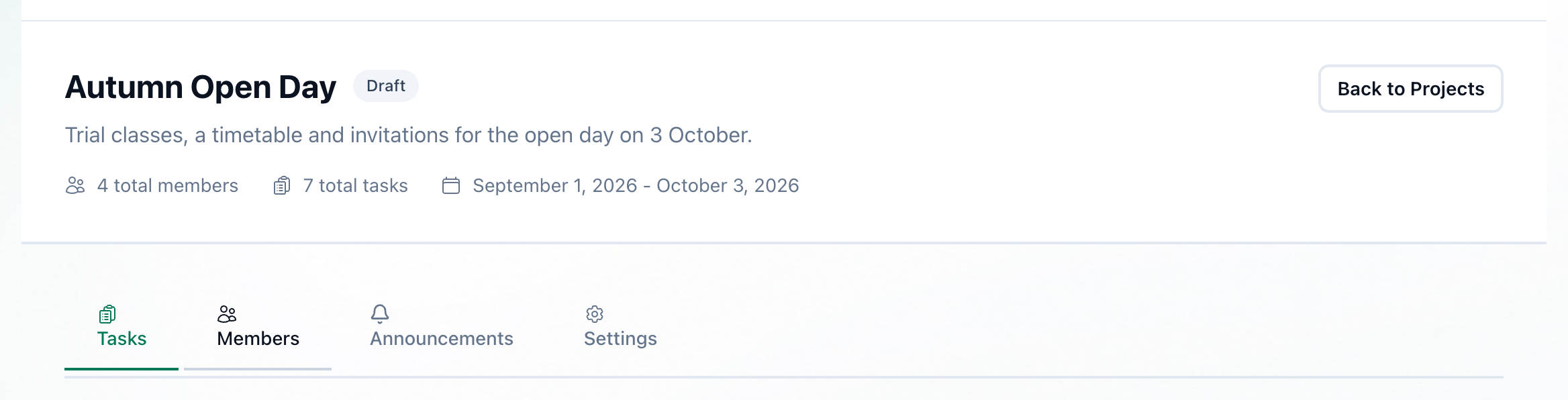
- Name and status
- The tabs
- Back to Projects
At the top are the project’s name, its status and its description, with the number of members and tasks and the project’s dates. Under them are four tabs:
-
Tasks
The project’s work, in columns. See Working with tasks. -
Members
Who is in the project, and what each of them may do. See Members and roles. -
Announcements
Announcements written for this project. See Announcements. -
Settings
The project’s name, description and dates, and archiving or deleting it. See Project settings.
Back to Projects returns you to the list.
If something goes wrong
Section titled “If something goes wrong”- Project name is required
Project Name is empty. Enter a name and press Create Project again.
What happens next
Section titled “What happens next”Add the people who will work on the project in Members and roles, then give them work in Working with tasks.