
Deleting your account
Deleting your account is under Danger Zone, at the bottom of Settings. It asks for your password, and gives you 30 days to change your mind. Everybody in the academy can delete their own account.
Delete your account
Section titled “Delete your account”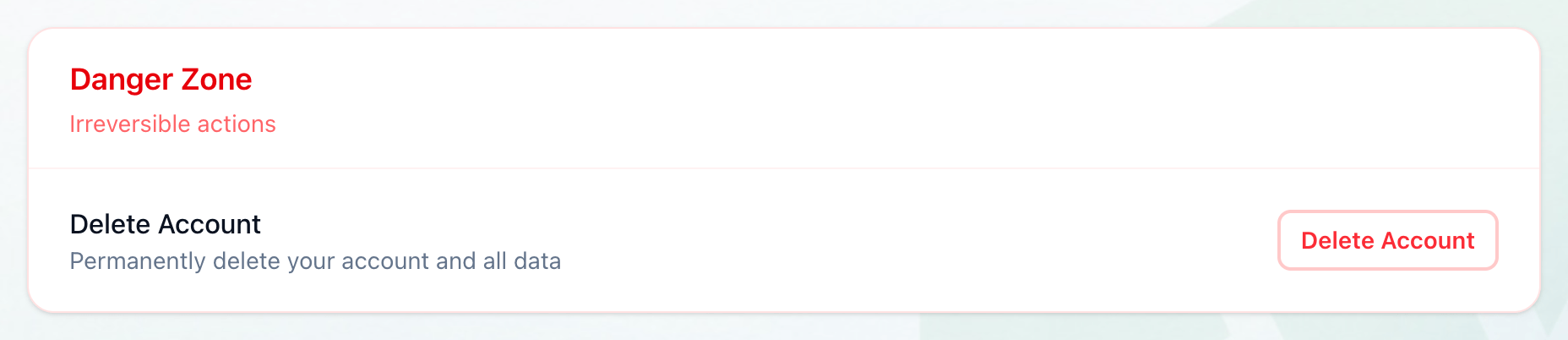
- Delete Account
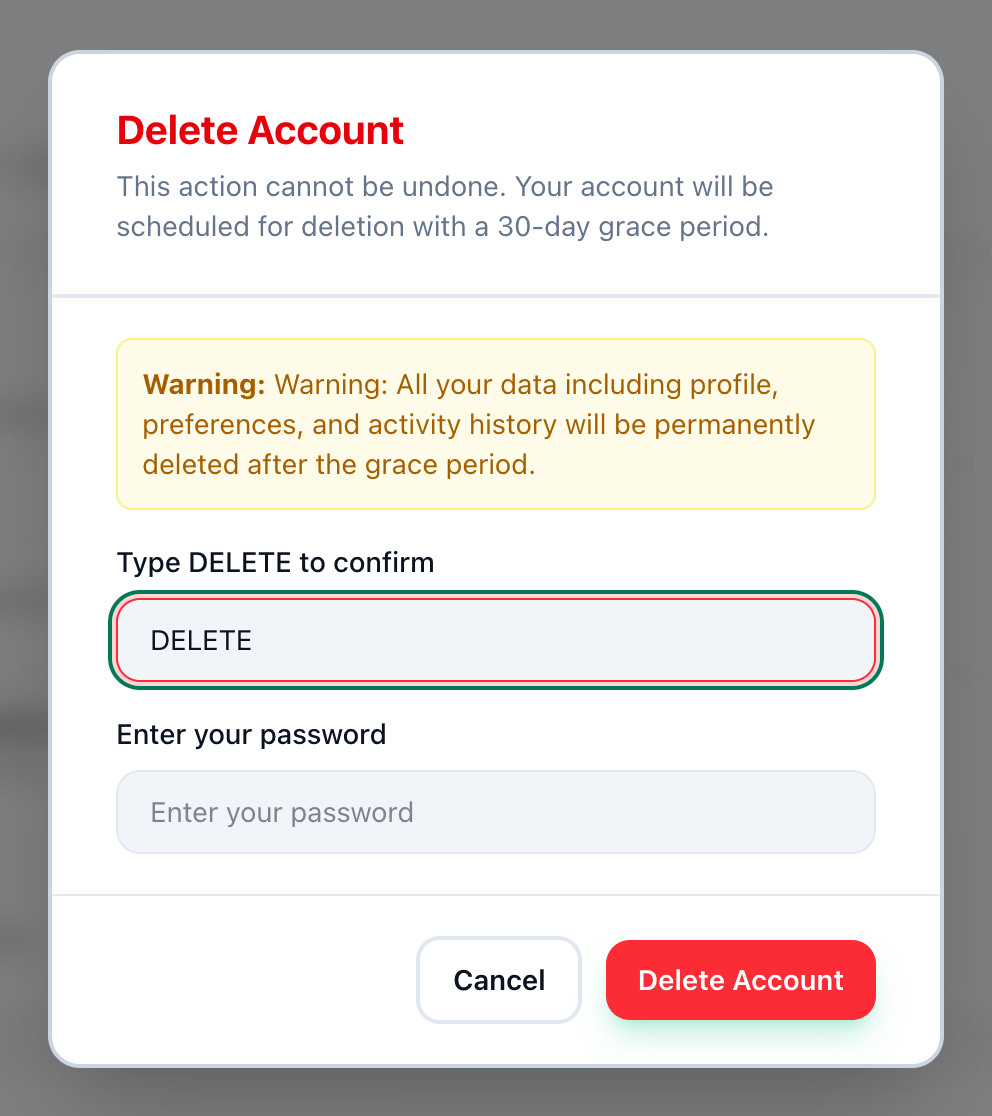
- Type DELETE
- Your password
- Delete Account
-
At the bottom of Settings, in Danger Zone, press Delete Account.
-
In Type DELETE to confirm, type
DELETE, in capital letters. Until it matches, the red Delete Account button stays pale. -
Enter your password in Enter your password.
-
Press Delete Account.
The dialog closes. At the top of Settings, Account Deletion Scheduled says Your account will be permanently deleted on and the date, 30 days from now. The button in Danger Zone reads Deletion Scheduled. You stay signed in, and your account works as before until then.
Change your mind
Section titled “Change your mind”-
Open Settings.
-
In Account Deletion Scheduled, press Cancel Deletion.
The warning goes, and Delete Account can be pressed again.
If something goes wrong
Section titled “If something goes wrong”-
Please enter your password
You pressed Delete Account without a password. Enter it. -
Password is incorrect
The password is not the one you sign in with. Try again. If you have forgotten it, sign out and use Forgot password? on the sign-in page. -
Failed to request account deletion
The deletion could not be scheduled. Nothing changed. Try again.
What happens next
Section titled “What happens next”Requesting the deletion, and cancelling it, each add an entry to your security log.