
Recording a payment
When a student pays, record it against their fee agreement, then hand them a receipt. Owners, admins, and anyone allowed to manage Student Fees can record payments.
Record the payment
Section titled “Record the payment”
- Add Payment
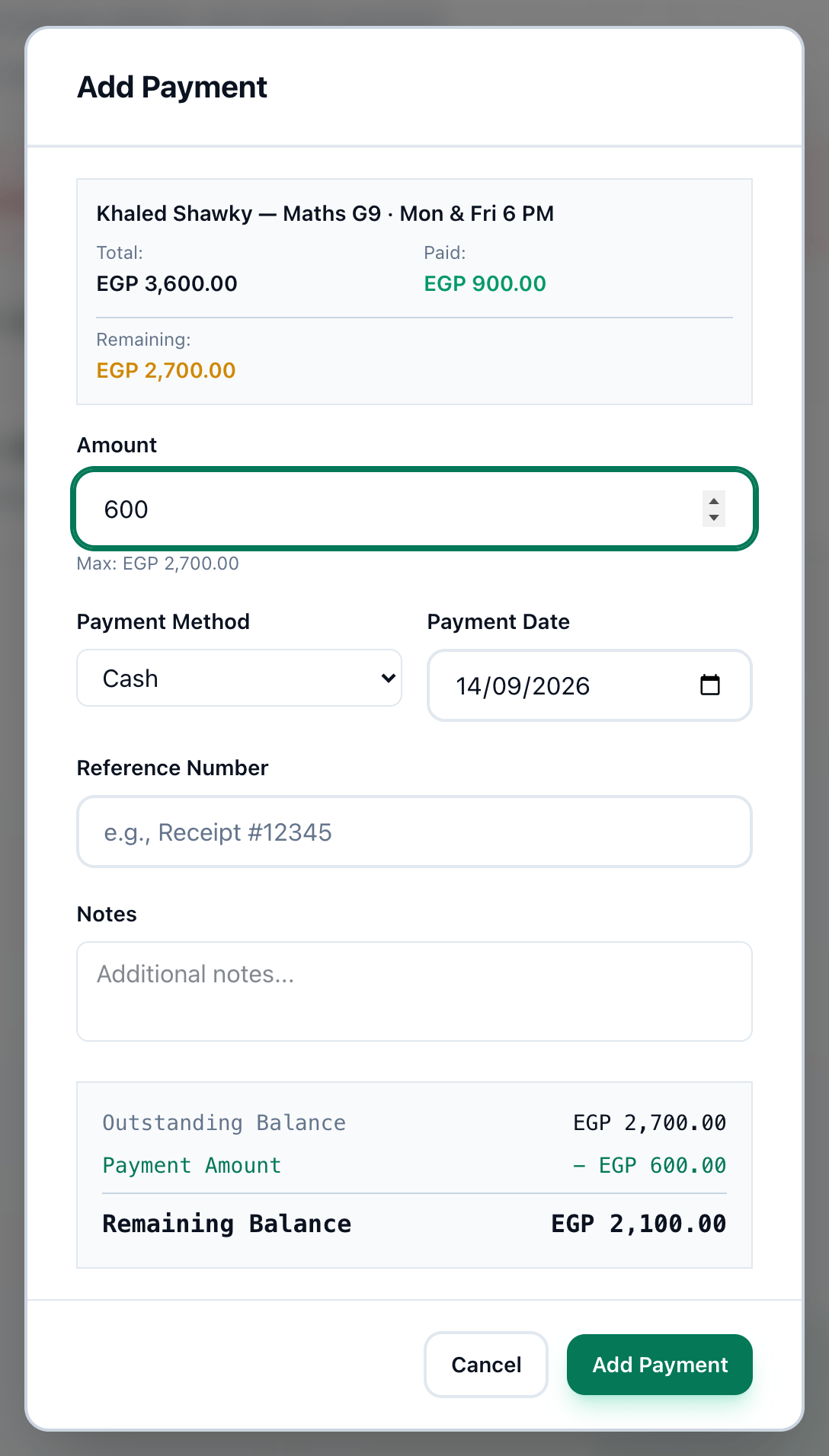
- Amount
- Payment Method
- Payment Date
- Reference Number
- Add Payment
-
On the Fees page, find the agreement — type the student’s name in Search by student, fee or group — and press + on its card. The button is there only while the agreement is active and has a balance.
-
Enter the amount paid in Amount. It cannot be more than the balance, which shows under the field as Max:. The box at the top shows the agreement’s Total, Paid and Remaining.
-
Choose how they paid in Payment Method: Cash, InstaPay, Bank Transfer, Card, Check or Other.
-
Check Payment Date. It is today unless you change it.
-
If there is a receipt or transfer number, enter it in Reference Number. Add anything worth keeping in Notes. The box under the form shows the Outstanding Balance, the Payment Amount and the Remaining Balance after it.
-
Press Add Payment. Payment recorded confirms it, with the amount paid and the new balance.
A payment pays off the oldest unpaid instalment first, then the next. When every instalment is paid, the agreement becomes Completed.
On a student’s profile, Add Payment under Payments opens the same dialog.
Attach the receipt
Section titled “Attach the receipt”Under Attachments, press Add a photo or PDF and choose a photo or a PDF of the receipt or the transfer — an InstaPay screenshot, for example. A payment can have up to 5 files of up to 10 MB each. They show as small pictures on the payment; click one to open it full size.
If a file does not upload, the form says so: try again, or record the payment and add the file afterwards from the payment’s record with Add files.
Print or send the receipt
Section titled “Print or send the receipt”Payment recorded stays open so you can hand over a receipt.
-
Press Print receipt to print it. The receipt shows your academy’s name, the amount paid, the student, the group, the fee plan, the payment method, what has been paid to date, the remaining balance, the reference and who recorded it.
-
Or press Send receipt to email it to the student’s email address. Receipt sent to and the address confirm it.
-
Press Done. The fees list shows the new balance.
You can print or send a receipt again later — see Payment records, receipts and corrections.
If something goes wrong
Section titled “If something goes wrong”-
Amount exceeds remaining balance of …
The amount is more than the student still owes. Enter the balance or less. -
Failed to record payment
The payment was not saved. Try again. -
No email on file for this student.
The student’s profile has no email address. Add one, or print the receipt instead. -
Couldn’t send the receipt.
The email did not go. Try again, or print the receipt.
What happens next
Section titled “What happens next”The payment appears in the agreement’s payment records, on the student’s profile, and in the income on Reports.