
Project settings
A project’s Settings tab is where its details change, and where it is archived or deleted. The project’s owner and managers can do all three.
Change the project’s details
Section titled “Change the project’s details”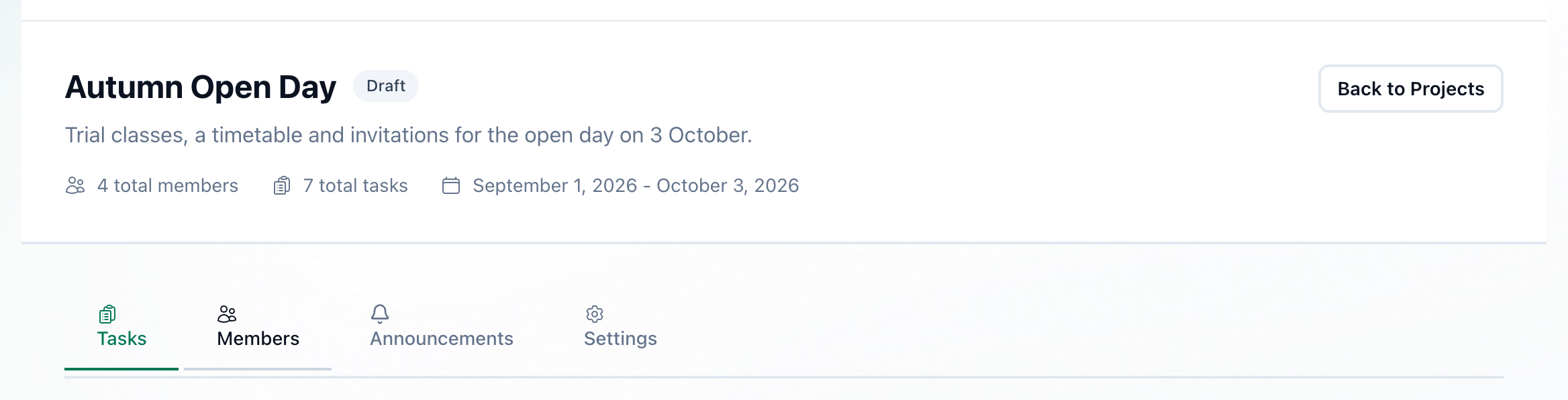
- Settings is the last tab
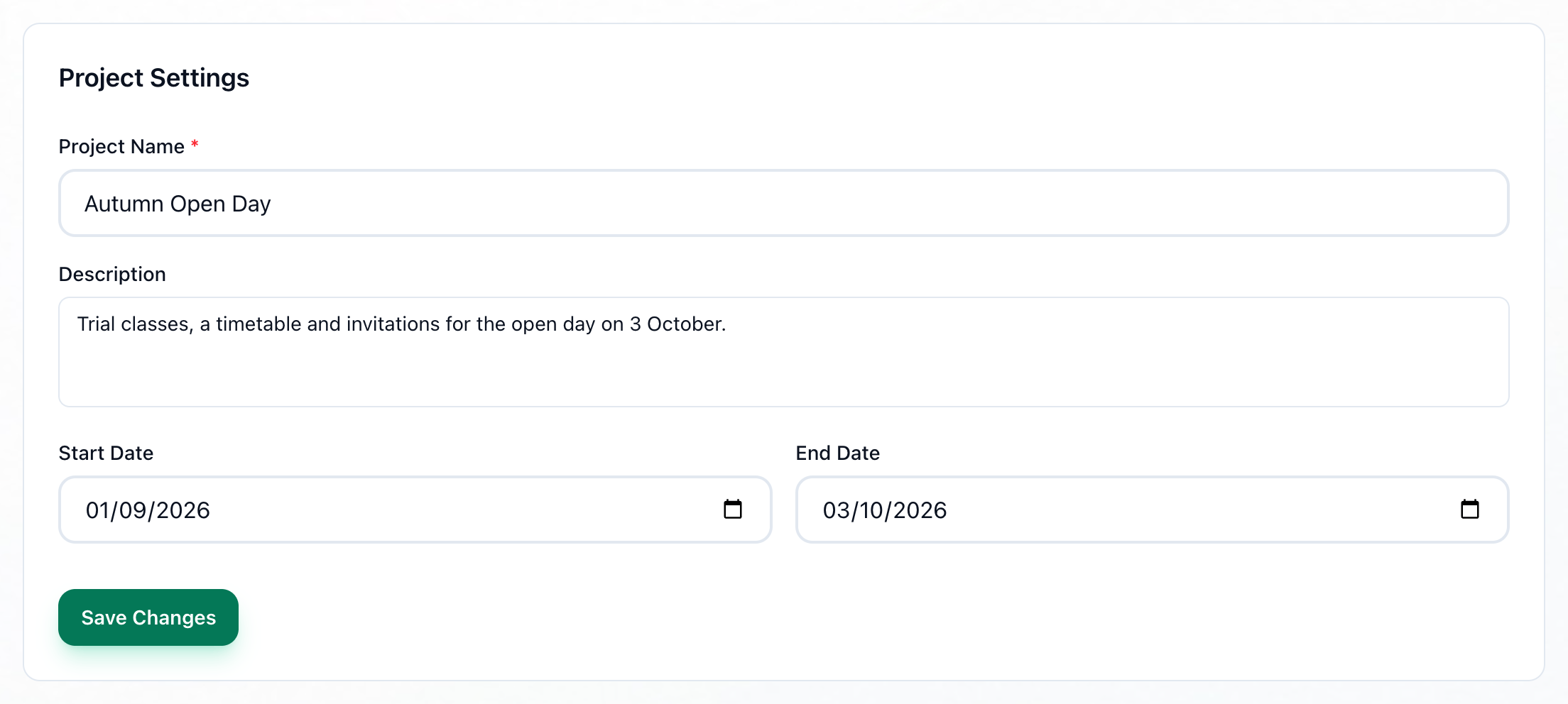
- Project Name
- Description
- Start Date
- End Date
- Save Changes
-
Open the project and choose the Settings tab.
-
Change the name in Project Name. It cannot be left empty.
-
Change the Description.
-
Change the Start Date.
-
Change the End Date. It cannot be earlier than the start date.
-
Press Save Changes. Project updated successfully confirms it, and the page’s heading shows the new details.
Archive a project
Section titled “Archive a project”Archive a project when its work is over. Its members can still open it and read everything in it, but nothing in it can change.
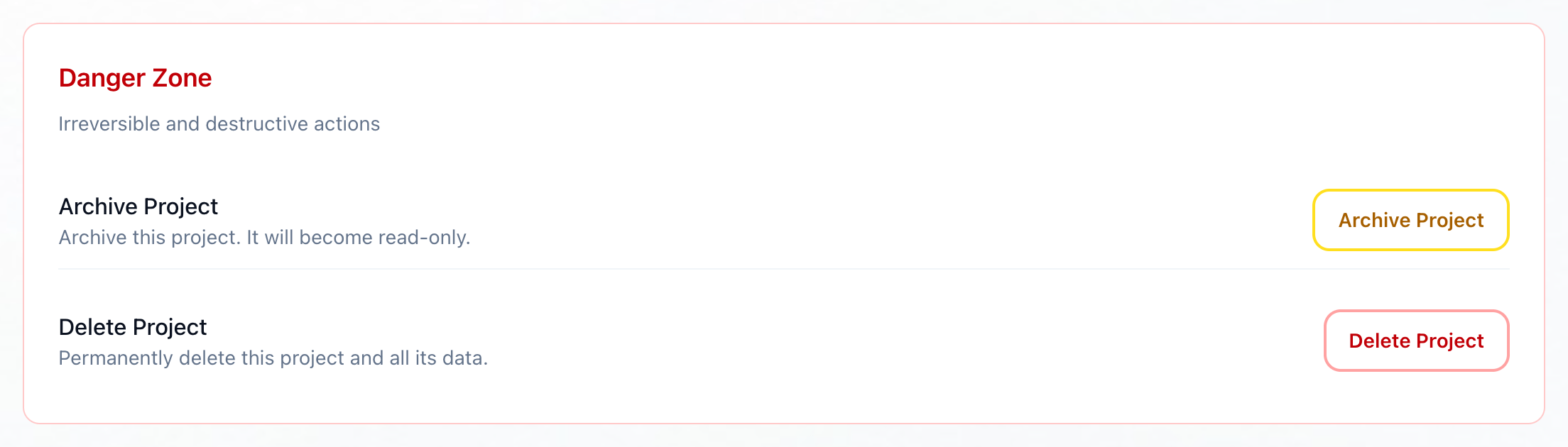
- Archive Project
-
On the project’s Settings tab, under Danger Zone, press Archive Project.
-
Confirm. Project archived successfully appears, and the project is marked Archived.
Delete a project
Section titled “Delete a project”Deleting removes the project with all its tasks and members, for good.
-
On the project’s Settings tab, under Danger Zone, press Delete Project.
-
Confirm. Tuevia returns you to Projects, and the project is gone from everybody’s list.
If something goes wrong
Section titled “If something goes wrong”-
Project name is required
Project Name is empty. Enter a name and press Save Changes again. -
You do not have permission to manage this project
Only the project’s owner and managers change, archive or delete a project. -
project is archived and cannot be modified
The project is archived, so it cannot change, or be made active again.
What happens next
Section titled “What happens next”An archived project stays in its members’ lists; choose Archived in the status list on Projects to see only those. See Creating a project.