
An instructor's teaching day
Home → Groups → The register → Students
This flow follows an instructor from arriving at the academy to leaving it, and the register they take on the way. It is written for instructors. Owners and front-desk staff can read the last stops to see where the marks end up.
1. Home: check in
Section titled “1. Home: check in”When you arrive, press Check In on your home screen. Your check-ins are kept as your attendance, and at the end of the month your salary is worked out against them.
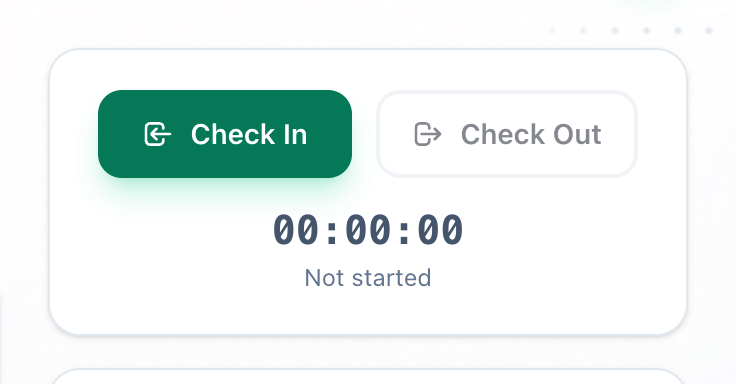
- Check In
- Check Out
See Checking in and out.
2. Groups: the week ahead
Section titled “2. Groups: the week ahead”On Teaching → Groups, Schedule shows a day’s sessions room by room, and Groups List the groups you teach. Moving or cancelling a session is for owners and anyone who can manage Groups: if one of yours has to change, ask them - see A session moves or is cancelled.
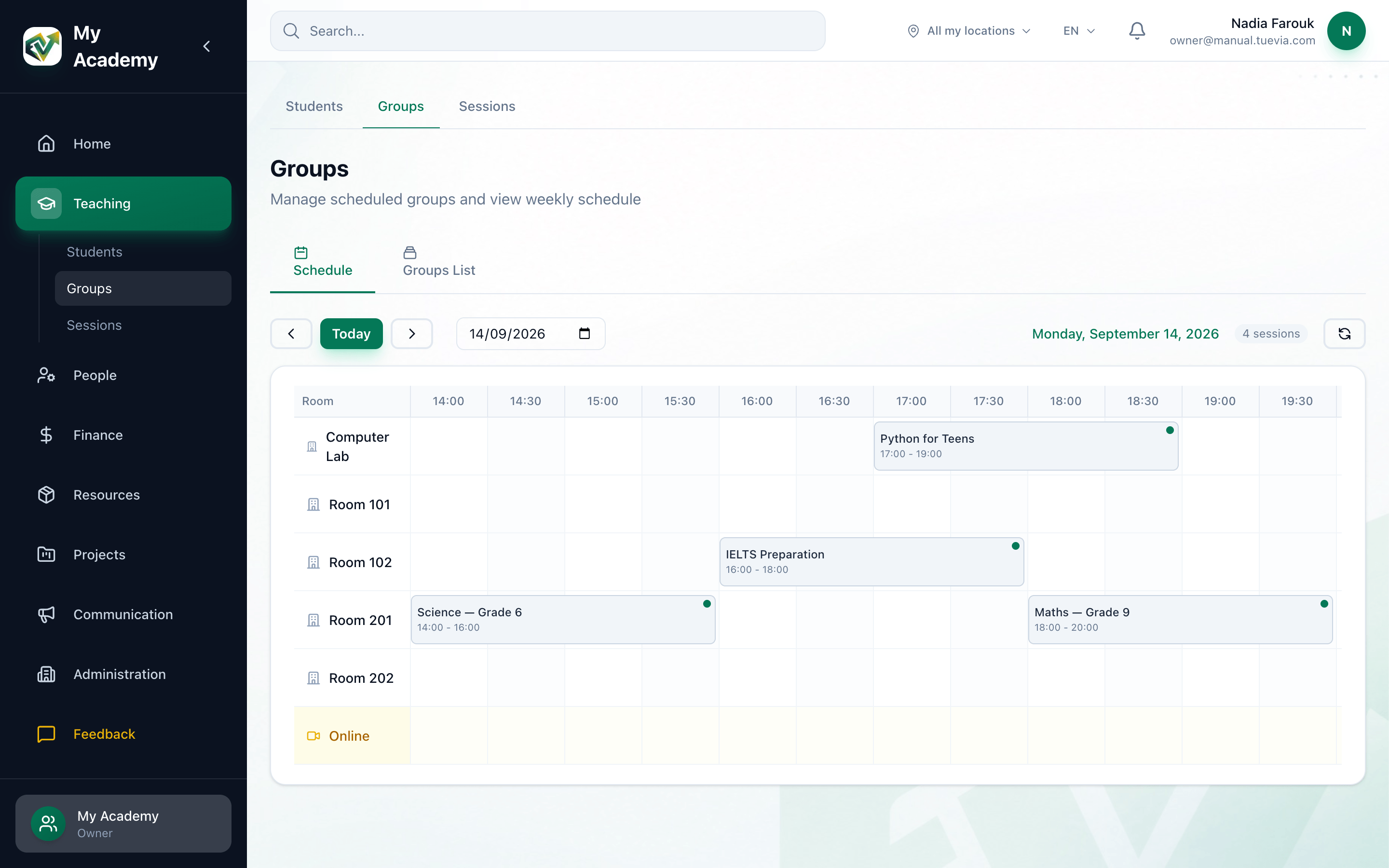
- A session
See The schedule and the groups list.
3. The register
Section titled “3. The register”Open the group’s page. In Students & Attendance, today’s column is highlighted: choose Attended, Late, Absent or Excused for each student. A student you leave unmarked is not recorded as absent. Every session has a column, so this is also where you correct an older register.
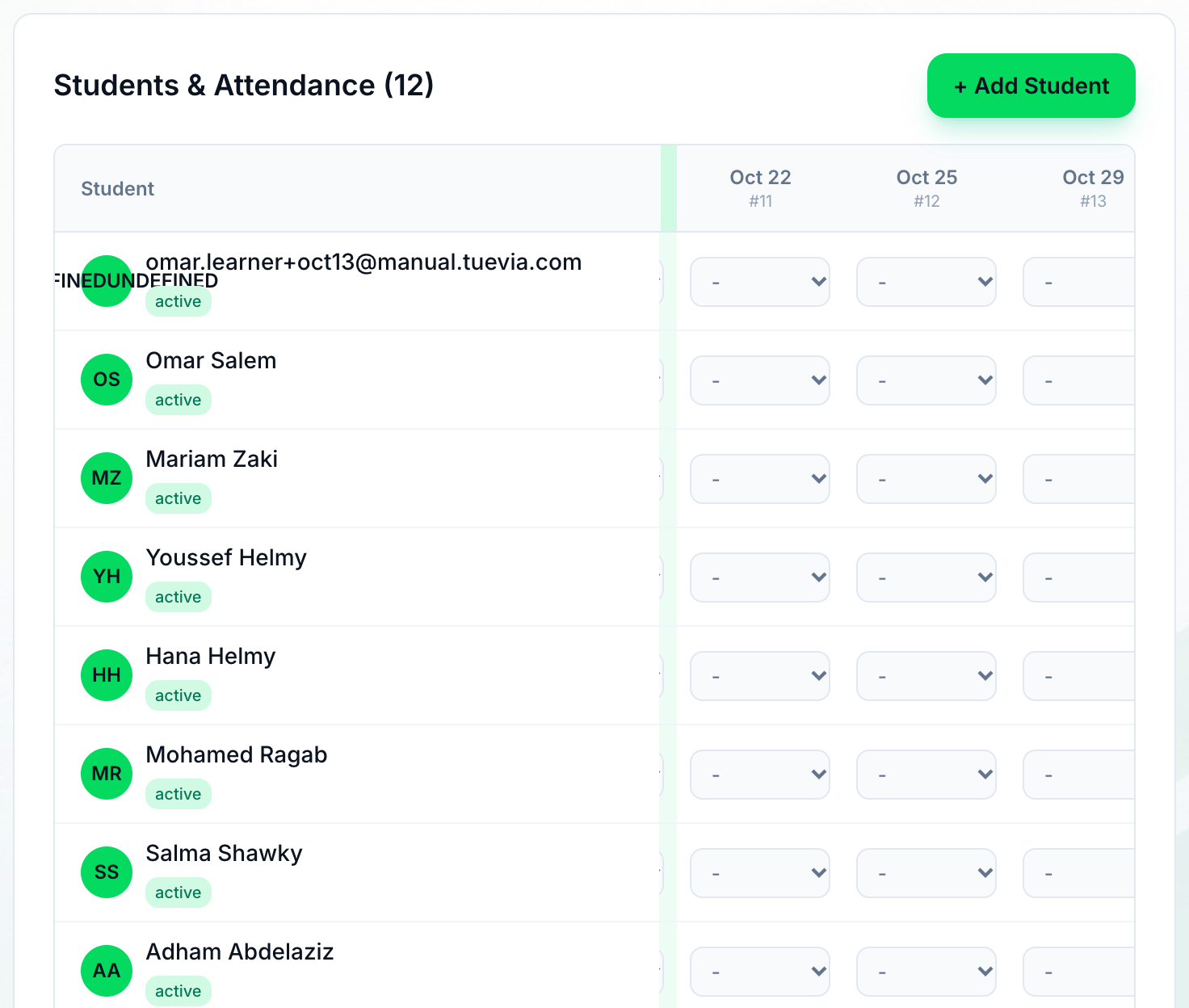
- Today's column
See Taking attendance.
4. Where an absence shows afterwards
Section titled “4. Where an absence shows afterwards”Instructors see their students’ names only, and have no Students page. Owners and anyone who can see Students find each student’s attendance on their profile on Teaching → Students, under Enrolled Groups. The bar counts the sessions they attended or came late to, so an absence lowers it; it turns yellow below 80% and red below 60%.
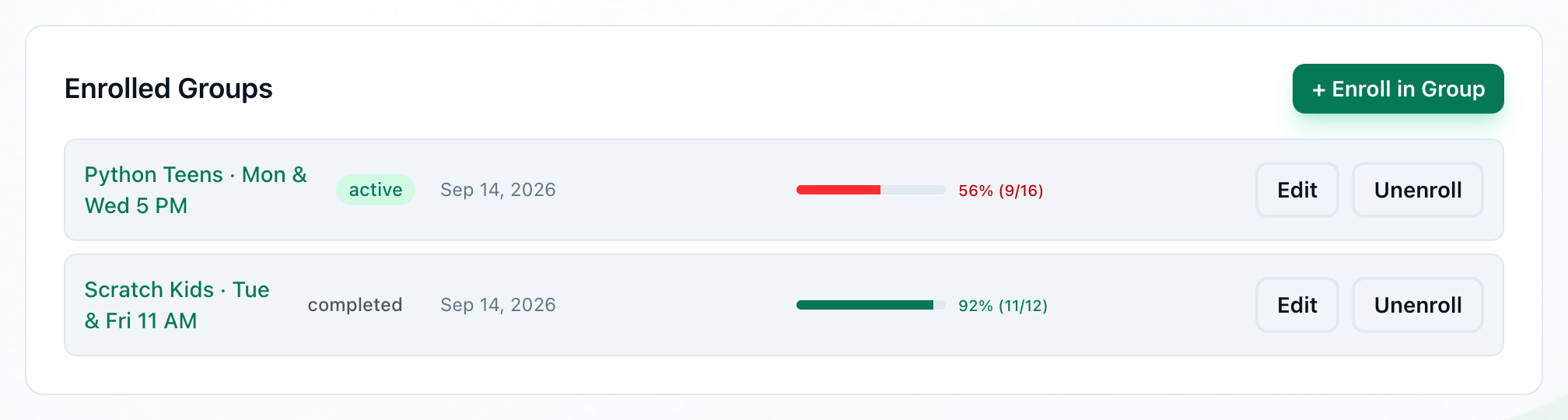
- Attendance
Tuevia does not tell students or parents about an absence: whoever follows it up, does it themselves. See The student profile.
5. Home: check out
Section titled “5. Home: check out”When you leave, press Check Out. If you step out during the day and come back, check in again: the clock carries on from the time you have already worked. See Checking in and out.