
Certificates
A certificate is issued from a class’s Certificates tab, on the academy’s own design, to the students who meet the course’s pass rules. The student finds it in their app, with a link anybody can check it by.
Pass rules and issuing
Section titled “Pass rules and issuing”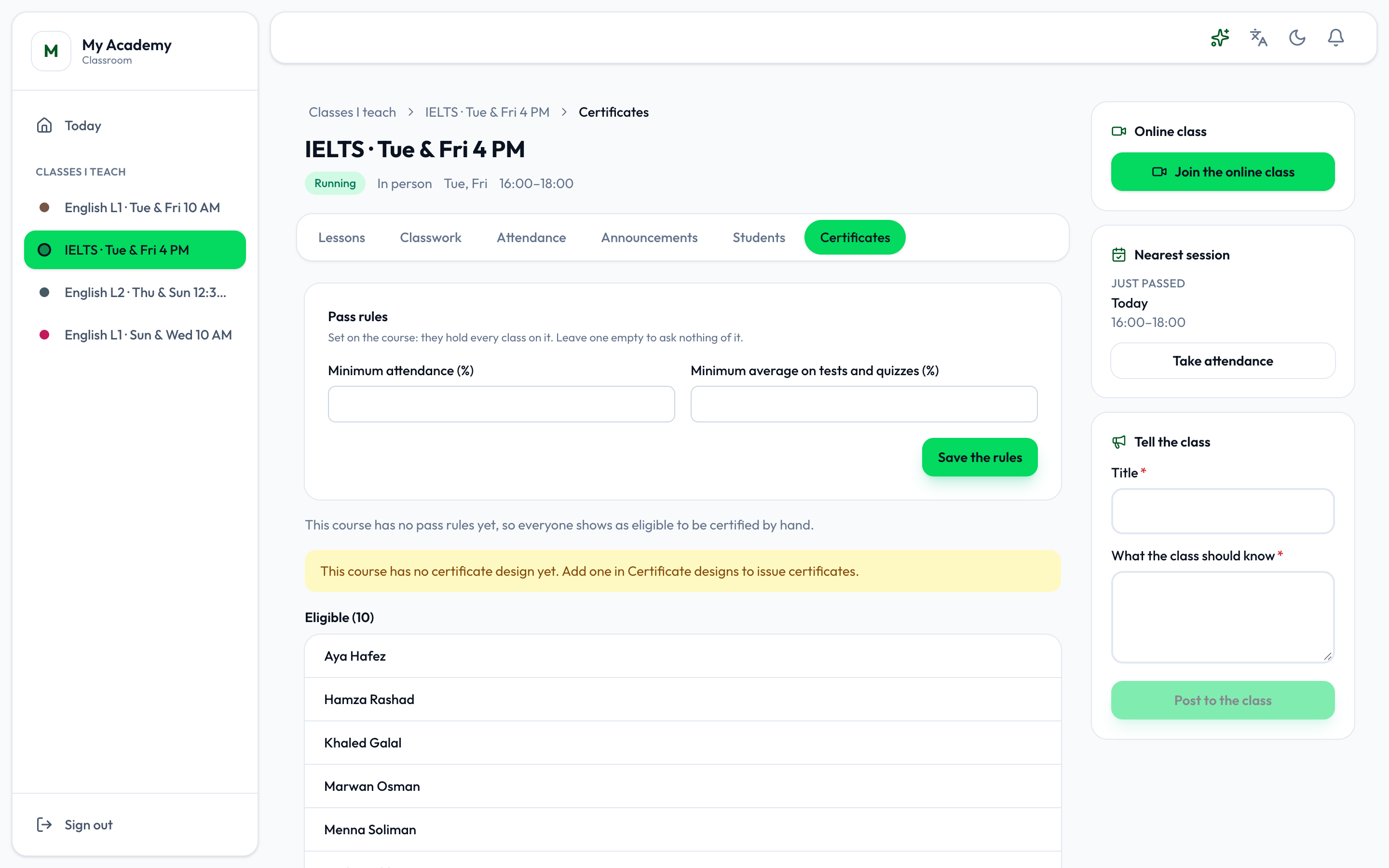
- Pass rules
- Pass rules are set on the course, and hold every class on it: a Minimum attendance (%) and a Minimum average on tests and quizzes (%). Leave one empty to ask nothing of it, and press Save the rules.
Below them the students are sorted into Eligible, Not eligible yet and Certified. With no pass rules, everybody shows as eligible, to be certified by hand.
-
Press Issue certificate beside a student, or Issue to everyone eligible.
-
The certificate is issued on the course’s design, and the student moves to Certified.
A student whose enrolment is still running says The academy marks the enrolment completed first: the academy marks it completed in the academy app. A course with no design yet says so - add one first.
Certificate designs
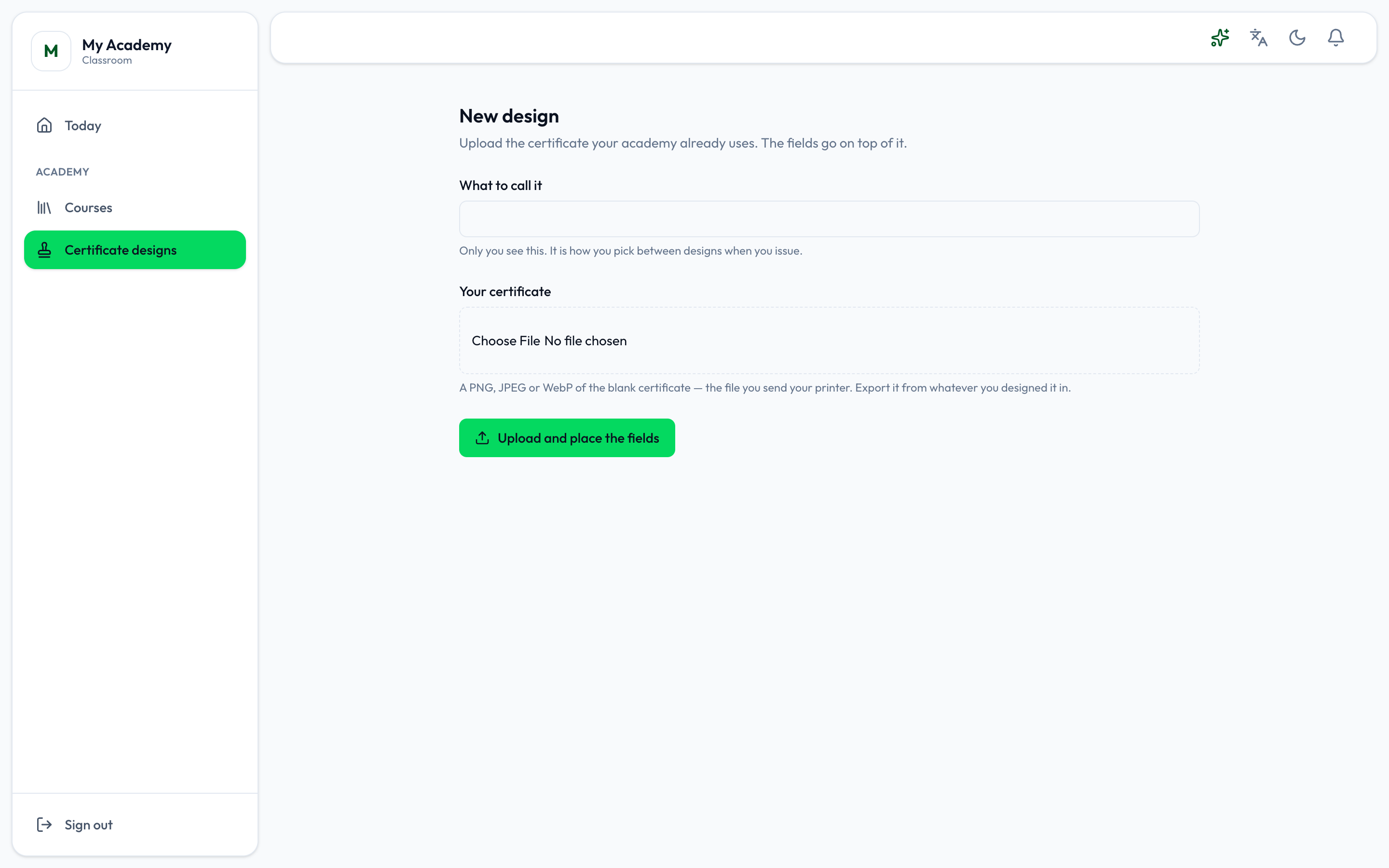
Section titled “Certificate designs”Certificate designs in the sidebar holds the academy’s designs: its own certificate, with the fields placed on it. Only those who may design the academy’s certificates see it.
-
Press New design.
-
Type What to call it - only you see it, to choose between designs - and choose Your certificate: a PNG, JPEG or WebP of the blank certificate, the file you send your printer.
-
Press Upload and place the fields.
-
Tuevia reads the design and places the fields on it: Student name, Course, Academy, Date, Average and Verification link. Drag any into place, Add a field for one that is missing, and save.
The list shows each design, marks the Default, and counts the certificates issued on it.