
Paying, pausing and changing an expense
Adding an expense does not record any money going out. Record each payment as you make it. Owners, admins, and anyone allowed to manage Custom Payments can record, pause, edit and delete expenses.
Record a payment
Section titled “Record a payment”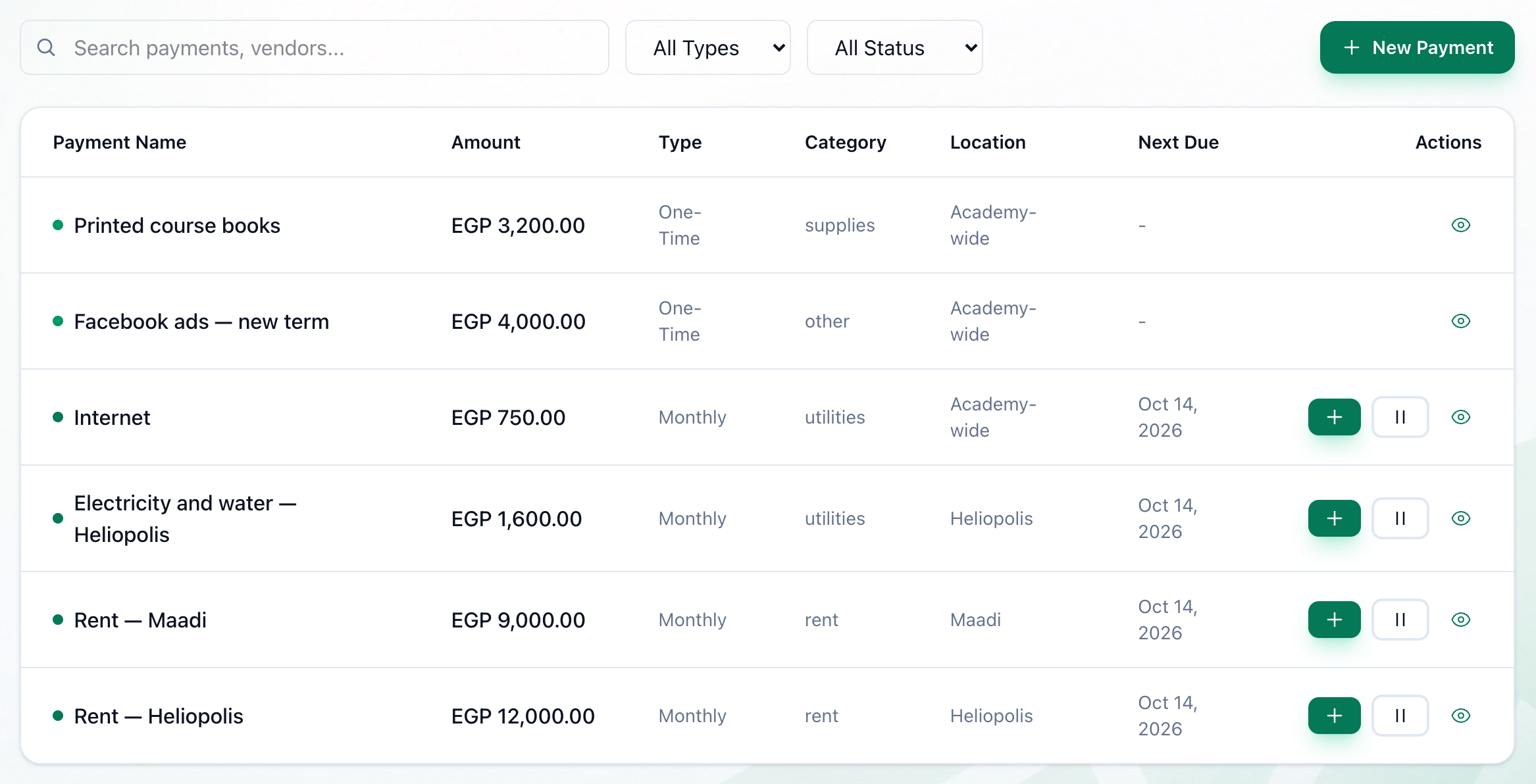
- Record Payment
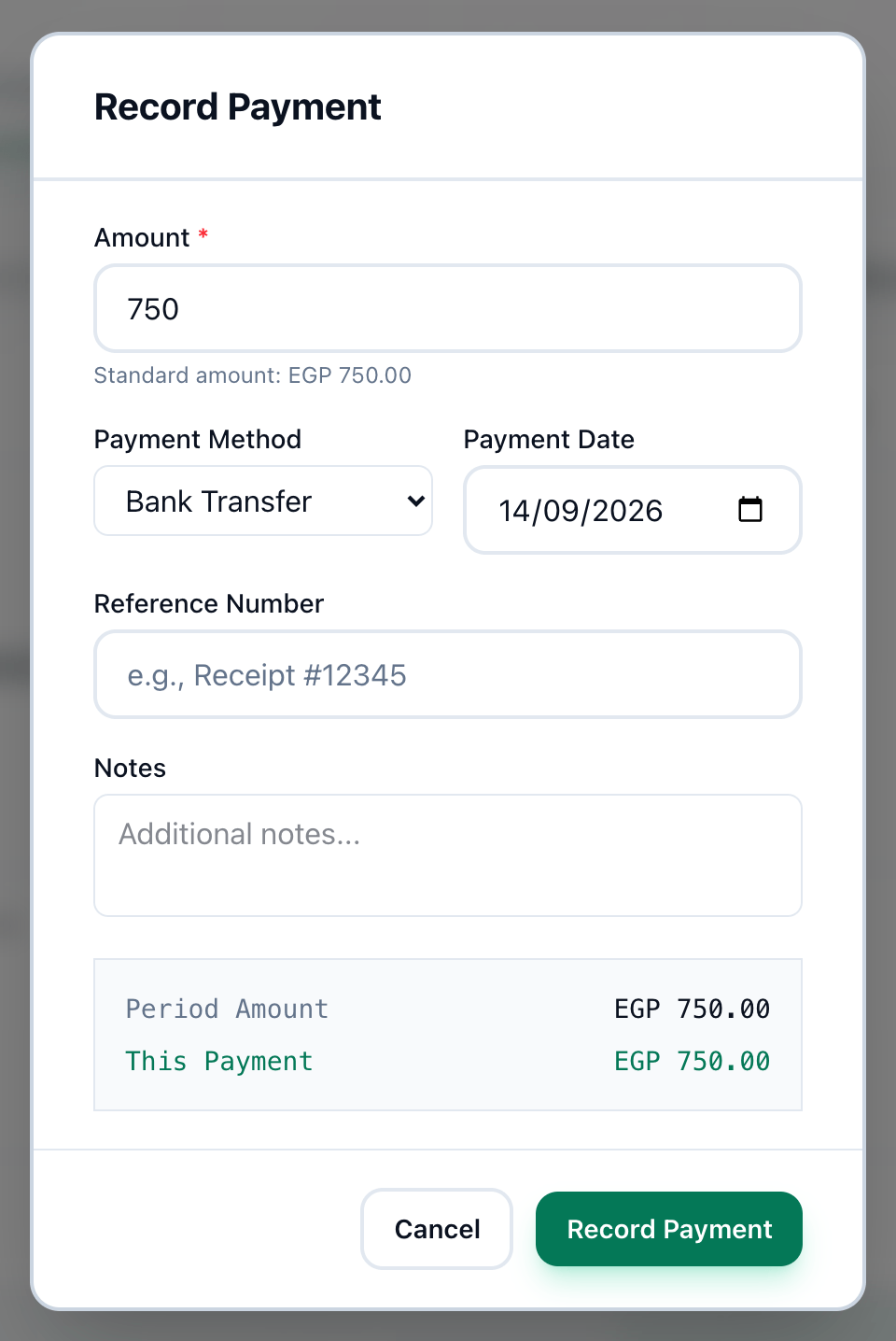
- Amount
- Payment Method
- Payment Date
- Reference Number
- Record Payment
-
On the Payments page, press + on the expense’s row. The button is on active recurring expenses; for a one-time expense, open its details with the eye button and press Record Payment there.
-
Check Amount. Tuevia fills in the expense’s usual amount, shown under the field as Standard amount:. If you pay a different amount, the box below says Overpaying by or Underpaying by how much.
-
Choose how you paid in Payment Method: Bank Transfer, InstaPay, Cash, Card, Check or Other.
-
Check Payment Date. It is today unless you change it.
-
Enter a receipt or transfer number in Reference Number, if there is one, and anything else in Notes.
-
Press Record Payment.
After a payment of a recurring expense, Next Due moves on one period from the payment date — to the Day of Month of the next month, when the expense has one. Once the next date would fall after the End Date, the expense is Completed. A one-time expense is Completed when it has been paid in full.
Attach the receipt
Section titled “Attach the receipt”Under Attachments, press Add a photo or PDF and choose a photo or a PDF of the receipt or the transfer — an InstaPay screenshot, for example. A payment can have up to 5 files of up to 10 MB each. They show as small pictures on the payment; click one to open it full size.
If a file does not upload, the form says so: try again, or record the payment and add the file afterwards from the payment’s record with Add files.
Pause a recurring expense
Section titled “Pause a recurring expense”For an expense that stops for a while — a room you are not renting over the summer — pause it rather than delete it.
- Pause
-
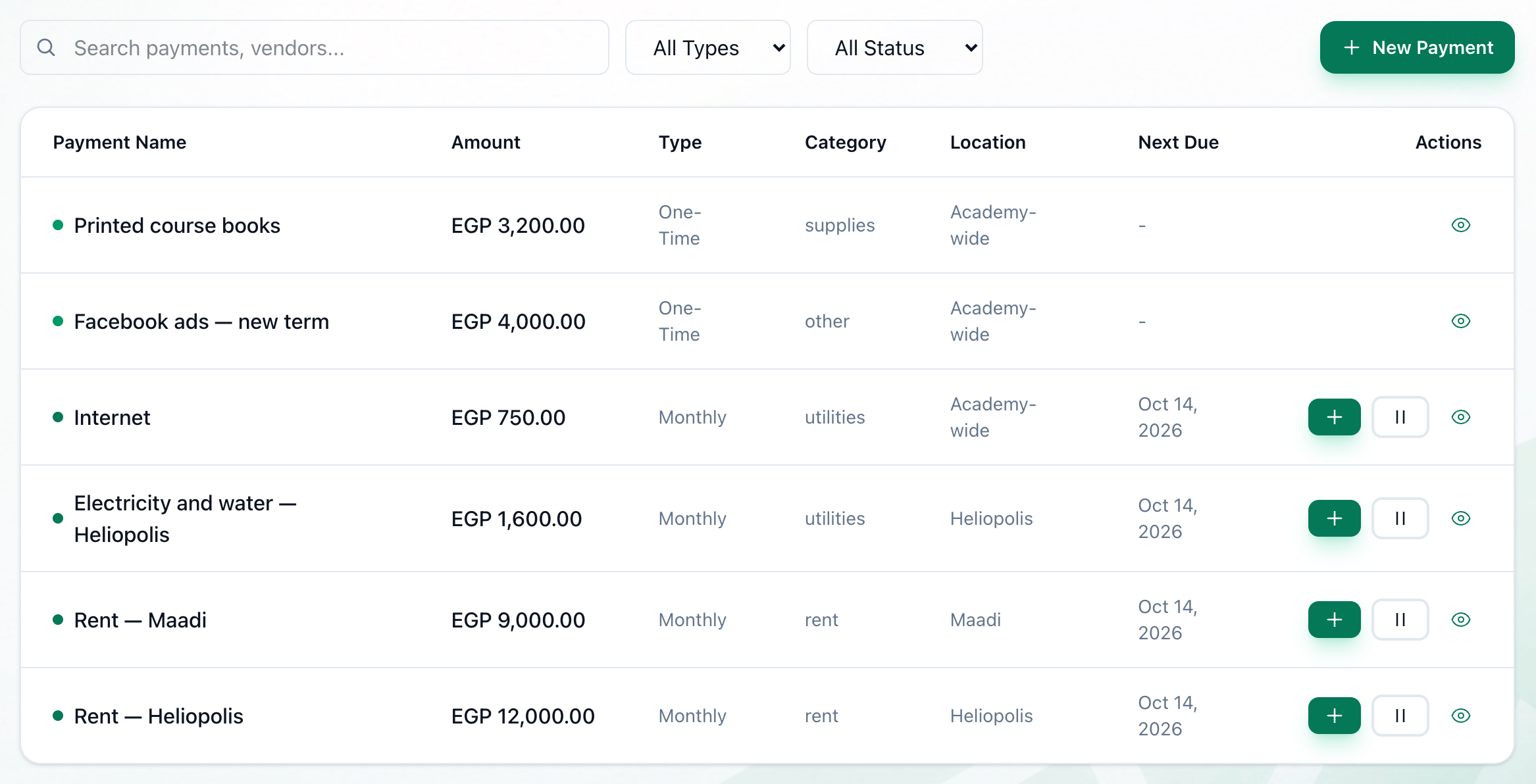
Press the pause button on the expense’s row. The expense becomes Paused and has no + button until you resume it.
-
To start it again, press the play button that took the pause button’s place. If its due date passed while it was paused, it falls due today.
See, change or delete an expense
Section titled “See, change or delete an expense”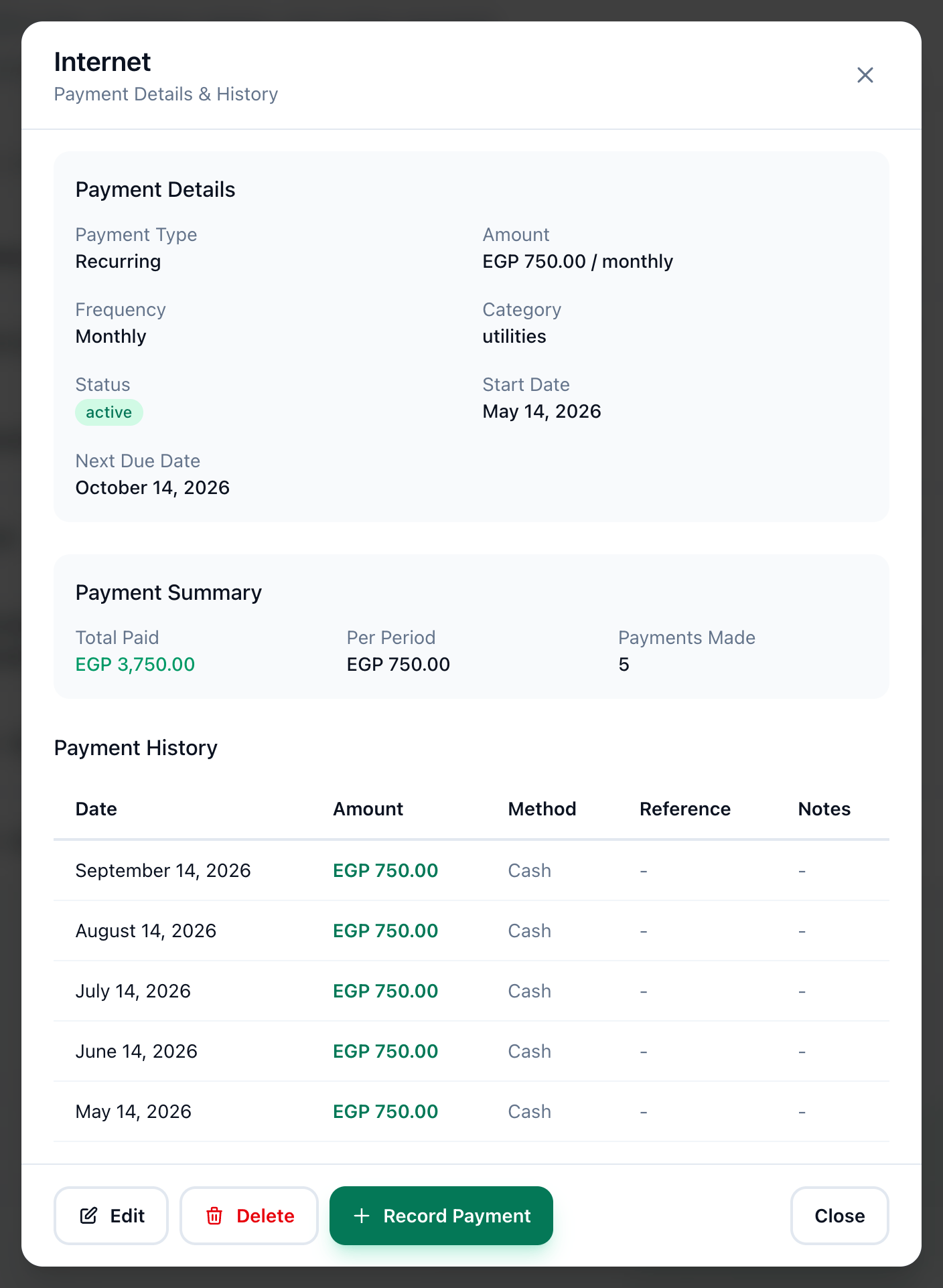
- Payment Summary
- Payment History
- Edit
- Delete
-
Press the eye button on the expense’s row. Its details show the type, amount, frequency, category, status, dates and vendor, then Payment Summary — Total Paid, the amount Per Period, or Outstanding for a one-time expense, and Payments Made.
-
Payment History lists every payment with its Date, Amount, Method, Reference and Notes.
-
To change the expense, press Edit, change it and press Save Changes. Payment Type and Start Date cannot be changed. An expense moved to another location leaves the payments already recorded where they were recorded. Only active and paused expenses can be edited.
-
To delete the expense, press Delete. Tuevia asks whether you are sure; the delete cannot be undone, and the expense’s recorded payments go with it.
If something goes wrong
Section titled “If something goes wrong”-
Failed to record payment
The payment was not saved. Try again. -
Failed to update custom payment
The changes were not saved. Try again.
What happens next
Section titled “What happens next”Expense payments count in Expenses and in the Custom Bills on Reports.