
Payment records, receipts and corrections
Each fee agreement keeps its details and every payment recorded against it. Anyone who can open the Fees page can see them and print or send a receipt again. Deleting a payment or an agreement needs permission to manage Student Fees.
Look after an agreement’s payments
Section titled “Look after an agreement’s payments”
- Payment Records
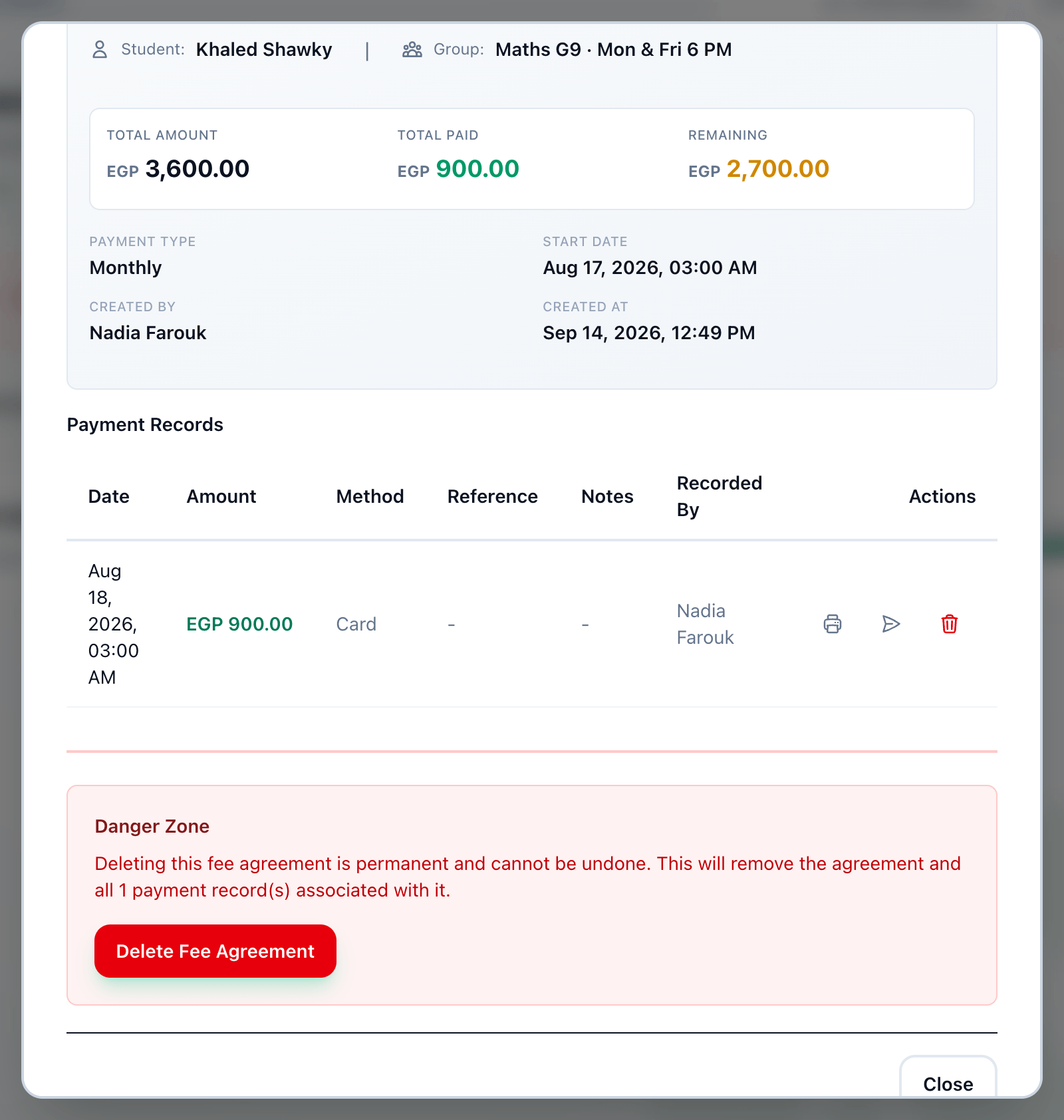
- Totals
- Print receipt
- Send receipt
- Delete
-
On the Fees page, press the eye button on the agreement’s card. On a student’s profile, press View Details under Payments.
-
Payment Records opens with the agreement’s status and details: the student and group, Total Amount, Total Paid and Remaining, the Payment Type, Start Date, who created it and when, and any discount and notes. Then its Instalments — each one’s due date, amount, what was paid and whether it is paid, overdue or waived; see Waive an instalment. Under them, every payment, newest first, with its Date, Amount, Method, Reference, Notes, its Attachments and who recorded it. + under Attachments adds a photo or PDF of the receipt to a payment: see Attach the receipt.
-
To print a payment’s receipt again, press the printer button on its row. The receipt shows what had been paid, and what was left, as they stood after that payment.
-
To email it to the student again, press the send button beside it.
-
To remove a payment recorded by mistake, press the red bin on its row, then Confirm. The money goes back onto the agreement’s balance.
Delete a fee agreement
Section titled “Delete a fee agreement”Deleting an agreement is permanent. Only do it for an agreement created by mistake.
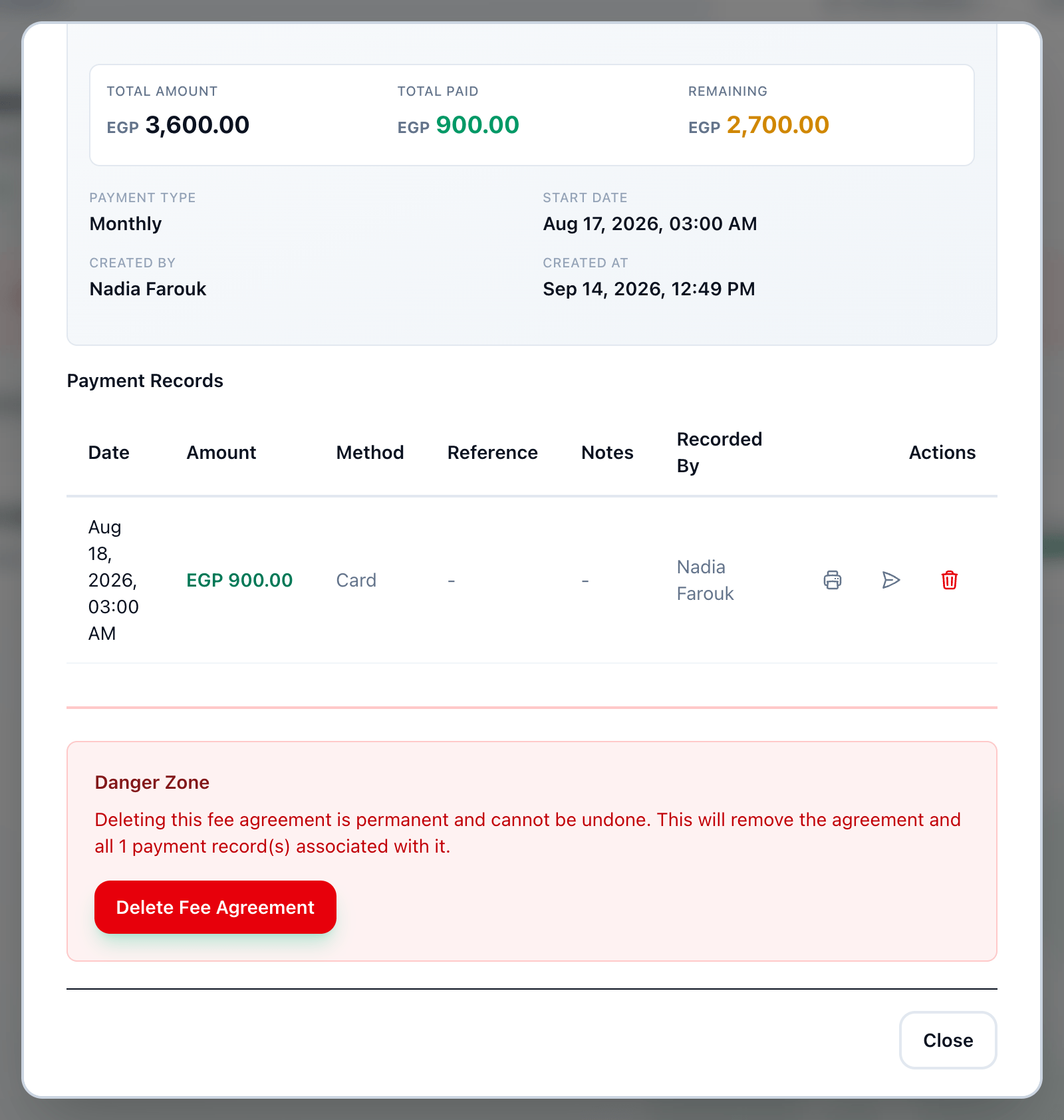
- Danger Zone
-
Open the agreement’s payment records.
-
In Danger Zone at the bottom, press Delete Fee Agreement. Tuevia says how many payment records go with it.
-
Press Yes, Delete Fee Agreement, or Cancel to keep it.
If something goes wrong
Section titled “If something goes wrong”-
Failed to load payment records
The payments could not be shown. Close the dialog and open it again. -
Failed to delete payment record
The payment is still there. Try again. -
Failed to delete fee agreement
The agreement is still there. Try again.
What happens next
Section titled “What happens next”A deleted payment or agreement no longer counts in Reports. To record a payment again, see Recording a payment.