
Finding your way around
Getting in
Section titled “Getting in”- From the academy app: press Open classroom at the top of any page. Classroom opens already signed in, in the same academy. From a group’s page, Open in Classroom opens that class.
- Directly: open classroom.tuevia.com and sign in with the email and password you use for the academy app. If you work at more than one academy, Classroom asks which.
Every page
Section titled “Every page”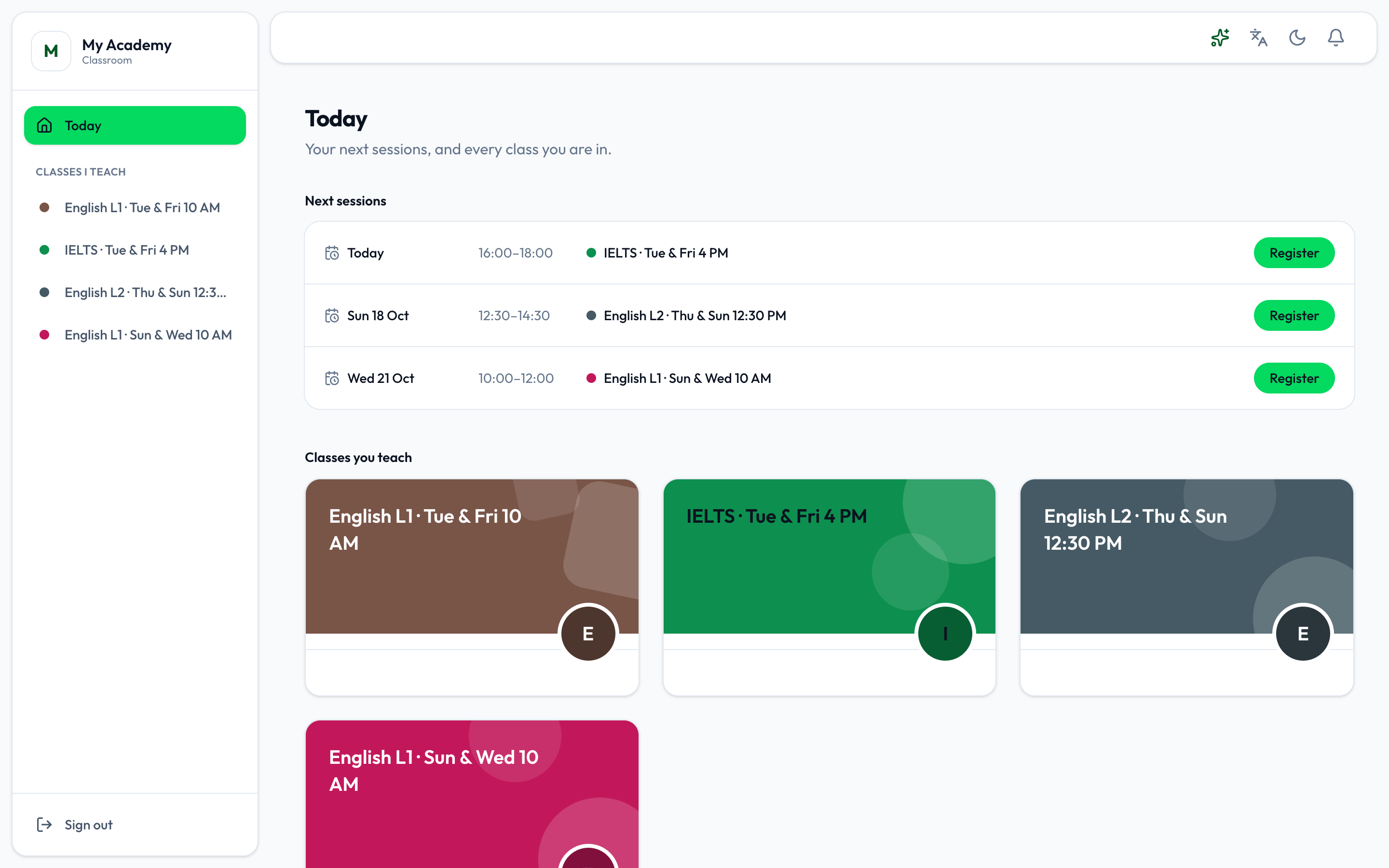
- Where you go
- Next sessions
- The assistant
- Language
- Notifications
-
The sidebar shows only what you have:
- Today - where Classroom opens.
- Classes I teach - each class you teach, by name and in its own colour. Press one to open it; you can move to another class from any page. See Your classes.
- My classes - the classes you are in as a student, and your Certificates.
- Academy - Courses, for those who manage courses, and Certificate designs, for those who may design the academy’s certificates. See Courses and Certificates.
With more than eight classes, the list ends on All classes. Sign out is at the bottom.
-
Next sessions - each class’s next session, soonest first, with its day and hours. Register opens that class’s attendance. Below are the cards of every class you teach or are in.
-
The assistant - ask it about your classes, as in the academy app. See The assistant.
-
The language button switches between English and Arabic.
-
The bell - your notifications. Mark all read clears them.