
Branches and rooms
Groups are taught in rooms, and rooms usually belong to a branch, so branches and rooms come before any group. If Tuevia set your branches up with you, check them here and add what is missing. Owners and admins can add them.
Teaching online needs no branch: every academy already has the Online location. See The Online location.
Add a branch
Section titled “Add a branch”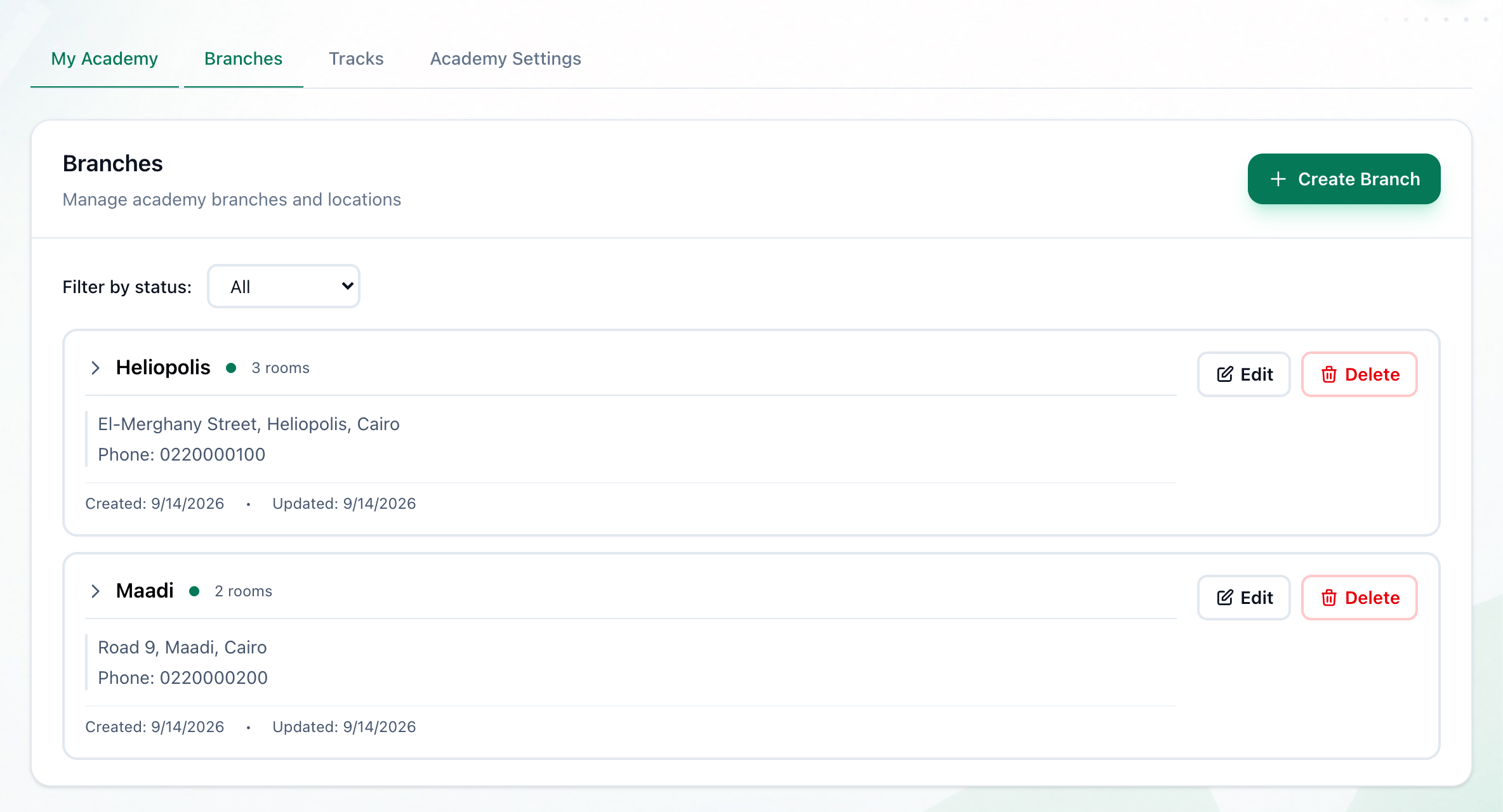
- Create Branch
-
In Settings, open Branches and press Create Branch.
-
Enter the branch’s name in Branch Name, the only field you must fill in, and its Address, City and Phone if you like.
-
Press Create Branch. The branch appears in the list, active and with no rooms.
Give it its rooms
Section titled “Give it its rooms”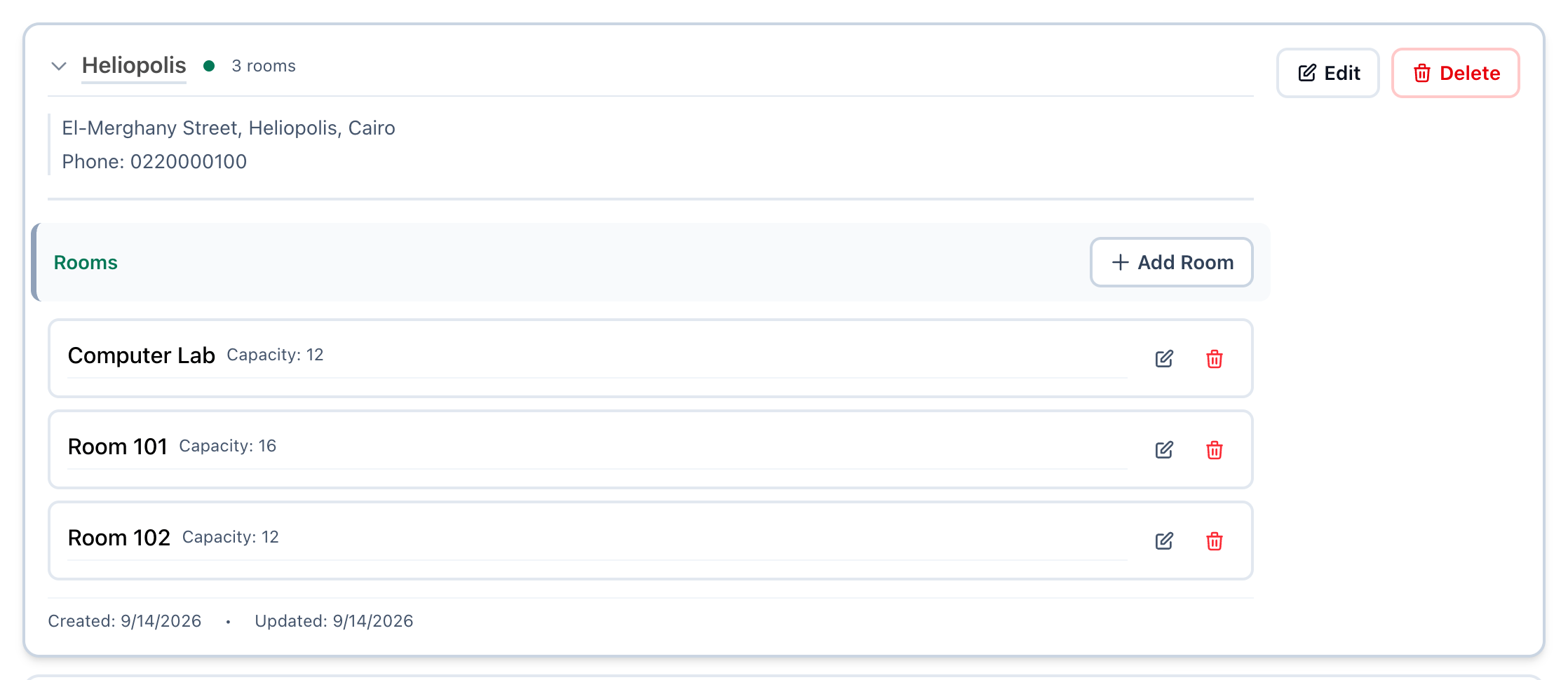
- Choose a branch
- Add room
-
On Branches, press the branch in the Branches list. The page shows its rooms.
-
Press Add room.
-
Enter the room’s name in Room Name, how many people it holds in Capacity (Optional) if you like, and press Create Room. The room is in the branch you chose; Any branch makes it a room the whole academy can book.
Do the same for each branch. A room is offered when a group is set up.