
Asking for leave
You ask for days off from Home, and follow your requests there too. Everybody in the academy can.
Before you start
Section titled “Before you start”Your academy’s leave rules decide what you can ask for: how many days of each type you have a year, and how far ahead paid leave must be asked for. Owners set them on Settings → Working hours & attendance.
Ask for leave
Section titled “Ask for leave”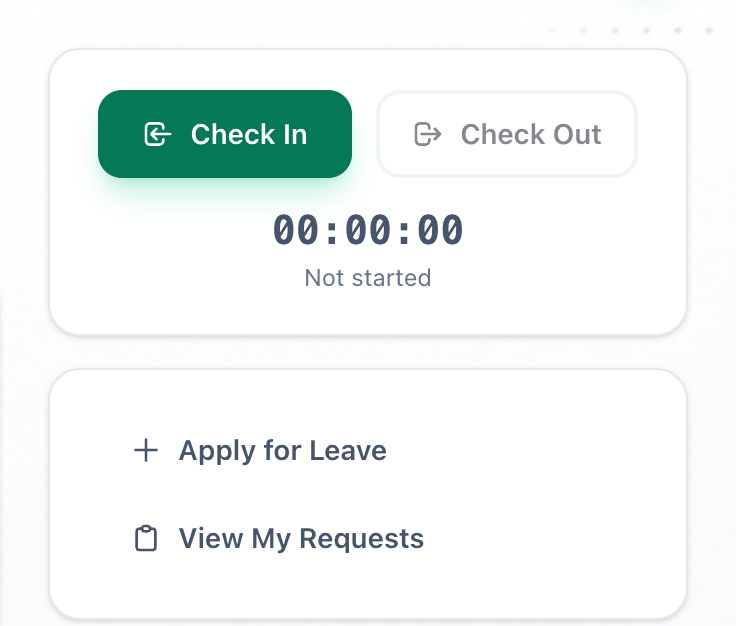
- Apply for Leave
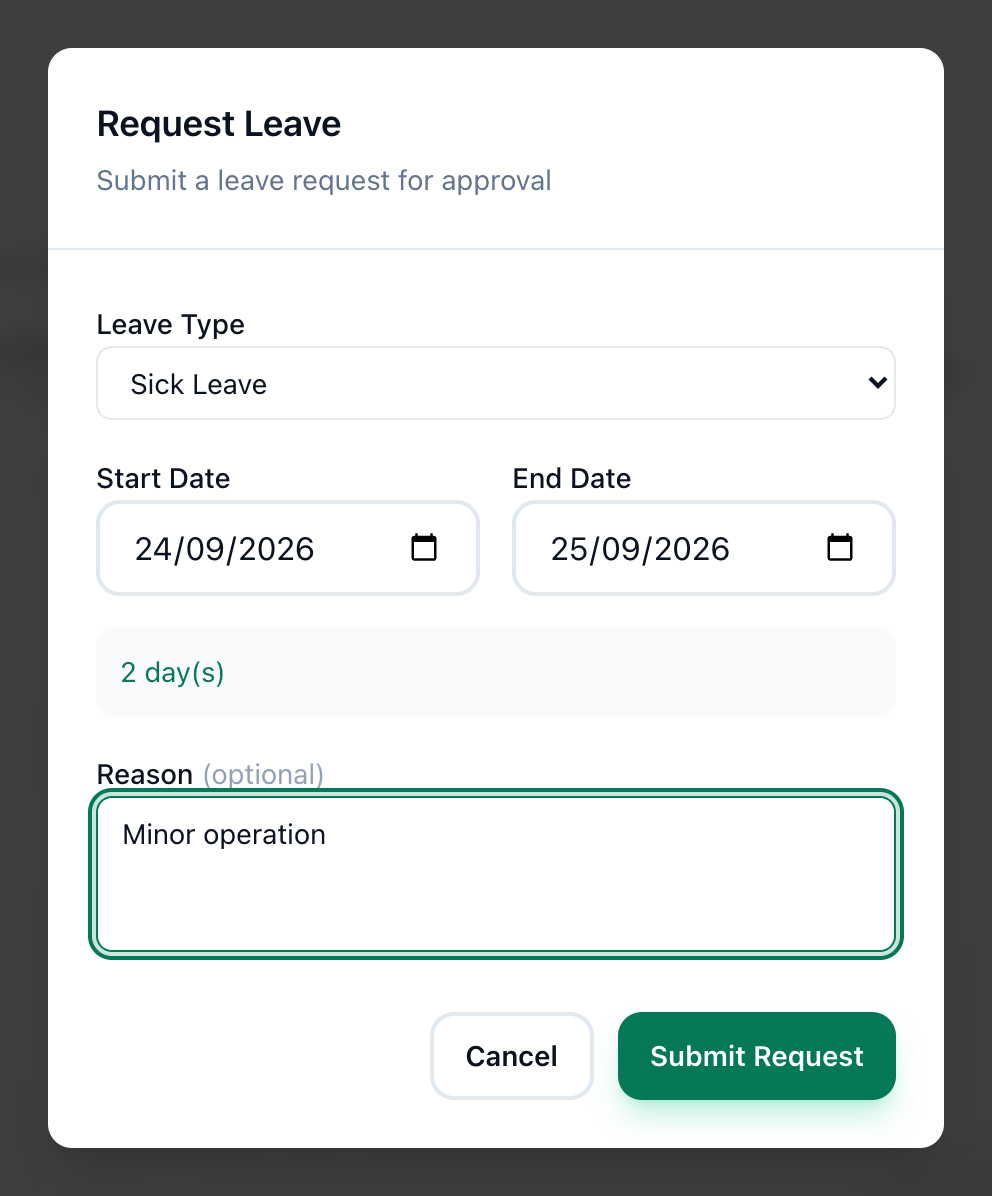
- Leave Type
- Start Date
- End Date
- Reason
- Submit Request
-
On Home, press Apply for Leave. Request Leave opens.
-
Choose the Leave Type: Paid Leave, Unpaid Leave, Sick Leave or Emergency Leave.
-
Choose your first day off in Start Date. It cannot be earlier than today.
-
Choose your last day off in End Date. For a single day, choose the same date again. The number of days appears under the dates.
-
Add a Reason if you want to. It is optional.
-
Press Submit Request. It stays pale until both dates are chosen. The dialog closes, and your request waits for review as Pending.
When you submit, Tuevia checks the request against your academy’s rules:
- Paid leave must be asked for a set number of days before it starts.
- A request cannot overlap one you already have that is pending or approved.
- You cannot ask for more days of a type than you have left for the year.
- Emergency leave cannot run on for more requests in a row than the academy allows.
A request that breaks a rule is not sent. The message says which rule, and the dialog stays open so you can change it.
See and cancel your requests
Section titled “See and cancel your requests”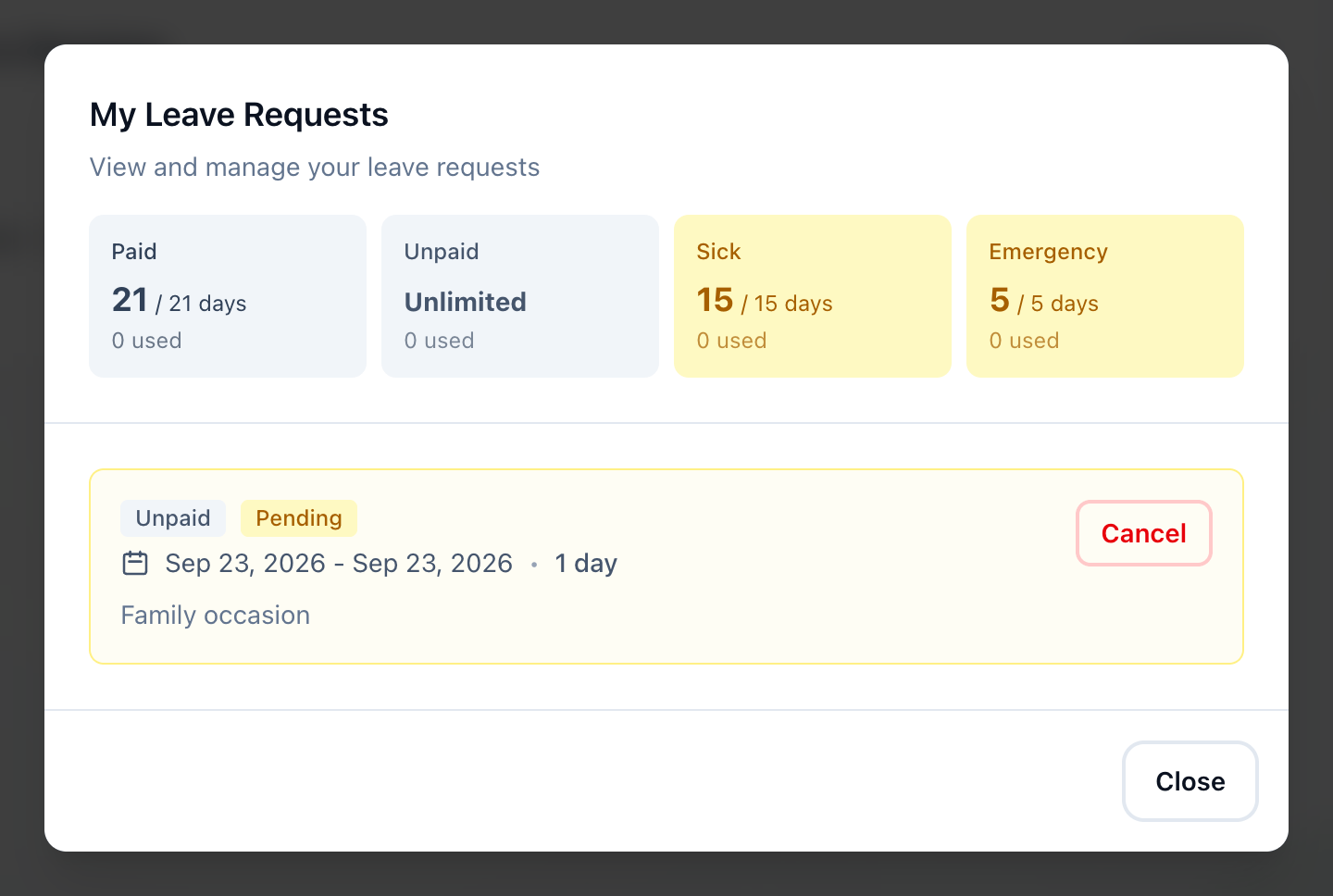
- Days left this year
- Cancel
-
On Home, press View My Requests. My Leave Requests opens.
-
At the top, each leave type shows the days you have left out of its yearly allowance, and how many you have used. Unlimited means the type has no limit.
-
Under that are your requests, newest first, each with its type, status, dates, number of days and reason. To take one back, press Cancel beside it. It changes to Canceled at once, without asking again.
A request’s status is one of these:
- Pending
Waiting for review. - Approved
Your leave is agreed. - Rejected
Not agreed. The reviewer’s reason shows after Reason:. - Canceled
You took it back.
Cancel appears only on a pending or approved request whose first day is still to come. Once your leave has started, it cannot be cancelled here. Press Close when you are done.
If something goes wrong
Section titled “If something goes wrong”These appear in red in Request Leave. The messages about your academy’s rules have your own numbers and dates in them:
-
End date cannot be before start date
End Date is earlier than Start Date. Choose a later end date. -
paid leave must be requested at least 7 days in advance (you requested 3 days in advance)
Paid leave is asked for too late. Choose a later start date, or another leave type. -
you already have a pending leave request from 2026-09-23 to 2026-09-23 that overlaps with your requested dates
You already asked for some of these days. Choose other dates, or cancel the earlier request in View My Requests first. -
you only have 3 remaining sick leave days for this year, but you requested 5 days (annual allowance: 15 days, used: 12 days)
Ask for fewer days, or use another leave type. -
you have no remaining sick leave days for this year (annual allowance: 15 days, used: 15 days)
That type is used up for the year. Use another leave type. -
maximum consecutive emergency leaves exceeded (limit: 3, current consecutive: 3)
You already have as many emergency leaves in a row as your academy allows, ending the day before this one.
What happens next
Section titled “What happens next”Your request waits in the Leave Requests tab of Team → Employees, where owners, admins, and anyone whose role allows it approve or reject it. Their Home shows Leave requests need review while it waits. Once it is reviewed, its new status shows in My Leave Requests.