
Importing leads
You can import a spreadsheet (Excel or CSV) of the people who asked about your courses. Only a name is needed: a list of names alone imports.
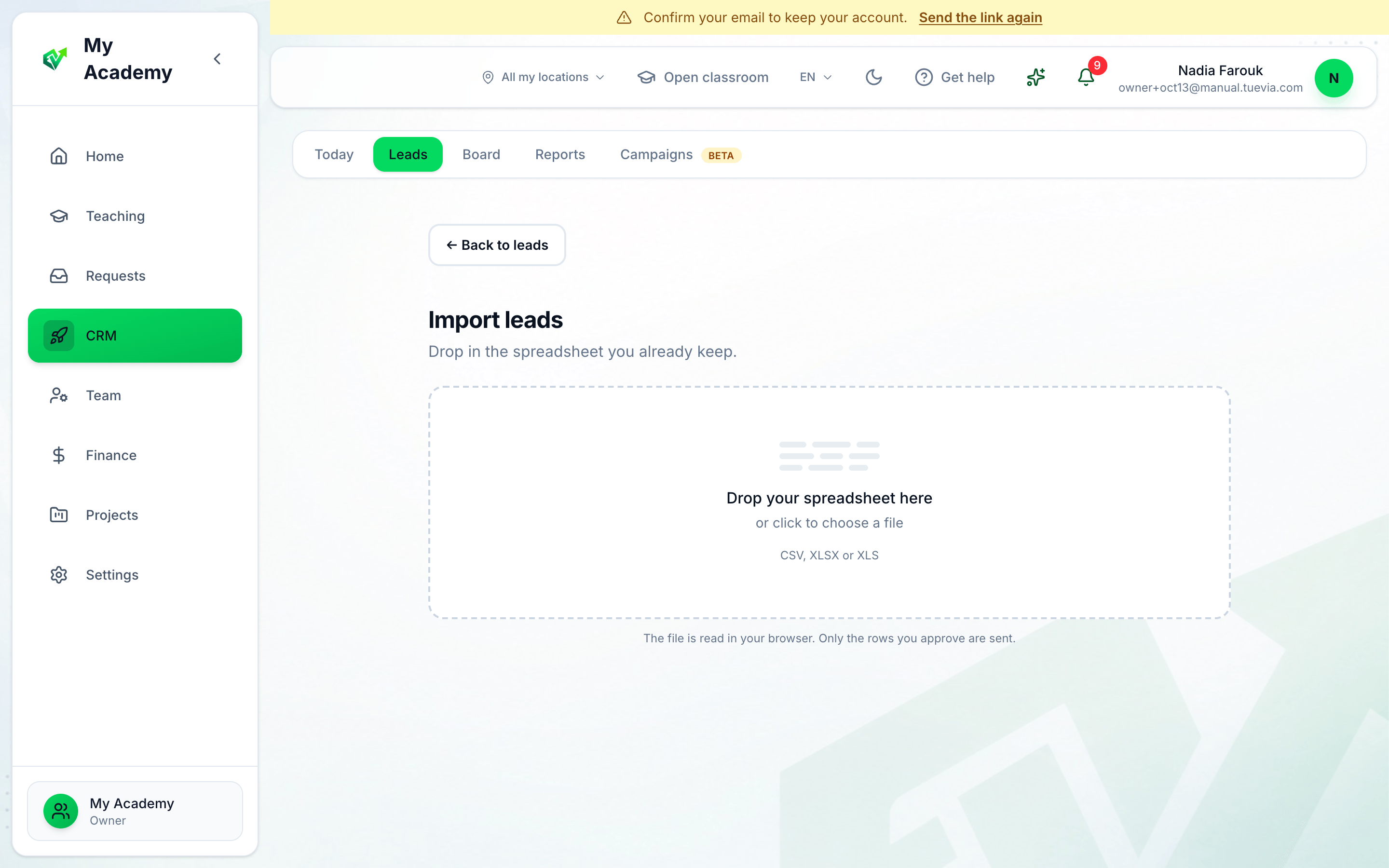
- Drop the file here
- In Leads, press Import, then drop your spreadsheet on Drop your spreadsheet here, or press it to choose the file.
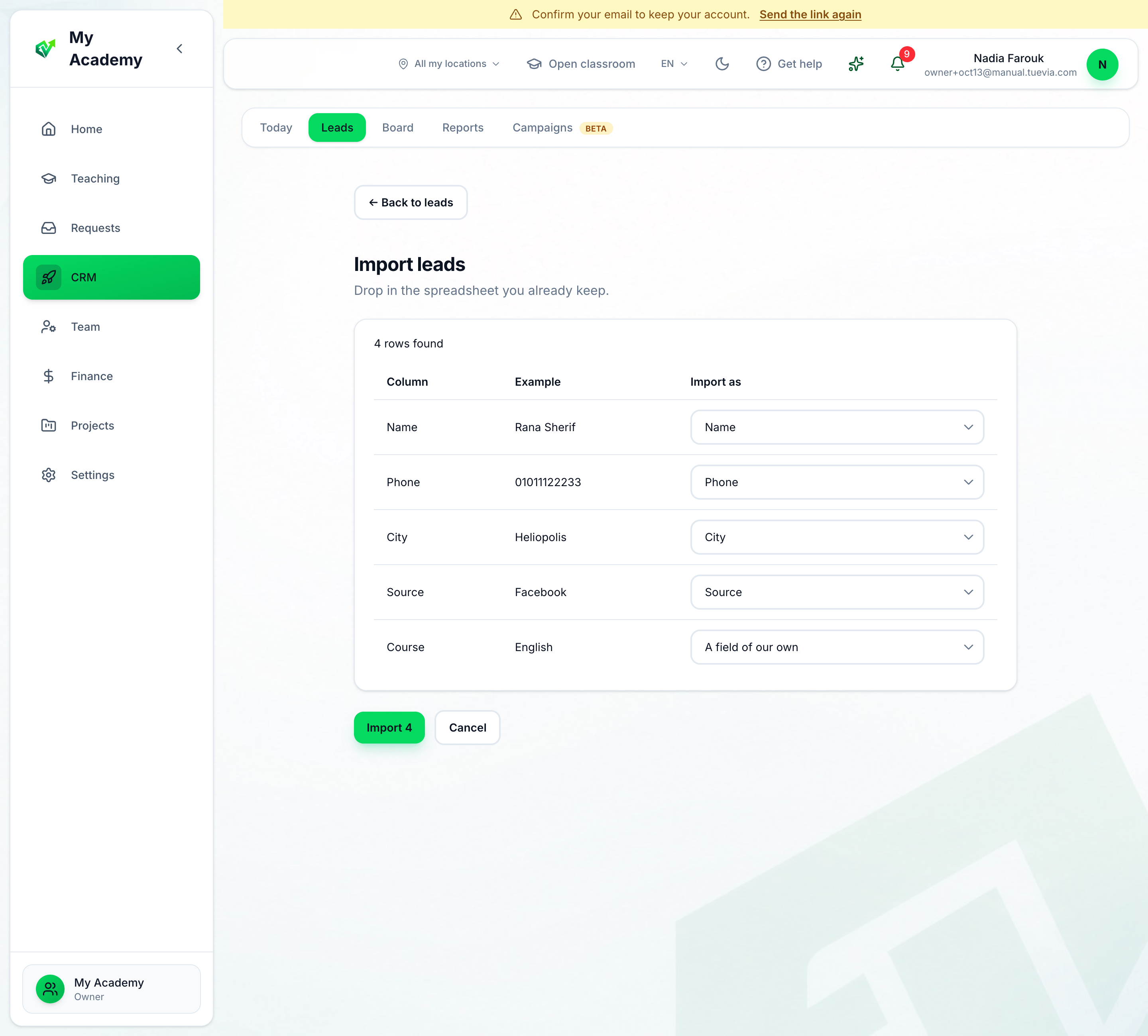
- Each column, matched
- Import
-
Each column of the file is shown with an example from it. Under Import as, choose what it fills: Name, Phone, Email, City, Source or Notes. Every other column is A field of our own: it is kept as one of your academy’s fields, shown under Details on each lead. Choose Ignore to leave a column out. One column must be Name.
-
Press Import. The count on the button is the number of rows found.
What happens next
Section titled “What happens next”The result says how many leads were created, and lists any row that failed with the reason.
A row with the same name and phone as a lead you already have is not imported. Neither is a row that repeats an earlier row of the same file. They are listed in a yellow box — rows not imported: a lead with the same name and phone is already there — with their row numbers, and the lead you have is left as it is. A row with no phone is a duplicate of a lead with the same name and no phone. Press Assign these leads to hand every lead in the file to people with a due date — see Assigning leads. Imported leads start in your board’s first block.