
Working with tasks
A project’s work is a set of tasks on a board. The project’s owner and managers create, assign and delete tasks; contributors can change tasks and move them along; viewers can only look. See Members and roles.
The task board
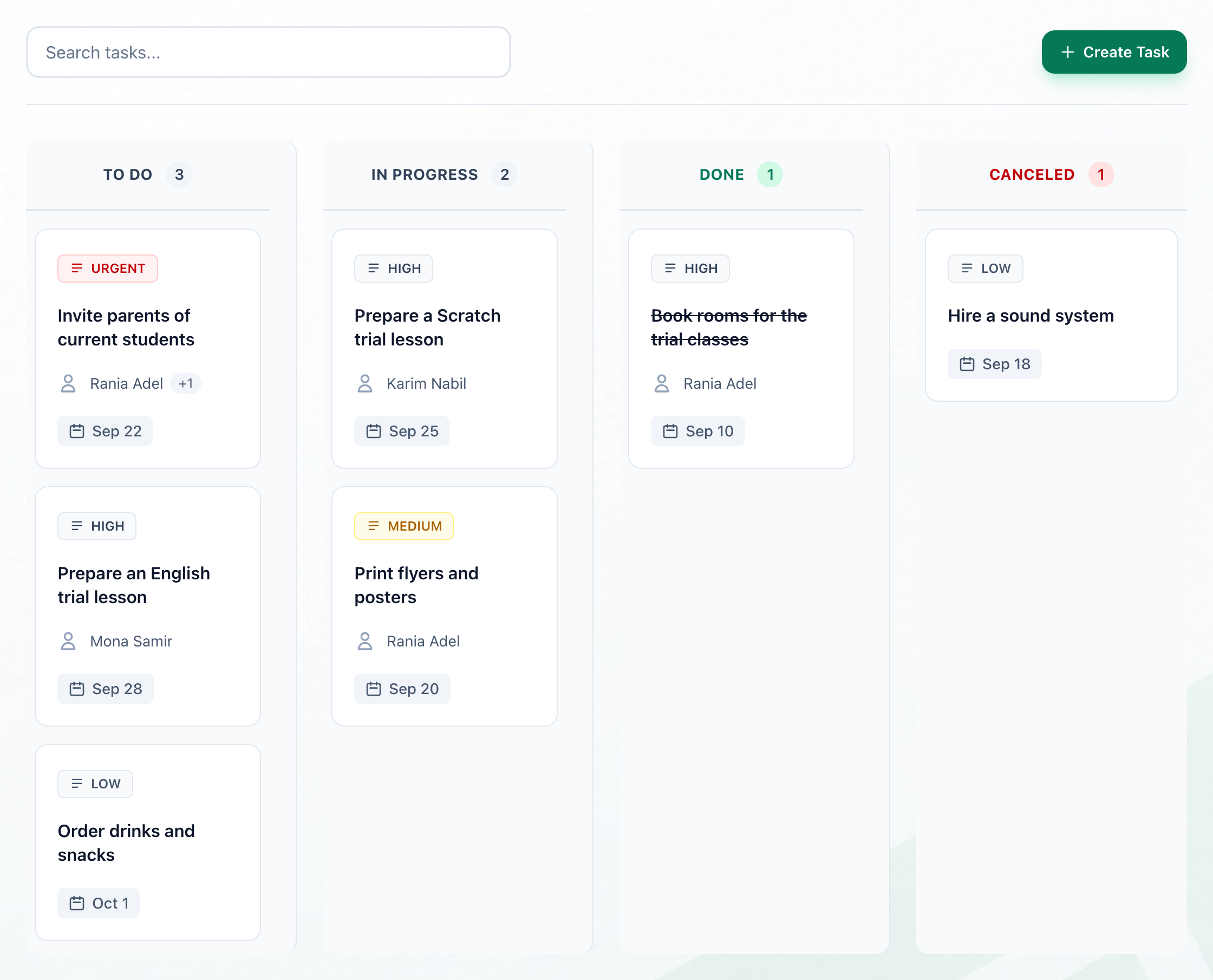
Section titled “The task board”Open a project. Its Tasks tab shows every task in one of four columns: TO DO, IN PROGRESS, DONE and CANCELED, each with the number of tasks in it.
- Search tasks...
- The four columns
A task’s card shows its priority, its title, the first person it is assigned to (and how many more there are), and its due date. A task in Done has its title crossed out.
Type part of a task’s title or description in Search tasks… to narrow the board. Press a card to see the whole task: its description, who created it and when, its due date, who it is assigned to, and when it last changed. A task past its due date and not done is marked Overdue there. Press Close to go back to the board.
Create a task
Section titled “Create a task”
- Create Task
- Title
- Status
- Priority
- Due Date
- Assignees
- Create Task
-
On the project’s Tasks tab, press Create Task.
-
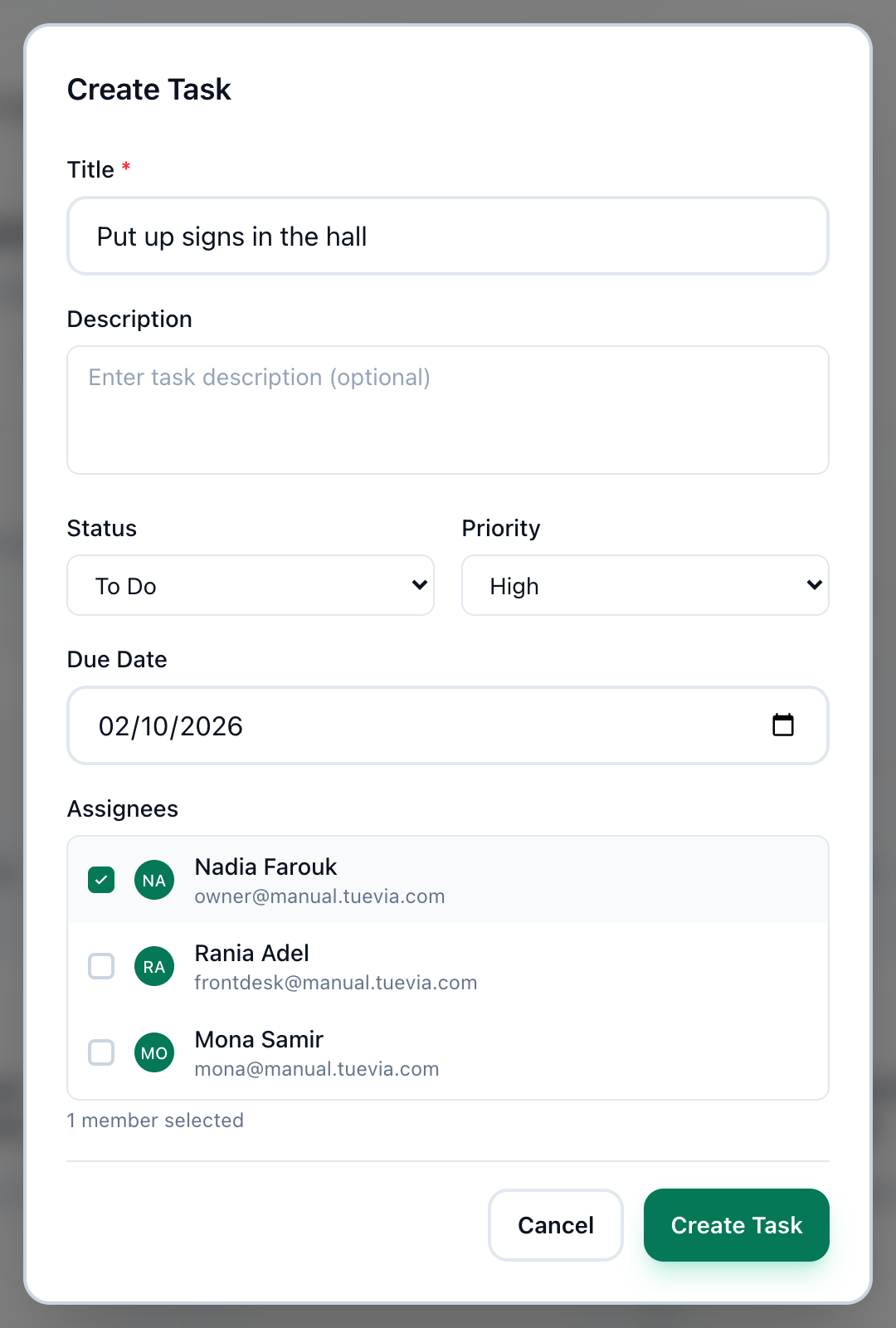
Enter what needs doing in Title. Add a Description if it helps.
-
Choose the column it starts in under Status. A new task starts in To Do.
-
Choose a Priority: Low, Medium, High or Urgent. It starts at Medium.
-
Choose a Due Date, if there is one.
-
Under Assignees, press each person who will do the task. Only the project’s members are listed; add somebody to the project first if they are missing.
-
Press Create Task. The task appears in its column.
Move a task to another column
Section titled “Move a task to another column”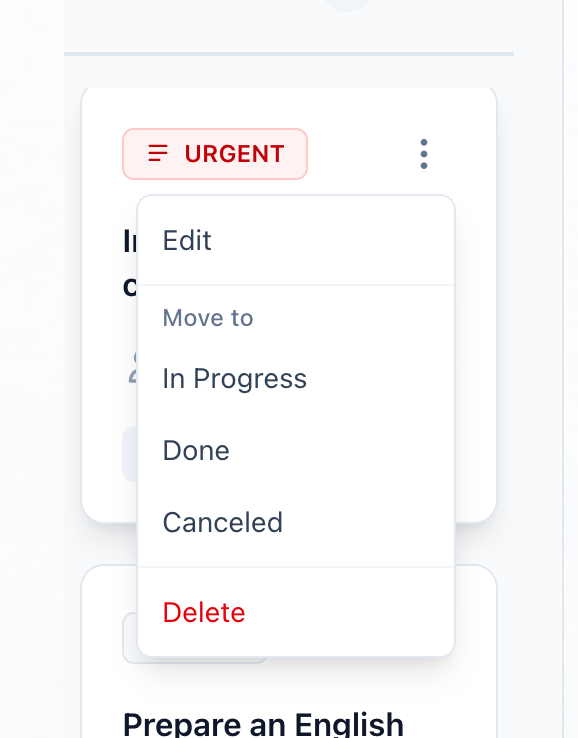
- The task's menu
- Move to
-
Point at the task’s card and press the menu button, the three dots at its top corner. The button appears when the pointer is over the card.
-
Under Move to, choose the column the task belongs in now.
Change or delete a task
Section titled “Change or delete a task”Open the same menu on the task’s card.
- Edit opens the task with everything you entered: change it and press Save Changes.
- Delete asks you to confirm, then removes the task for good.
Only the project’s owner and managers can change who a task is assigned to. When a contributor edits a task, their other changes are saved and the assignees stay as they were.
In an archived project the board can be read but not changed: there is no Create Task button and no menu on the cards.
If something goes wrong
Section titled “If something goes wrong”-
Task title is required
Title is empty. Enter one and press Create Task again. -
You do not have permission to create tasks in this project
Only the project’s owner and managers create tasks. Ask one of them, or ask the owner to make you a manager. -
You do not have permission to update tasks
You are a viewer in this project, so you cannot change its tasks. Moving a task through its menu does nothing for a viewer. -
You do not have permission to delete tasks
Only the project’s owner and managers delete tasks.
What happens next
Section titled “What happens next”Keep the board current by moving tasks as they progress. To change who is in the project, see Members and roles.