
Adding a group from a sheet
When your academy keeps one spreadsheet per class, bring that sheet straight into its group. Tuevia reads each student’s email address from it: it finds the students it already has, asks the others to join, and enrols all of them - into a new group you set up in the same window, or into a group that is already running.
Owners see Add from sheet, next to Create, and so does anyone whose role can manage both Groups and Students: the button adds students as well as enrolling them. With only one of the two, the button is not there.
Before you start
Section titled “Before you start”- The sheet is a CSV or an Excel file (.xlsx), one class per file. Tuevia reads its first sheet. The first row holds the column headers, and every row after it is one student.
- An email address for each student. It is the only thing read from the sheet, as in Adding students from a sheet, and it is how Tuevia finds the students it already has. Everything else on the sheet is ignored.
- For a new group: the course, and a room unless the group is online, as when you create a group.
- For an existing group: it has to be running, and have seats left.
- Fees are agreed afterwards, in Fees.
Nothing is saved until you press Add and enrol at the end. Closing the window before that leaves everything as it was.
Upload the sheet
Section titled “Upload the sheet”
- Add from sheet
- Choose the file
- Continue
-
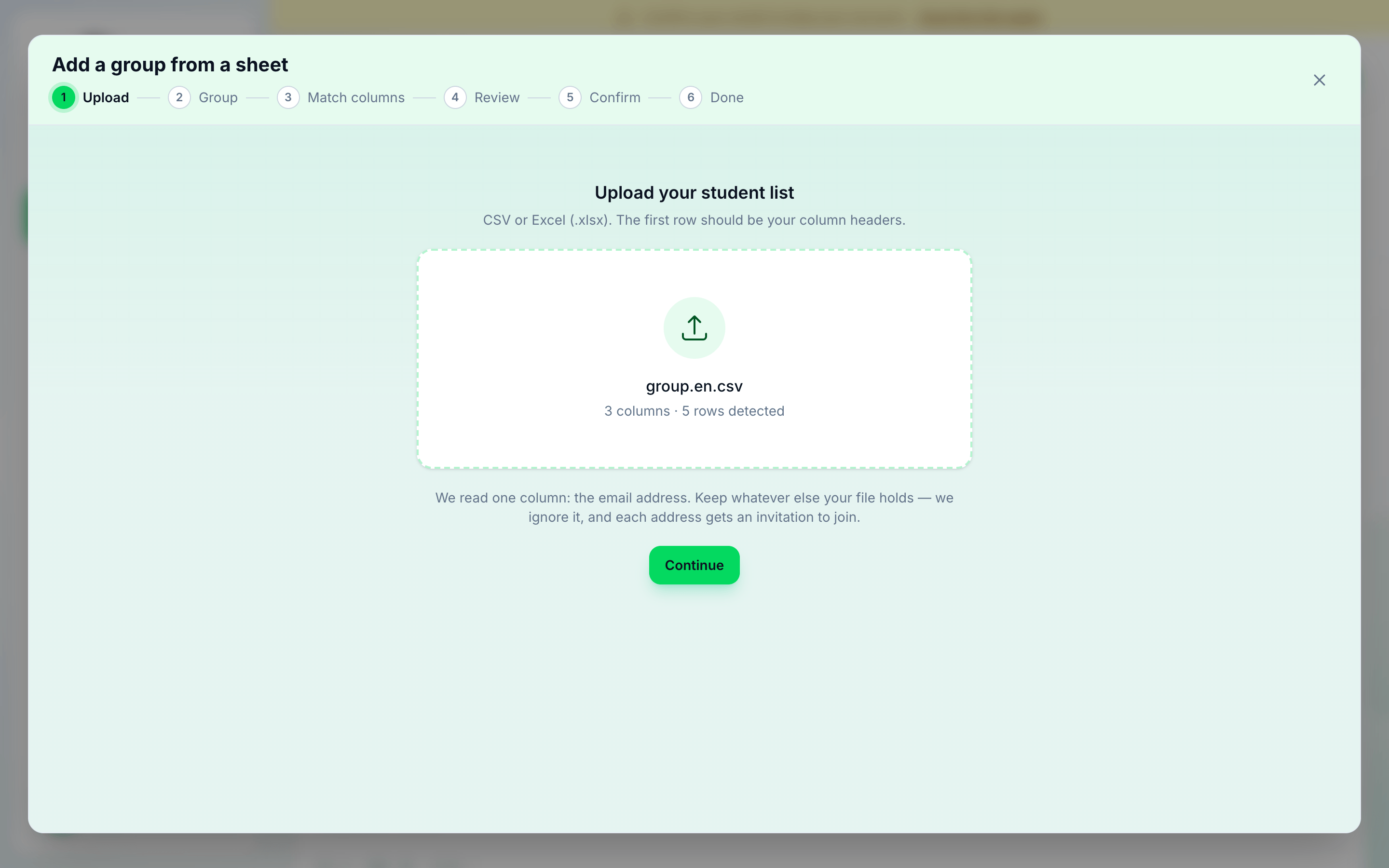
On Groups List, press Add from sheet, next to Create. The Add a group from a sheet window opens at Upload. Its steps run along the top: Upload, Group, Match columns, Review, Confirm and Done.
-
Click the box that says Click to choose a file, and choose the class’s sheet. The box then shows the file’s name and how many columns and rows Tuevia found in it.
-
Press Continue.
Choose the group
Section titled “Choose the group”Which group are these students for? offers New group and Existing group.
A new group
Section titled “A new group”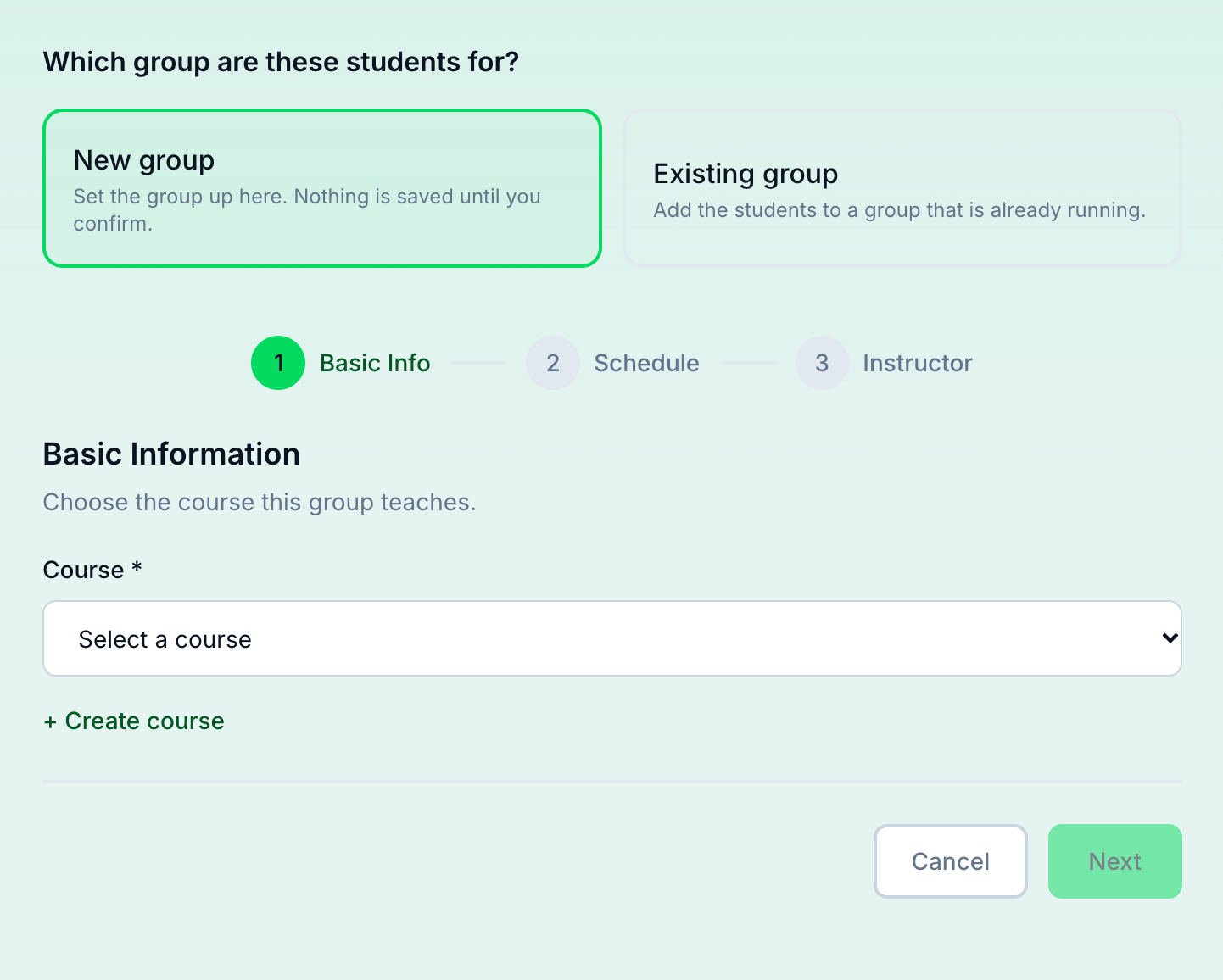
- New group
-
Leave New group chosen. It is chosen when the step opens.
-
Fill in Basic Information and Schedule as you would to create a group - the course, then the room, start date, days and times - pressing Next after each. See Creating a group.
-
On the last step, Instructor, choose an instructor if you want to, and press Continue.
The group is not created yet: Tuevia creates it when you press Add and enrol. The students come from the sheet, so the last step has no Add Students.
A group that is already running
Section titled “A group that is already running”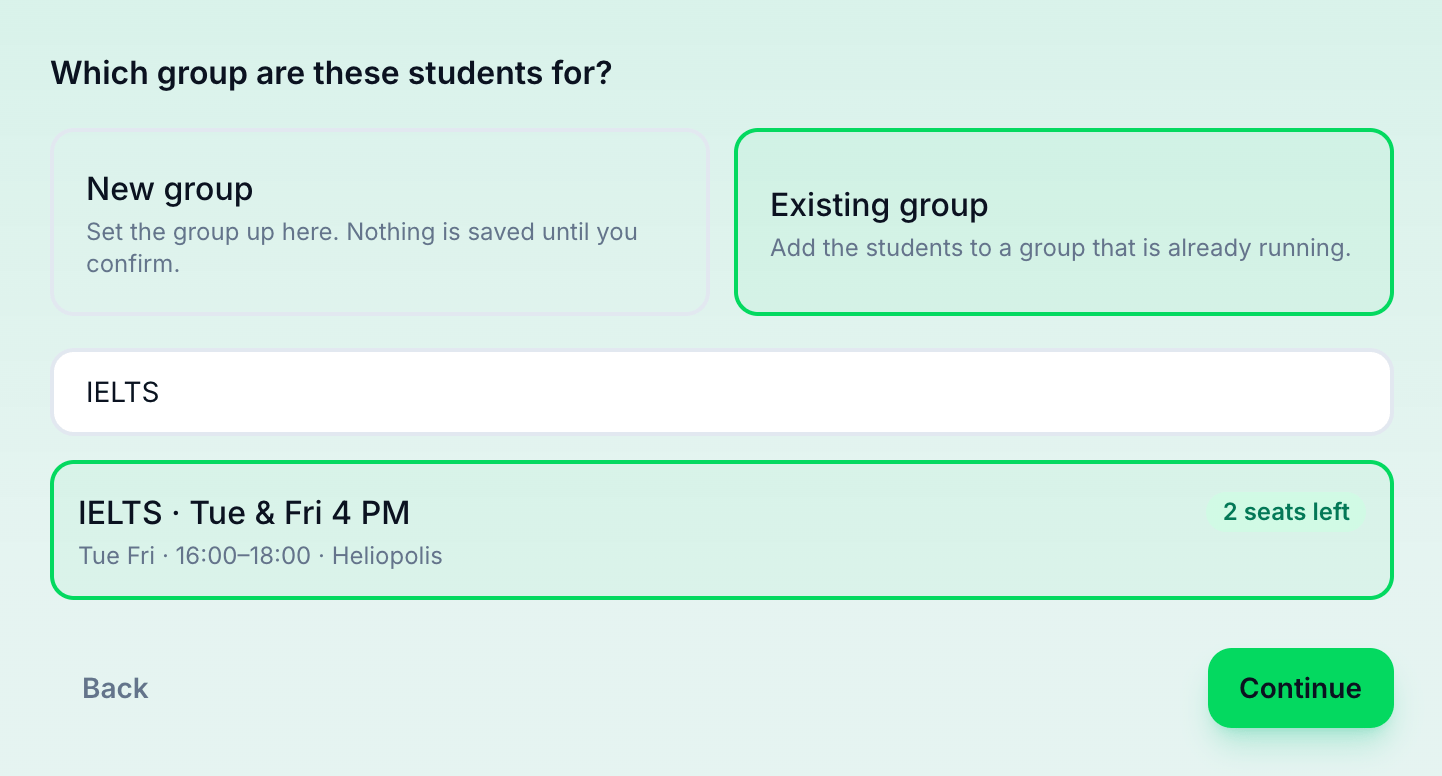
- Existing group
- Choose the group
- Continue
-
Choose Existing group.
-
Find the group. The list holds the running groups, each with its schedule and the seats it has left; type into Search groups… to find one by name. Press the group to choose it. A group marked Full is greyed out and cannot be chosen.
-
Press Continue.
Choose the email column
Section titled “Choose the email column”Which column has the email? works exactly as it does when you add students from a sheet: check that the right column is chosen under The email, and press Continue. See Choose the email column.
Review the rows
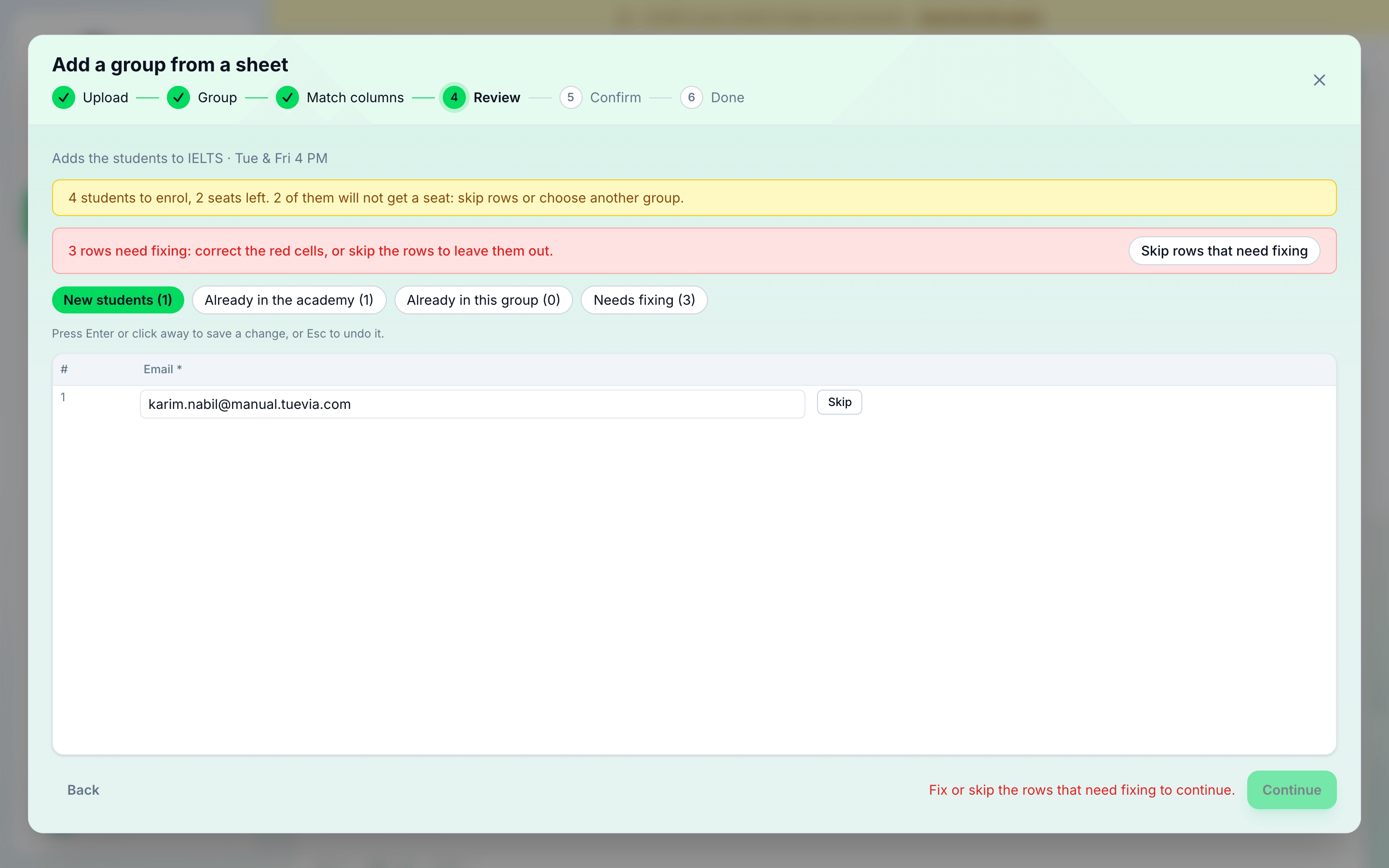
Section titled “Review the rows”Tuevia now checks every row that is ready, just as Add and enrol will, without saving anything. While it does, the step says Checking the rows…. The line at the top says which group the students go into: Adds the students to IELTS · Mon & Thu 4 PM, for example.
- Seats
- The four lists
-
For an existing group, the line at the top says how many students ask for a seat and how many seats the group has left. When there are more students than seats it turns yellow and says how many will not get one: 4 students to enrol, 3 seats left. 1 of them will not get a seat: skip rows or choose another group. A new group has no seats line.
-
Press each list to see its rows. When any row needs fixing, Review opens on Needs fixing; when none does, it opens on New students.
The four lists are:
- New students
Rows whose address belongs to no student of yours. Each is added to the academy and asked to join, as when you add a student, then enrolled. - Already in the academy
Rows whose address belongs to a student you already have. The row says who: Matches Nada Shawky. That student is enrolled. - Already in this group
Students already enrolled in the group. Nothing is done with them. - Needs fixing
Rows whose address is missing or not valid, and rows Tuevia refused, with the reason beside Skip. These rows are not added, and you cannot continue until each of them is fixed or skipped.

An email matches whatever its capitals.
Fix or skip the rows
Section titled “Fix or skip the rows”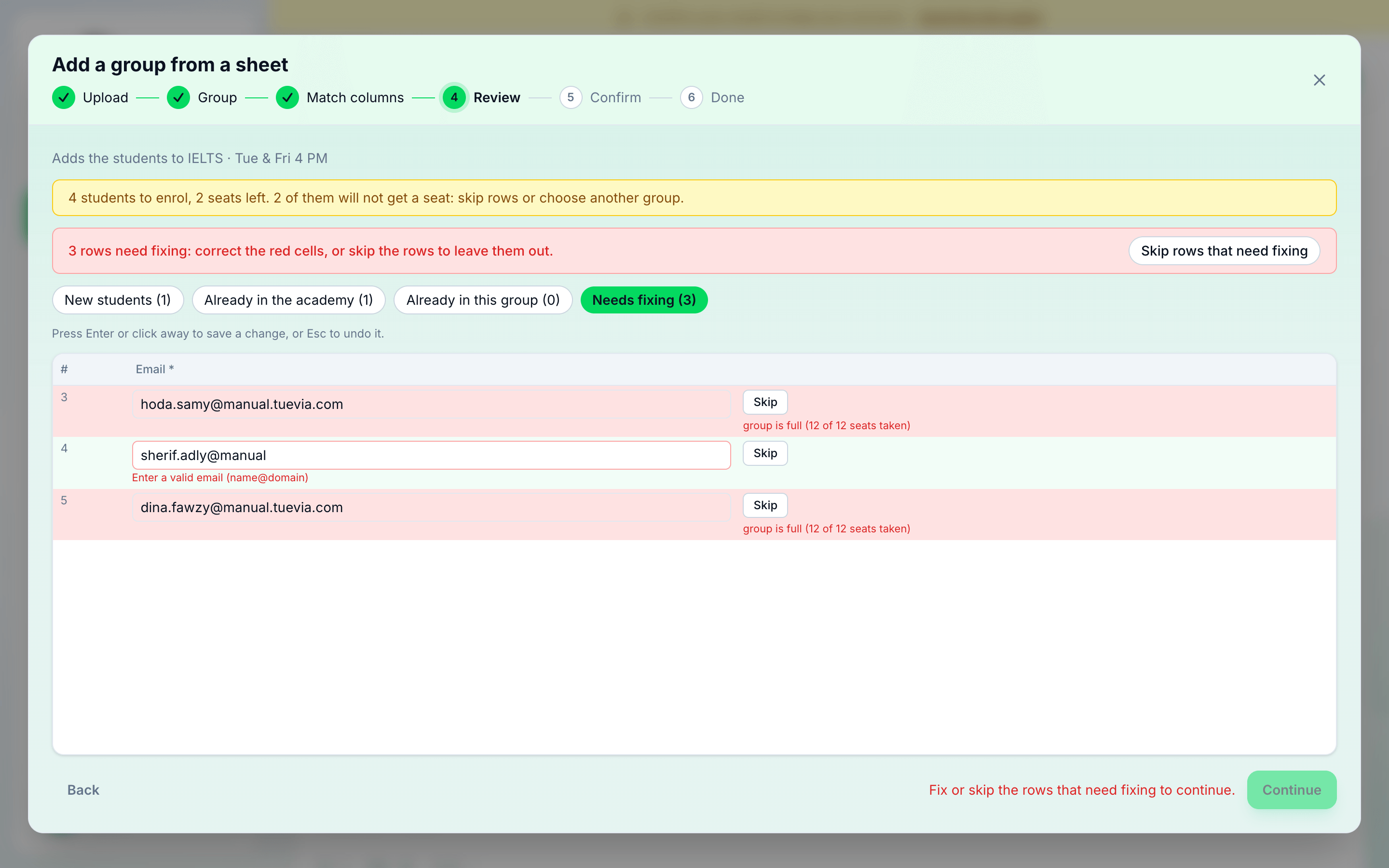
- Rows that need fixing
- A cell to fix
- Skip
- Continue
-
The red banner above the lists says how many rows need fixing: 2 rows need fixing: correct the red cells, or skip the rows to leave them out. Those rows are in Needs fixing, which is open.
-
Click a cell with a red outline and correct it. Press Enter or click away to keep the change, or Esc to undo it.
-
Or press Skip to leave a row out - or Skip rows that need fixing, in the banner, to leave out every row that still needs a fix. Include brings a skipped row back.
-
Press Continue once no row needs fixing. Until then it is greyed out, with Fix or skip the rows that need fixing to continue. beside it.
A moment after you change or skip a row, Tuevia checks the rows again on its own - the step says Checking the rows… - and a row you corrected moves to the list it belongs to. A skipped row leaves Needs fixing at once. The check covers every row with nothing to fix in its cells, including rows Tuevia refused before: a row refused because the group was full gets a seat once you skip another row, and its reason goes. If a check does not finish, the step says You changed rows since they were checked.: press Check again.
The reasons a cell cannot go in are those of Adding students from a sheet, Required and Enter a valid email (name@domain). The reasons Tuevia refuses a row are:
- group is full (12 of 12 seats taken)
The group has no seat left for this row. Seats go to the rows in the order they are in the sheet, so the last rows are the ones refused. Skip other rows, or add these to another group. - the email belongs to more than one student (…)
The address points at two students, and Tuevia does not guess which. Correct it, or skip the row. - another row in this sheet has the same email or another row in this sheet is the
same student
The same person is on two rows. Skip one of them.
Add and enrol
Section titled “Add and enrol”-
Ready to add sums up what will happen: the group it creates or adds the students to, how many new students it adds and enrols, how many students the academy already has it enrols, and how many rows it leaves out.
-
Press Add and enrol. For a new group, Tuevia creates the group first. It then adds the new students and enrols every row.
Back returns to Review without adding anything.
Done names the group, with how many new students were added and enrolled, how many students the academy already had were enrolled, how many rows could not be enrolled, and how many rows were left out because you skipped them: 1 row was left out (skipped), for example.
- Fix and retry those rows takes you back to Needs fixing with the rows that failed. Correct them, press Check again, and add them to the same group - a new group is not created a second time. The rows that went in are no longer in the lists.
- Open the group opens the group’s page. Close closes the window.
If something goes wrong
Section titled “If something goes wrong”-
The group could not be created.
Tuevia refused the new group, and nothing was added. Go Back to Group, check the details as described in Creating a group, and continue again. -
Adding did not finish. Check the rows and try again.
The window is back at Review. Press Check again, then Continue and Add and enrol. A new group that was already created stays, and the students go into it. -
The rows could not be checked. Try again.
Tuevia could not check the rows. Press Check again. -
No running groups to add students to.
No group is running. Choose New group instead. -
That file has no data rows. or We couldn’t read that file. Please use a CSV or Excel file.
As when adding students from a sheet.
What happens next
Section titled “What happens next”- The students are enrolled in the group and are on its page. The new ones are in Students, with the group’s branch as their home location, as Invited — waiting to join until they accept.
- Admins who work at the group’s branch get one notification for the whole sheet, not one for each student.
- Agree what each student pays in Fees.
- A student who joins the group later: see Adding students to a group.