
The fees list
The Fees page lists every fee agreement: what a student has agreed to pay, what they have paid so far, and what is left. Owners, admins, and anyone whose role includes Finance or Student Fees can open it. Adding agreements and payments needs permission to manage student fees.
Read a fee agreement
Section titled “Read a fee agreement”Each agreement is a card.

- Status
- Overdue
- Total, Paid, Balance
- Progress
- Add Payment
- Payment records
-
Status
Active while money is still owed, Completed once every instalment has been paid or waived. -
Overdue
Shown on an active agreement with an instalment whose due date has passed without it being paid in full or waived. -
Total, Paid, Balance, Style
Total is the amount after any discount, Paid is what has been recorded, and Balance is what is left, less anything waived — see Changing or cancelling a fee. Style is Monthly or One Time. When your academy has more than one location, the card also names the agreement’s location. A discount shows on its own line under the amounts, with its reason. -
Progress
How much of the total is settled: paid, or waived. -
+
Records a payment. It appears on active agreements that still have a balance — see Recording a payment. -
The eye button
Opens the agreement’s payment records — see Payment records, receipts and corrections.
The page shows 50 agreements at a time; Show more at the bottom brings the next 50. The location switcher at the top of the screen narrows the list to one location.
Find who owes money
Section titled “Find who owes money”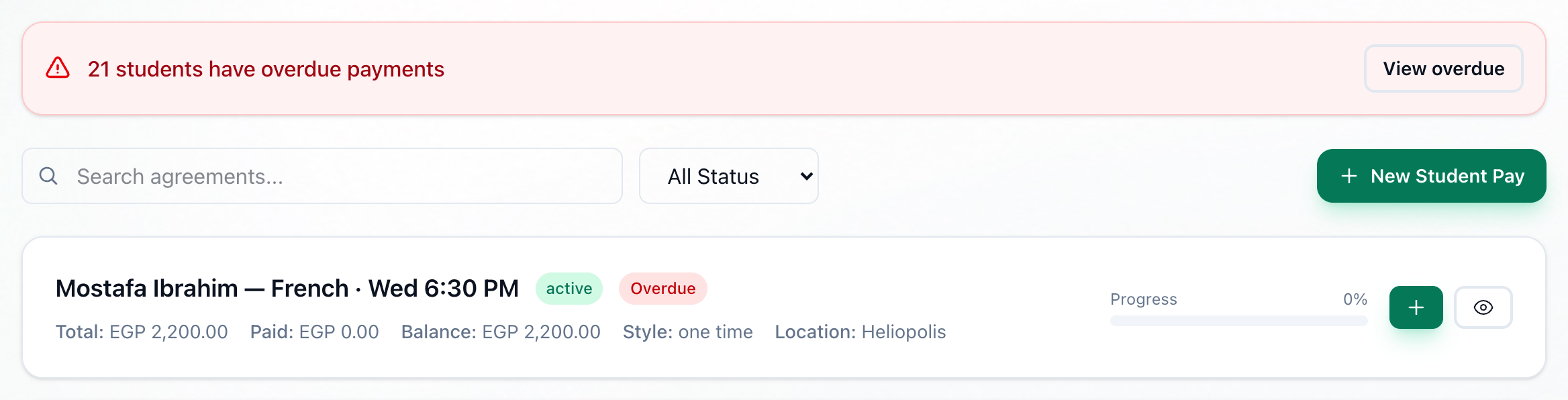
- View overdue
- Search
- Status
- New Student Pay
When any agreement is overdue, a red banner at the top says how many — for example 3 fees are overdue — and agreements marked Overdue come first in the list.
-
View overdue
Shows only the overdue agreements. -
Search by student, fee or group
Finds agreements whose student, name or group contains what you type, among every agreement, not only those on the page. -
All Status
Shows only Overdue, Active, Completed, Cancelled or Stopped - student left agreements. A fee stops by itself when its student leaves the group, has their enrolment suspended, or is deleted: it keeps its payments, but nobody owes it, it is never overdue and it leaves the reports’ outstanding money. + still records a payment on it, if the student settles what was left. It starts again when the student is back in the group. -
New Student Pay
Sets up a new fee agreement — see Setting up a student’s fees.
If nothing matches, the page says No student payments found and Try adjusting your filters.
What happens next
Section titled “What happens next”A student’s fee agreements also appear on their profile, under Payments — see Students. For the academy’s overall position — what is owed and how late — see What is owed.