
Editing and deleting a student
Change a student’s details, or delete a student, from their profile. Owners, admins and anyone whose role has Manage access to Students can do both.
Edit a student’s details
Section titled “Edit a student’s details”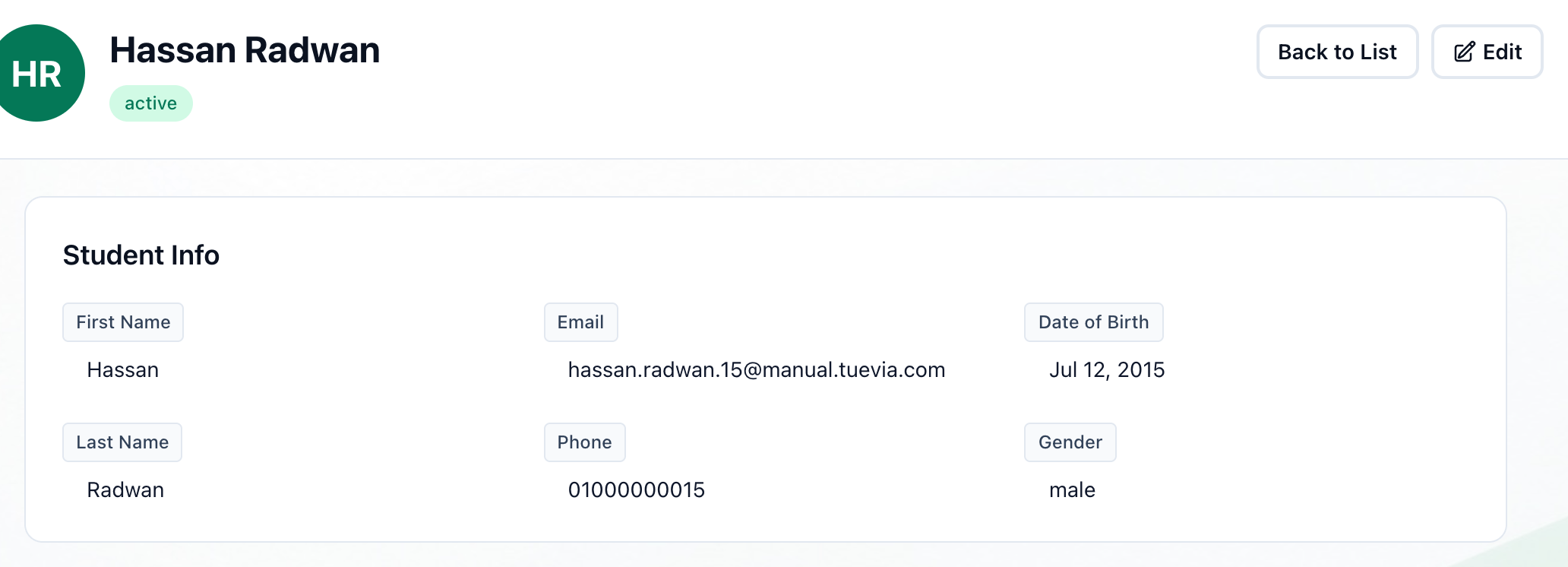
- Edit
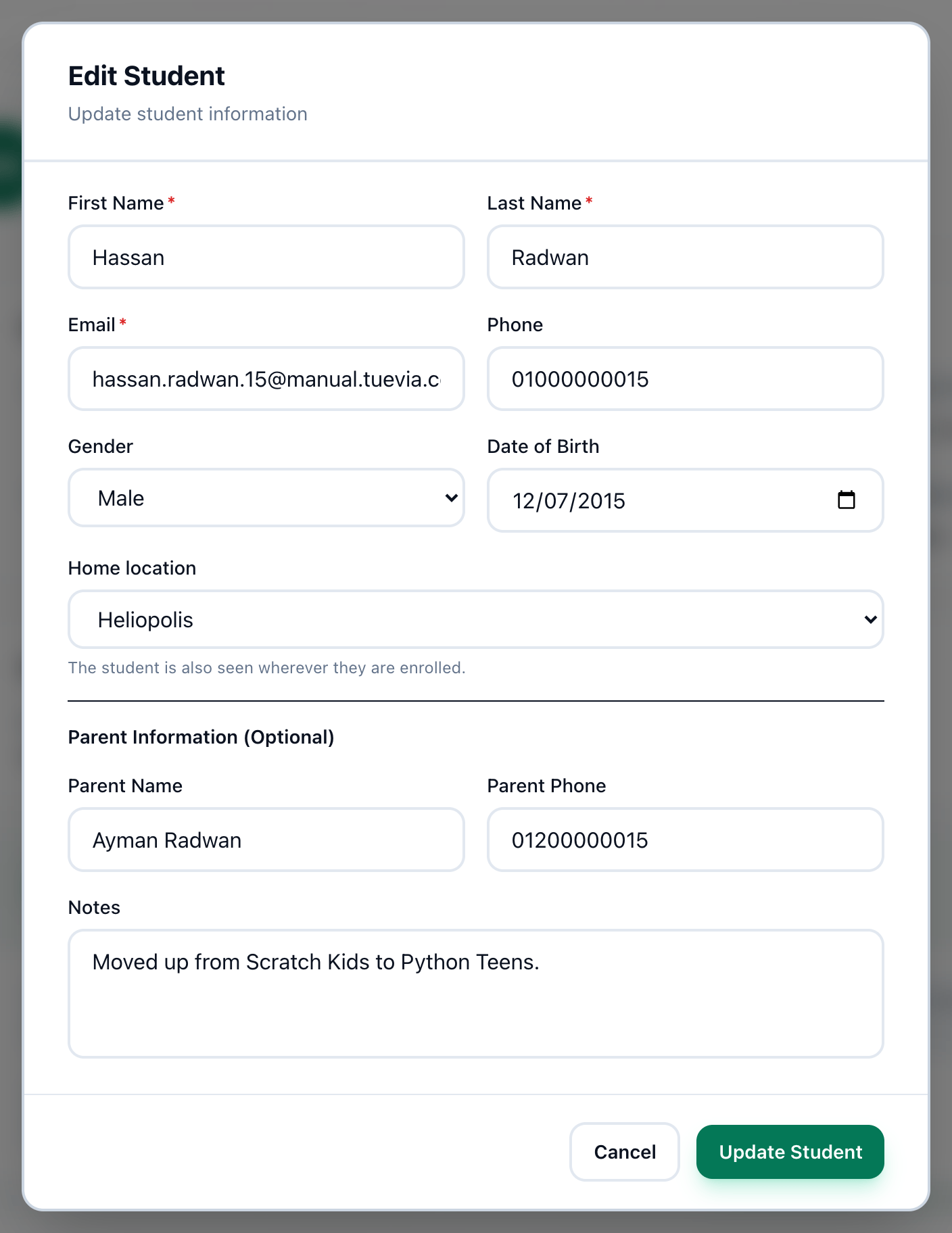
- Update Student
-
On the student’s profile, press Edit at the top.
-
Change what you need in Edit Student.
-
Press Update Student.
- A student who has an email address cannot be left without one. A student added before addresses were required can stay without one until somebody fills it in.
- If you work in only some of the academy’s locations, you can move a student to another Home location only when you work in both.
Delete a student
Section titled “Delete a student”
- Delete Student
-
At the bottom of the student’s profile, in Danger Zone, press Delete Student.
-
Your browser asks Are you sure you want to delete …? This action cannot be undone. Press OK. Tuevia takes you back to the list.
Their fees are not deleted with them: each stops, and stays on Finance → Fees with every payment as Stopped - student left, so the money’s history is kept but nobody is chased for what is left.
A student whose home location is a branch you do not work in cannot be deleted by you.
If something goes wrong
Section titled “If something goes wrong”-
First name and last name are required, An email address is required. or Please enter a valid email address
A name or the email address is empty, or the address has no @. -
validation failed: another student in this organization already uses …
Another student has that email address. -
Moving a student to another home location needs both locations.
You do not work in the location the student is leaving, or the one they are joining. Ask someone who works in both.
What happens next
Section titled “What happens next”- The profile shows the new details straight away.
- A deleted student is no longer in the list on Teaching → Students.