
The schedule and the groups list
Groups has two tabs. Schedule shows one day’s sessions, room by room. Groups List lists every group and every one-off session, and is where you create, open and change them.
Owners, anyone whose role can view or manage Groups, and instructors can open it. With Instructor Access alone, you see the groups you teach.
See a day’s sessions
Section titled “See a day’s sessions”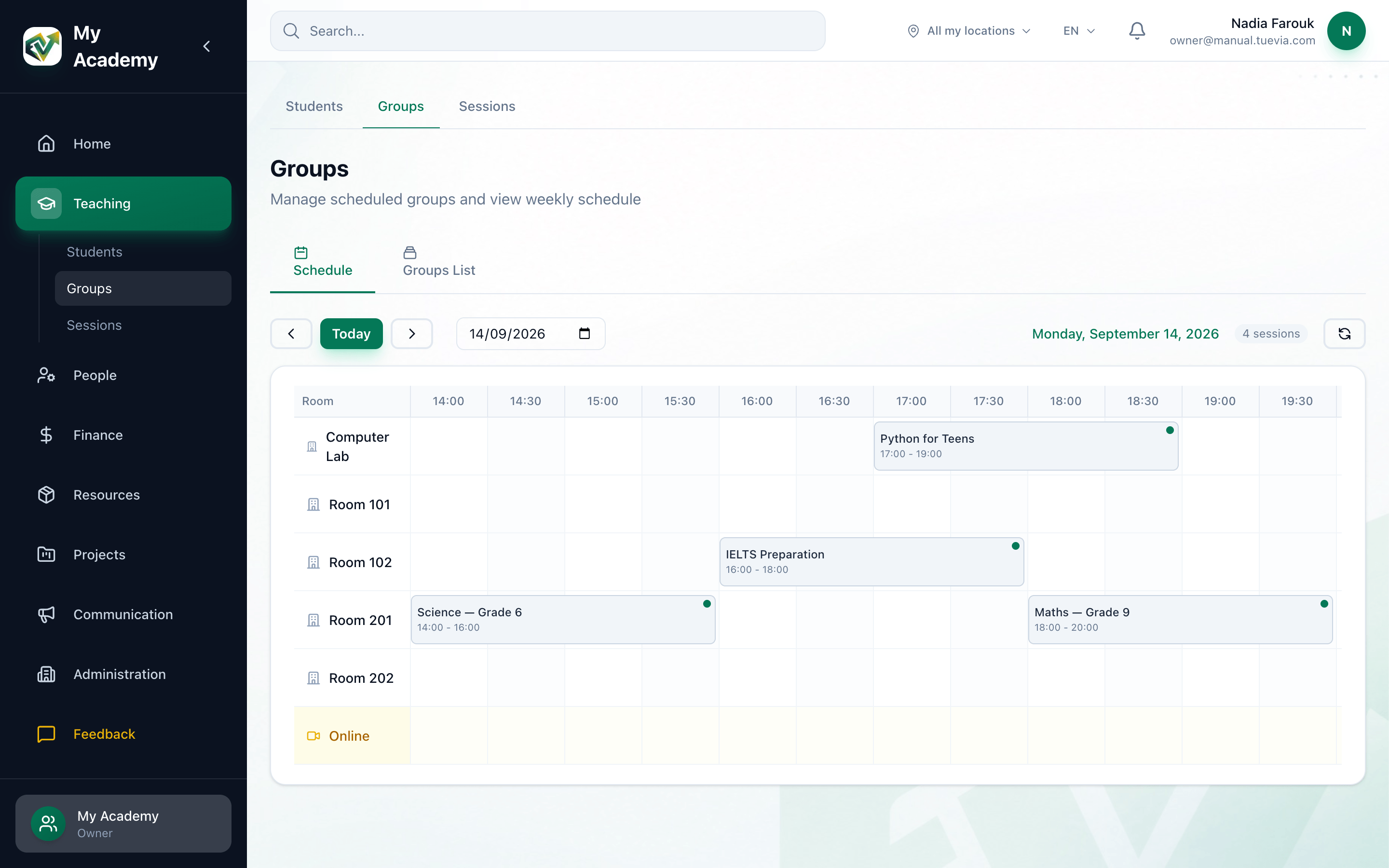
- Schedule
- Today
- Any date
- A session
- Open the group
-
Open Schedule. It opens on today.
-
Use the arrows either side of Today to go back or forward a day. Today brings you back.
-
To go straight to a date, choose it in the date field.
-
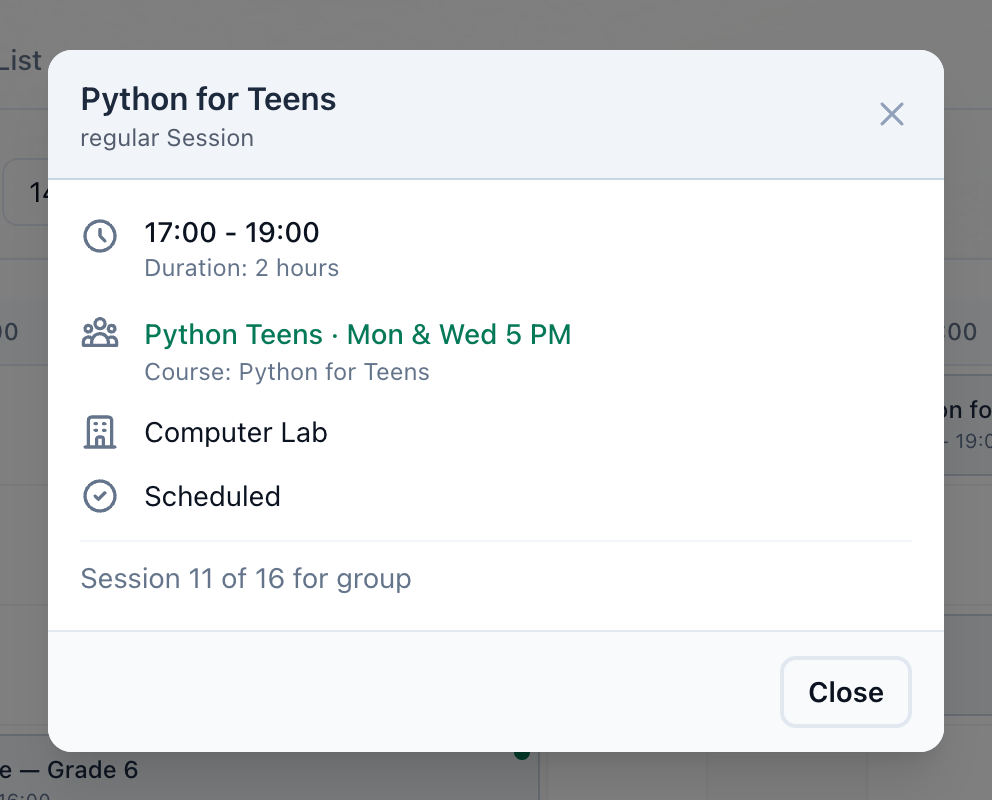
Press a session to see its details.
-
Press the group’s name to open the group’s page.
Each row is a room, and online sessions share the Online row at the bottom. A session shows its course and its times. Beside the date, a count says how many sessions the day has. The grid covers the whole day: scroll sideways for the later hours.
When you choose one location in the location switcher at the top of the screen, the grid shows only that location’s rooms. The schedule refreshes itself every 30 seconds, and the button at the end of the date bar refreshes it straight away.
Find a group in the list
Section titled “Find a group in the list”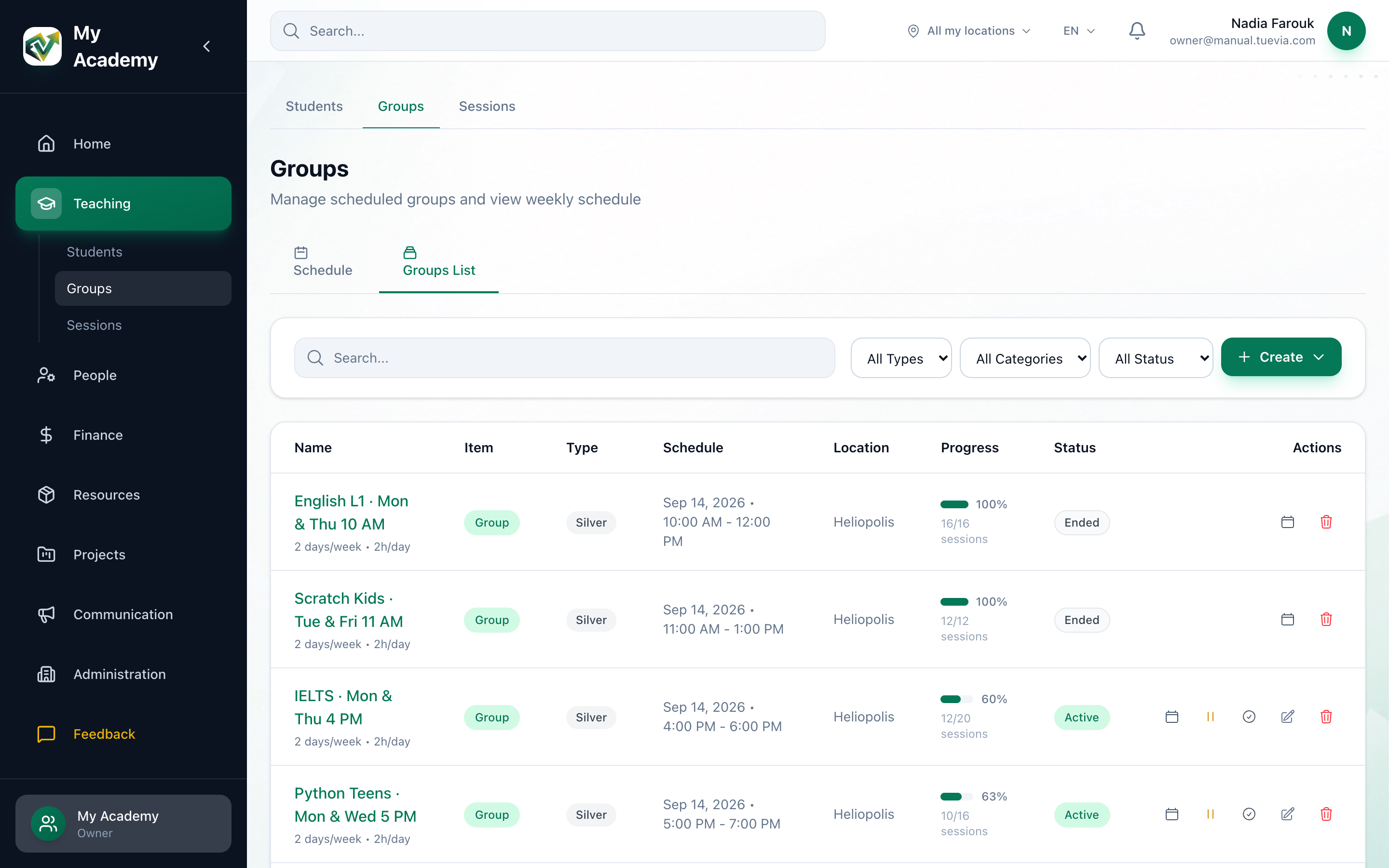
- Groups List
- Search
- Groups or sessions
- Status
- Open a group
-
Open Groups List.
-
Type part of a name in Search….
-
To see only groups, or only one-off sessions, choose Groups or Sessions in All Types.
-
To narrow it by status, choose one in All Status. Upcoming finds one-off sessions that are still to come.
-
Press a group’s name to open its page.
What each column shows:
-
Name
The group’s name, and how many days a week and hours a day it meets. -
Item
Group, or Session for a one-off session. -
Schedule
The next day the group meets, or its start date if it has not started yet, and its times. -
Location
The group’s location. It appears when your academy has more than one location. -
Progress
How many of the group’s sessions are behind it, out of all of them. A session counts once it has ended, or when it was completed or cancelled. No sessions means the group has none. -
Status
Active, Suspended or Ended. A group that has not started yet is Active too.
Under the list, a line counts what is shown, for example Showing 10 items (10 groups, 0 sessions). The buttons at the end of each row are in Changing, suspending and ending a group.
What happens next
Section titled “What happens next”- To add a group, see Creating a group.
- Everything about one group is on its page.
- A one-off session is added from the same Create button: see Adding a one-off session.