
Opening your first group
A group is one course taught to a set of students on fixed days, in a room or online. This is where the week comes together: the course, the room, the instructor and the students you have just brought in. When you create the group, Tuevia makes all of its sessions and enrols the students you choose.
Owners and anyone whose role can manage Groups can create groups.
Before you start
Section titled “Before you start”You need an active course (Courses), or create one from the form, and a room, unless the group is online (Branches and rooms). To assign the instructor now, they must already be one of your employees.
Create the group
Section titled “Create the group”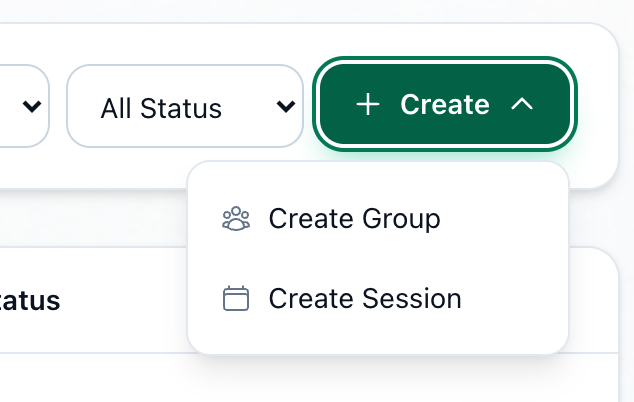
- Create
- Create Group
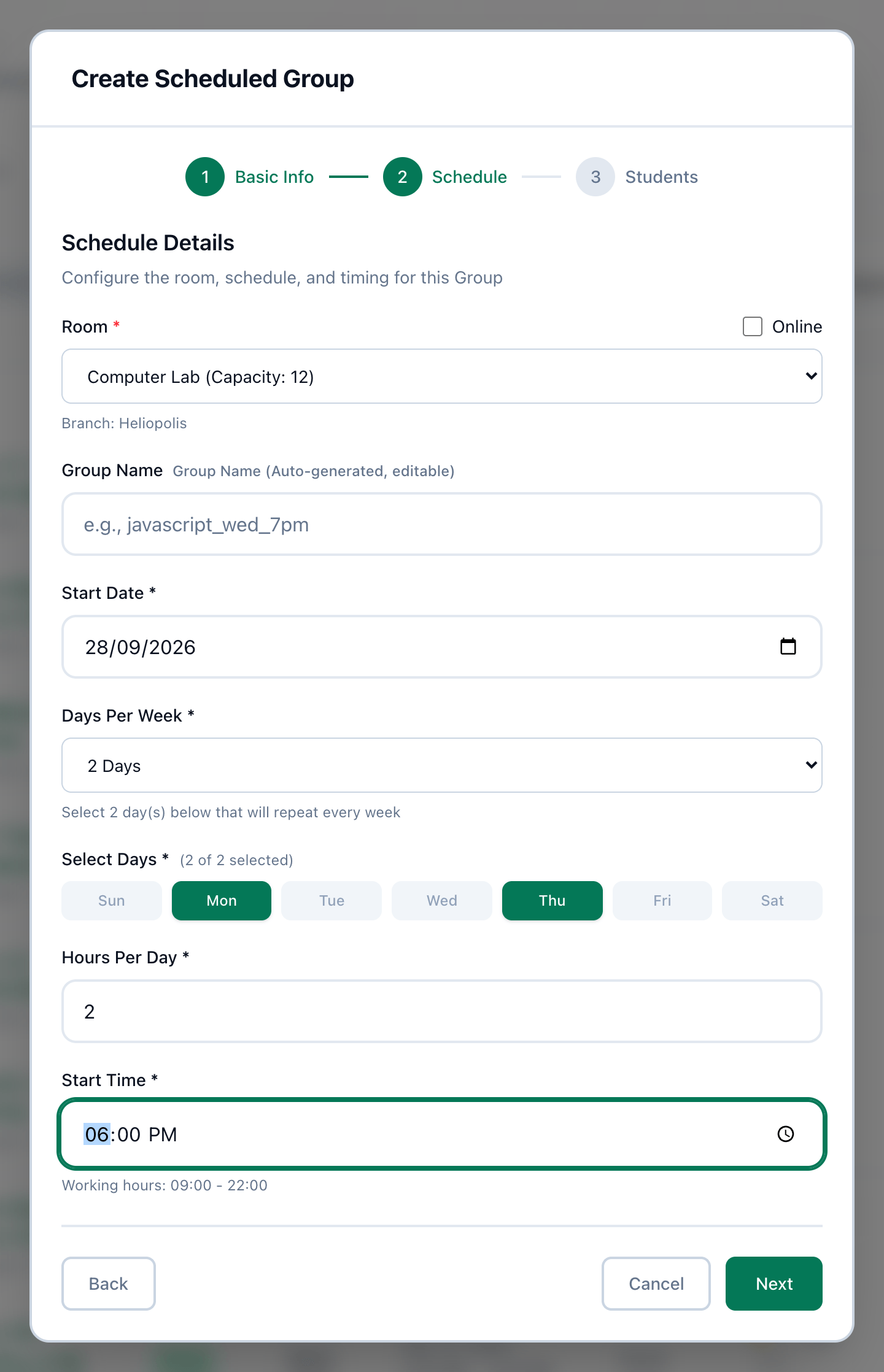
- Room
- Start Date
- Days Per Week
- Select Days
- Hours Per Day
- Start Time
-
In Teaching → Groups, on Groups List, press Create.
-
Choose Create Group.
-
Choose the Course, or press + Create course to make one.
-
Check Price for this group, then press Next.
-
Choose the Room, or tick Online.
-
Choose the Start Date.
-
Choose Days Per Week.
-
Under Select Days, choose that many days.
-
Enter Hours Per Day.
-
Choose the Start Time, then press Next.
-
Choose the Instructor.
-
Under Add Students, search for each student by name, phone or email, and press them to choose them.
-
Press Create Group.
The group gets as many sessions as its course has, on the chosen days from the start date, each at the start time and in the group’s room.
If something goes wrong
Section titled “If something goes wrong”- Create Group stops and the form stays open
Tuevia refused the group, and nothing was created. The reason shows above the form - most often a start date that is not one of its days, a class past midnight, or a room already booked at that time.
What happens next
Section titled “What happens next”- The group’s page, its sessions, and changing it later: Groups.
- Next in Getting started: taking the first register.