
A lead's page
Press a lead anywhere — in the list, on the board, on Today — to open its page.
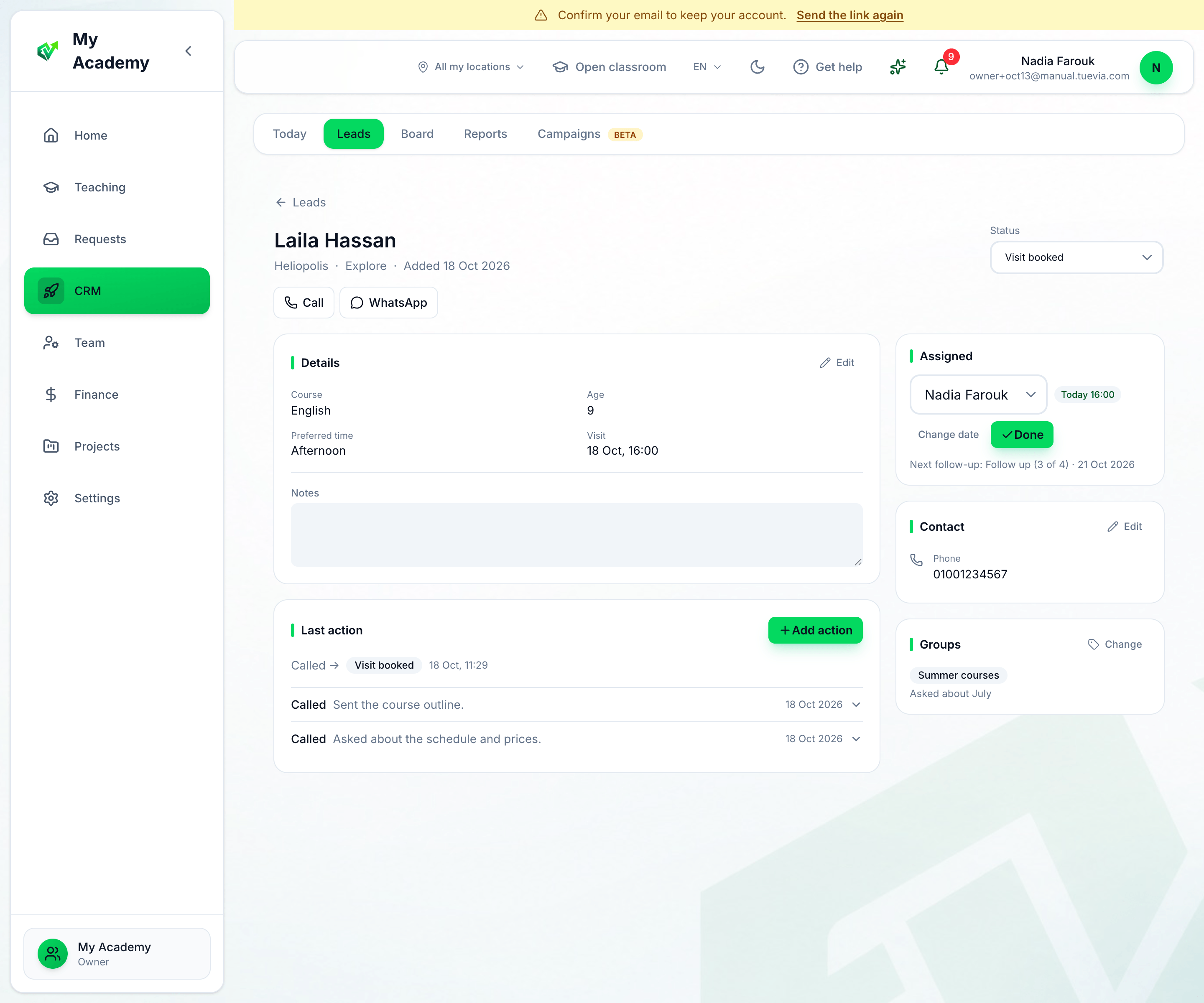
- Its block
- Call and message
- Edit the details
- Last action
- Who has it, and when
-
Status is the lead’s block on the board. Choose another to move it.
-
Call, WhatsApp and Email reach the lead, when it has a phone or an email.
-
Details shows the answers the lead has to your academy’s fields. Press Edit to fill in the rest, and Who to talk to — a decision maker, a manager, and their phones. Notes is always open. When anything changes, Unsaved changes appears at the bottom: press Save.
-
Last action is the newest thing done with the lead, open. Earlier actions are folded to one line each underneath; press one to open it.
-
Assigned is who has the lead and when it is due. See below.
Add an action
Section titled “Add an action”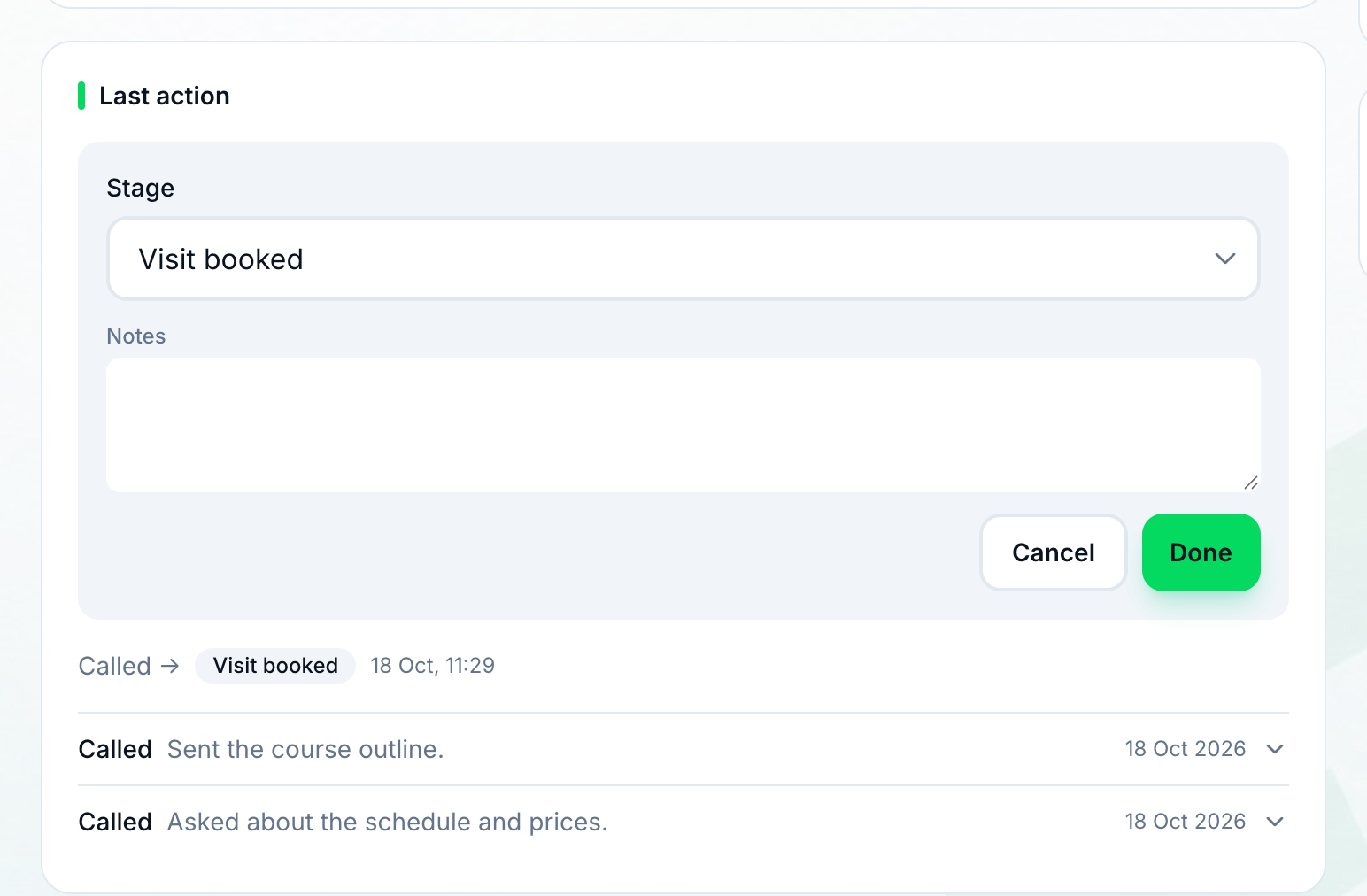
- Stage, notes and Done
-
Press Add action.
-
Stage starts at the lead’s own block. Choose another to move the lead: that block’s fields open below, every one optional.
-
Write what happened under Notes, and press Done. The action is recorded with your notes and any field you filled, and the lead moves if you changed its stage.
Who has it, and when
Section titled “Who has it, and when”- Choose the person under Assigned, or Nobody.
- Change date — or Assign, when the lead has no date — opens When next?: choose the Due date and, if you want, the Time, then Set — or No next date to clear it, or Keep as is.
- Done records that the due work is done and clears the date: the lead leaves Today, and the card reads Done with when.
The rest of the page
Section titled “The rest of the page”- Contact: phone, email, address and pages. Press Edit to correct them.
- Groups: the groups it is on, with each one’s note. Press Change to choose.
- Next follow-up, when one is due.