
Changing, suspending and ending a group
The buttons at the end of a group’s row in Groups List change the group. Owners and anyone whose role can manage Groups see all of them; everyone else sees only View Sessions.
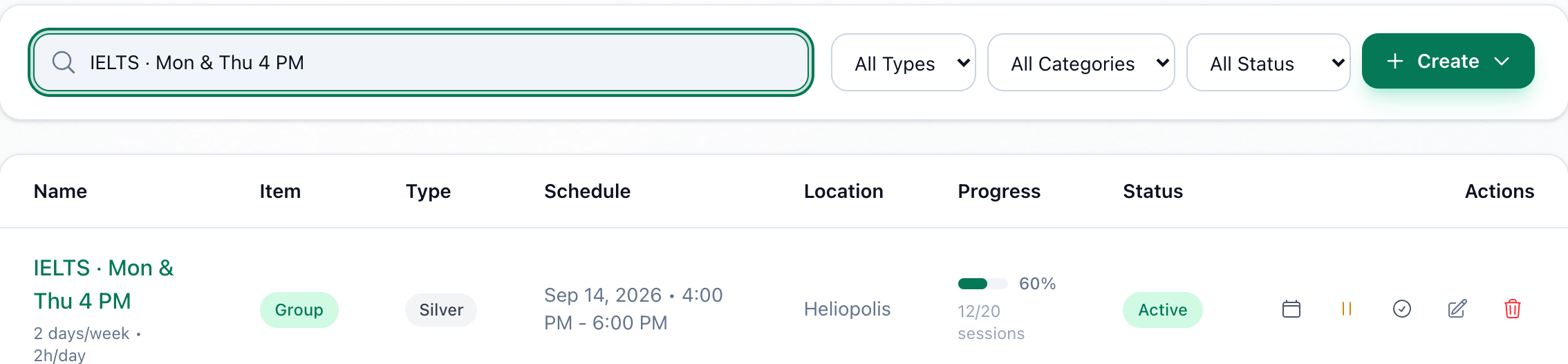
- View Sessions
- Suspend
- End
- Edit
- Delete
- View Sessions lists all of the group’s sessions in date order, with their status.
- Suspend, on an active group. On a suspended group, Continue is here instead.
- End, on an active group.
- Edit, on a group that has not ended.
- Delete.
The buttons are icons: point at one to see its name.
Change a group’s details
Section titled “Change a group’s details”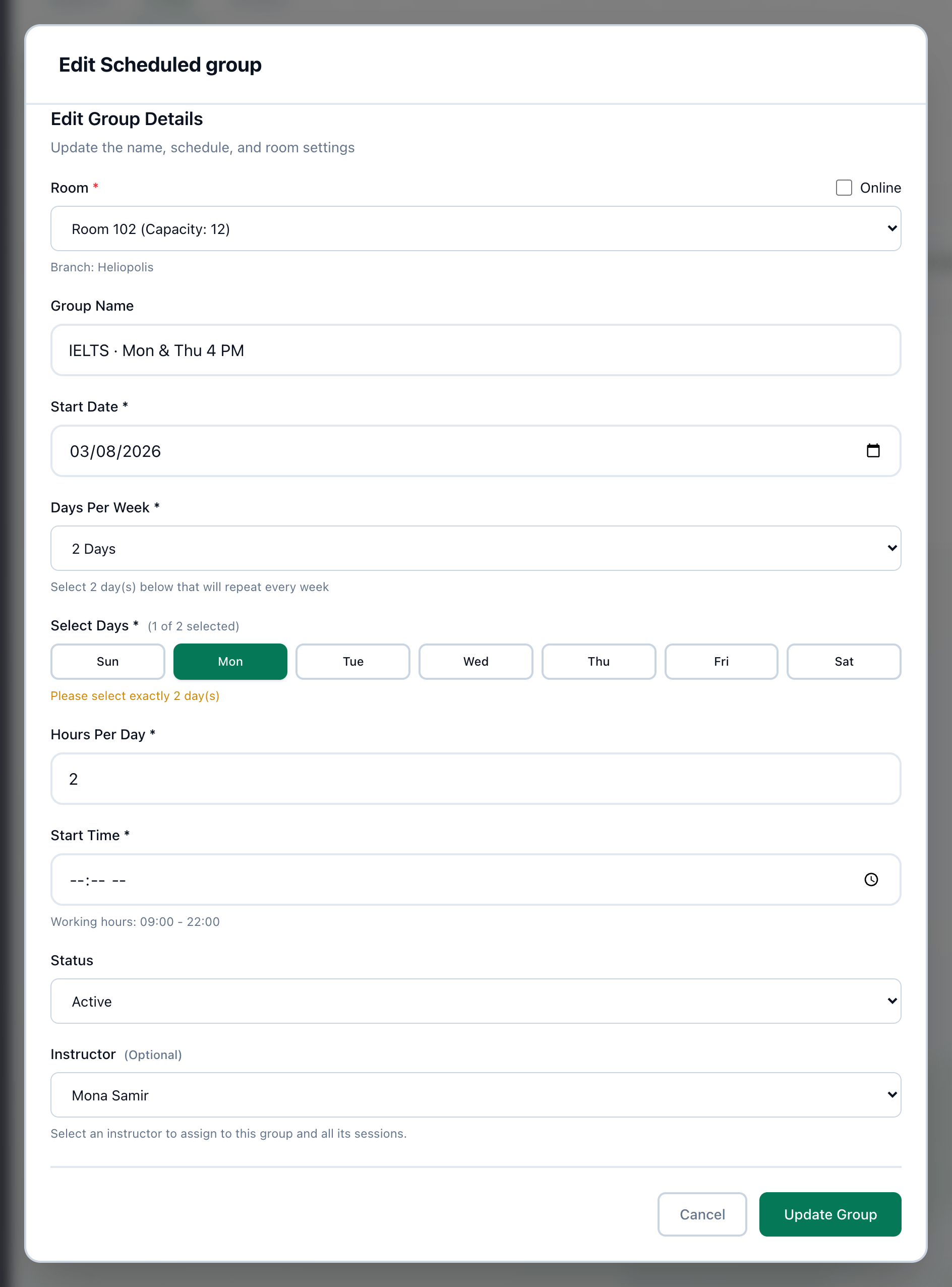
- Status
- Instructor
- Update Group
-
Press Edit on the group’s row. Edit Scheduled group opens.
-
Change what you need: Price for this group, the room or Online, Group Name, Start Date, the days, Hours Per Day, Start Time or Status. An empty price follows the course’s.
-
To give the group another instructor, choose them in Instructor.
-
Press Update Group.
The course cannot be changed. Choosing a room at another branch moves the group, its upcoming sessions and its students’ enrolments to that branch.
Suspend and continue a group
Section titled “Suspend and continue a group”Press Suspend on an active group’s row. It happens straight away, without a question.
The group becomes Suspended, and its students’ active enrolments are suspended. Its sessions are not cancelled: cancel the ones that will not take place.
To start again, press Continue on the row. The group is Active again, and the suspended enrolments become active.
End a group
Section titled “End a group”Press End on an active group’s row. It happens straight away, without a question.
The group becomes Ended, and its students’ active and suspended enrolments become completed. An ended group cannot be edited or continued. Its sessions are not cancelled: cancel any still to come that will not take place.
Delete a group
Section titled “Delete a group”-
Press Delete on the group’s row.
-
Delete Scheduled group asks Are you sure you want to delete “…”? This action cannot be undone. Press Delete.
Deleting removes the group, all of its sessions with their attendance, and every enrolment in it. To keep the record of a group that has finished, end it instead.
If something goes wrong
Section titled “If something goes wrong”-
start_date cannot be more than 1 year in the past
The start date is more than a year ago. Choose a later one. -
the class must end before midnight - start it earlier or make it shorter
The start time and the hours per day take the class past midnight. Start earlier, or shorten the hours. -
Update Group stops and the form stays open, with no message
Tuevia refused the change and nothing was saved. The most common reason is that the room is booked at that time: check Schedule, and choose another time or room. -
Suspend, End or Continue leaves the row as it was
The change was refused. Reload the page and try again.
What happens next
Section titled “What happens next”- Tuevia does not notify anybody when a group is suspended, ended or deleted.
- Each student’s enrolments are on their profile: see Students.
- To cancel sessions that will not take place, see Rescheduling and cancelling a session.