
Getting an account
One account is enough for every academy you study at. You do not need an academy to make one: you can find one afterwards.
Create your account
Section titled “Create your account”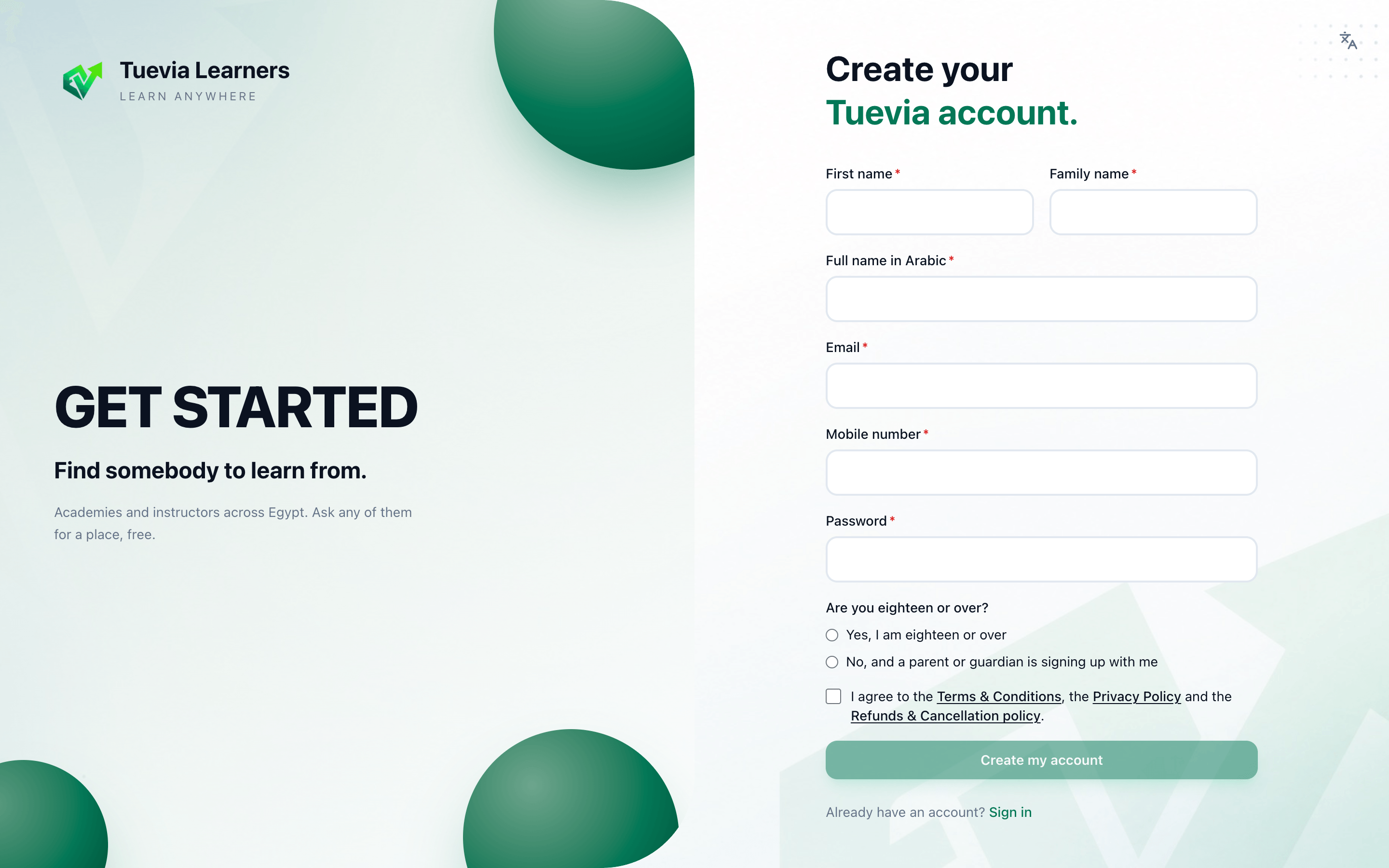
- Your details
-
Open learners.tuevia.com and press Create one, or open an invitation an academy sent you.
-
Fill in your First name, Family name and Full name in Arabic. The Arabic name takes Arabic letters only.
-
Fill in your Email, Mobile number and a Password.
-
Answer Are you eighteen or over? If you are not, choose No, and a parent or guardian is signing up with me, and fill in the Guardian’s name and Guardian’s phone.
-
Tick I agree to the Terms & Conditions, the Privacy Policy and the Refunds & Cancellation policy, and press Create my account.
You are signed in straight away. If you came from an academy’s invitation, the invitation is waiting for you in Requests.
Confirm your email
Section titled “Confirm your email”Until you do, a yellow bar at the top of every page says Confirm your email to keep your account. Press the link in the email Tuevia sent you. If you cannot find it, press Send the link again in the bar.
Sign in
Section titled “Sign in”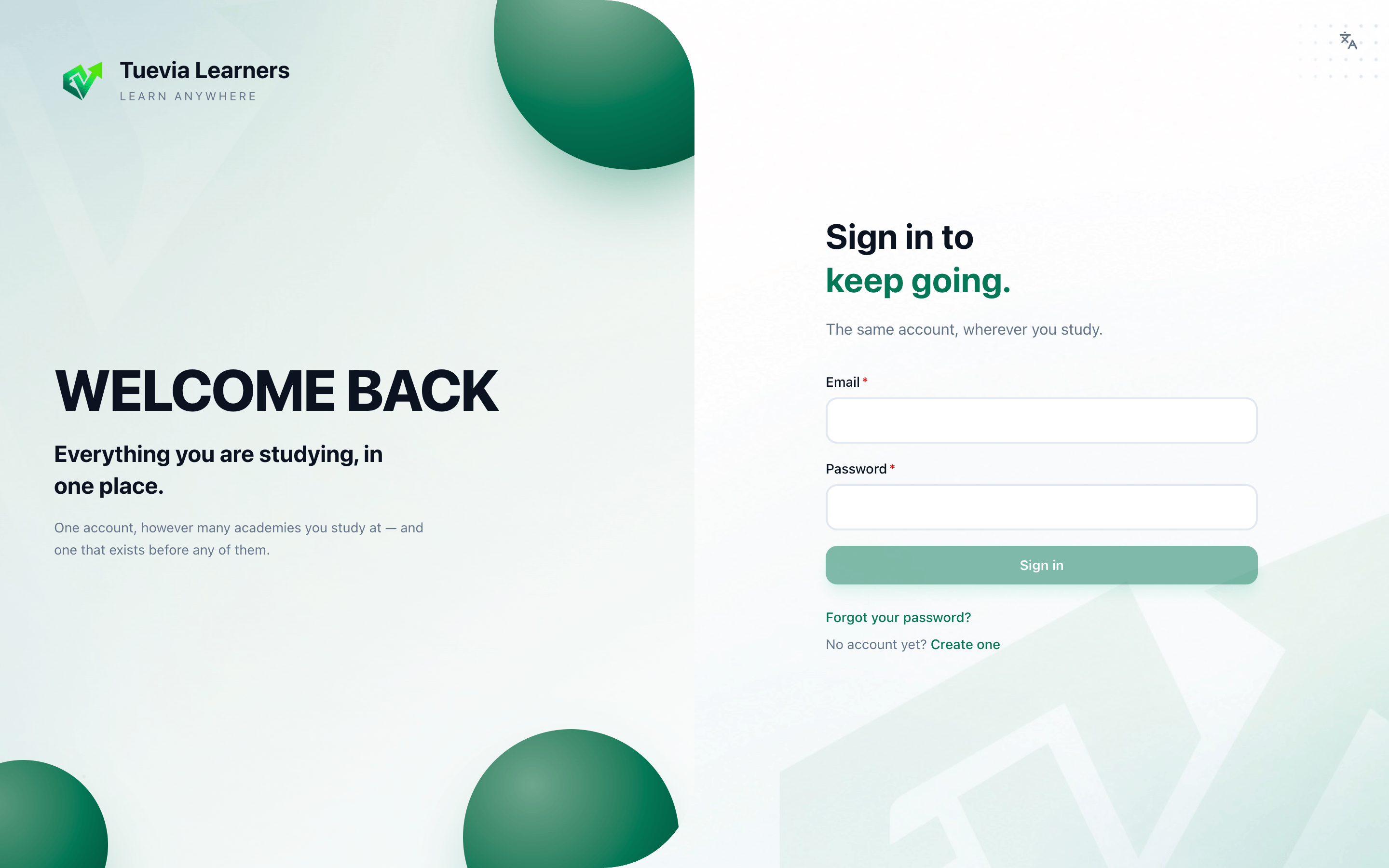
- Email and password
Type your Email and Password and press Sign in. The same account works on the web and in the phone app.
A forgotten password
Section titled “A forgotten password”-
On the sign-in page, press Forgot your password?
-
Type your email and press Send the link.
-
Open the link in the email within 20 minutes, type a New password of at least 8 characters, and press Save it.
A link older than 20 minutes says That link has expired: press Ask for another.
Your name in Arabic
Section titled “Your name in Arabic”Tuevia keeps every learner’s full name in Arabic as well. An account made before that asks for it once, on Your name in Arabic: write it and press Save and continue.