
Members and roles
Only a project’s members see it in their Projects list, and each member’s role decides what they may do in it. The project’s owner and managers add and remove members; only the owner changes roles.
What each role can do
Section titled “What each role can do”-
Owner
Whoever created the project. Everything a manager can do, and changing other members’ roles. The owner cannot be removed, and their role cannot be changed. -
Manager
Changes the project’s details, archives and deletes it, adds and removes members, and creates, assigns and deletes tasks. -
Contributor
Changes tasks and moves them between columns. -
Viewer
Sees the project, its tasks and its members, and changes nothing.
The Members tab
Section titled “The Members tab”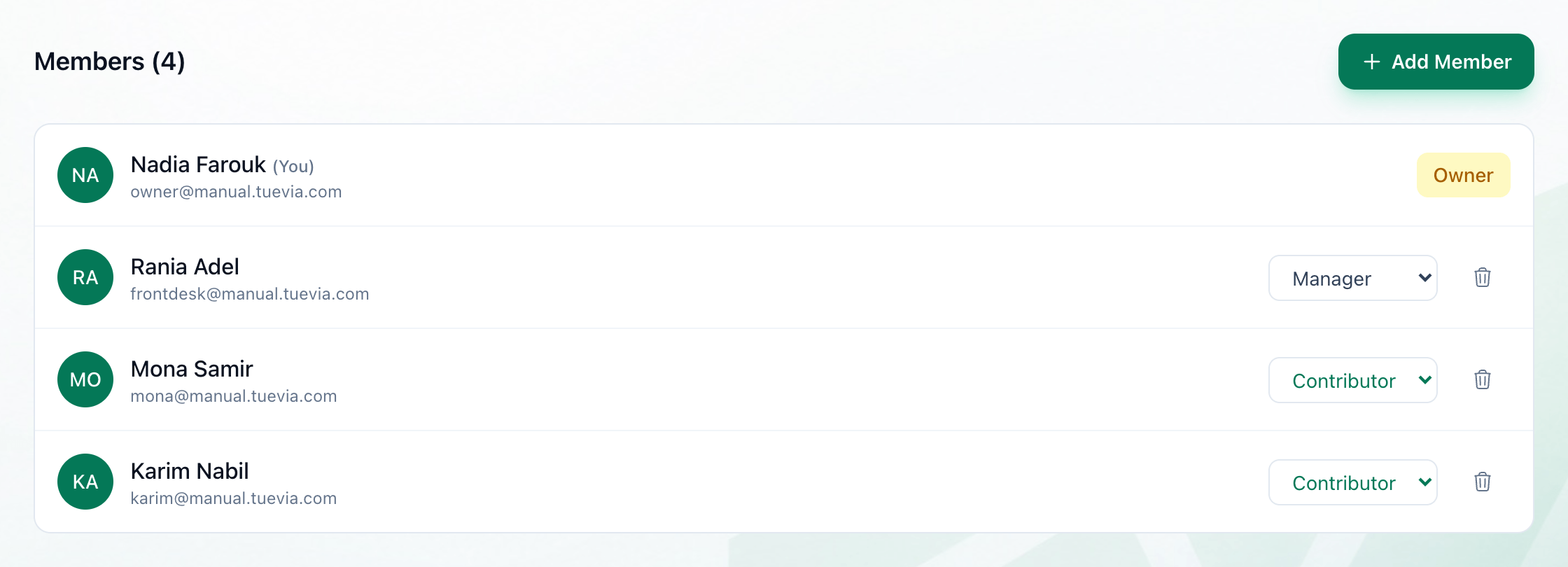
- Add Member
- A member's role
- Remove from the project
The tab lists every member with their email address and role, starting with the owner. Your own name is followed by (You).
Add members
Section titled “Add members”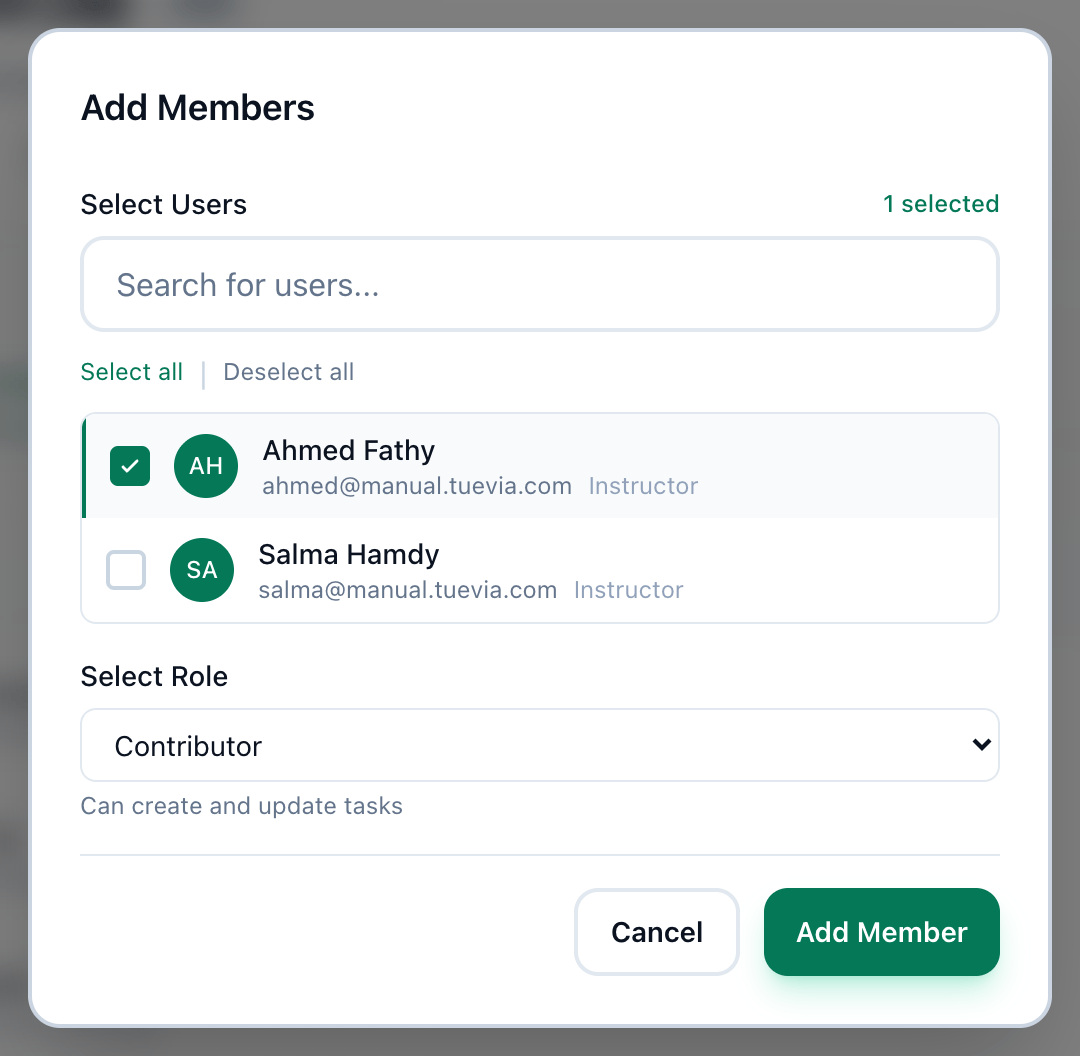
- Select Users
- Select Role
- Add Member
-
On the project’s Members tab, press Add Member.
-
Under Select Users, press each person to add. The list holds the academy’s staff who are not in the project yet; type in Search for users… to find somebody by name or email. Select all and Deselect all pick the whole list at once.
-
Choose their role under Select Role: Manager, Contributor or Viewer. It starts at Contributor. Everybody you picked gets the same role.
-
Press Add Member, or Add 2 Members and so on when you picked more than one.
The line under Select Role says Can create and update tasks for a contributor. Tuevia does not let a contributor create tasks: only the owner and managers can. A contributor changes the tasks that exist.
If everybody on the staff is already in the project, the window says All organization members are already in this project.
Change a member’s role
Section titled “Change a member’s role”In the member’s row, open the list that shows their role and choose the new one. The change is saved as soon as you choose. Only the project’s owner can do this.
Remove a member
Section titled “Remove a member”In the member’s row, press the bin button, then confirm. The owner’s row has no bin button, and neither does your own.
In an archived project the members can be read but not changed: there is no Add Member button, roles are shown as labels, and there are no bin buttons.
If something goes wrong
Section titled “If something goes wrong”-
Only project owners can change member roles
You are a manager or below. Ask the project’s owner to change the role. -
You do not have permission to remove members from this project
Only the project’s owner and managers remove members. -
You do not have permission to add members to this project
Only the project’s owner and managers add members. The message appears in the Add Members window once for each person you picked, after the first characters of their user ID.
What happens next
Section titled “What happens next”New members see the project in their Projects list, and can be assigned tasks in Working with tasks. Somebody who is not on the staff yet has to join the academy first, in People.