
Your academy's look and settings
Settle these before anything else. The time zone decides which day is today, and your logo and colours are what your staff see the first time they sign in. Owners and admins can change them.
Check the name and time zone
Section titled “Check the name and time zone”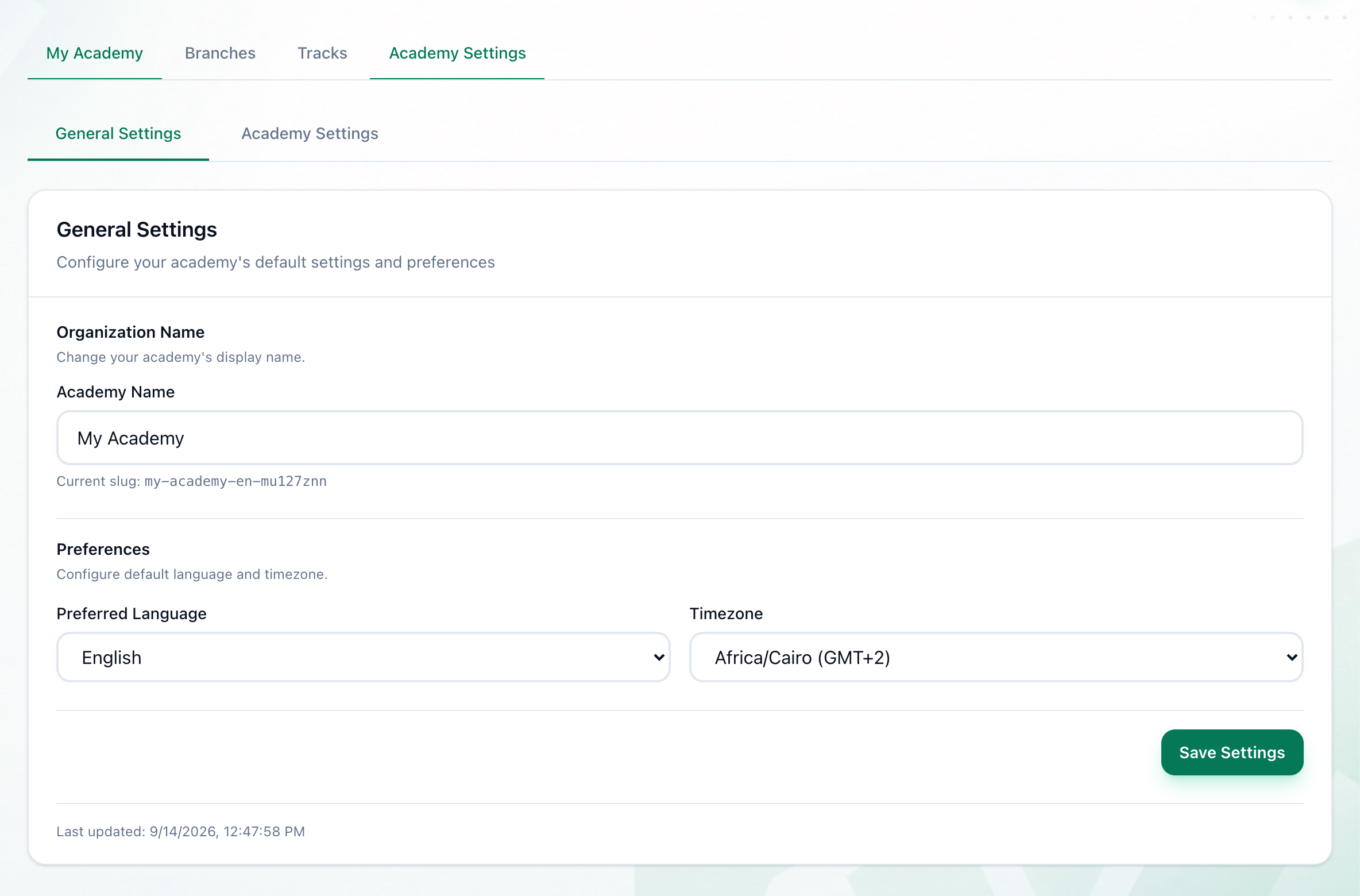
- Academy Name
- Governorate
- Preferred Language
- Timezone
- Save Settings
-
Open Settings. It opens on General. Check Academy Name: it is the name in the sidebar and on your card.
-
Choose your governorate in Governorate: learners filter the directory by it.
-
Choose English or Arabic in Preferred Language.
-
Choose your time zone in Timezone.
-
Press Save Settings.
Every academy is open all day: a group or a session can be at any time, as long as it ends before midnight. There are no working hours to set.
Put your logo and colours on it
Section titled “Put your logo and colours on it”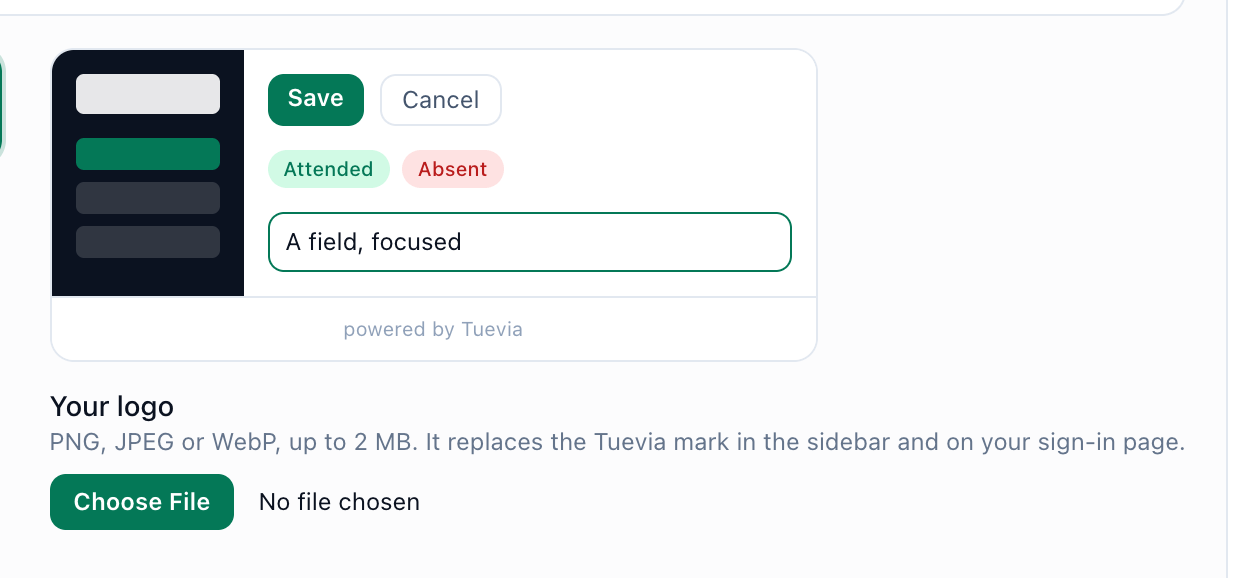
- Your logo
-
On Settings → Branding, under Your logo, choose your logo: a PNG, JPEG or WebP image of up to 2 MB.
-
Under Your colours, press the colour square of Brand, Sidebar, Page or Cards, and choose a colour. The preview beside them changes as you do.
-
Press Save Settings. Nothing in them is kept until you do.
Tuevia can also read your colours from your logo, a PDF or your website: see Starting from your brand.
What happens next
Section titled “What happens next”- Everything on these two pages, with its messages: General settings and Branding.
- Next in Getting started: branches and rooms.