
Adding students from a sheet
Add a whole list of students from a spreadsheet. Tuevia reads one thing from it: each student’s email address. Every address is asked to join, just as when you add one student. Owners, admins and anyone whose role has Manage access to Students can add students from a sheet.
Before you start
Section titled “Before you start”- The file is a CSV or an Excel file (.xlsx). Tuevia reads its first sheet.
- The first row holds the column headers, and every row after it is one student.
- One column holds the students’ email addresses. Keep whatever else your file holds - names, phones, schools. Tuevia ignores it: students fill in their own details when they join.
Upload the file
Section titled “Upload the file”
- Add from sheet
- Choose the file
- Continue
-
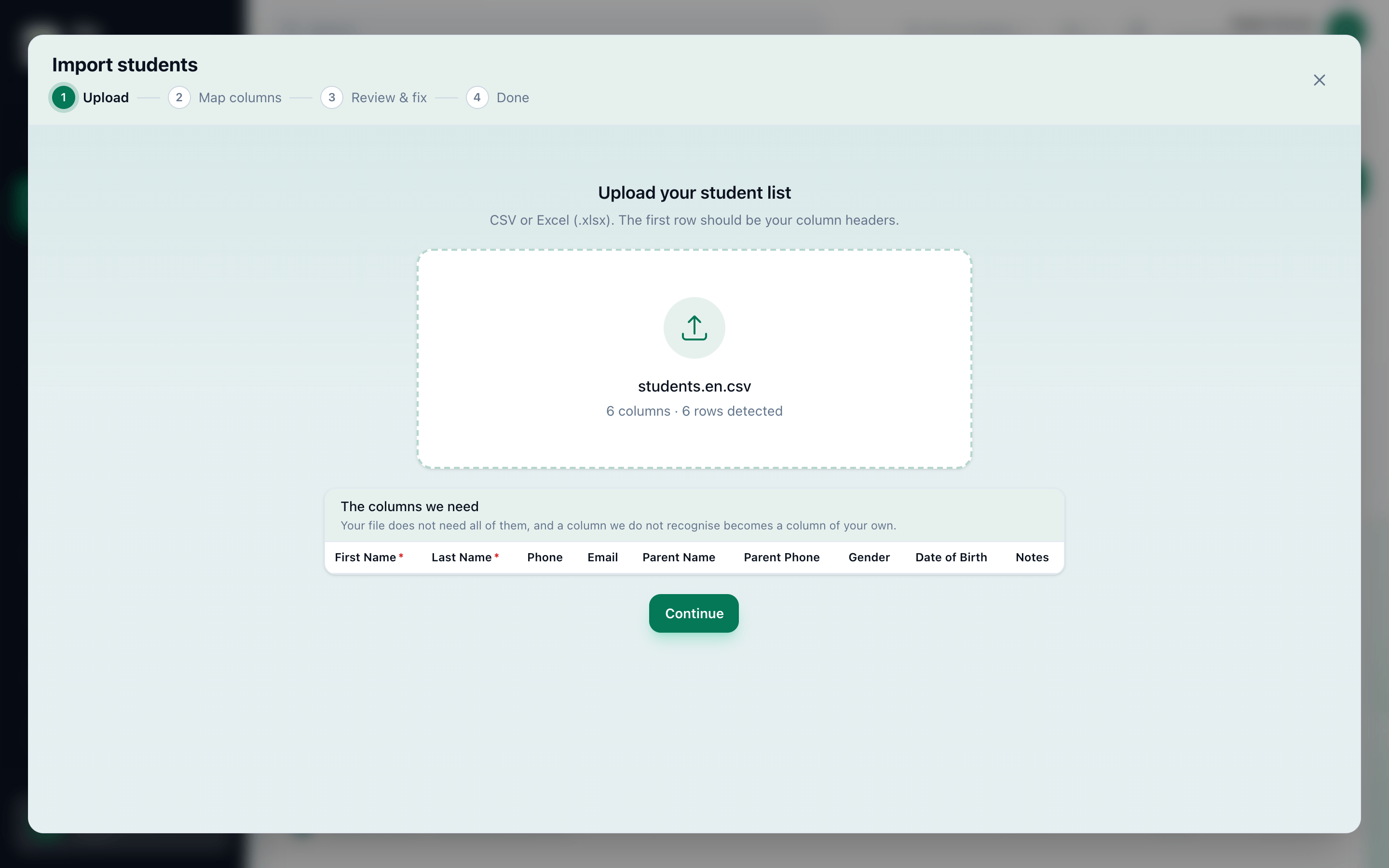
On Teaching → Students, press Add from sheet. The Add students from a sheet window opens at Upload.
-
Click the box that says Click to choose a file, and choose your spreadsheet. The box then shows the file’s name and how many columns and rows Tuevia found in it.
-
Press Continue.
The step under the box says what is read: We read one column: the email address.
Choose the email column
Section titled “Choose the email column”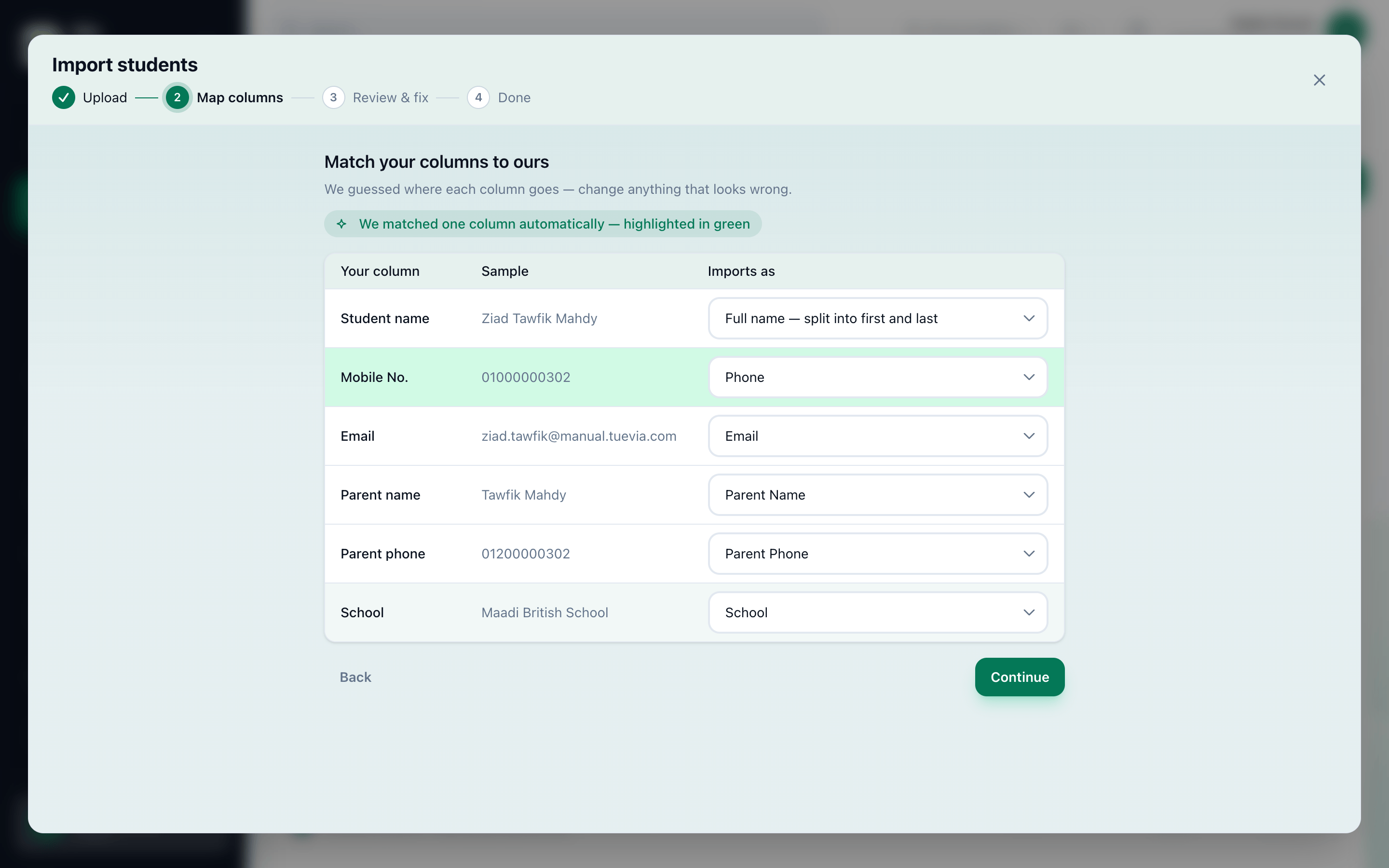
- The email
- Continue
Which column has the email? lists the columns of your file, a Sample from its first row, and a button under The email for each. Usually Tuevia has chosen it already:
- A header such as Email, E-mail address, Student email or الإيميل is chosen straight away.
- Otherwise Tuevia may read the columns and suggest one. While it does, the step says Reading your column names…. The column it found turns green, and a note says We found it for you — highlighted in green.
-
Check that the right column is chosen under The email, and press another one if it is not.
-
Press Continue.
Continue stays greyed out, with Choose the column that holds the email address to continue., until a column is chosen.
Review and fix the rows
Section titled “Review and fix the rows”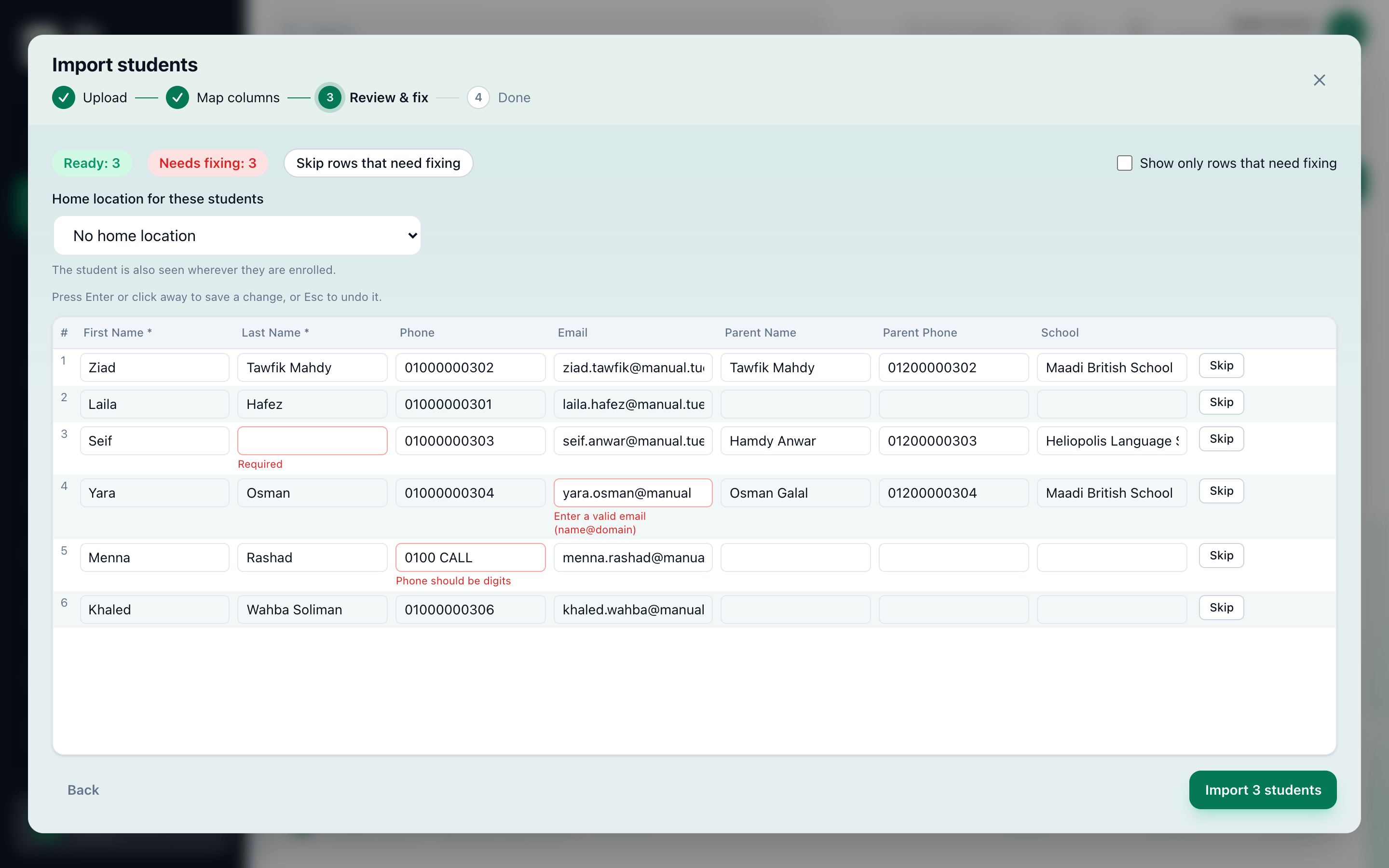
- An address to fix
- Skip rows that need fixing
- Add
Review & fix shows every row’s email address. Ready and Needs fixing count them. An address that cannot go in has a red outline and the reason under it:
- Required: the row has no address.
- Enter a valid email (name@domain): the address is not one Tuevia can write to.
If you see more than one location, choose Home location for these students above the grid: every student in the file gets the same one. If you work in only some locations, you have to choose it before you can add the students.
-
Click an address to change it. Press Enter or click away to keep the change, or Esc to undo it.
-
To leave a row out, press Skip at its end - or Skip rows that need fixing to leave out every row that still needs a fix. Include brings a skipped row back. Show only rows that need fixing hides the rest while you work.
-
Press the add button, which counts the ready rows - Add 5 students, for example. Only those rows go in.
Rows refused on save
Section titled “Rows refused on save”Tuevia checks every row again as it saves it. The rows it saved leave the grid and are counted in Added. A row it refused stays, in red, with the reason on the address, and the step says how many rows were refused:
- A student with this email already exists — change it or skip the row
Another student has that address - or another row of the same file does. - Invalid email address
The address is not one Tuevia can store. Change it. - Could not be saved — try again or skip the row
Tuevia could not save the row.
Fix or skip those rows and press the add button again, or press Finish to stop with the students already added.
Finish
Section titled “Finish”When nothing ready is left, the window moves to Done. Students added says how many students went in, and how many rows were left out.
A row that is left out was skipped, or still needed a fix when you finished. Tuevia does not keep it anywhere: correct those rows in your spreadsheet and add them again. Add another file starts again; Close closes the window.
If every row needs a fix or is skipped, the button at the bottom is Finish instead of the add button, and it ends without adding anyone.
If something goes wrong
Section titled “If something goes wrong”-
That file has no data rows.
The file has a header row and nothing under it, or is empty. -
We couldn’t read that file. Please use a CSV or Excel file.
Save the spreadsheet as CSV or as an Excel workbook (.xlsx) and choose it again.
What happens next
Section titled “What happens next”- Each address is asked to join: somebody already on Tuevia gets the invitation in their Tuevia inbox, anybody else an email with a link to sign up. Until they accept, the list shows their address and Invited — waiting to join, and they are Inactive until they are enrolled.
- Enrol them in their groups.