
Checking in and out
The card at the top of Home, beside the greeting, records the hours you work at the academy. Everybody in the academy has it.
Check in and out
Section titled “Check in and out”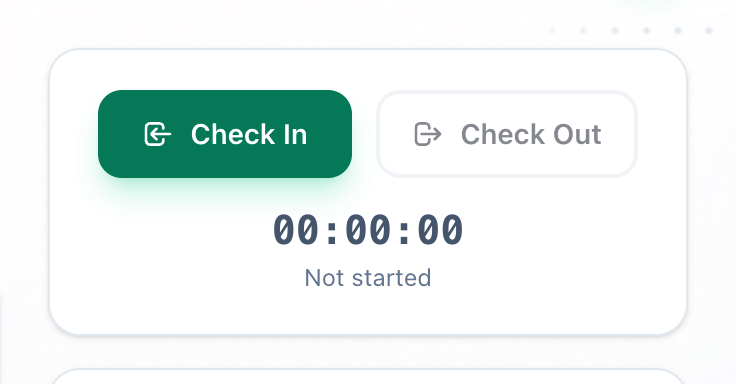
- Check In
- Check Out
- Time worked today
-
When you arrive, press Check In. The clock starts, and Time tracking shows under it. Check In stays pale while you are checked in.
-
When you leave, press Check Out. The clock stops, and Completed shows under it.
-
The clock shows the time you have worked today, in hours, minutes and seconds. Not started under it means you have not checked in today.
Stepping out and coming back
Section titled “Stepping out and coming back”You can check in and out more than once a day. After you check out, Check In works again, and the clock carries on from the time you have already worked rather than starting again from zero.
A day is a day in your academy’s time zone. The next day, the card starts again at 00:00:00.
If something goes wrong
Section titled “If something goes wrong”A message appears in red under the check-in buttons.
-
employee already has an active session - must check out first
You are already checked in, for example from another tab or another device. Reload Home: Check Out is the button to press. -
no active session to check out from
You are not checked in, for example because you already checked out in another tab. Reload Home. -
no attendance record found for this date - employee must check in first
You have not checked in today. Press Check In first.
What happens next
Section titled “What happens next”Your check-ins are kept as your attendance, on the Attendance tab of your employee profile. Owners, admins, and anyone whose role includes employees see it in Team → Employees.