
Adding an expense
The Payments page keeps the academy’s own expenses: rent and bills that come round again, and one-off purchases. Student fees and salaries have pages of their own. Owners, admins, and anyone whose role includes Finance or Custom Payments can open it; adding, paying and pausing expenses needs permission to manage Custom Payments.
The payments list
Section titled “The payments list”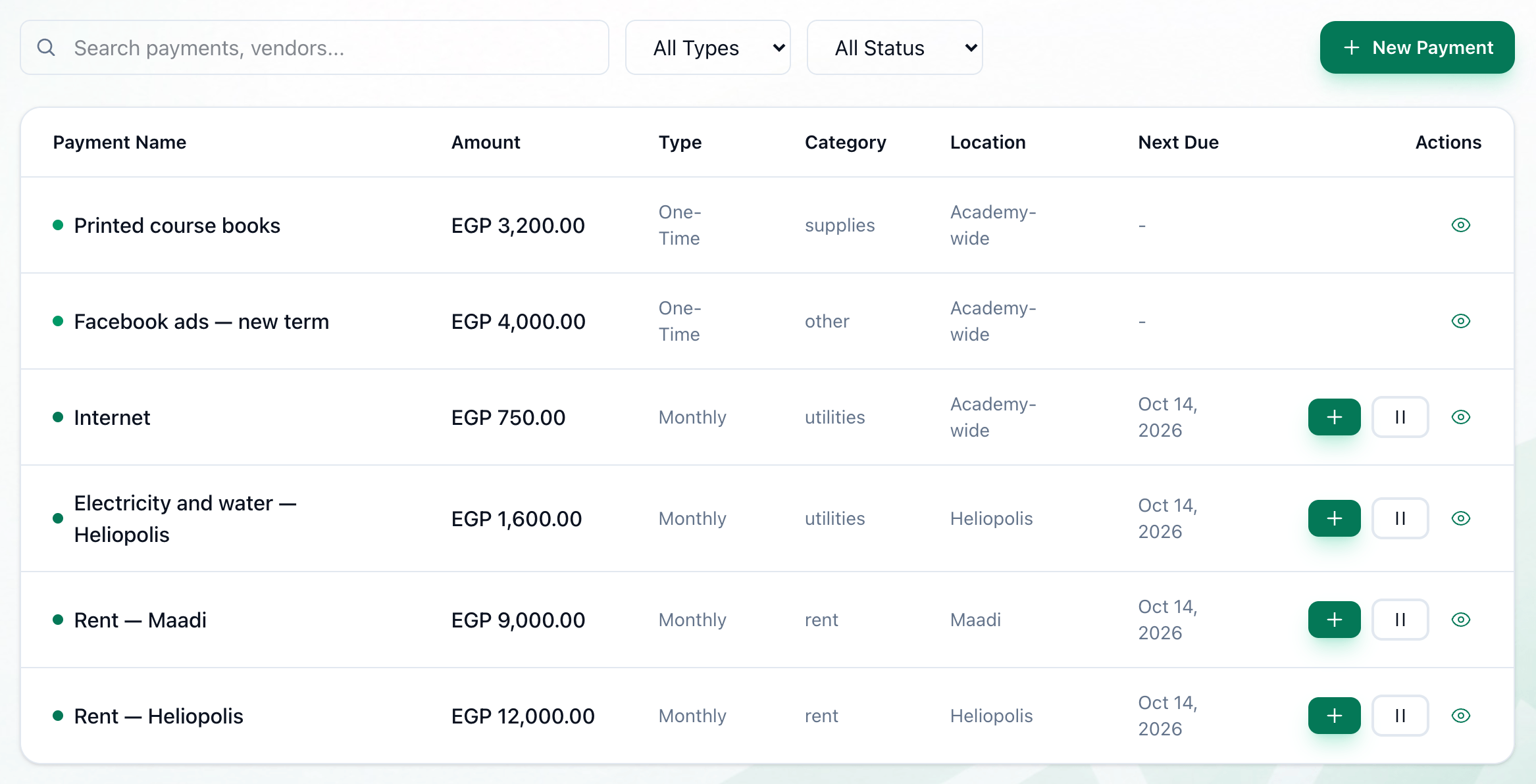
- Search
- All Types
- All Status
- New Payment
Each row shows the expense’s Amount, its Type — One-Time, or how often it recurs — its Category, its Location when your academy has more than one, and Next Due for a recurring expense. A due date within a week reads Due in so many days; a missed one reads Overdue with the date, and the row turns red.
- Search payments, vendors… finds expenses by name, vendor or category.
- All Types shows only One-Time or Recurring expenses.
- All Status shows only Active, Paused, Completed or Cancelled ones.
- New Payment adds an expense — below.
When a recurring expense is overdue, a red banner at the top says so, for example 1 overdue payment requiring attention. Its View Overdue button shows the active expenses, with the overdue ones in red.
Add an expense
Section titled “Add an expense”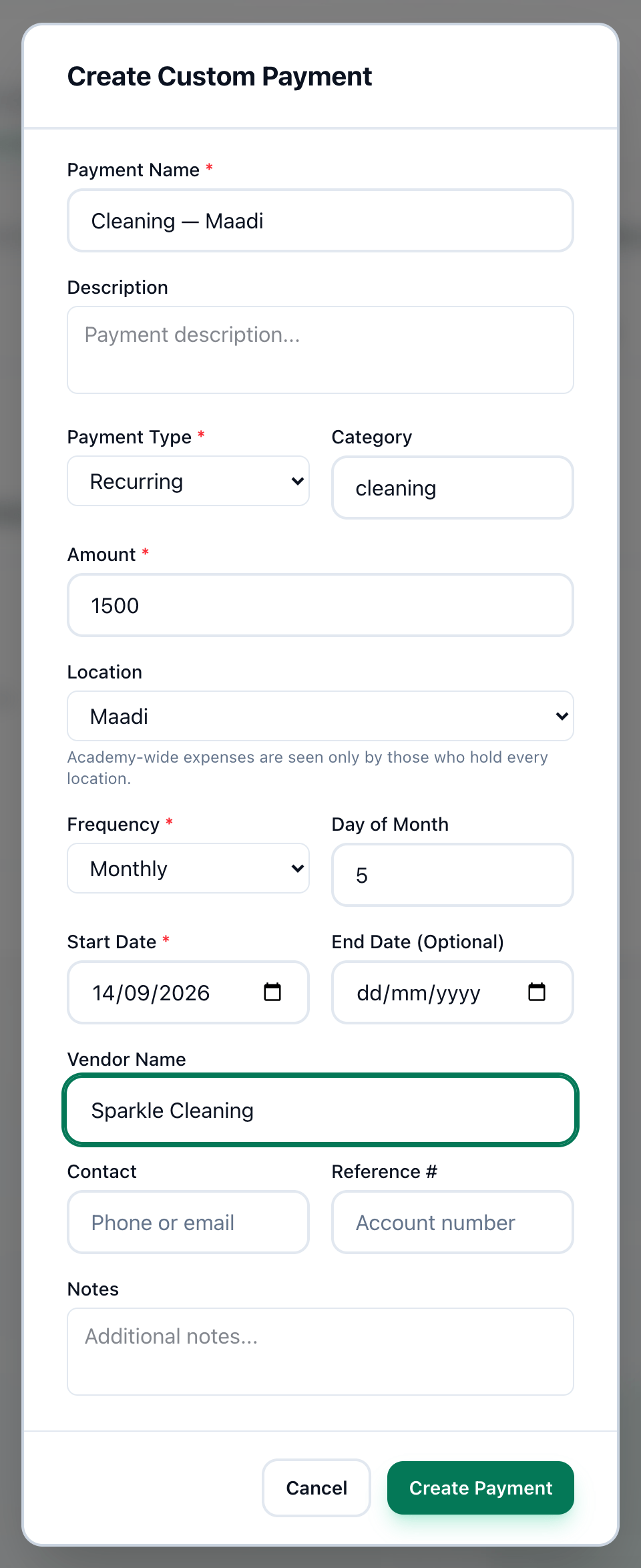
- Payment Name
- Payment Type
- Amount
- Location
- Frequency
- Day of Month
- Start Date
- End Date
- Create Payment
-
On the Payments page, press New Payment.
-
Enter what the expense is in Payment Name. Add a Description if it helps.
-
Choose One-Time or Recurring in Payment Type. Put a word in Category, such as rent or utilities, to group expenses when searching.
-
Enter the Amount. For a recurring expense, it is the amount each time.
-
Choose where the money is spent in Location. Only people who hold every location can choose Academy-wide, and only they see academy-wide expenses.
-
For a recurring expense, choose how often in Frequency: Weekly, Monthly, Quarterly or Yearly.
-
For a monthly expense, you can enter the day of the month it falls due in Day of Month.
-
Enter Start Date, the first day it is due.
-
For a recurring expense that stops, enter End Date. Leave it empty for one that goes on. Fill in the vendor’s details and Notes if you want to keep them.
-
Press Create Payment. The expense joins the list.
If something goes wrong
Section titled “If something goes wrong”- Failed to create custom payment
The expense was not saved. Check the required fields and try again.
What happens next
Section titled “What happens next”Record each payment of the expense as you make it — see Paying, pausing and changing an expense. What you pay counts in the expenses on Reports.