
The assistant
The assistant is a chat on Home. Ask it about your academy, or ask it to do something, in English or Arabic, the way you would ask a colleague. It answers from your academy’s real data, and any change it makes waits for you to confirm it.
Ask a question
Section titled “Ask a question”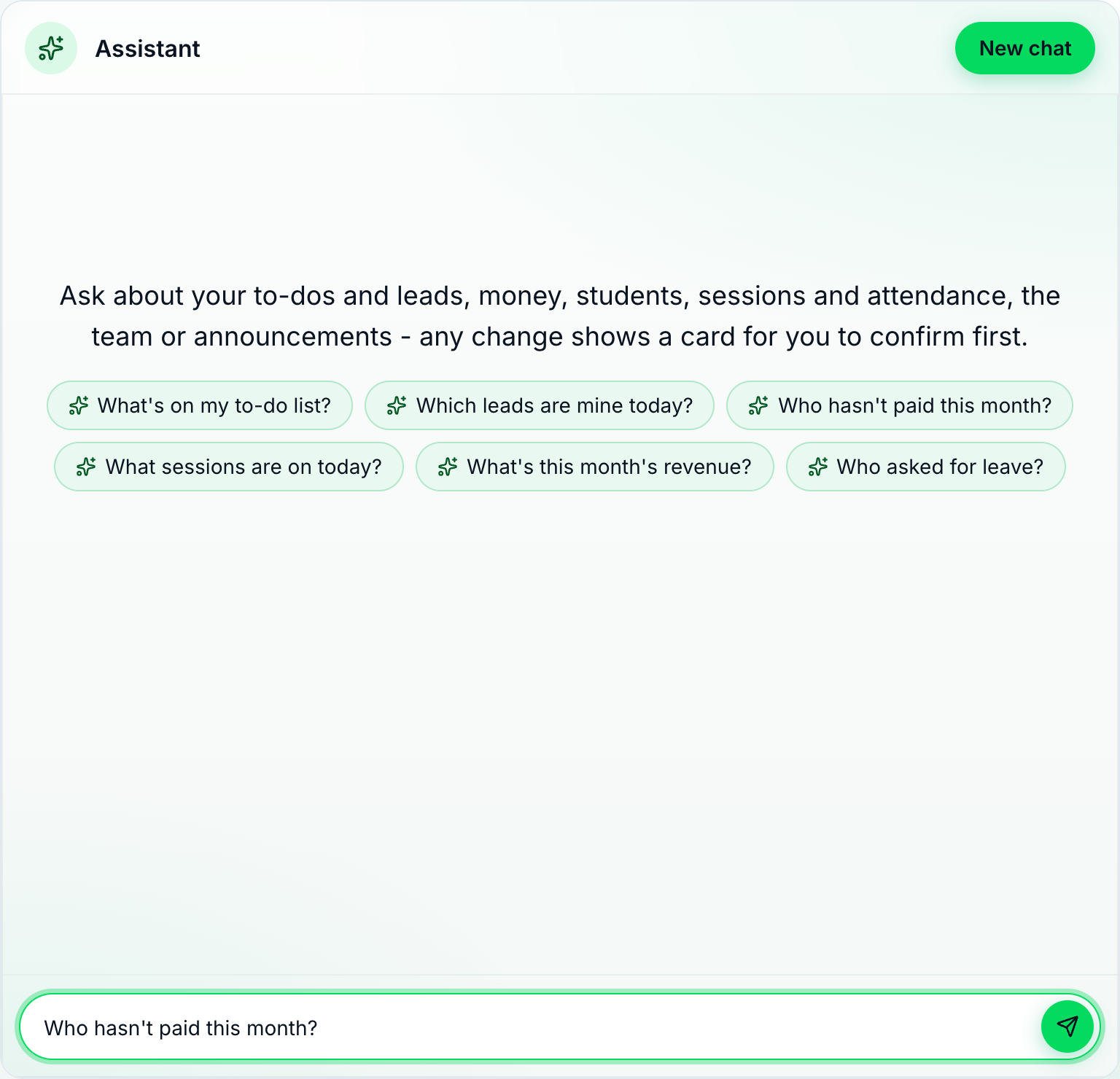
- Questions to start with
- Your message
- Send
-
On Home, type in the message box: Your message to the assistant.
-
Press Send.
It answers with words, and with tables and cards when there is a list to show. Some questions to start with are under the welcome line, for example What’s on my to-do list?, Which leads are mine today?, Who hasn’t paid this month? and What sessions are on today?.
Ask it to do something
Section titled “Ask it to do something”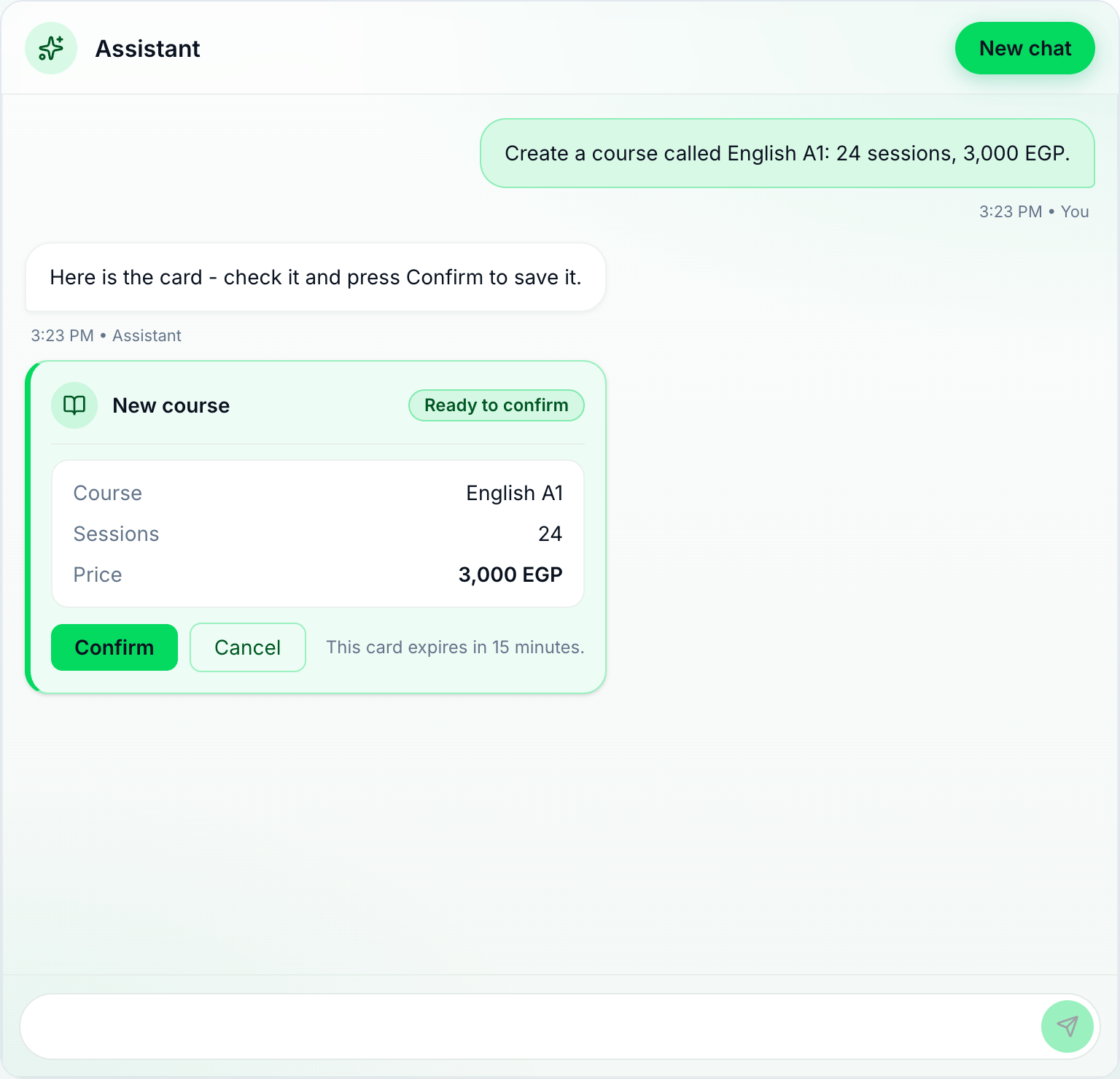
- What it will do
- Confirm
-
Write what you want done, for example Enrol Sara Ali, sara.ali@gmail.com, in English A1 — Sat & Tue 6 PM or Sara paid 1,500 cash.
-
The assistant shows a card with exactly what it will do: Needs your confirmation, or Ready to confirm.
-
Check it, and press Confirm. Nothing is saved until you do.
The card turns into what was done, with a link to the page where the change is. One message can ask for several things: each gets its own card.
- A card that deletes something is red, and its button says Delete.
- Cancel drops a card. A card you leave expires after 15 minutes: This card expires in 15 minutes.
What it can do
Section titled “What it can do”The assistant does what you could do yourself on the pages, and nothing more: it works with your role’s permissions. If your role has no access to finance, it says Not available to you - your role in the academy has no access to finance. If you need it, ask the academy’s owner.
- Students: find them, add one, enrol them in a group, move or end an enrolment, and delete a student. Enrolling sets up their fee at the group’s price.
- Groups and sessions: the timetable and a group’s sessions; create, change, suspend or end a group; add, move or cancel sessions; check clashes.
- Attendance: who came, and marking a session’s attendance.
- Courses: create, change and delete courses.
- Finance: fees, recording a student’s payment, waiving an instalment, expenses and paying them, salaries and paying them, commission, and revenue, outstanding and expense reports, also as sheets to download.
- Requests: who asked to join.
- Team and leave: the team, invitations, staff attendance, leave requests and approving or rejecting them.
- Your to-do list: read it, add an item, and mark one done. The owner can add to anyone’s list.
- Your leads: the leads that are yours today, overdue first; find leads by person, date or name; and mark a lead’s assignment Done. Moving a lead or adding an action is done on the lead’s page.
- Announcements: write, pin, unpin and archive them.
- Classes: how a class is doing, its coursework, quizzes and certificates.
What it does not do
Section titled “What it does not do”- Settings are changed on the Settings pages: Settings are changed on the Settings pages, not here. Billing is in Settings → Billing.
- It only helps run the academy. A question about anything else gets I only help run the academy - try “who hasn’t paid this month?”
- A request that needs too many steps at once gets This needs more steps than I can take at once - try a narrower request. Split it into smaller ones.
How much you can ask
Section titled “How much you can ask”Each academy has a monthly allowance for the assistant, shared by everyone in it, and each person has a daily limit. When one runs out, the assistant answers with one of these, and no message is charged:
- This month’s assistant allowance is used up. It renews with the next period.
- You have reached today’s limit for the assistant. Try again tomorrow.
- Wait a minute and try again.: you sent many messages in a short time.
- The assistant is busy right now. Try again in a minute.
The chat
Section titled “The chat”- The conversation stays when you move to another page and come back.
- New chat, in the chat’s header, starts a fresh one.
- Dark mode, in the header, switches the chat to dark, and Light mode back.