
The New enrolment wizard
New enrolment adds a student who is not in Tuevia yet, puts them in a group and sets up their fee, one step after another. Owners, admins and anyone whose role has Manage access to Students can use it. To enrol a student who is already in Tuevia, use their profile.
Before you start
Section titled “Before you start”The group has to exist and be running - see Teaching → Groups.
Add, enrol and set the fee
Section titled “Add, enrol and set the fee”
- New enrolment
- The student
- Create & continue
-
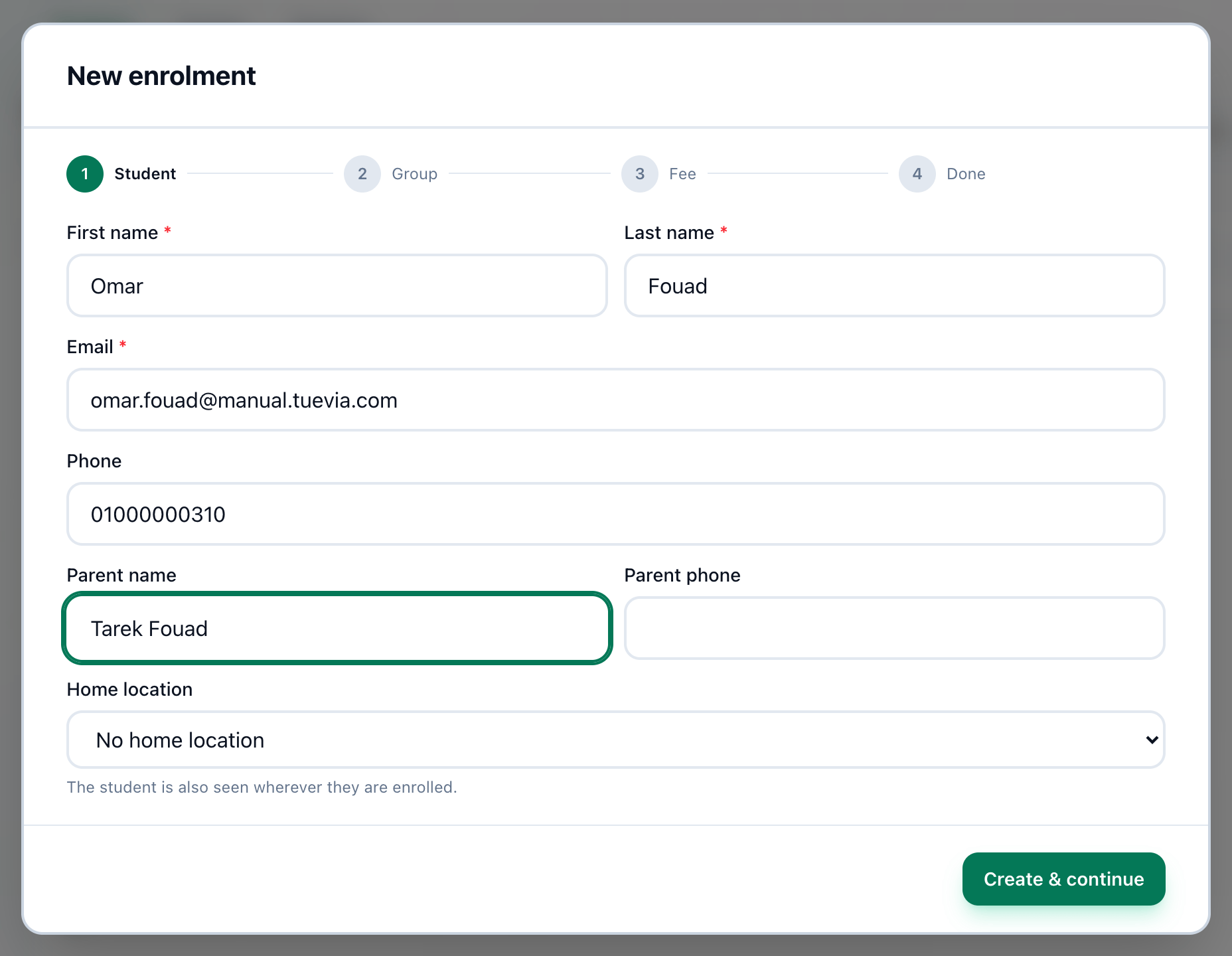
On Teaching → Students, press New enrolment. The steps across the top are Student, Group, Fee and Done.
-
Fill in First name, Last name and Email, which are required, and the Phone, Parent name and Parent phone you know. If you see more than one location, choose Home location too.
-
Press Create & continue. The student is added now, even if you close the window afterwards.
-
At Group, choose the Course, then one of its groups - each shows when it meets and its seats - and press Enrol.
-
At Fee, check Total amount: it starts at the course’s price, when the course has one. Choose the Payment style - Monthly or One-time - and the Start date. For monthly, set Installments (months). Enter a Deposit now (optional) if the student pays something today. Press Create fee, or Skip fee to leave it for later.
-
Done sums up the student, the group and the fee - or No fee recorded yet. Press Done.
Each step saves as you leave it. Back shows the step before, but does not undo it: pressing Create & continue a second time would try to add the same student again. Correct a detail later on the student’s profile instead.
If something goes wrong
Section titled “If something goes wrong”-
An email address is required. or First and last name are required.
Fill in the student’s email address and both names. -
Choose the student’s home location.
You work in only some of the academy’s locations, so the student has to belong to one of them. -
validation failed: student with name ‘…’ already exists in this organization
The academy already has a student with that name - perhaps this one. Search the list before adding them again. -
validation failed: another student in this organization already uses …
Another student has that email address. -
group is full (… of … seats taken)
The group filled up. Choose another. -
Enter a valid fee amount.
Total amount is empty or zero. -
Failed to create the fee agreement.
Tuevia could not create the fee. Press Skip fee, and add it from the student’s profile or from Finance → Fees.
What happens next
Section titled “What happens next”- The student’s profile shows the group, and the fee under Payments - see The student profile.
- The fee and its payments are handled in Finance → Fees.
- The new student is in the list on Teaching → Students the next time you open or reload it.