
Where somebody works
Every employee works either in all of your branches or in the branches you tick. They see the data of those branches and no others. You choose it when you invite them, and can change it afterwards.
Owners, and anyone whose role can manage Users, can change where somebody works.
Change where they work
Section titled “Change where they work”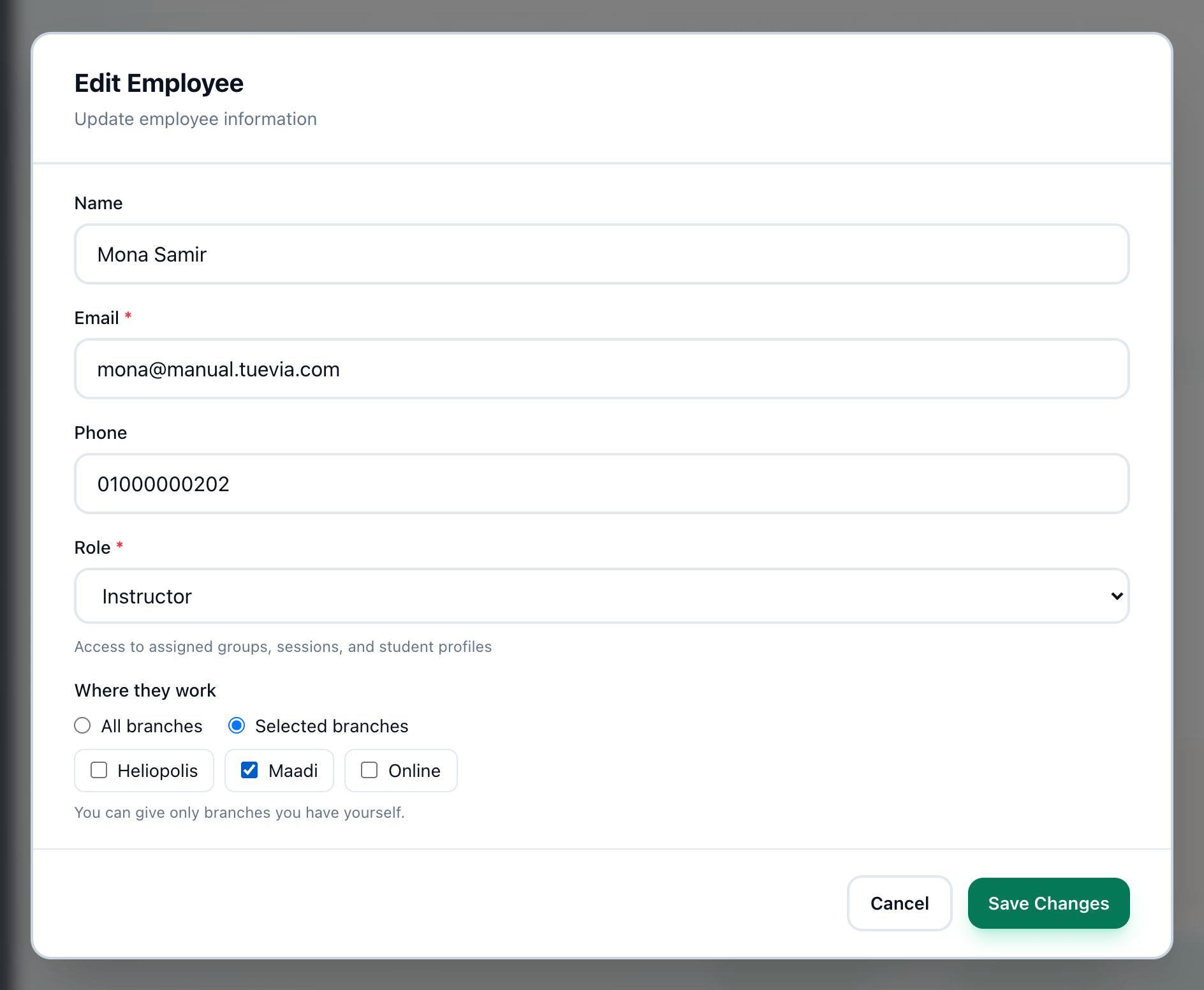
- All branches
- Selected branches
- The branches
- Save Changes
-
Open their profile from the employees list.
-
Press Edit.
-
Choose All branches for every branch, including branches you add later.
-
Or choose Selected branches.
-
Tick each branch they work in, and Online if they work with your online groups.
-
Press Save Changes.
The rules
Section titled “The rules”- You can give only branches you work in yourself. If you do not work in all of them, All branches cannot be chosen.
- With Selected branches and nothing ticked, the dialog warns With nothing ticked, they see no branch’s data.
- The owner always works in every branch. Their dialog says All branches - the owner always works in every branch. instead of offering a choice.
- Changes that affect every branch at once, such as roles, the branch list, courses and academy settings, need somebody who works in all branches. People with selected branches can still open those pages, but cannot change them.
If something goes wrong
Section titled “If something goes wrong”- You can manage only colleagues whose branches are all yours, and give only branches you have.
You ticked a branch you do not work in, or they already work in one. The branches were not saved, though a change of role in the same dialog may have been. Ask an owner.
What happens next
Section titled “What happens next”- Branches themselves are added and named in Branches.