
General settings
The academy’s name as everyone sees it, and the time zone its days are counted in.
Owners and admins can change these. So can anyone whose role, under My Academy, has Settings set to Manage, and who works in all of the academy’s locations. Anyone else who can open the page, such as someone with Settings set to View, sees Save Settings greyed out.
Change the general settings
Section titled “Change the general settings”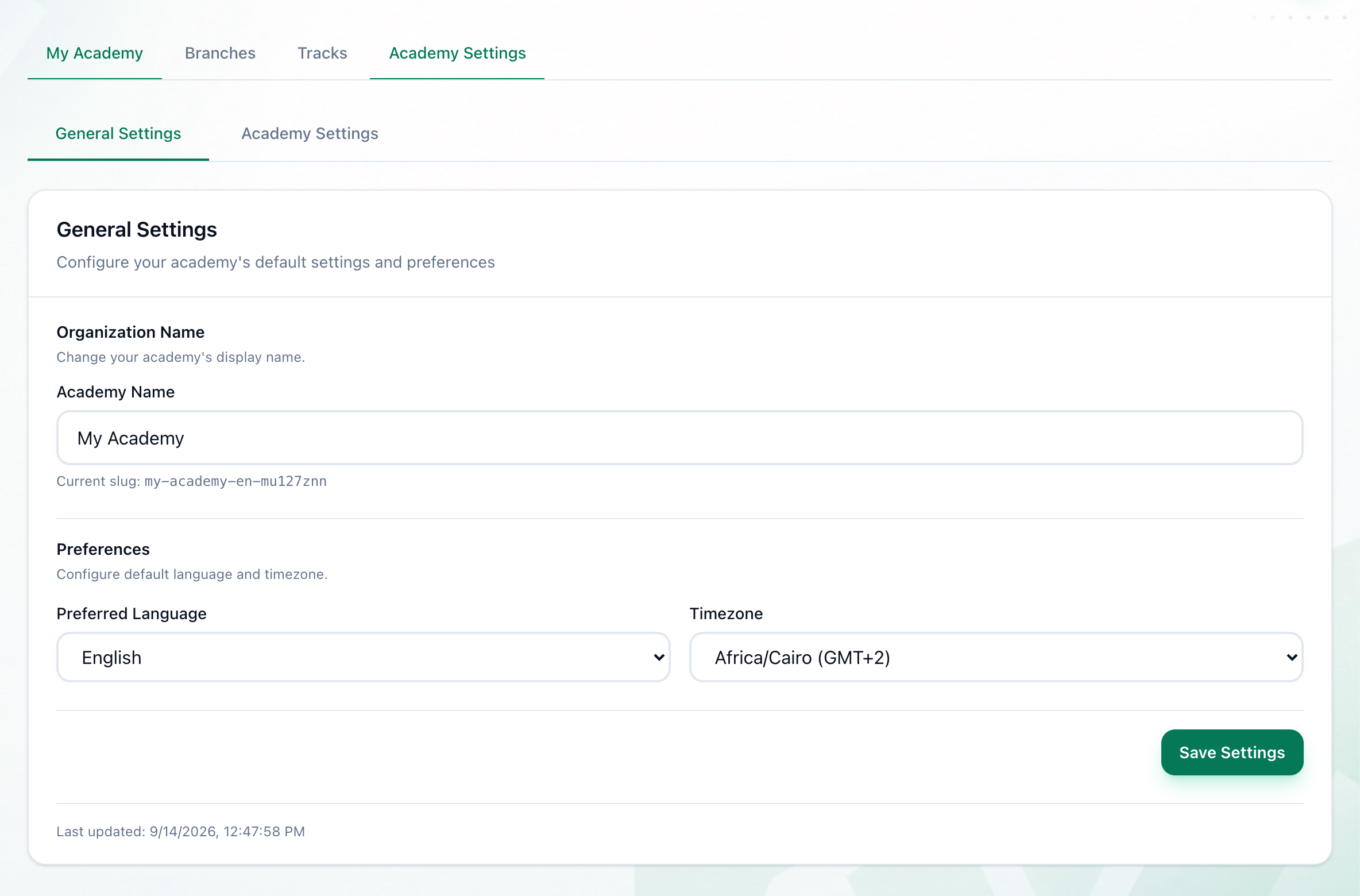
- General Settings
- Academy Name
- Preferred Language
- Timezone
- Save Settings
-
In Administration, open Academy Settings. It opens on the General Settings tab.
-
To rename the academy, change Academy Name.
-
Choose English or Arabic in Preferred Language.
-
Choose the academy’s time zone in Timezone: Africa/Cairo (GMT+2), UTC (GMT+0), America/New_York (GMT-5), Europe/London (GMT+0) or Asia/Dubai (GMT+4).
-
Press Save Settings. The page loads again with the new settings.
Last updated: at the foot of the page says when these settings were last saved.
What each setting changes
Section titled “What each setting changes”- Academy Name. The name at the top of the sidebar, on the My Academy page, and on your academy’s own sign-in page. The sign-in page can take up to five minutes to show a new name.
- Current slug: under the name does not change when you rename the academy, so your academy’s sign-in link keeps working.
- Timezone. Which day is today on the Home screen, and where each month begins and ends in staff attendance.
- Preferred Language is the academy’s own setting. Each person still chooses the language they read Tuevia in, from the language menu at the top of the screen.
If something goes wrong
Section titled “If something goes wrong”Messages appear in red above the fields.
- name is required
Academy Name is empty. Enter a name.
What happens next
Section titled “What happens next”The academy’s look, working hours and staff attendance rules are on the other tab, Academy Settings: see Your colours and Hours, session types and staff attendance.