
The academy at a glance
Administration is where the academy itself is set up: its branches and rooms, its tracks and courses, and its settings. My Academy is its first page, a summary of the academy as a whole.
Owners and admins can open it, and so can anyone whose role includes a My Academy permission.
Open Administration
Section titled “Open Administration”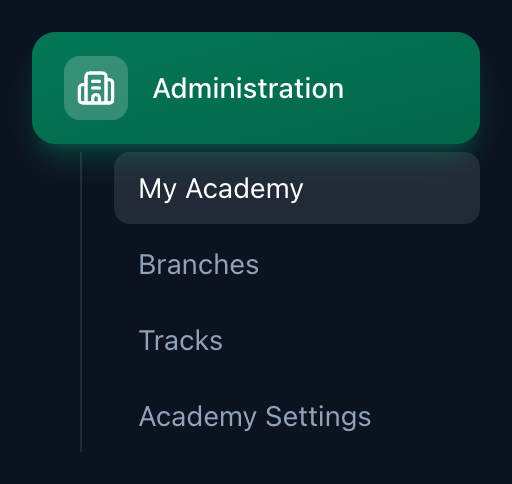
- My Academy
- Branches
- Tracks
- Academy Settings
-
In the sidebar, press Administration. It opens on My Academy.
-
To go further, choose Branches, Tracks or Academy Settings, under Administration in the sidebar or in the row of tabs at the top of the page.
The row of tabs shows only the pages your role lets you open.
What the page shows
Section titled “What the page shows”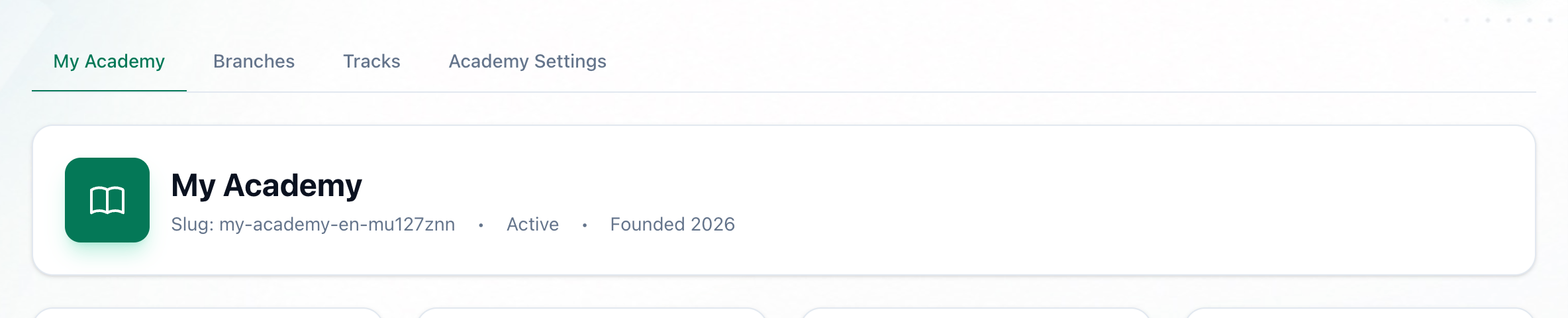
- Your academy
- Your academy’s card. Its name, its Slug, its status, and Founded with the year the academy was created on Tuevia. The slug is the short name at the end of your academy’s own sign-in link.
- Figures for the whole academy. Total Students, with how many are active; Groups, with how many are active and how many are completed; and Employees.
- Summaries further down. Student Statistics, Groups Overview, and the academy’s structure and team.
Nothing on this page can be changed here. The name is changed in General settings. For the branches, rooms, tracks and courses themselves, open Branches and Tracks: each lists them one by one.
What happens next
Section titled “What happens next”- Branches: the places you teach in, their rooms, and the Online location.
- Tracks: tracks and the courses in them.
- Academy settings: the academy’s name, time zone, colours, logo and working hours.