
Your logo
Your logo replaces the Tuevia mark in the sidebar and on your academy’s own sign-in page.
Owners and admins can change the logo. So can anyone whose role, under My Academy, has Settings set to Manage, and who works in all of the academy’s locations.
Before you start
Section titled “Before you start”Have the logo as a PNG, JPEG or WebP image of up to 2 MB. Tuevia does not take SVG files.
Add your logo
Section titled “Add your logo”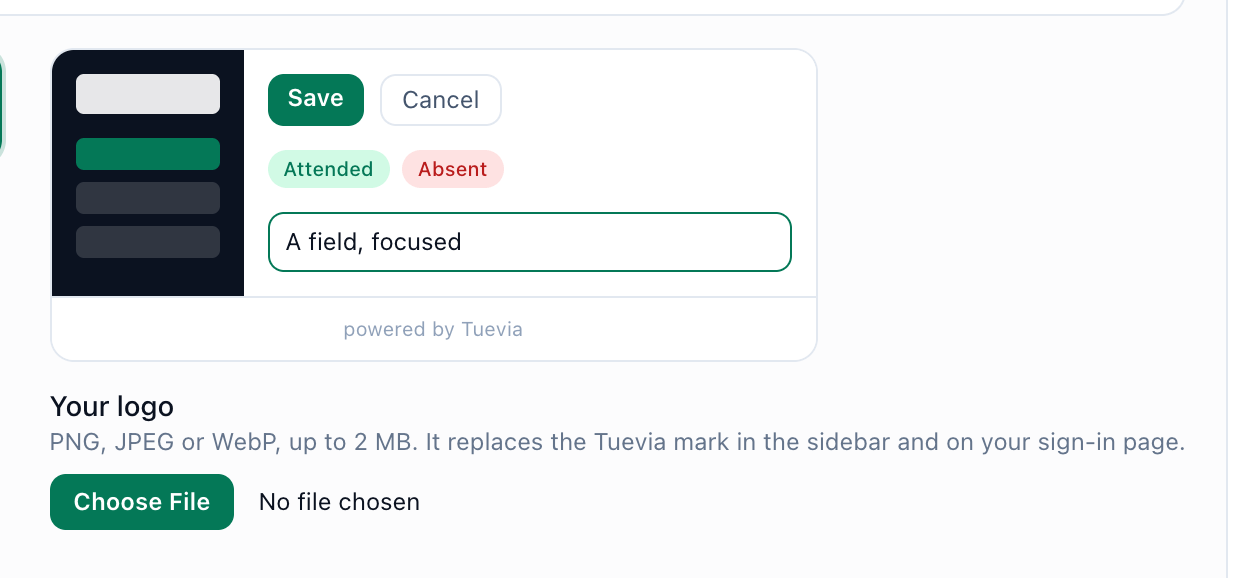
- Your logo
-
On the Academy Settings tab, find Your logo, under the preview beside Your colours. Choose your logo file. Storing… shows while it is stored.
-
Press Save Settings at the foot of the page.
The file is stored as soon as you choose it, but nobody sees it until you press Save Settings.
In the sidebar, the logo sits beside your academy’s name, with powered by Tuevia under the name. It takes effect the next time a page loads, and on your sign-in page within five minutes.
Go back to Tuevia’s mark
Section titled “Go back to Tuevia’s mark”Under the file chooser, press Use the Tuevia mark instead, then Save Settings. Back to Tuevia’s colours and mark, under the colours, does the same for the colours and the logo together.
If something goes wrong
Section titled “If something goes wrong”-
That image is too large — up to 2 MB.
Make the image smaller, or save it as a JPEG or WebP. -
That is not a PNG, JPEG or WebP image.
The file is another kind of image, even if its name ends in .png. Save it again as PNG, JPEG or WebP. -
That image could not be stored.
Try again. If it keeps happening, tell Tuevia.
What happens next
Section titled “What happens next”Set the colours that go with it: Your colours.