
Adding a one-off session
A one-off session belongs to no group: a workshop, a test, an extra class. The app calls it a standalone session. Owners and anyone whose role can manage Groups can create one.
Before you start
Section titled “Before you start”- A room, unless the session is online: see Branches.
- The session types offered are set in Academy settings.
Create a one-off session
Section titled “Create a one-off session”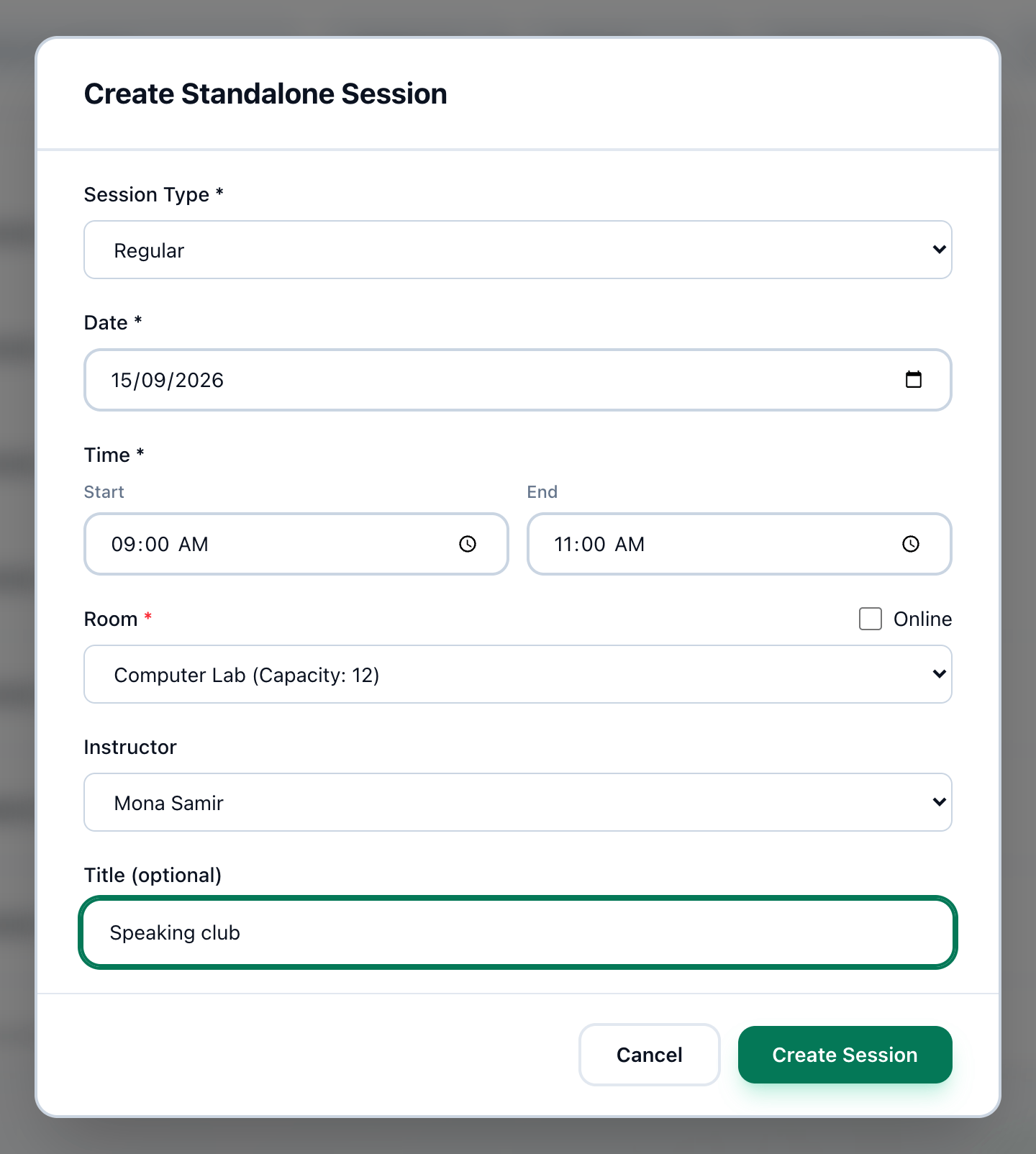
- Session Type
- Date
- Start
- End
- Room
- Instructor
- Title
- Create Session
-
On Sessions, press + Create Session. Create Standalone Session opens. On Groups List, Create and then Create Session open the same form.
-
Choose the Session Type.
-
Choose the Date. The form starts on tomorrow.
-
Enter the Start time.
-
Enter the End time.
-
Choose the Room, or tick Online.
-
Choose the Instructor, if there is one.
-
Enter a Title (optional): it is the name the session goes by in the lists.
-
Press Create Session.
While you fill in the room, the date and the times, the form checks whether the room is free. ⚠️ Warning: This time slot conflicts with 1 existing session(s). Please choose a different time or room. means it is not.
If something goes wrong
Section titled “If something goes wrong”-
Room is required for on-site sessions
Choose a room, or tick Online. -
… is already booked for … on … from … to ….
Another session has the room at that time. Choose another time or room. -
end_time must be after start_time
The end time is not after the start time. -
session runs … but the academy operates …
The session falls outside your academy’s working hours. -
invalid session_type: …
Tuevia accepts only the types Regular, Test, Compensation, Workshop and Extra. Choose one of those. -
No session types configured. Please add types in Academy Settings.
There are no types to choose: add them in Academy settings.
What happens next
Section titled “What happens next”- The session is in Sessions (tick Standalone Only to find it), in Groups List as a Session, and on Schedule.
- A one-off session belongs to no group, so it has no students and no register.
- To change or cancel it, see Rescheduling and cancelling a session. Once it is cancelled, Delete removes it.