
What the invited person sees
This article is for the person who was invited, and for anyone helping them. The email from Tuevia holds a link. It opens a page with the academy’s name at the top, and the invitation: the academy, the role, and the email address it was sent to.
What the page asks for depends on whether that email address already has a Tuevia account.
If you are new to Tuevia
Section titled “If you are new to Tuevia”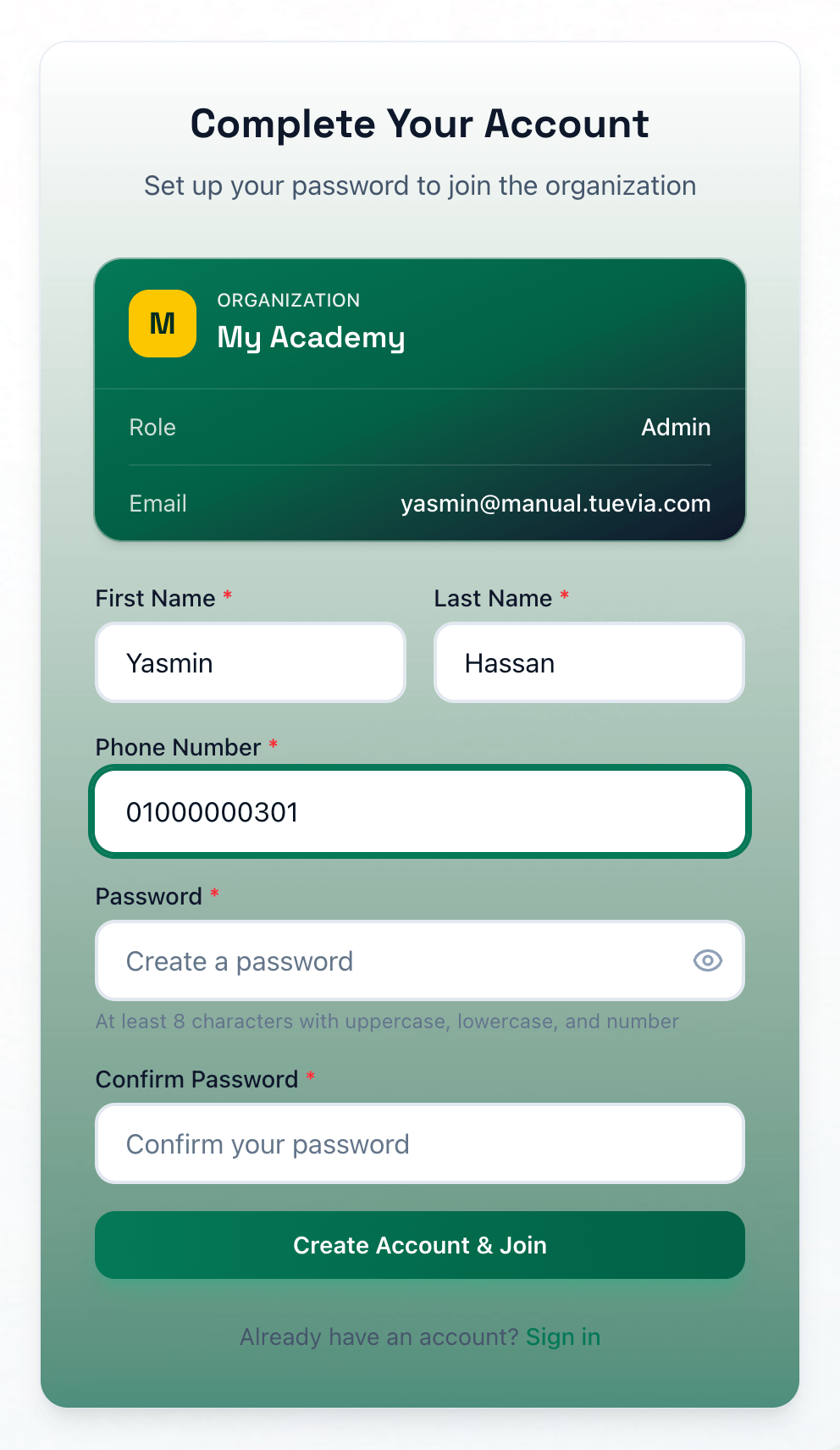
- The invitation
- First Name
- Last Name
- Phone Number
- Password
- Confirm Password
- Create Account & Join
-
Check the invitation at the top: the academy and your role.
-
Enter your First Name, at least 2 characters.
-
Enter your Last Name, at least 2 characters.
-
Enter your Phone Number.
-
Choose a Password: at least 8 characters, with a capital letter, a small letter and a number. The eye beside it shows what you typed.
-
Enter the password again in Confirm Password.
-
Press Create Account & Join.
Welcome to …! confirms it, and Tuevia opens the academy’s home screen. From then on, sign in with the invitation’s email address and your password.
If you already have a Tuevia account
Section titled “If you already have a Tuevia account”If you already work in another academy on Tuevia, you keep the one account. The page asks only for its password.
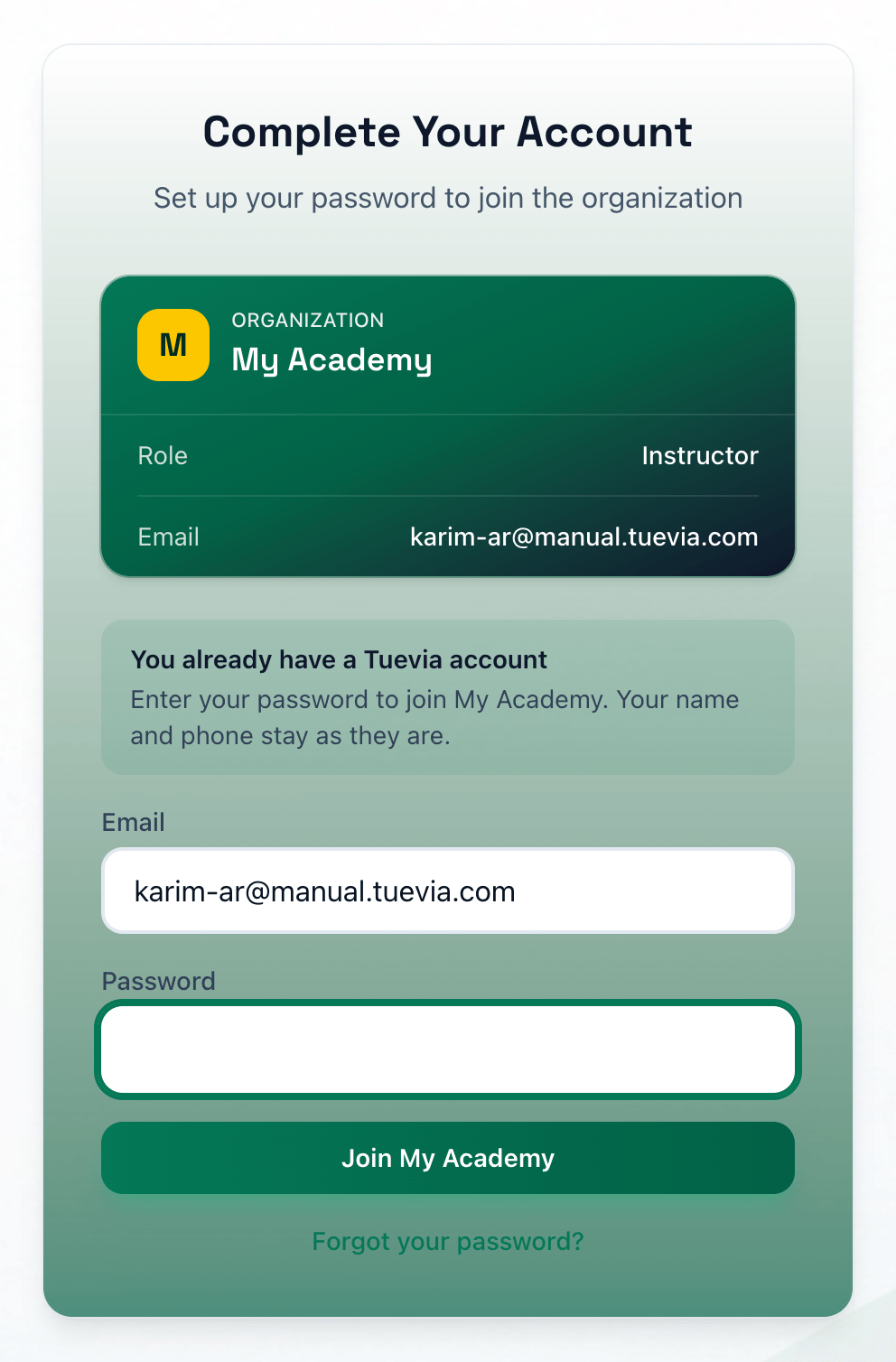
- The invitation
- Password
- Join
-
Check the invitation at the top.
-
Enter the password you already sign in with in Password. Your name and phone stay as they are.
-
Press Join and the academy’s name.
Tuevia opens the academy you have just joined. When you sign in later, it asks which of your academies to open.
If you have forgotten the password, press Forgot your password? under the button: see If you forget your password.
If something goes wrong
Section titled “If something goes wrong”-
Invitation Expired
The invitation was not accepted within 7 days. Ask the person who invited you to resend it. -
This invitation has been cancelled. Please contact the organization for a new invitation.
The academy cancelled it. Ask them for a new one. -
This invitation has already been accepted. Please sign in to your account.
The invitation has been used. Sign in instead. -
Invalid Invitation
The link is not a working invitation. It may be from an older email: invitations that are resent get a new link. Use the newest email. -
That password is not right. Try again, or reset it.
The password does not match your existing account. Wrong passwords count as failed sign-ins, so several in a row lock the account for a while. -
Could not join the academy. Please try again.
The invitation could not be accepted. If it happens again, tell the person who invited you. -
Password must contain at least one uppercase letter
Add a capital letter. The same kind of message asks for a small letter or a number. -
Passwords do not match
Password and Confirm Password are different. Type them again.
What happens next
Section titled “What happens next”- The academy sees you in its employees list, and your invitation shows Accepted.
- To change your password later, see Change the password you were given.