
Starting from your brand
You do not need to know your colours’ codes. Give Tuevia something that already carries your brand, and it reads the colours out of it and fills in the four rows under Your colours. You can change any of them before saving.
Owners and admins can do this. So can anyone whose role, under My Academy, has Settings set to Manage, and who works in all of the academy’s locations.
Read your colours
Section titled “Read your colours”
- Choose a file
- Or your website
- Read site
-
On the Academy Settings tab, find Start from your brand, just above Your colours. Choose a file: a logo (PNG, JPEG or WebP), a PowerPoint, Word or Excel template (.pptx, .docx or .xlsx), or a brand-guidelines PDF.
-
Or type your website’s address, starting with https://.
-
Then press Read site. Reading… shows while Tuevia works.
Use what was found
Section titled “Use what was found”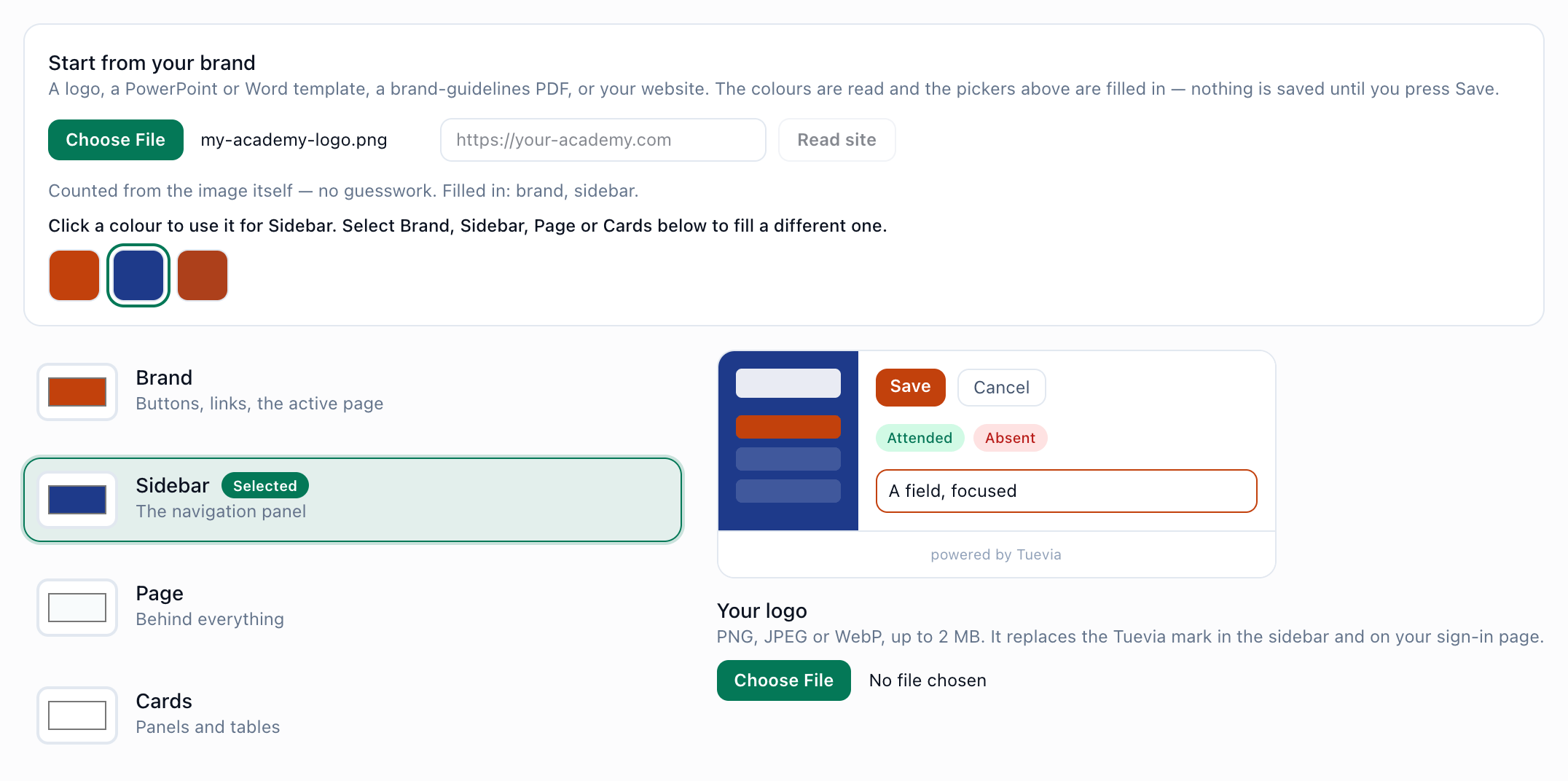
- What was filled in
- Choose a row
- Click a colour
-
Read the line under the box. It says where the colours came from, for example Counted from the image itself — no guesswork., and which rows it filled in, for example Filled in: brand, sidebar. The rows it could not decide keep Tuevia’s colours.
-
To change one of the rows, select it: press its name, for example Sidebar. It is marked Selected.
-
Click one of the colours found. It goes into the selected row, and the preview changes.
-
Press Save Settings at the foot of the page.
Nothing is saved until you press Save Settings. Your logo, if you have uploaded one, stays as it is.
How each kind of file is read
Section titled “How each kind of file is read”- A logo is read in your browser: the colours are counted from the image itself, and the image is not uploaded.
- A PowerPoint, Word or Excel template is read from its own colour scheme. If the template still carries Office’s standard colours, the colours its slides or pages actually use are counted instead.
- A PDF or a website is read by an AI model. Where that is not switched on, Tuevia says so, and a logo or a template still works.
If something goes wrong
Section titled “If something goes wrong”-
That file is too large — up to 12 MB.
Choose a smaller file. A logo can be any size, because it is not uploaded. -
Try a PNG, JPEG or WebP image, a PDF, or a .pptx, .docx or .xlsx template.
Tuevia cannot read this kind of file. -
That Office file has no colour scheme in it.
Try a logo or a PDF instead. -
No brand colours could be found in that.
The file holds only white, black or grey. Try another file, or set the colours yourself. -
Reading documents and websites is not switched on here. A logo or an Office template still works.
Use a logo or a template. -
That address cannot be read. It must be a public https:// website.
Check the address, and that it starts with https://. -
That site could not be reached.
The website did not answer. Check the address, or try again later. -
The colours could not be read from that. The pickers above still work.
Try another file, or set the colours yourself.
What happens next
Section titled “What happens next”Check the colours and their warnings, then save: Your colours.