
Reading an announcement and commenting
Anyone who can see an announcement can react to it, and can comment on it when its author allowed comments.
Read an announcement
Section titled “Read an announcement”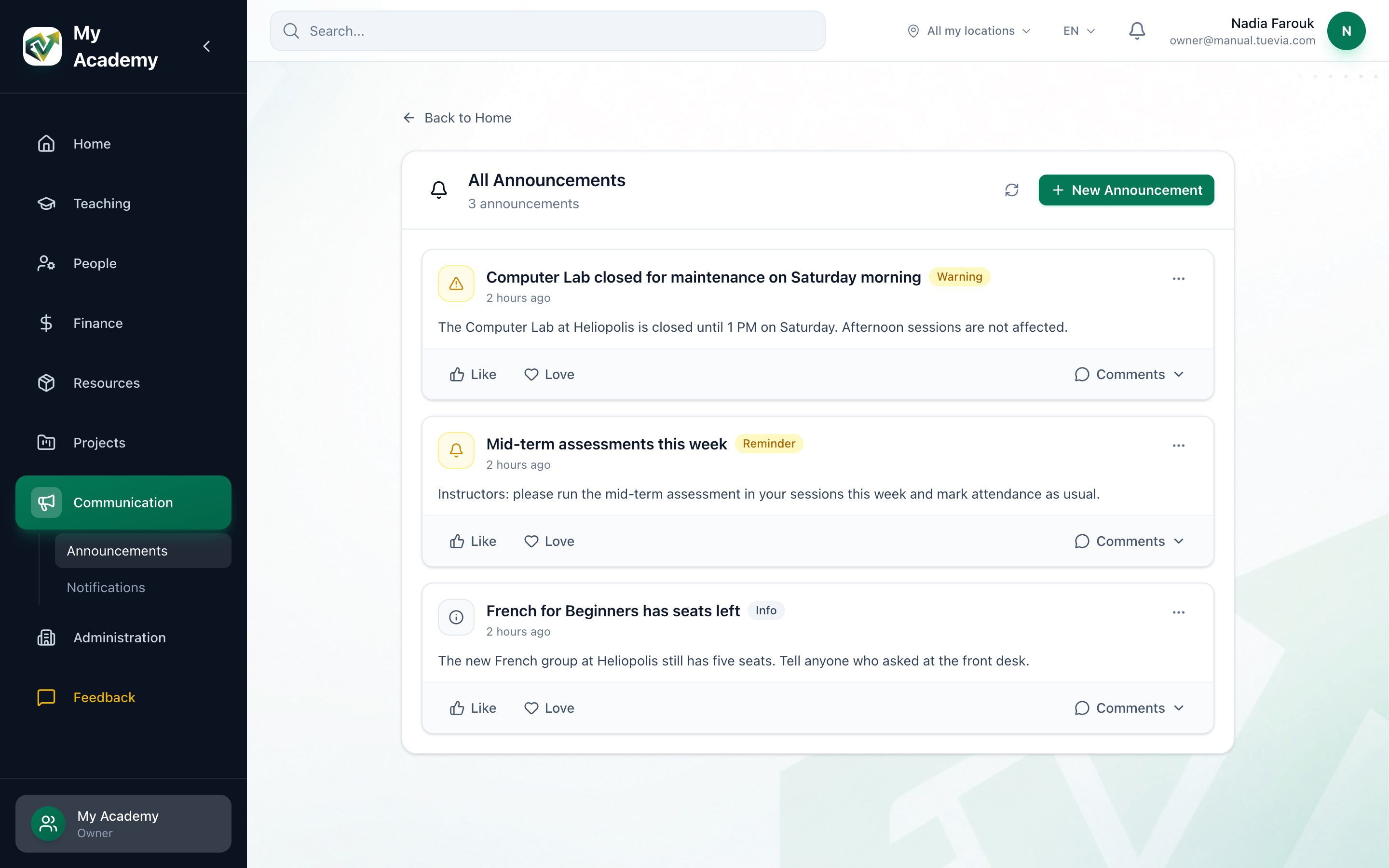
- Open the announcement
- Like and Love
- Comments
-
Press an announcement’s title to open it on its own page, with the whole message and the date it was posted. The list shows only the first lines of a long announcement.
-
Press Like or Love to react. Press it again to take your reaction back. The number beside it counts everyone’s reactions.
-
Press Comments to open the comments under the announcement without leaving the list. An announcement without the Comments button does not allow comments.
Comment on an announcement
Section titled “Comment on an announcement”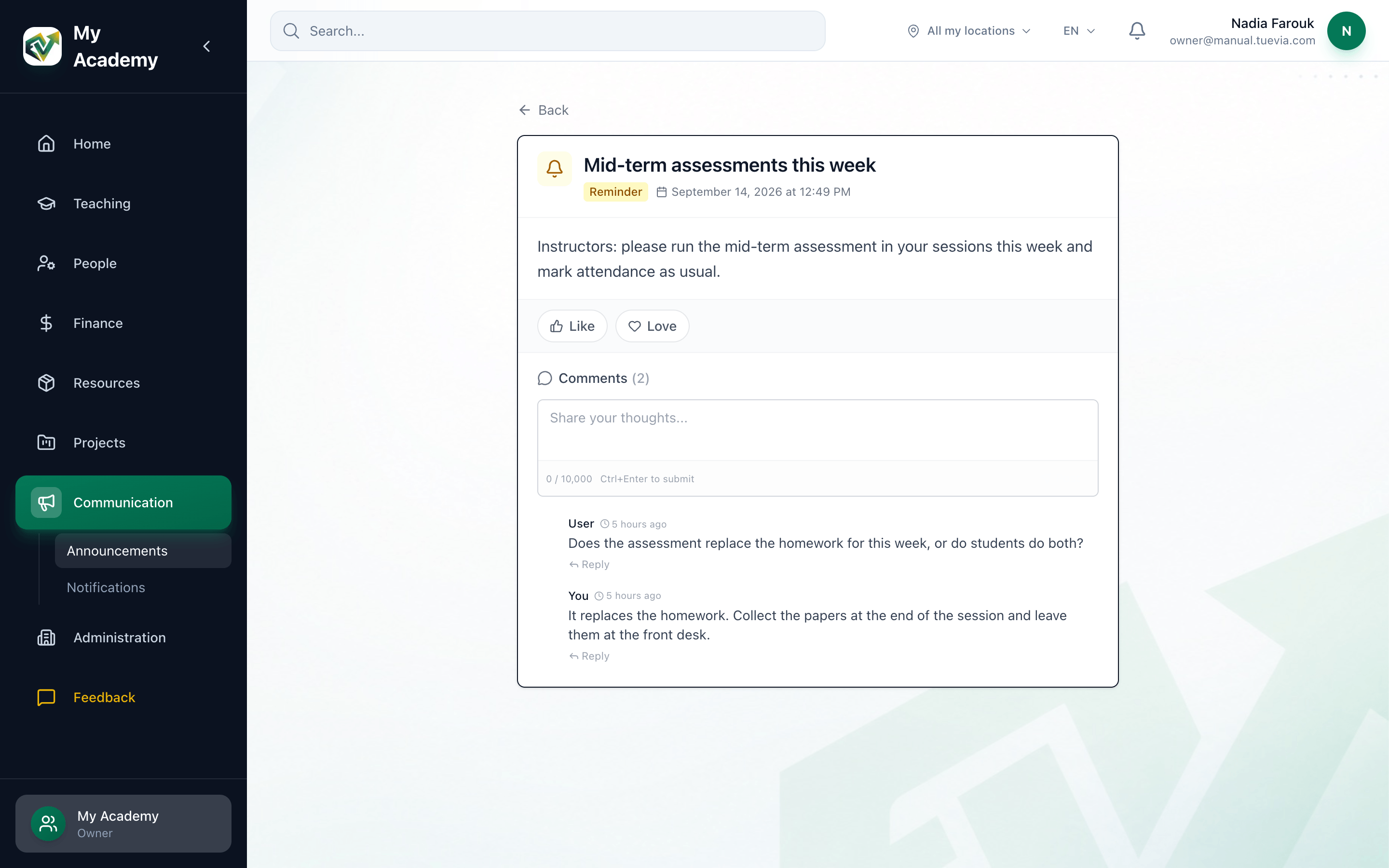
- Like and Love
- Write a comment
- The comments
-
Open the announcement. Like and Love are under the message here too.
-
Write your comment in the box under Comments, then press Post, or press Ctrl+Enter. A comment can be up to 10,000 characters; the count under the box shows how many you have used.
-
Your comment appears with the others. Your own comments are marked You, and everyone else’s User. The number beside Comments counts comments and replies.
Reply to a comment
Section titled “Reply to a comment”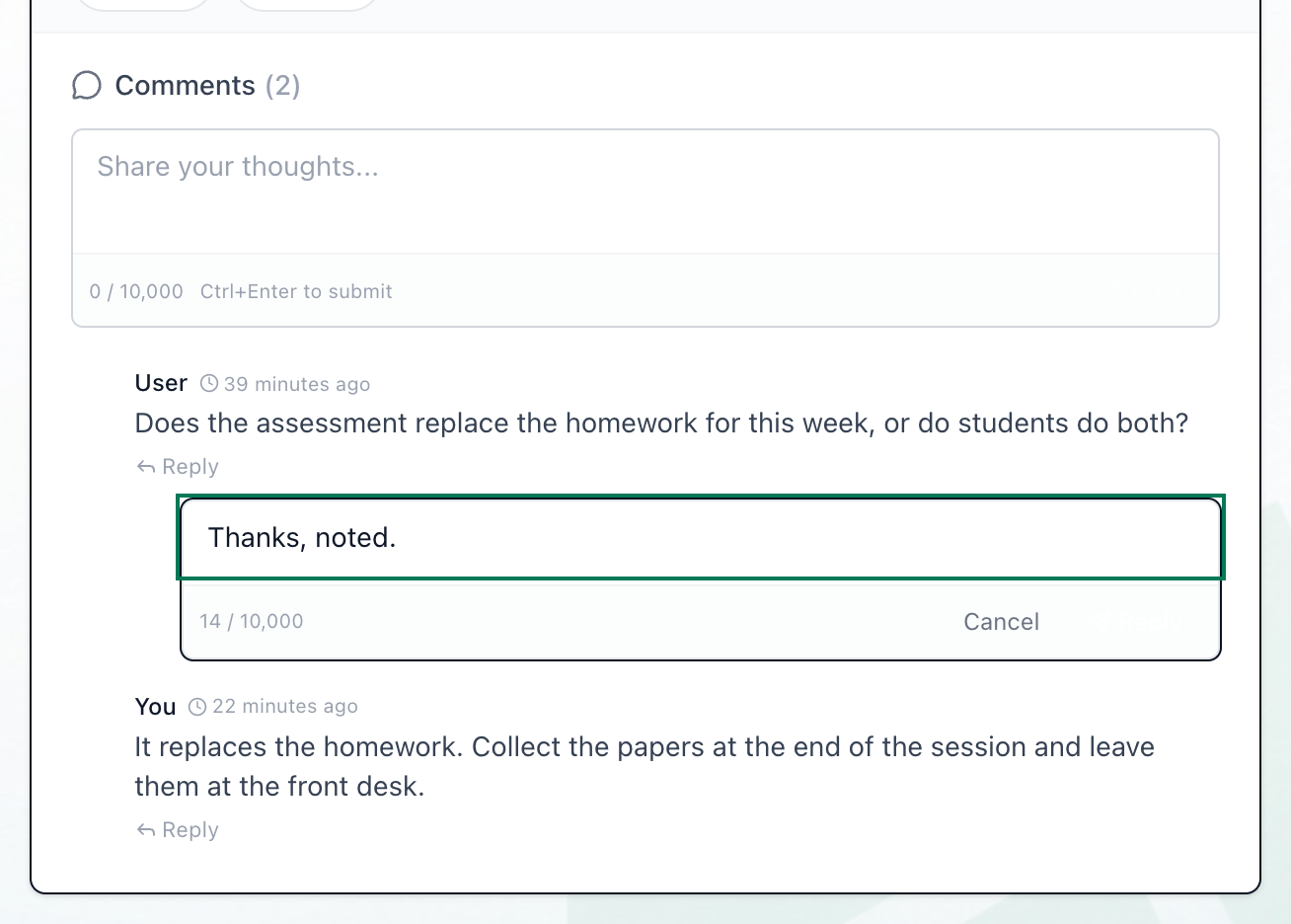
- Reply
- Write a reply
- Send the reply
-
Press Reply under the comment.
-
Write your reply in the box that opens.
-
Press Reply in the box, or Ctrl+Enter. Press Cancel, or Esc, to close the box without replying.
Edit or delete your comment
Section titled “Edit or delete your comment”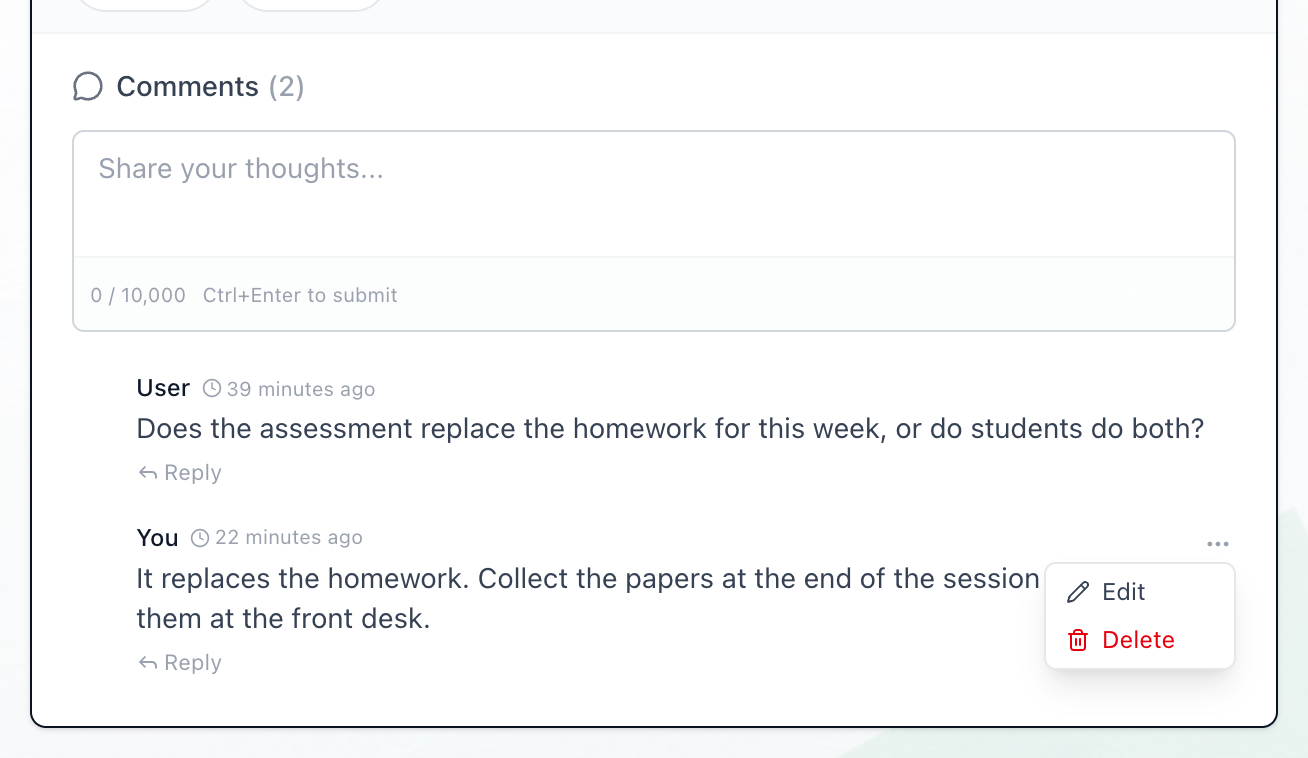
- Menu
- Edit
- Delete
-
Point at your comment and press the ⋯ button that appears at its end. The menu is on your own comments only.
-
To change the comment, choose Edit, change the text and press Save. The comment is then marked (edited).
-
To remove it, choose Delete and confirm with OK when the browser asks Are you sure you want to delete this comment?
What happens next
Section titled “What happens next”Comments do not send notifications. To see what does, read What you are notified about.