
Writing an announcement
An announcement tells your staff something once, in one place: a room change, a reminder, a closure. Owners and anyone with the Announcements permission can post one.
The Announcements page is under Communication in the sidebar for the same people. Everybody else reads announcements in the Announcements box on their home screen.
Post an announcement
Section titled “Post an announcement”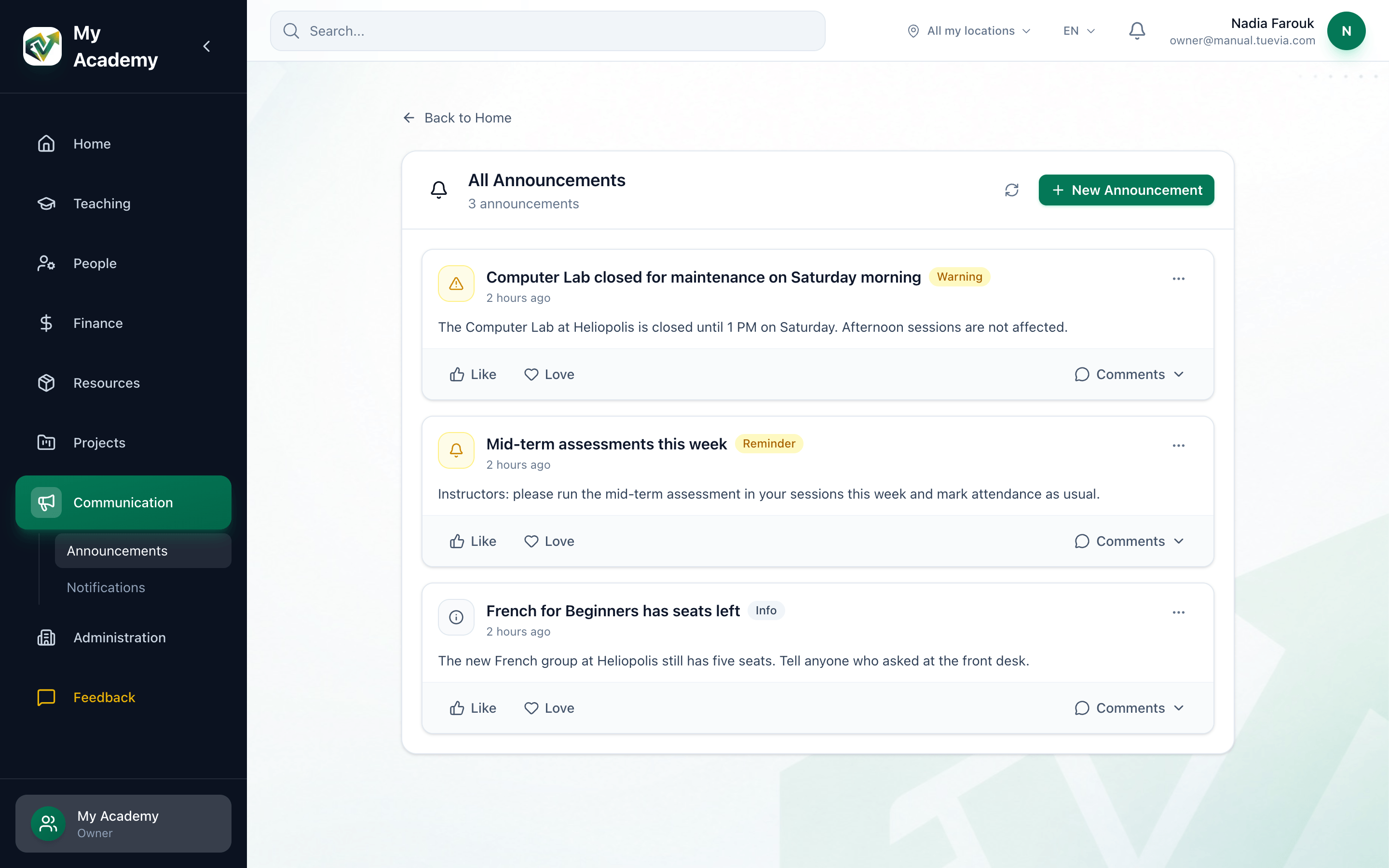
- Announcements
- New Announcement
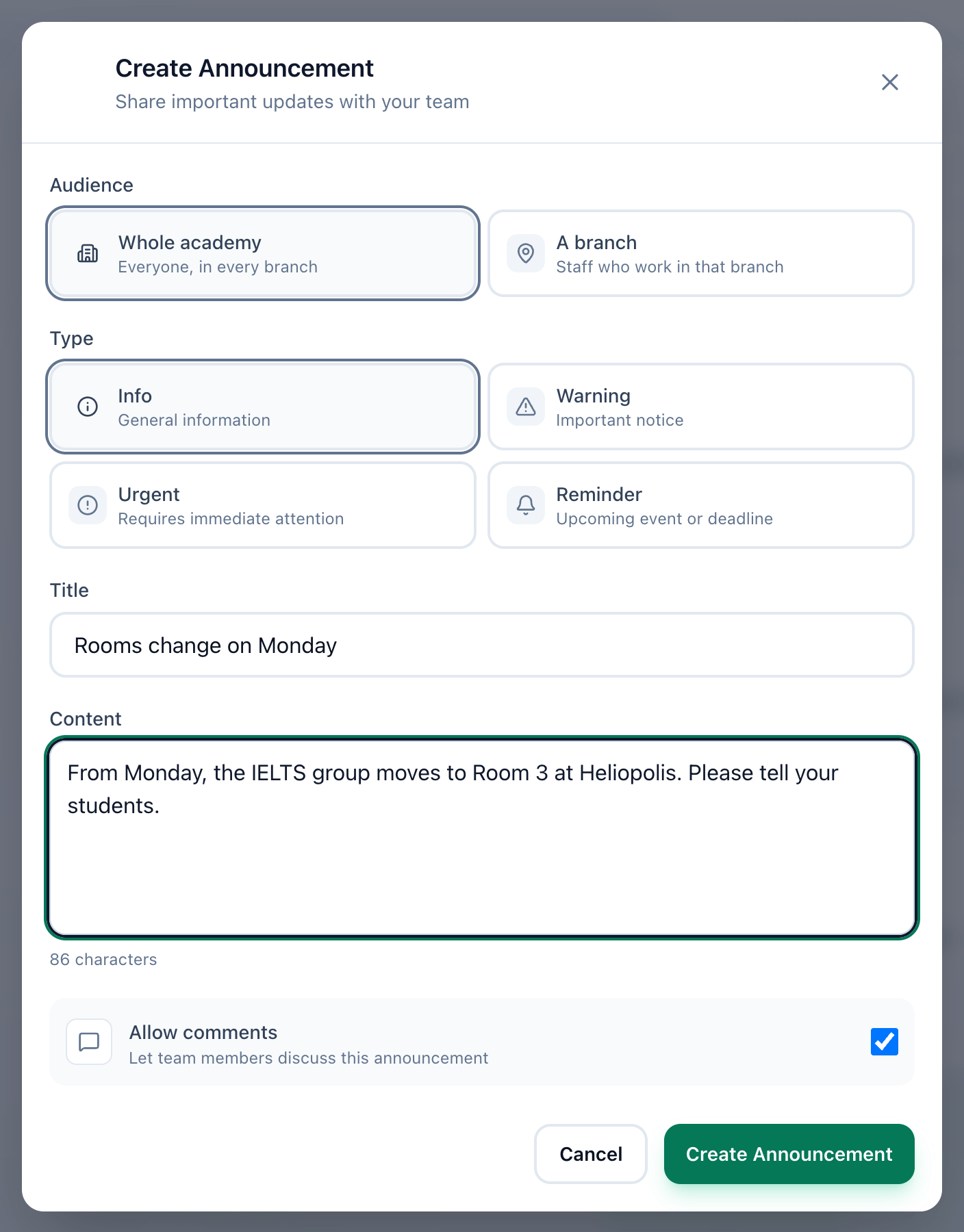
- Audience
- Type
- Title
- Content
- Allow comments
- Create Announcement
-
In the sidebar, open Communication, then Announcements.
-
Press New Announcement. The Create Announcement window opens.
-
Under Audience, choose who the announcement is for:
- Whole academy: everyone, in every branch.
- A branch: the staff who work in that branch. Choose the branch from the list that appears under the two choices.
Whole academy is offered only to people who work in every branch. Anyone else posts to a branch they work in. When your academy has only one place to name, Audience is not shown.
-
Under Type, choose Info, Warning, Urgent or Reminder. The type is the label and colour the announcement carries in the list.
-
Enter a Title, up to 500 characters.
-
Write the message in Content. The count under the box shows how long it is.
-
Leave Allow comments ticked to let staff comment under the announcement, or untick it to post without comments.
-
Press Create Announcement. The announcement appears at the top of the list, under any pinned ones.
Check the announcement before you post it: the page has no way to edit an announcement, or to allow or stop comments, once it is posted. To correct one, delete it and post it again (see Pinning, archiving and deleting).
If something goes wrong
Section titled “If something goes wrong”-
Title is required
The title holds only spaces. Type a title. -
Content is required
The message holds only spaces. Write the message. -
Choose the branch this announcement is for
You chose A branch but not which branch. Choose one from the list.
What happens next
Section titled “What happens next”- Everyone the announcement is for gets a notification, except you: see What you are notified about.
- It shows on the Announcements page and in the Announcements box on the home screen. Staff read it, react and comment as described in Reading an announcement and commenting.
- To keep it at the top, or to take it down, see Pinning, archiving and deleting.