
Adding and editing items
An item is one kind of thing your academy owns - a course book, a laptop, a box of markers - and how many of it you have. Owners, admins, and anyone whose role can manage Resources can add and change items.
Before you start
Section titled “Before you start”Every item belongs to a category. If there are none yet, add a category first.
How Tuevia counts an item
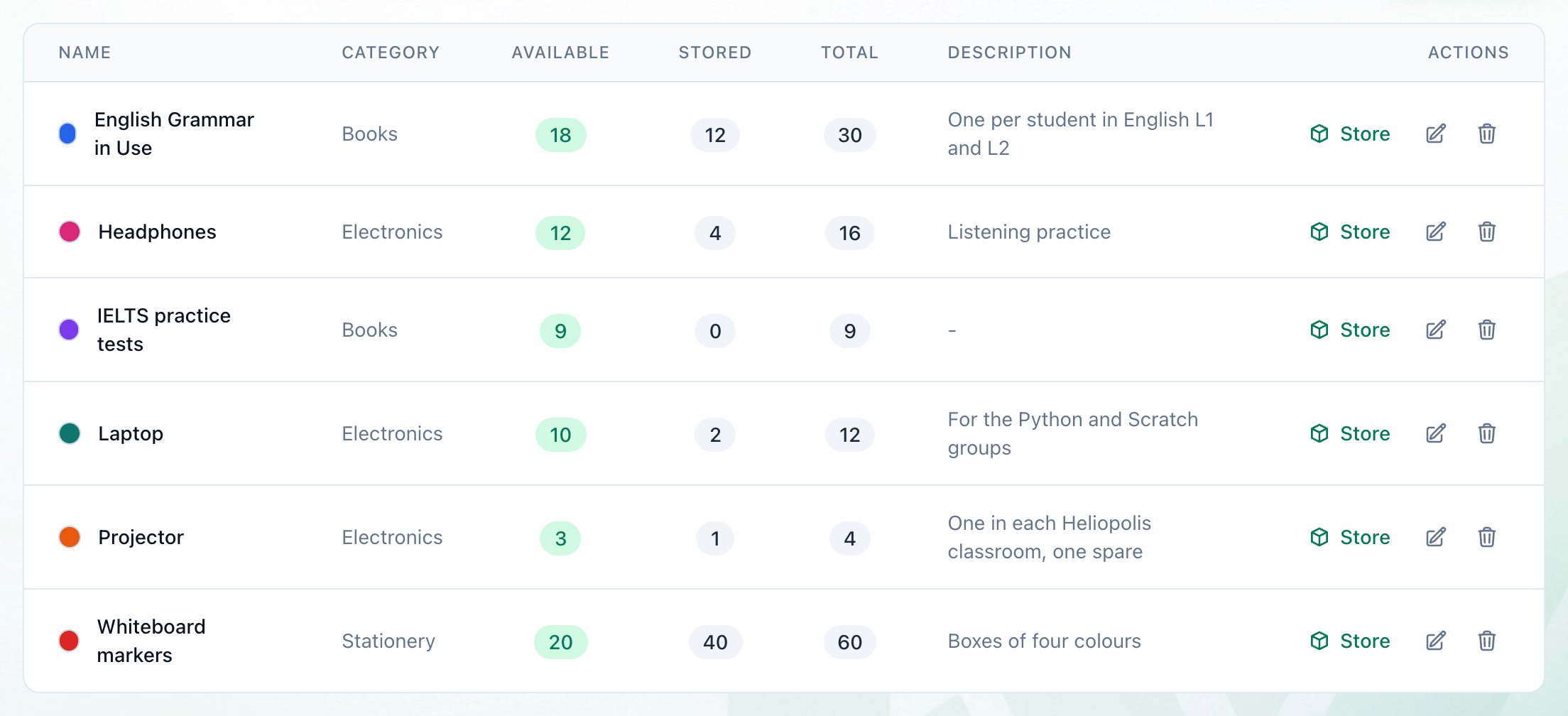
Section titled “How Tuevia counts an item”Each item has two numbers. Available is how many are out for use. Stored is how many are put away in storage. Total, the two added together, is how many the academy owns. A new item starts with all of it available and none stored. Storing and unstoring move items between the two - see storing, unstoring and adjusting stock.
Add an item
Section titled “Add an item”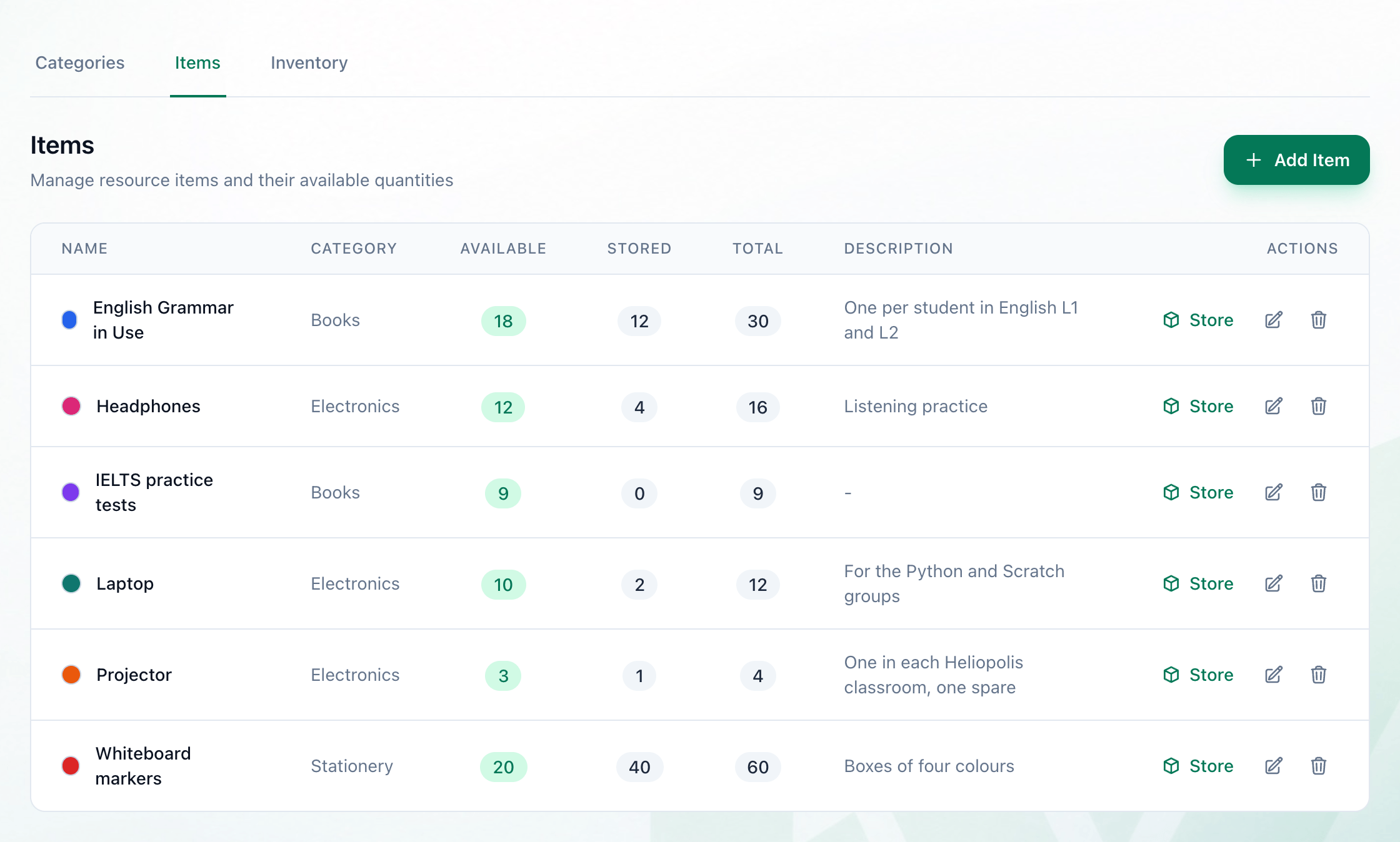
- Items
- Add Item
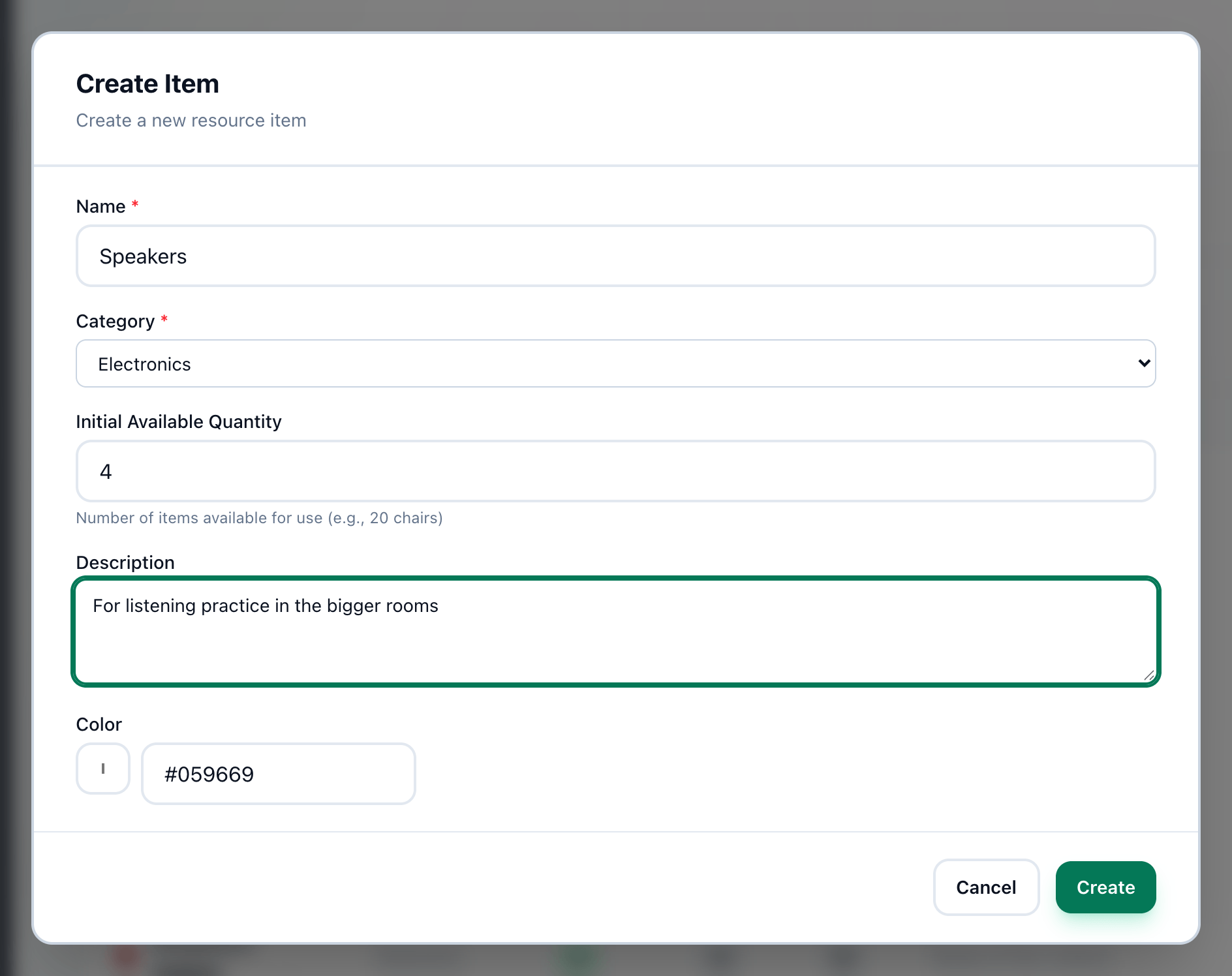
- Name
- Category
- Initial Available Quantity
- Description
- Color
- Create
-
On Resources, open the Items tab.
-
Press Add Item.
-
Enter the item’s name in Name.
-
Choose its category in Category.
-
Enter how many you have in Initial Available Quantity. It starts at 1.
-
Add a Description if you want one. It shows in the list beside the item.
-
Pick a Color, or type its code in the box beside it. A dot of that colour marks the item in the lists.
-
Press Create. The item joins the list, which is in alphabetical order.
Change an item
Section titled “Change an item”When you buy more of something, or some are lost or broken, change the item’s available quantity. Its name, category, description and colour can be changed at the same time.
- Edit
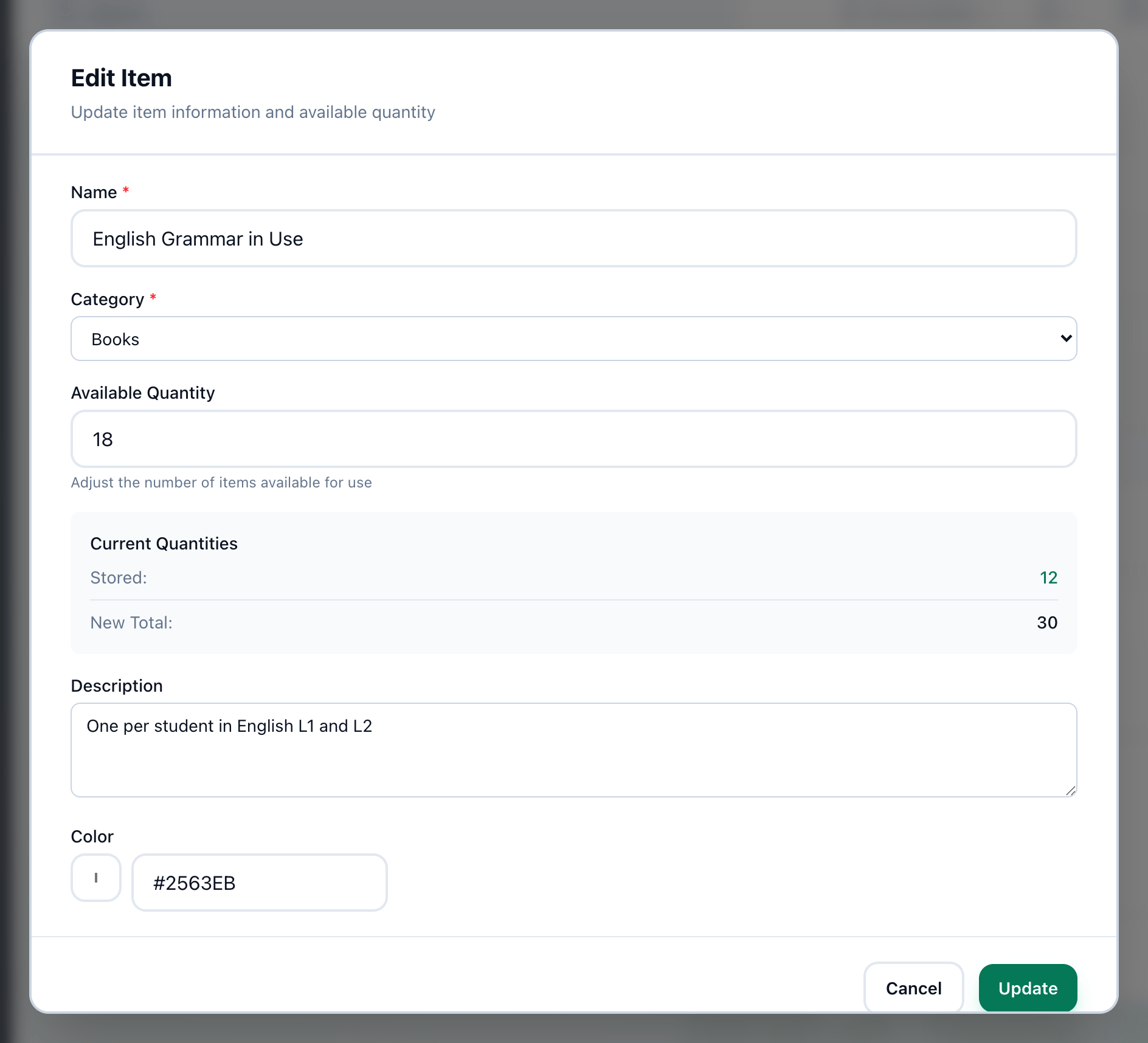
- Available Quantity
- Current Quantities
- Update
-
On the Items tab, press the pencil button in the item’s row. Edit Item opens.
-
Enter how many are available now in Available Quantity.
-
Current Quantities shows how many are stored, which this does not change, and the New Total your change makes.
-
Change Name, Category, Description or Color if you need to, then press Update.
If something goes wrong
Section titled “If something goes wrong”-
Item name is required
The name is only spaces. Type a name. -
A new item written only in Arabic is not created
Tuevia needs at least one Latin letter (a to z) or digit in a new item’s name. Add one - a brand or a model, such as “Epson”. Renaming an existing item is not affected. -
Category has nothing to choose
The academy has no categories yet. Add one first. -
Add Item and the row buttons are greyed out
Your role can view Resources but not manage them. An owner or an admin can do it, or give your role permission to manage Resources.
What happens next
Section titled “What happens next”An item with some available can be put away in storage: storing, unstoring and adjusting stock. To remove an item, see deleting items and categories.