
Adding an employee
People join your academy by invitation. You give their email address, their role and where they work, and Tuevia emails them a link. There is no form that adds somebody directly: they choose their own password when they accept.
Owners, admins, and anyone whose role can manage Invitations can invite.
Before you start
Section titled “Before you start”- Decide which role they will have. If none fits, create one first.
- Use an email address they read: the link only arrives there.
Invite an employee
Section titled “Invite an employee”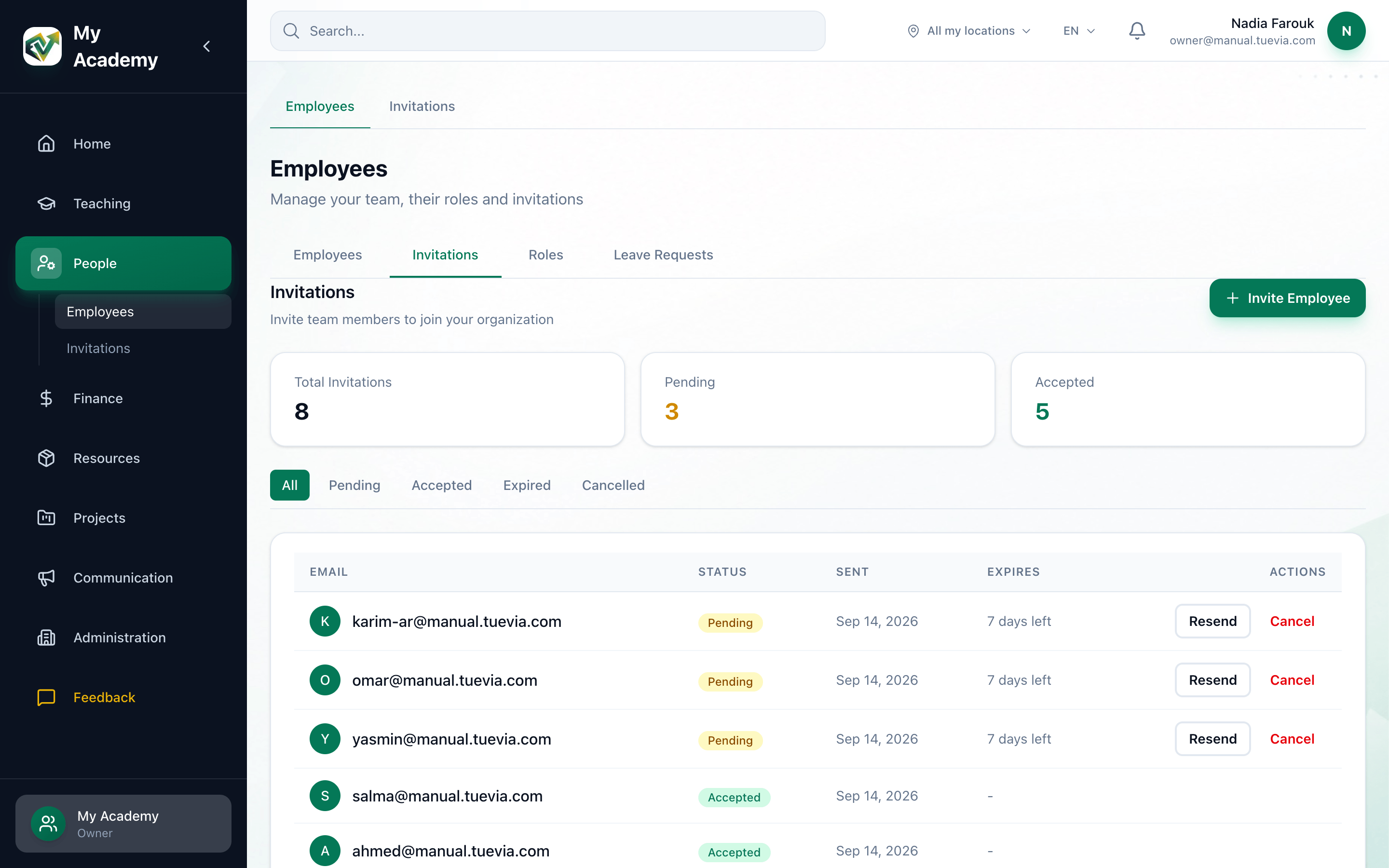
- Invitations
- Invite Employee
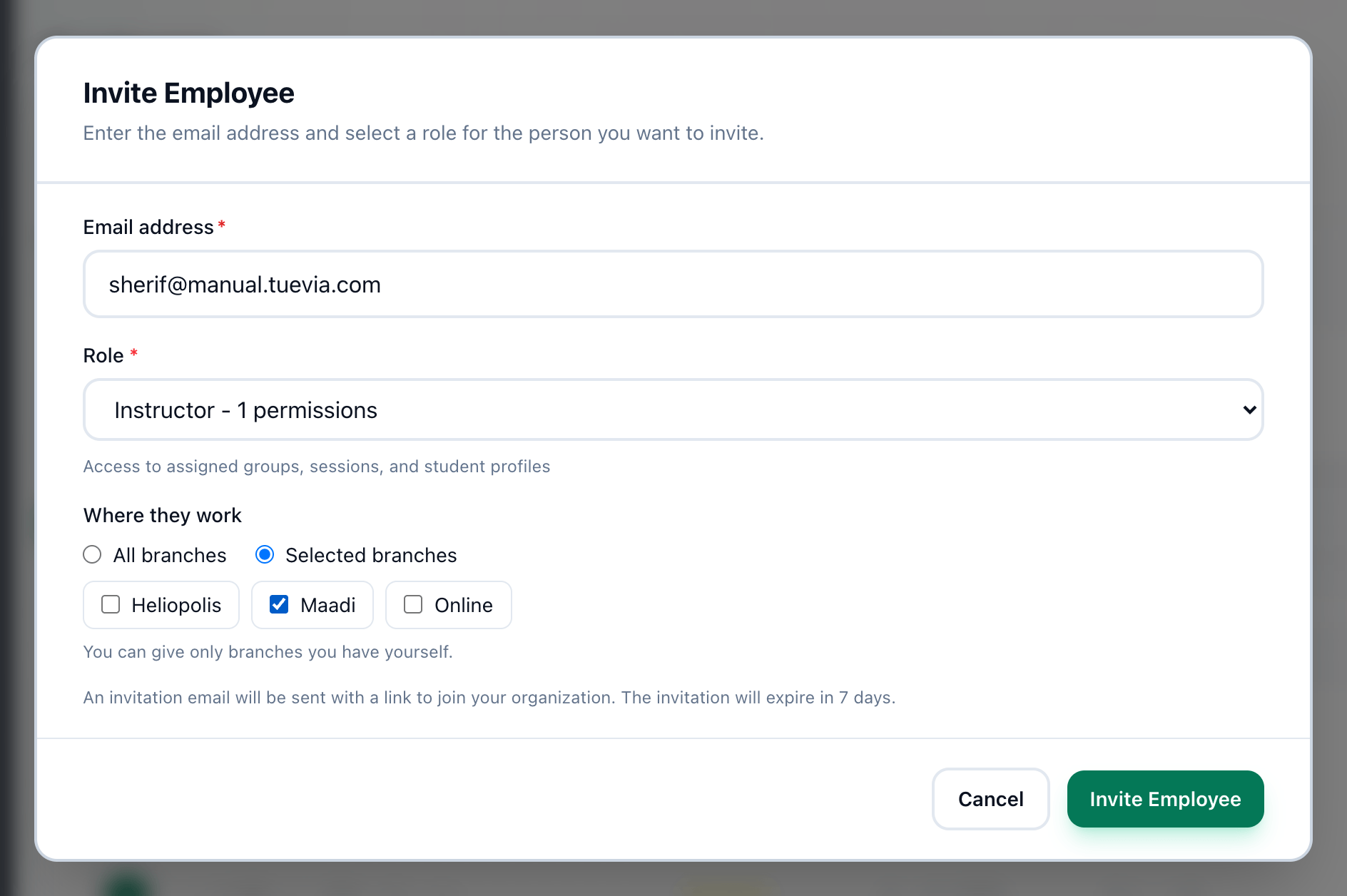
- Email address
- Role
- Where they work
- Invite Employee
-
In People → Employees, open the Invitations tab.
-
Press Invite Employee.
-
Enter their address in Email address.
-
Choose their Role. Each role shows how many permissions it has. Owner is not offered: an academy has one owner, and ownership is handed on, not given by invitation.
-
Under Where they work, keep All branches, or choose Selected branches and tick the branches they work in. You can give only branches you work in yourself. See Where somebody works.
-
Press Invite Employee. The invitation appears at the top of the list as Pending.
The invitation lasts 7 days. Until it is accepted, the person is not in the employees list.
If something goes wrong
Section titled “If something goes wrong”-
an active invitation already exists for this email
That address already has an invitation waiting. Use Resend on it instead: see Resending and cancelling. -
invalid email format
The address is not a complete email address. Check it for a missing@or a space. -
You can manage only colleagues whose branches are all yours, and give only branches you have.
You ticked a branch you do not work in, or chose All branches without working in all of them yourself. Choose only your own branches, or ask an owner.
What happens next
Section titled “What happens next”- They receive an email with a link. What they see depends on whether they already have a Tuevia account.
- Once they accept, they appear in the employees list with the role and branches you chose, and the invitation shows Accepted.
- An instructor’s working days come from their salary definition: see Salaries.